
How to: Use Your Visiativ Dashboard
21 August 2025
In this tutorial we provide an overview of how you can use your Visiativ Value Added Dashboard to easily access your desktop SOLIDWORKS serial numbers and download media. We have put this information in one easy-to-access central location along with other useful information for your team.
Note: this process applies to desktop licences of SOLIDWORKS Standard, Professional or Premium with serial numbers only. Users with 3DEXPERIENCE SOLIDWORKS licences should follow the process here to access and install their software.
Not sure which licence type you have or need a hand with your installation? Contact our support on support@visiativ.co.uk or access our support services using the tools in the support area of your dashboard.
How can I access my SOLIDWORKS desktop serial numbers?
1. Go to the My Licences tab of your Visiativ dashboard

2. Log in to the window using your 3DEXPERIENCE ID.
3. After logging in, you’ll find the My Products web page. Here you’ll find any new or existing licences attributed to your company. If you’re unable to view them, please follow this guide.
How can I access the SOLIDWORKS desktop installation files?
As part of your Visiativ added value subscription, we have provided you with easy access to SOLIDWORKS download links as part of your Visiativ Solutions – SOLIDWORKS dashboard.
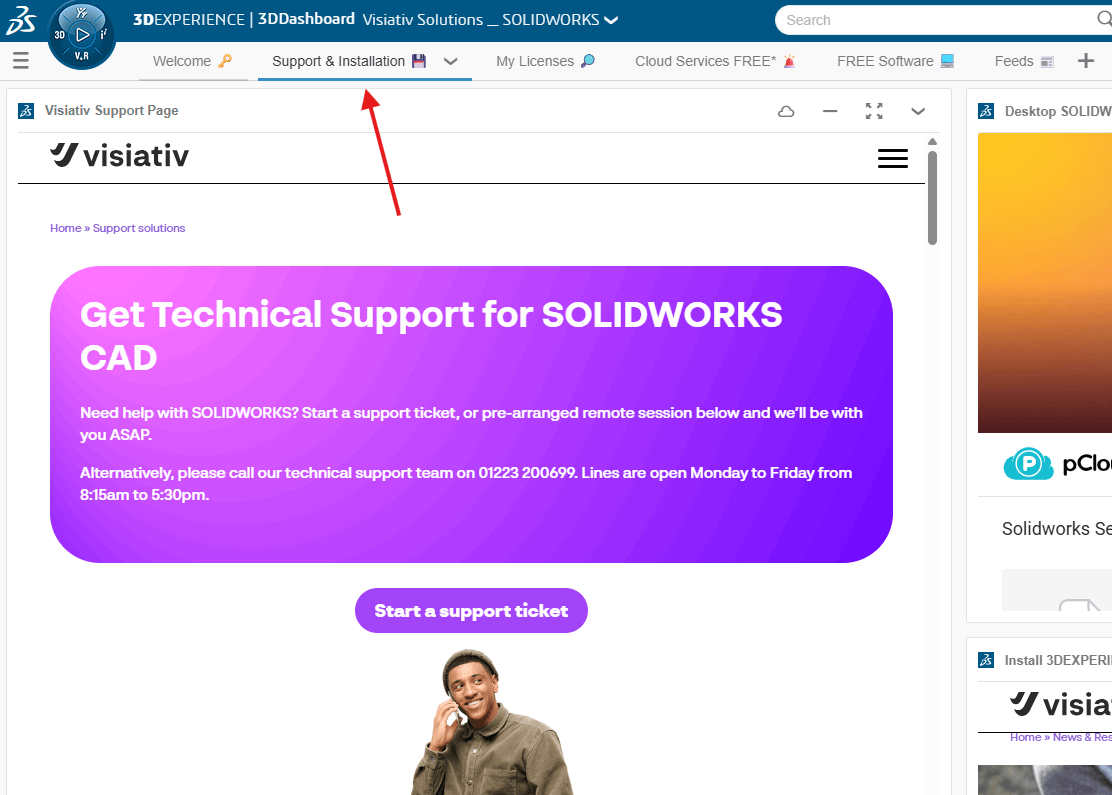
1. Go to the Support & Installation tab of your Visiativ dashboard.

2. Within that tab, there is an app listing the Desktop SOLIDWORKS Installation Media.
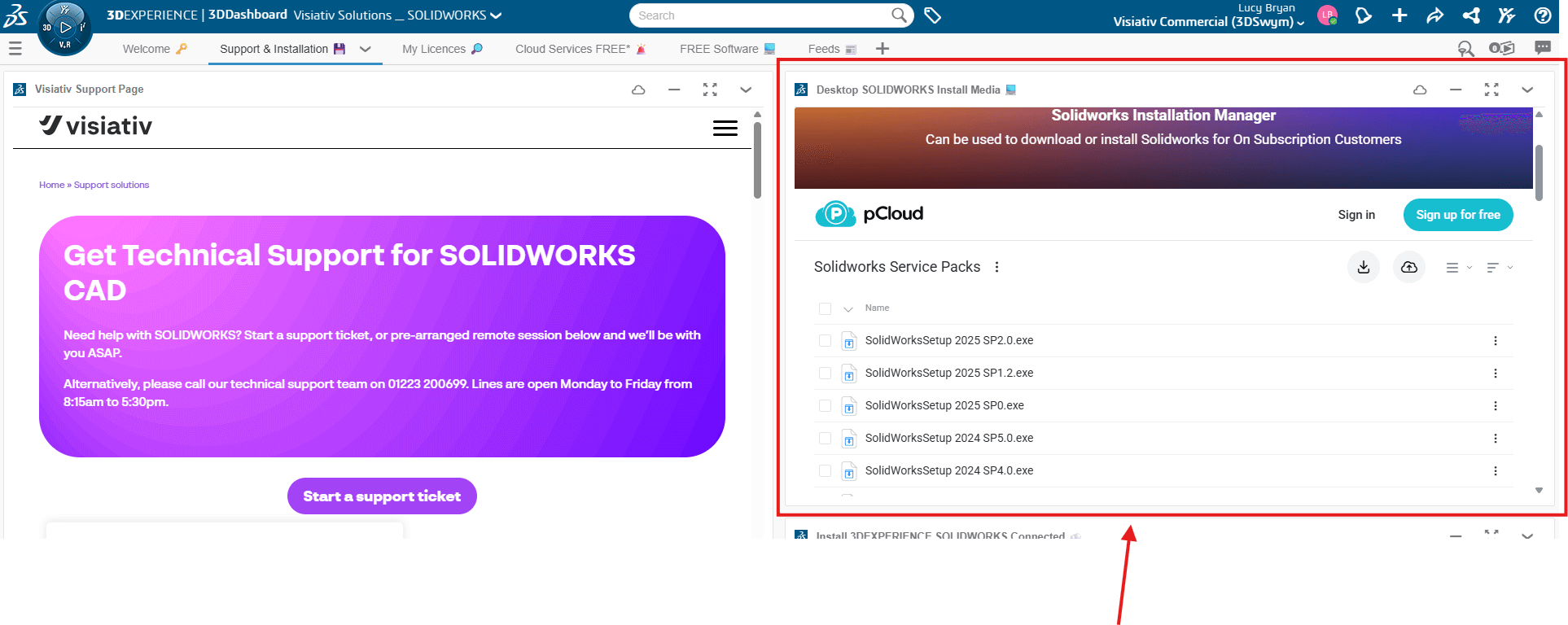
3. Choose the version and service pack you require, right click, and hit Download.
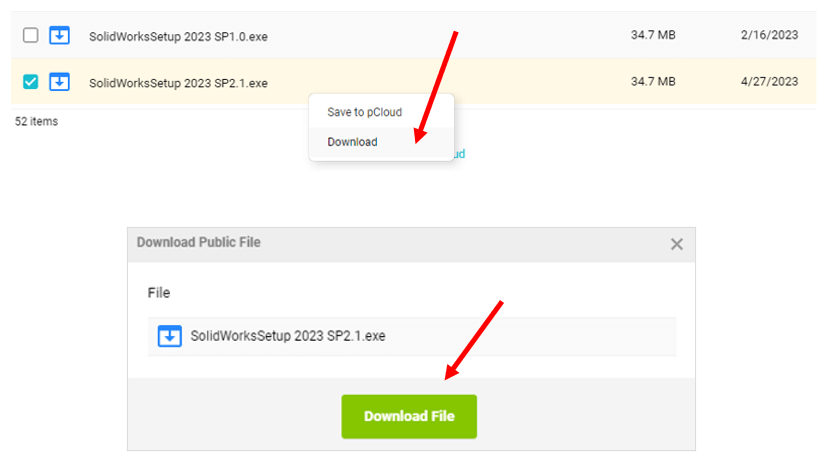
4. A .zip file will download. This file is small in size and will manage the installation process for you.
5. After the SolidWorksSetup.exe zip file has completely downloaded, run the SolidWorksSetup.exe file from your downloads folder.
6. You can then navigate to the location where you want the files to unzip using the browse button on the WinZip dialogue. Note: it’s a good idea to put these somewhere local.
7. Hit Unzip.
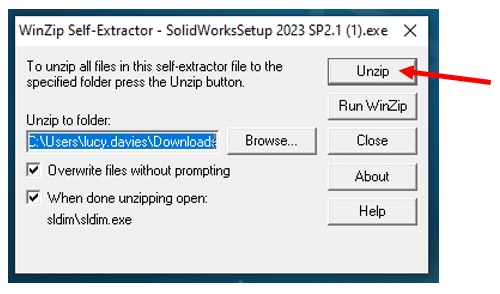
8. After the files have extracted select OK and the SOLIDWORKS Installation Manager will start automatically.
9. Here you can begin your SOLIDWORKS Desktop installation.
 |
About the author: This guide was written by 3DEXPERIENCE Product Manager, Lucy Bryan. Lucy is an Elite SOLIDWORKS Applications Engineer and has been with the Visiativ Technical Support Team since 2019. |
|||
|
|
||||