
How to: Fix SOLIDWORKS PDM Notification Email Links
18 September 2026
Have you found that after setting up your SOLIDWORKS PDM vault your links within the email notifications can’t be clicked or don’t take you to the location? If this is the case for you, this guide should help you fix this error.
When you setup your SOLIDWORKS PDM system can notify users with an internal email system about events that may affect the logged in user.
PDM notifications may also contain handy clickable links that can take the user directly to the file or folder in the PDM vault location to speed up a users workflow.
|
|
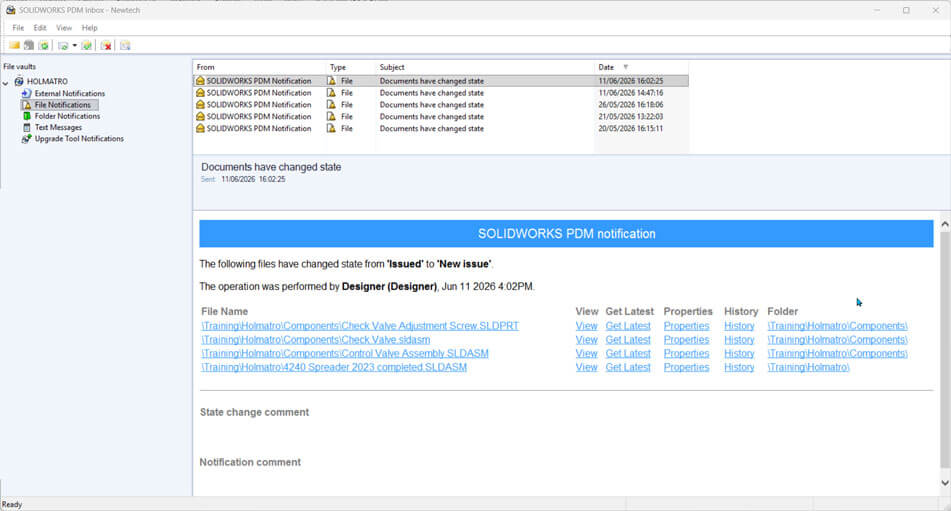
Why can’t I click my notification links?
This is caused by the way Windows handles security profiles between different programs in the operating system.
PDM Email links when clicked launch Windows Explorer and automatically navigates to the location specified. However in order to prevent unwanted programs form accessing certain areas of the OS programs are placed into security zones and prevented from interacting with each other.
So when we click a link in the PDM email system Windows prevents the Application from passing data in the File Explorer.
Can I fix the problem?
The problem can be resolved but does require making a change to your Windows OS group policies, if you’re not comfortable doing this or require administrative permissions we recommend that you consult your IT team for advice on the process and to check if it confirms to your company security policies.
How do I fix the problem?
To resolve the problem we need to tell Windows to allow PDM to interact with File Explorer.
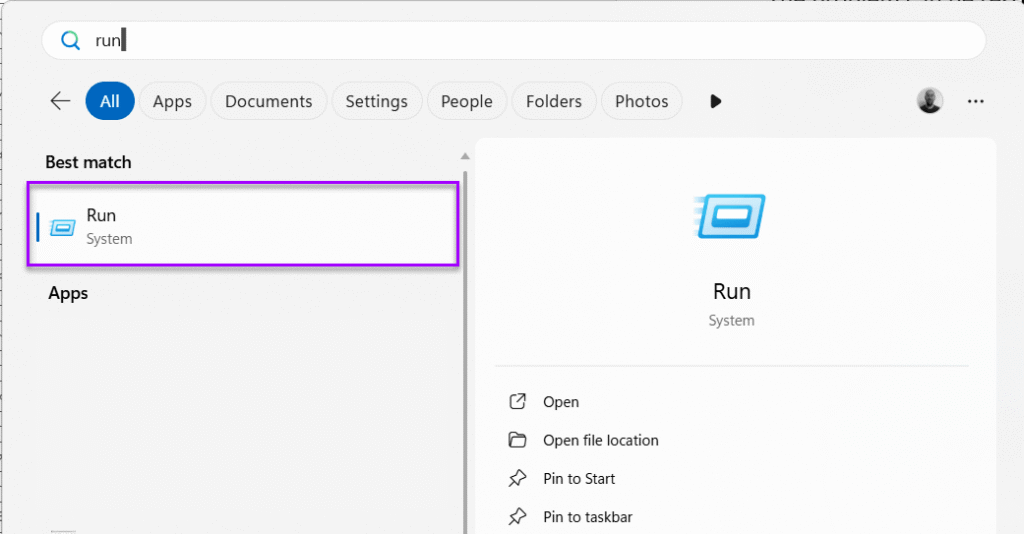
1. First we need to launch Windows Local Group Policy Editor by searching for Run within the Windows Start menu (Windows Key + R).
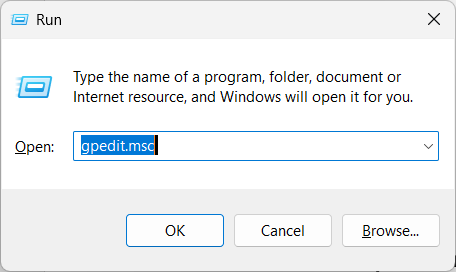
2. Type “gpedit.msc” and press “OK”.
Accept the confirmation for Admin rights.
At this stage you may need your System Administrator to enter their details.
|
|
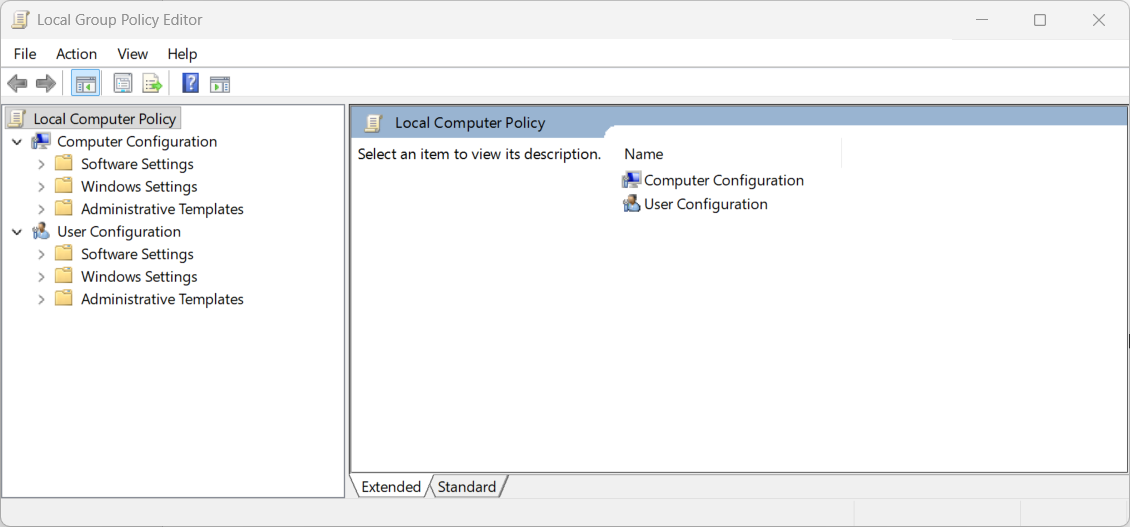
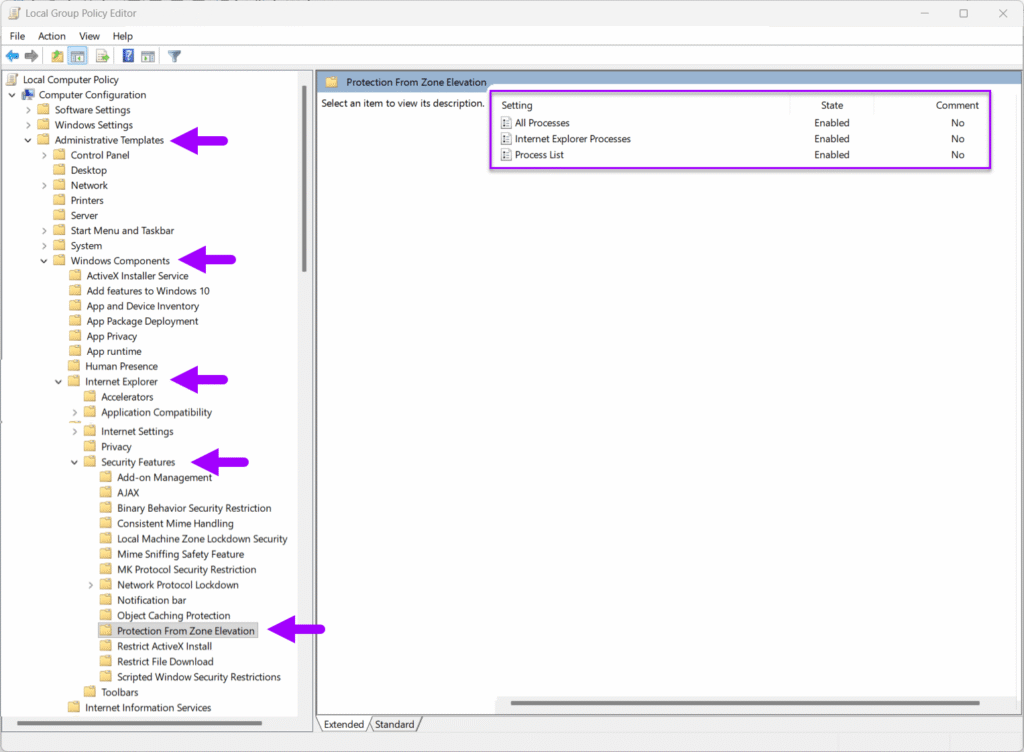
3. Expand “Computer Configuration”.
|
|
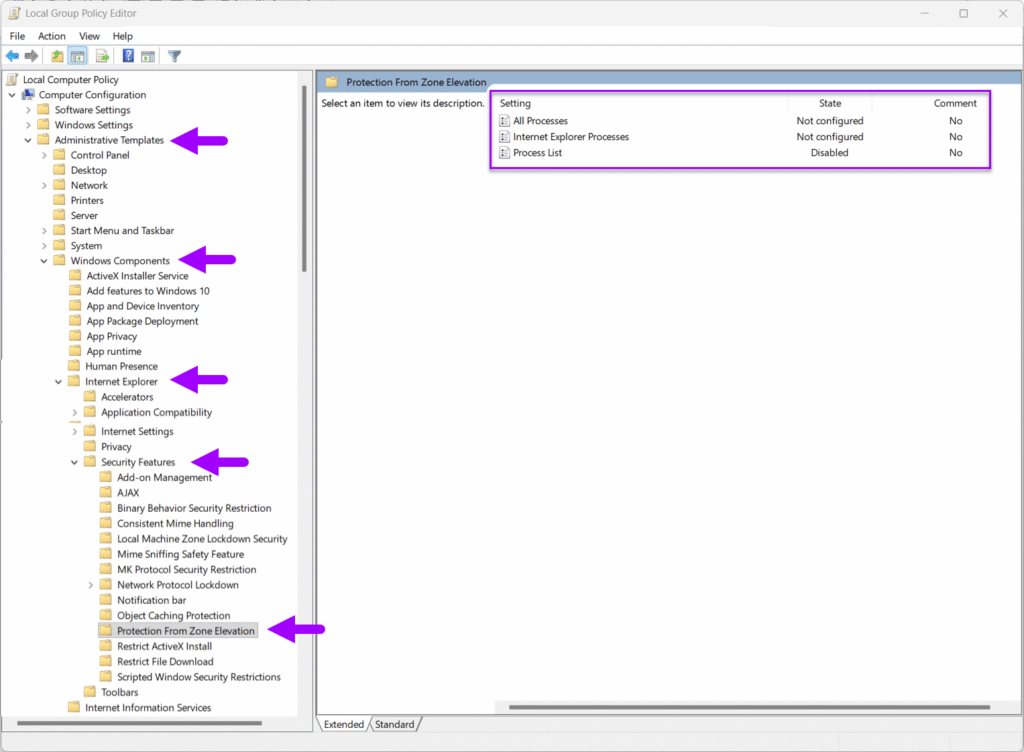
4. Then, navigate to “Administrative Templates > Windows Components > Internet Explorer > Security Features > Protection From Zone Elevation.”
When you get there, you’ll see three settings that will be either: Not Configured | Enabled | Disabled.
Note if the State of the settings Any that are not set to “Enabled”. should be changed to be so.
5. Double click each settings individually to show its properties box.
6. Change the setting to “Enabled”. and press “OK”.
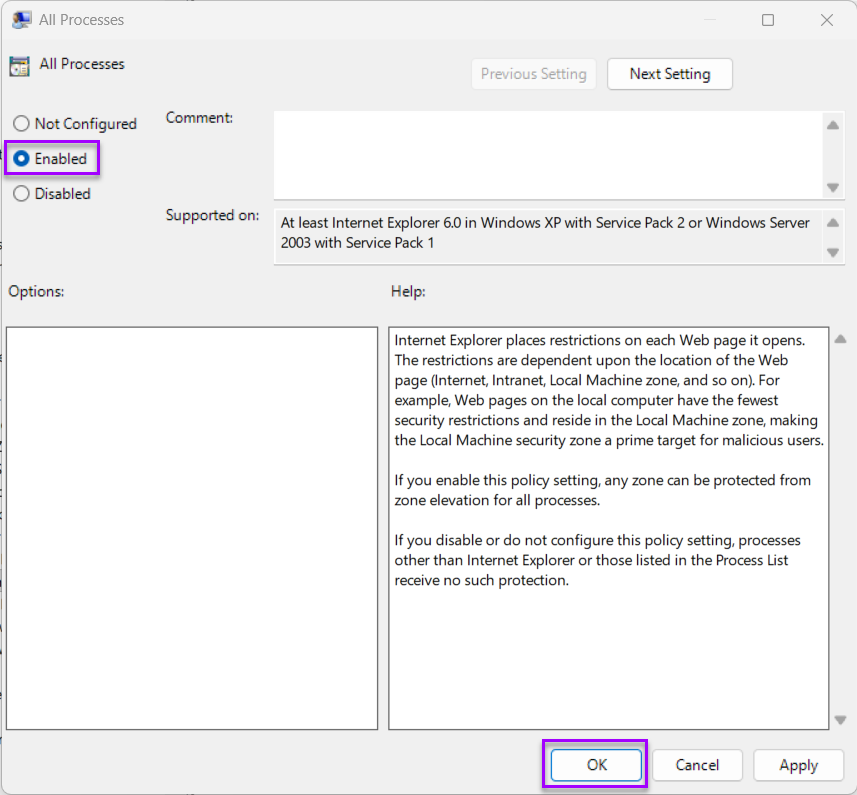
7. Once the settings have been changed Press “OK” to close Group Policies.
8. Lastly, restart your computer to have the changes take effect.
Test the Links in your PDM Inbox again.
That’s it! I hope you found this guide helpful. If you currently don’t have SOLIDWORKS PDM take a look at our product information here to see how PDM can help.
 |
About the author: This guide was written by SOLIDWORKS Applications Engineer, Graeme Billingsley. Graeme has been with the Visiativ Technical Support Team since 2022. |
|||
|
|
||||