
SOLIDWORKS Visualize: Choosing the Right Hardware
09 September 2026
In this guide we’ll delve into the Visualize hardware requirements and how to choose the right specification for the best system performance.
SOLIDWORKS Visualize provides a great way to bring your designs to life by creating Photorealistic Renderings, Animations and VR content quickly. Providing other teams such as marketing and sales with engaging media. Visualize helps bring to life a product and how it could look in the real world.
Check out the SOLIDWORKS Visualize Overview here.
Visualize Standard is included with all SOLIDWORKS Professional and Premium licences that are on subscription. This allows for a seamless transition from SOLIDWORKS to Visualize, importing the model and appearances without fuss ready for you to start rendering.
Visualize Professional takes things up a level. Providing features like advanced lighting, colourway configurations, an animation suite, 3D VR functions and a Render Queue system.
Compare the version features here to see which is right for you.
Resources
To get the most out of your SOLIDWORKS Visualize hardware we highly recommended taking our in depth training course.
This will ensure you see the benefits of all available features and learn how to make the most of the software. Official Visualize hardware requirements for can be found in the online help files.
For an in-depth breakdown of general hardware and system requirements for SOLIDWORKS.
We recommend first reading our Visiativ Hardware Guide.
Below we’ll build upon this article and look at general recommendations more tailored to Visualize Rendering. Ensuring you specify a balanced system will ensure great performance for your projects.

Processor (CPU)
Normally the processor is the most important component for any system, as this essentially controls all of the actions in a system. However, things are a bit different when using SOLIDWORKS Visualize.
The processor handles the general Visualize user interface and interactions in the background, and it can also render your projects. However as Graphics Card technology has increased performance it can be more efficient to use the Dedicated GPU to improve render speeds.
We’ll delve into the benefits of leveraging your graphics card shortly. If you don’t want to use your GPU or don’t have a supported card you can still use your processor for all of the heavy lifting.
Just remember renders can take significantly longer using just the processor.
If you’re using just the CPU for renders then standard principles apply. Generally you’d expect that a faster processor would complete the tasks more quickly.
We’ve explored the overall effect on performance in our SOLIDWORKS Hardware Guide.
Note that features such as CPU “turbo Boost” only hit their quoted hights when under ideal conditions. For example, a processor that has a quoted turbo boost of 6.0Ghz may only be able to sustain this speed for a short time. This is based on temperature, usage, power limits etc. It will then begins to drop back down to a settled speed.
As rendering can put a lot of strain on the system for the entire rendering period, speeds may throttle back to keep within these limits. However Visualize is one of the programs within the SOLIDWORKS Suite that directly supports multicore workloads. In this case a processor with more CPU cores can speed up rendering times. Although as we’ll see shortly this can be vastly outweighed by using a suitable GPU.
Multicore
Historically, Visualize only supported a Maximum of up-to 16 processing threads. However as of Visualize 2022 there’s no technical limitation on the amount of cores/threads in use but can see limited returns over 36x. We also have to consider the degree of participation across the cores, this can vary as Windows balances resources to keep the system functional.
While working in Visualize we’ve previously seen systems become sluggish navigating around the Windows environment as the CPU usage is fully used by the rendering package. One setting can help if you’re using the processor as part of your rendering. We can adjust the percentage of CPU usage that Visualize has access to here: Tools > Options > 3D Viewport > Render Device > CPU load.
By reducing this slightly (90%) frees up a little processing power for others tasks such as navigating windows

Memory (RAM)
Your computers memory (Random Access Memory) is as important for Visualize as it is for SOLIDWORKS as you’re still loading model data into memory to be worked on.
As with SOLIDWORKS if you have very large assemblies with numerous parts then you’ll need more RAM to keep the system ticking over. Without enough Memory the system will start to use virtual memory which is stored to the local hard drive. This is significantly slower than normal memory even is using an SSD.
We would generally recommend a minimum of 16GB RAM for simple models but 32GB minimum is rapidly becoming the norm with 64GB if you have large data sets.

Storage (SSD/HDD)
We recommend using an NVMe SSD to keep your system running at optimal speed. Most modern systems already include an SSD as standard.
Visualize stores models in RAM while you work and uses the drive only when saving or loading models. If you work with large file sets, storing them locally can improve performance.
Visualize stores all project data within a single save file, unlike SOLIDWORKS, where you must keep file references and locations intact to ensure the document works correctly. Therefore it can sometimes be useful to save locally then move to a second location once the save has completed.
As with any program saving locally will always be quicker than saving elsewhere. We would recommend a minimum 512GB – 1TB NVMe SSD. For a more in-depth look at Storage please see your hardware guide.

Graphics Card (GPU)
Now we move onto the Graphics Card were we start to see where these modern powerful components really excel… image generation. With other SOLIDWORKS products, having a reasonable low to mid-range workstation card might usually be enough for day to day operation.
However with Visualize, a modern high performance graphics card can have a direct impact on the quality and speed of your render outputs.
Performance
Using a GPU for rendering has a dramatic impact on the rendering times.
As discussed with CPU cores and multithreading, GPUs also have their equivalent cores that process data. These are designed specifically for image generation and processing of supporting scenes such as Raytracing.
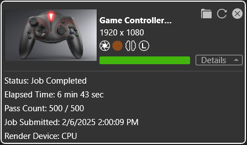
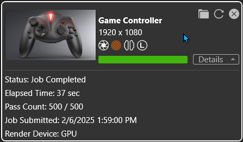
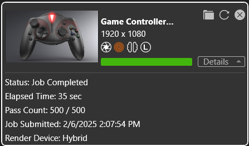
These cores are specifically designed for this use case and not general day to day use like a CPU. Therefore we see a notable uptick in rendering time due to the high core count. The comparison table below shows the differences between CPU, GPU & Hybrid (both together) rendering modes.
|
CPU ONLY |
GPU ONLY |
HYBRID MODE (2024) |
 |
 |
 |
|
6Min 43 Sec |
37 Sec |
35 Sec |
|
Intel |
Nvidia |
INTEL i7 11850H / |
We can see that the “CPU only” mode is completely surpassed by the “GPU only” mode. Even on a higher end CPU, a last gen Nvidia RTX A3000 improves performance by nearly 990%.
If we break down the specification we see that the CPU is using its full 8core / 16threads for the rendering. Whereas the GPU crunches through the render with all of its Nvidia 4,096 CUDA Cores.
So the long and short of this is that although you can render with the CPU, having a suitable graphics card in your rendering computer can speed up the process considerably.
Hybrid Rendering Mode (< 2024)
Due to the graphics card being the driving factor in performance, Hybrid rendering mode has been discontinued as of Visualize 2025. This frees up the CPUs system resources for other processes during rendering.
In earlier verions of Visualize <2024, Hybrid mode allowed you to leverage the power of both the CPU and GPU for rendering workloads with the Iray render engine. We can see in the tests above we only gained a 2 sec improvement over just using the GPU.
|
Visualize 2024 |
Visualize 2025 |
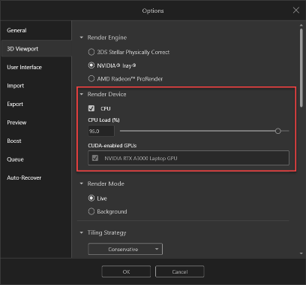 |
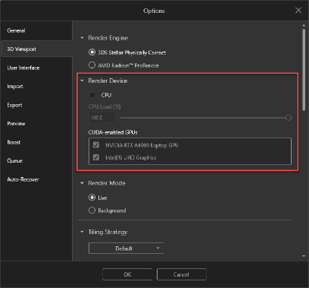 |
Rendering Engines
Solidworks Visualize has different rendering engines available dependant on the year version installed and which graphics hardware you have available in your system.
3DS Stellar Physically Correct
Introduced in Visualize 2023 and set as the default renderer as of 2025 this rendering engine was developed by Dassault Systèmes. Designed to produce physically accurate and photorealistic visualization. This makes it suitable for high-quality simulations, rendered images and videos.
It utilises Deep Learning AI Denoiser technology to enhance rendering speed and quality. The combination of hardware acceleration and software optimization allows Stellar Physically Correct to deliver fast and realistic Global Illumination rendering. this makes Visualize ideal for professional content creation.
As of SOLIDWORKS 2026 you can also use AMD RDNA2 and upward Graphics cards, without having to swap to the Pro-Render engine (More information can be found here).
AMD Radeon Pro-Render
ProRender is also a physically based rendering (PBR) engine developed by AMD also supporting both CPU and GPU acceleration. Optimized to make it compatible with a wide range of hardware, including AMD and non-AMD GPUs due to its open source coding.
ProRender uses ray tracing and global illumination to generate photorealistic images and includes features like AI-based denoising, adaptive sampling and USD (Universal Scene Description) support (more information can be found here).
Nvidia I-Ray
Developed by NVIDIA, the Iray engine uses ray tracing and global illumination to generate photorealistic images. It leverages GPU acceleration using NVIDIA’s CUDA architecture and supports AI-based denoising to enhance rendering speed and quality. Iray simulates real-world lighting, materials and reflections to produce highly accurate visualizations, making it popular in industries like architecture, automotive design and product visualization allowing users to create lifelike images and animations efficiently.
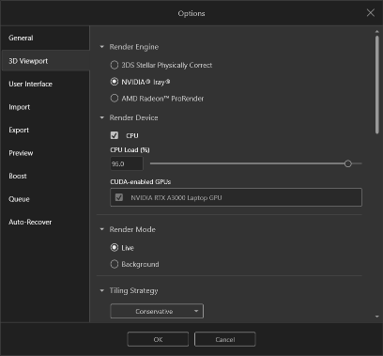
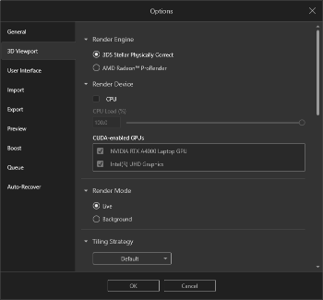
You can find more information on Iray here. Iray was retired as a rendering engine option as of Visualize 2025 in favour of the default 3DS Stellar Physically Correct option. Detailed in the 2025 release notes.
The table below shows the settings options for the latest year versions of Visualize: Tools > Options > 3D Viewport > Rendering Engine.
|
Visualize 2024 |
Visualize 2025 |
 |
|
Graphics card brands
There are 3 main competing brands in the graphics card market, below is a summary of these and the technologies they offer.
Nvidia
Visualize is best paired with an Nvidia branded graphics card and will use Nvidia Iray rendering technology to give the high quality images and render speeds.
High performance CUDA cores within Nvidia cards have been present since the Maxwell range of cards. CUDA cores (Compute Unified Device Architecture cores) are NVIDIA’s parallel processing units inside a GPU.
They are designed to handle multiple tasks simultaneously, making GPUs highly efficient for parallel computing such as Visualize rendering. SOLIDWORKS Visualize accesses these CUDA cores using Nvidia Iray technology
AMD
AMD Workstation graphics cards are now officially supported as of Visualize 2020. As Nvidia Iray is a proprietary technology, AMD worked on an open source alternative to this with AMD ProRender. This again provides a powerful physics based rendering engine the uses a scaleable raytracing engine called Radeon Rays. As of Visualize 2026 any AMD RDNA2 and above GPU is supported by 3d Stellar render engine.
Intel
Currently Visualize only has basic support for intel graphics cards and we can’t guarantee compatibility. As we’ve seen, there are a few different options for graphics cards technologies that can be used with Visualize.
Type of Graphics Card
Throughout the SOLIDWORKS ecosystem we would always recommend using a Workstation grade graphics card for stability and reliability. As they are designed to be used within a professional environment.
This does remain true to some extent for SOLIDWORKS Visualize. However as rendering is focused on raw performance, any GPU with dedicated rendering cores like Nvidia CUDA cores can be used.
This means that for this use case, “Gaming” Graphics cards such as nVidia Geforce and AMD Radeon can also be used for the rendering tasks. However please be aware these cards are not officially supported by SOLIDWORKS.
When choosing your card think carefully about its use case. If you’re working with other SOLIDWORKS software on your machine then we would always recommend staying with a suitable workstation card such as the NVIDIA RTX X000 Blackwell range.
However if the system is going to be used as a standalone rendering workstation, you may also consider other card sectors such as NVIDIA Geforce RTX 5XXX ranges. Provided the cards support NVIDIA CUDA or AMD ProRender Technologies and have suitable drivers installed.
Visualize also supports a multi-GPU setups, where multiple graphics cards can be installed in the same system provided the hardware supports this feature.
Graphics Card Memory (VRAM)
For Visualize to launch you’ll require a minimum of 4GB of VRAM. We actually recommend using a Card with at least a minimum of 8GB or higher if working with larger models.
Also ensure that you have the most suitable graphics card driver installed for your system. As recommended in the SOLIDWORKS Hardware certification webpage.
Again please refer to our main hardware guide for more information on graphics card recommendations.
We hope you’ve found this guide useful, you can find other tutorials, guides and resources here.
 |
About the author: This guide was written by Elite SOLIDWORKS Applications Engineer, Graeme Billingsley. Graeme has been with the Visiativ Technical Support Team since 2022. |
|||
|
|
||||