SOLIDWORKS: The Source Folder is Not Versioned Properly (Error)
12 September 2025
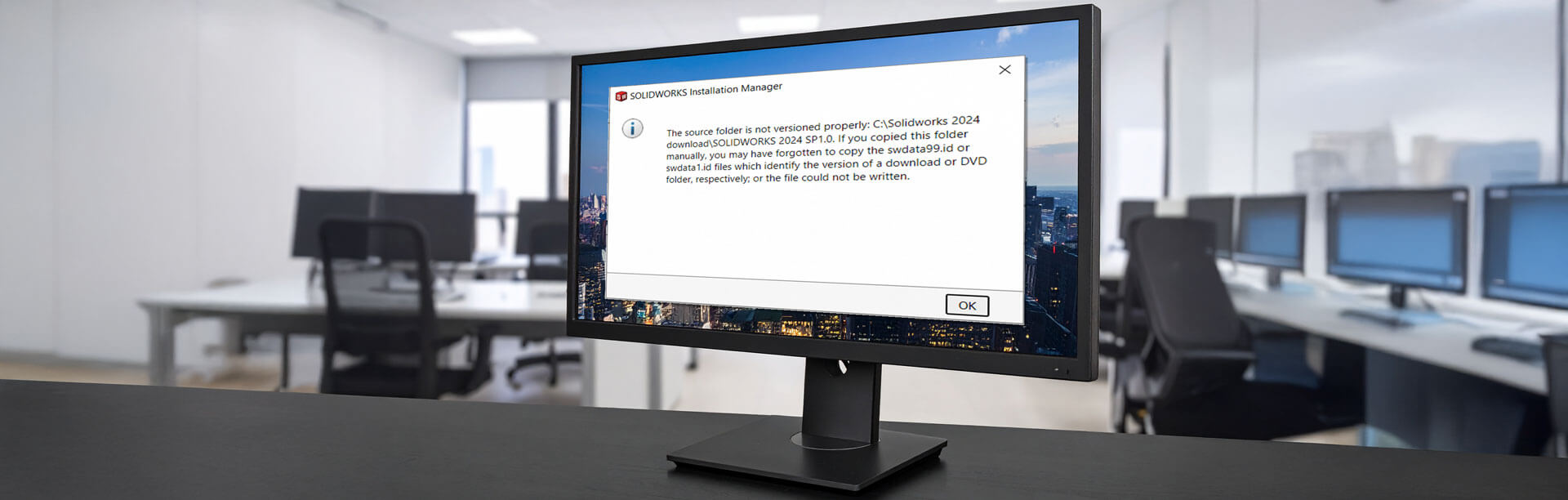
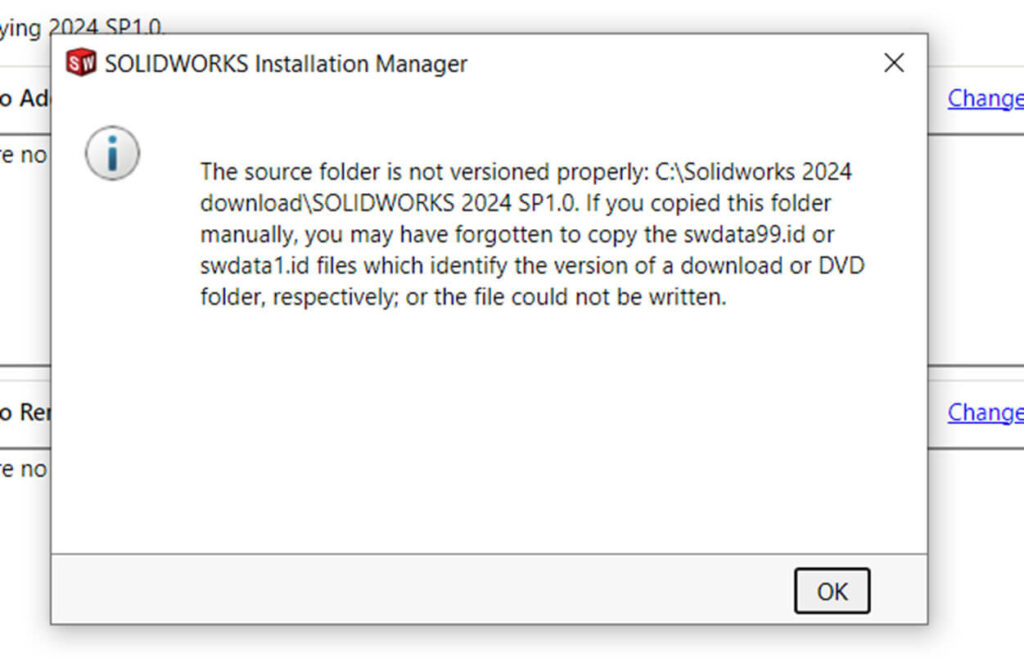
Why does SOLIDWORKS show the error message ‘The source folder is not versioned properly’ when modifying the installation?
You might run into the error ‘The source folder is not versioned properly’ while modifying a SOLIDWORKS installation. The error appears when the swdata99.id file is missing or has been moved from the original installation location.
If you can locate the original swdata99.id file, the fix is as easy as moving it back to the location specified in the error message. In this case, we would move it to the SOLIDWORKS 2024 SP1.0 folder, seen in the image below. After completing this step, the error message will no longer appear when we modify the installation.
What if I’m unable to locate the original file?
If you cannot locate the original, a simple fix requires you to manually create the swdata99.id file and save it to the location specified in the error message. Don’t worry, this only takes a minute and you don’t have to close to the installation manager for it to work.
How to create the swdata99.id file
1. Navigate to the location specified in the error message. If a swdata99.id file already exists in this location, delete it. Note that if the folder doesn’t exist, you’ll need to create new folders in the exact structure shown in the error.
2. Identify your SOLIDWORKS year version and service pack level. You can find this at the top of the Installation Manager window, among other places.
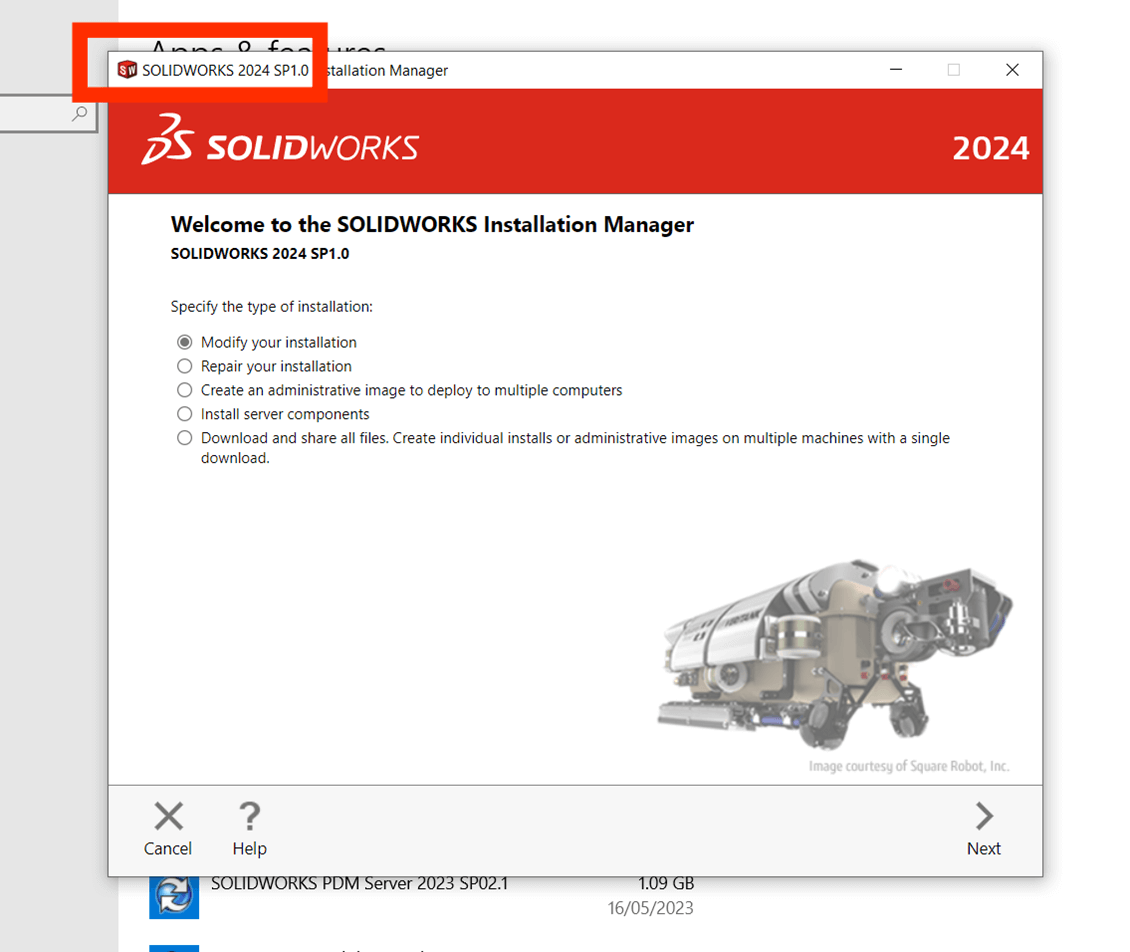
3. Open Notepad and type your SOLIDWORKS year version and service pack level.
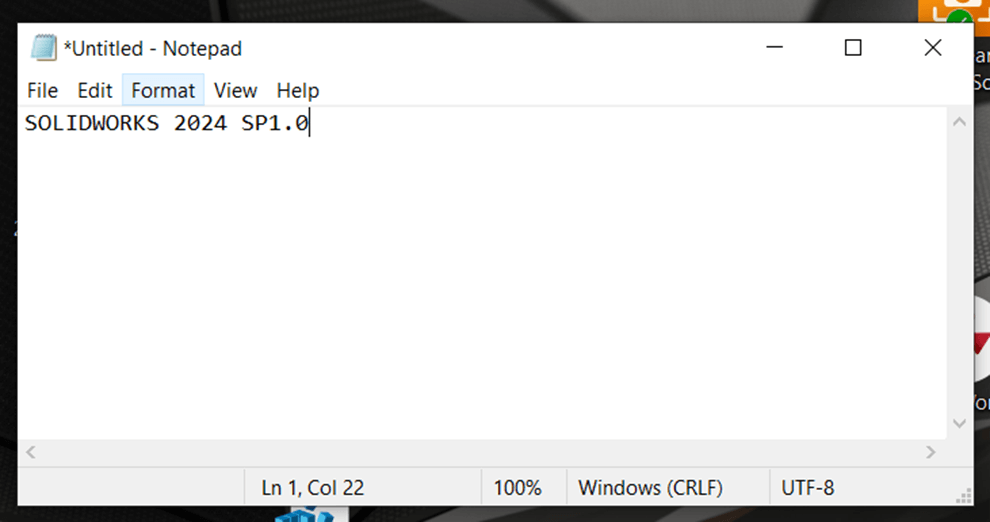
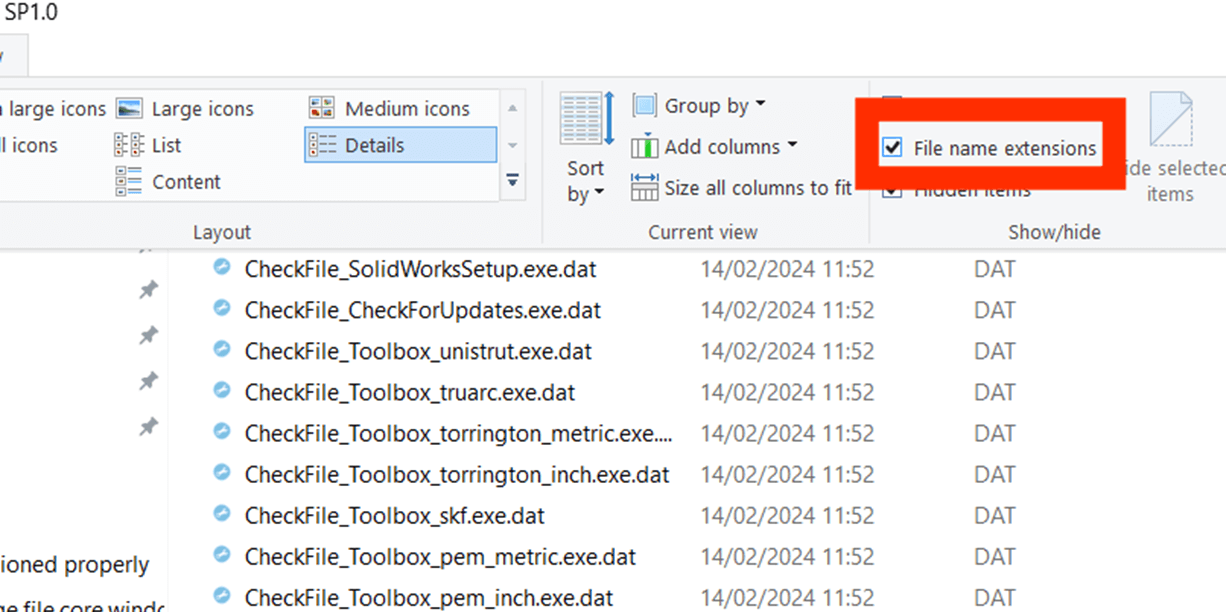
4. Save the Notepad document to the location specified in the error. Ensure ‘File name extensions’ is checked on within the view tab in Windows Explorer and then rename it to ‘swdata99.id’.
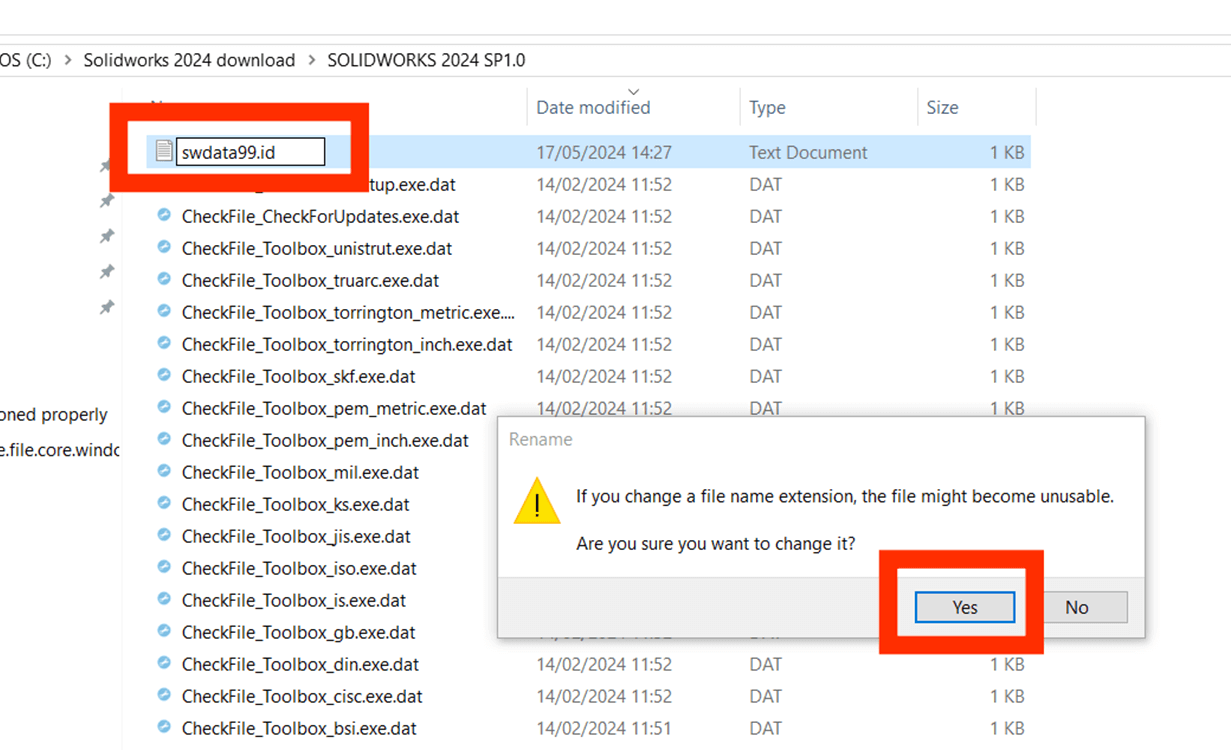
5. You should now be able to continue modifying the installation.
We hope you’ve found this useful. For more SOLIDWORKS tutorials and product guides, head over to our news and resources pages.
 |
About the author: This guide was written by SOLIDWORKS Applications Engineer, Jak Szura. Jak has been with the Visiativ Technical Support Team since 2023. |
|||
|
|
||||