
Why is my SOLIDWORKS model hollow in Section View?
11 May 2026
Have you ever sat at your desk wondering “Why is my SOLIDWORKS model hollow in section view”? If so, you’re in the right place. I’m Jak Szura and I’ll be walking you through this straightforward fix step by step and, as you’ll see, it’s pretty easy to sort out!
Let’s get started…
So, why is your SOLIDWORKS model hollow in Section View?
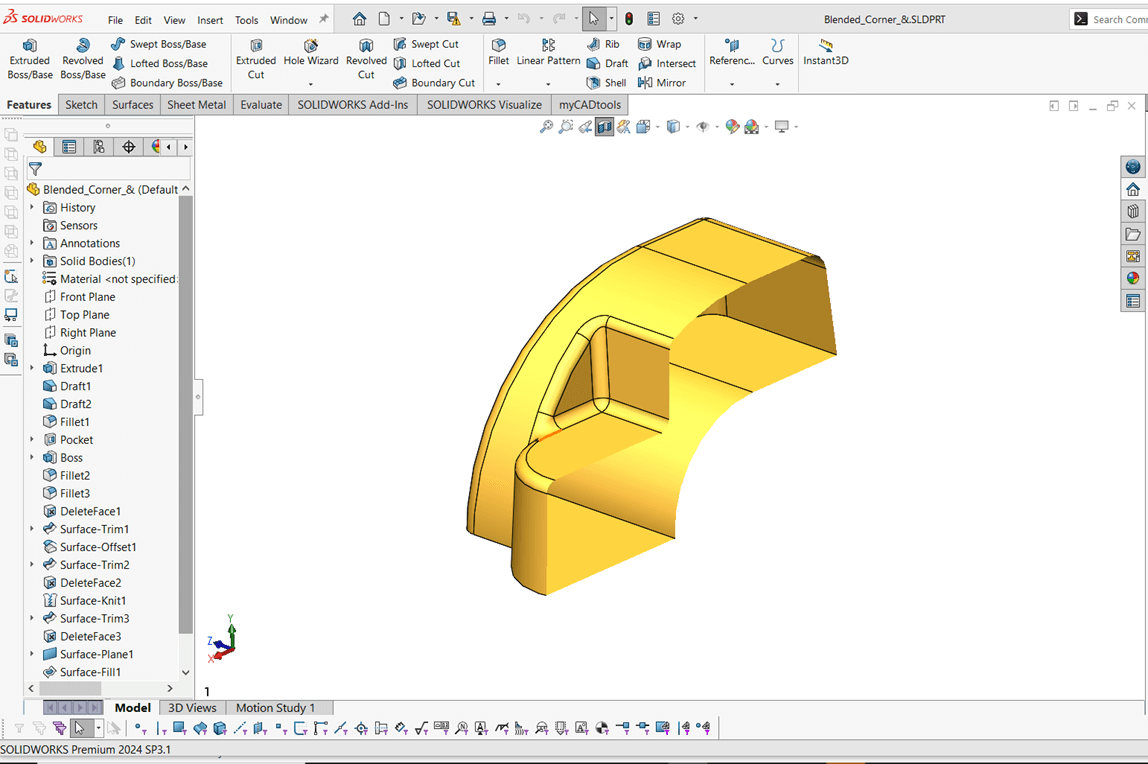
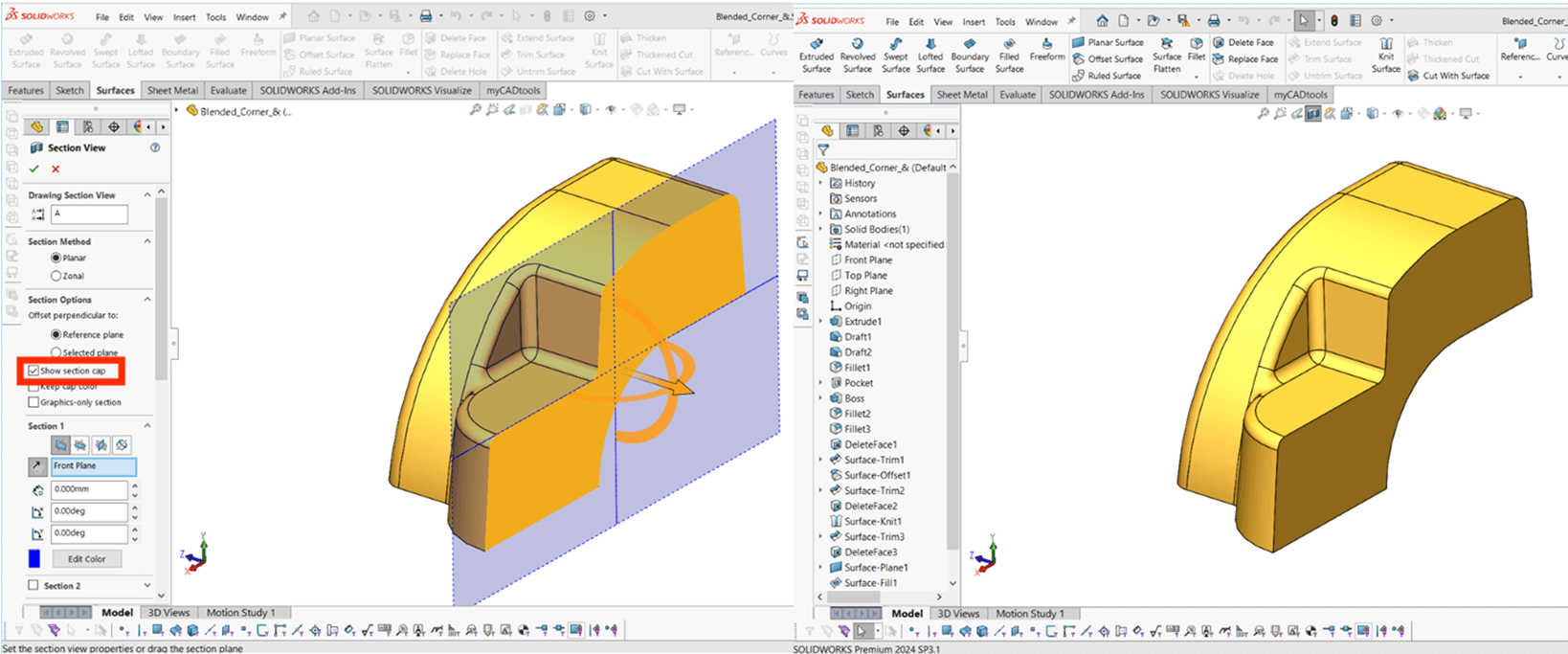
It’s a fair question! A solid body looks hollow when using the section view because you might have unintentionally checked off the ‘Show Section Cap’ option in the Section View property manager. When this option is checked off it allows the user to see into the model. Check it back on to see the face of the cut section.
Watch: How to section your SOLIDWORKS model to see internal components
Thank you for reading my quick SOLIDWORKS ‘How to’ guide on fixing your SOLIDWORKS models when they appear hollow in Section View. I hope it’s helped you today.
Visiativ customers requiring further assistance using this tool can check out our support page here.
Before you go…
Why not take a look at our extensive collection of SOLIDWORKS tutorials and product guides?
 |
About the author: This tutorial was written by SOLIDWORKS Applications Engineer, Jak Szura. Jak has been with the Visiativ Technical Support Team since 2023. |
|||
|
|
||||