Why has Photoview 360 been retired from SOLIDWORKS?
21 May 2025
Goodbye Photoview360
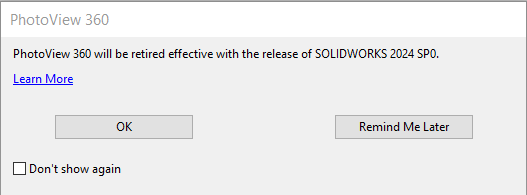
With the release of SOLIDWORKS 2024 (November 2023) the long standing Photoview 360 rendering package has officially been retired. It will no longer be included with future SOLIDWORKS packages.
In SOLIDWORKS 2023 SP3.0 you may have spotted the notifications advising that the removal of Photoview 360 is taking place.
We received an official notification of the change within the release notes for that 2023 SP3.0.
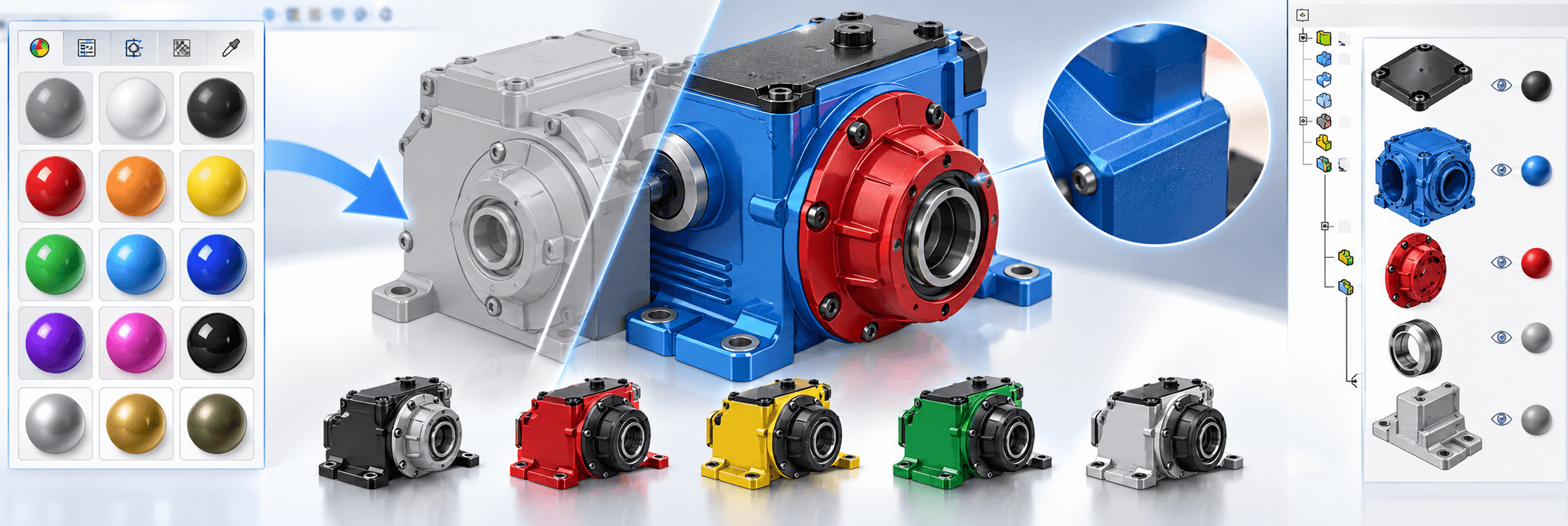
Photoview 360 has been an ever-present provider of great renders. With the advent of new technologies, we can get even better results with a more modern program that can better leverage new hardware.
Can I still use Photoview360?
- Although Photoview 360 is no longer included with SOLIDWORKS 2024, you can still access the feature with previous SOLIDWORKS versions up to 2023 SP5.0.
- As always, multiple product year versions can be installed side by side. This provides the option to still access Photoview 360 within SOLIDWORKS 2023.
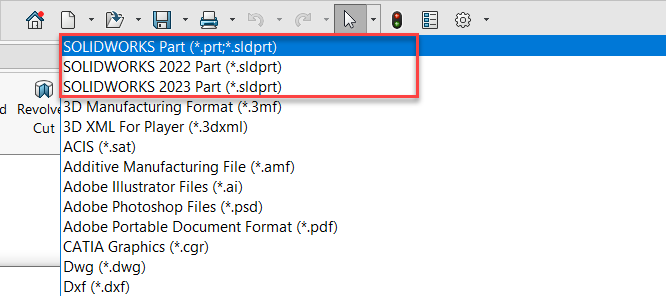
- With the introduction of the option ‘save to previous year versions’ in SOLIDWORKS 2024 taking a few extra steps allows you to backsave your 2024 file and reopen the file within
- SOLIDWORKS 2023 and utilise the Photoview 360 package.
However, all is not lost.
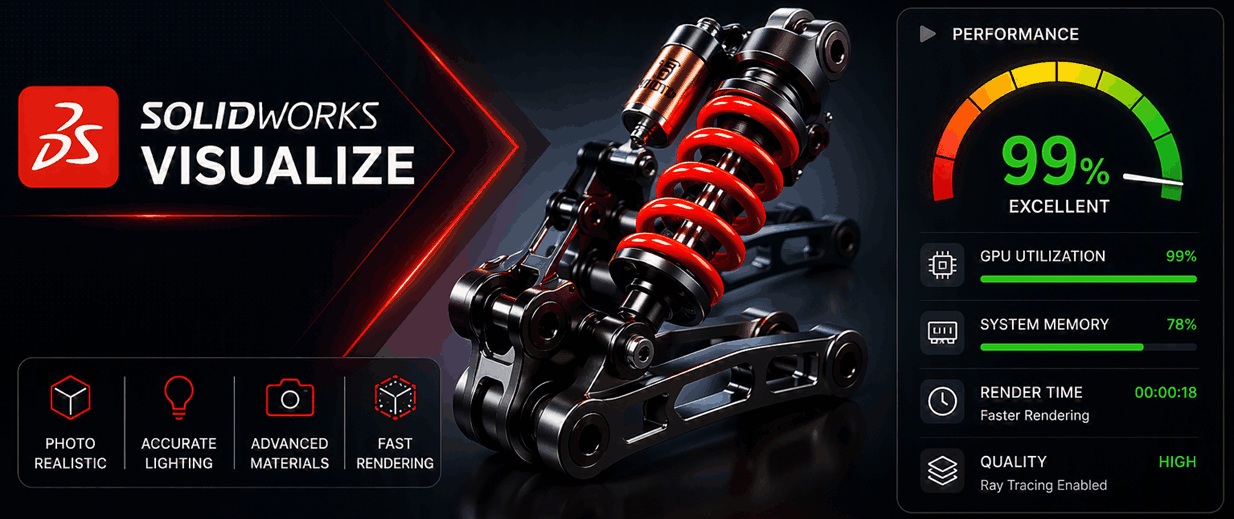
As Photoview 360 moves on this provides the perfect opportunity to start using SOLIDWORKS Visualize Standard.
Looking forward to SOLIDWORKS Visualize
SOLIDWORKS Visualize Standard has been available to end users since 2015. Just like Photoview 360, Visualize is also included with SOLIDWORKS professional and Premium packages that have an active subscription.
Visualize is a powerful standalone rendering software that allows users to create high end photorealistic renders from their 3D Models.
The package also has a dedicated SOLIDWORKS Add-in allowing for easy imports of your geometry into Visualize.
Visualize also benefits from “live linking” to enable auto updating of your 3D model as you make changes within SOLIDWORKS.
Check out our page and video below with an overview of Visualize and its features
https://visiativ.co.uk/solutions/solidworks-visualize
Finding your Visualize Serial number.
With the purchase of your SOLIDWORKS licence you will have likely also been provided access to the serial number for SOLIDWORKS Visualize.
SOLIDWORKS Visualize is an independent package with a dedicated Serial number that is entered into the SOLIDWORKS installation Manager.
One of the benefits of this is that you can have Visualize powering through your renders on a high performance computer whilst you continue your day to day SOLIDWORKS modelling on your main system without the performance impact.
If you need a reminder of your Visualize Licence number feel free to give us a call and we can check your account details.

How to get started with SOLIDWORKS Visualize.
Once you have Visualize installed, you will see the icons listed in the windows programs menu.

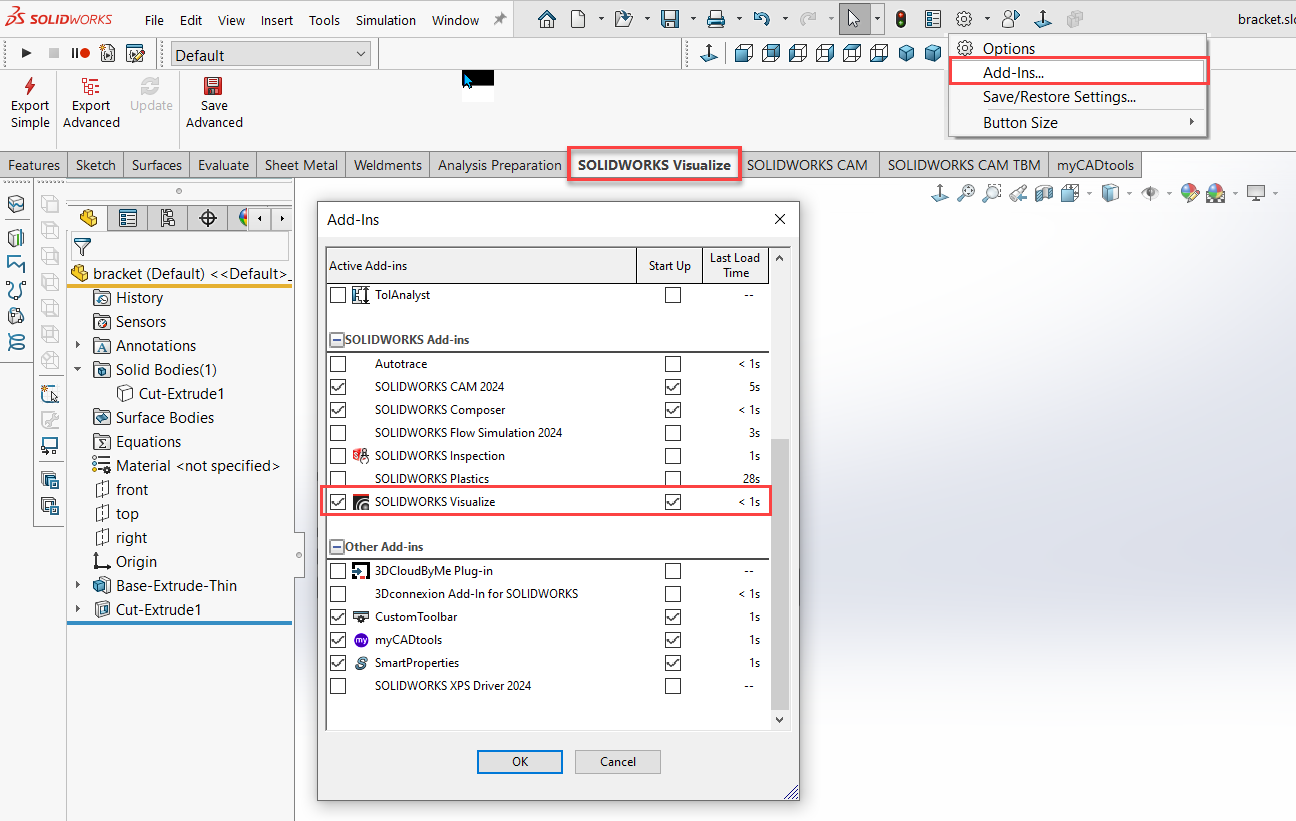
You can enable the Visualize add-in within SOLIDWORKS to help quickly import models for rendering.
Visualize Professional
If you’ve found the included SOLIDWORKS Visualize standard version useful, why not consider the extra benefits of Visualize Professional?
Import SOLIDWORKS Animations and Motion Studies
Use the new Visualize add-in for SOLIDWORKS CAD to easily bring your existing animations and motion studies to life in SOLIDWORKS Visualize Professional. Live-Update works with these animations too, so as your movements and keyframes change in SOLIDWORKS, they will be updated in Visualize.
Full Animation Suite
Tell a deeper story with your CAD data using the full Animation suite in SOLIDWORKS Visualize Professional. Animate exploded views, part opacity, cameras and much more with ease to create photo-quality videos to describe even the most complex projects.
Visualize Boost Support
Create amazing Visualize content faster than ever before. SOLIDWORKS Visualize Boost is a new add-on product to SOLIDWORKS Visualize Professional that instantly increases render speeds and content productivity. Similar to a printer queue in your office, SOLIDWORKS Visualize Boost allows SOLIDWORKS Visualize Professional users to send jobs to other machine(s), freeing up your machine to keep using Visualize, CAD, or other demanding applications.
PowerBoost Real-time Network Rendering
A new render mode in Visualize Professional, PowerBoost lets you connect NVIDIA VCA(s) or any other GPU/CPU render farm to stream the raytracing directly to your Visualize Viewport. PowerBoost grants you direct access to loads more hardware than can fit in your local machine, producing extremely fast render speeds while working on your project.
Configurations
Rapidly generate colorways, product variations and other design choices using Configurations. Present in real time using Visualize and make important design and engineering decisions by flipping through your Configurations. You can even render all Configurations in a single click!
Create VR Content
Take advantage of the photorealism of SOLIDWORKS Visualize Professional to explore/review beautiful immersive images and animations at 1:1 scale. Easily set up your camera where you want to look around and click a single button in Visualize to create amazing VR content with 360 stereo images and even animations in VR! Support for any VR device, including HTC® Vive®, Oculus Rift™, Samsung® Gear VR, Google® Daydream and Google Cardboard™.
Integrated Physics Engine
Enable Physics with a few simple clicks and watch your items collide and fall, just like they would in real life. After Physics is setup, use the Earthquake tool to randomise or jitter the selected elements. This helps to add a natural touch to stacked plates, or pens in a cup, without having to manually move each one individually, saving loads of scene set up time.
Find the full comparison table here.
Visualize Training.
Why not ask about our dedicated Visualize Training course?
You can expand your knowledge and find out how to produce amazing photo realistic renders of your products.
Check out our training courses here: https://visiativ.co.uk/training/
 |
About the author: This guide was written by SOLIDWORKS Applications Engineer, Graeme Billingsley. Graeme has been with the Visiativ Technical Support Team since 2022. |
|||
|
|
||||