

How to: Use myCADtools ColorChart for SOLIDWORKS
15 September 2026
Struggling to choose the right shade for your SOLIDWORKS model? Don’t worry! myCADtools ColorChart is here to help! Available as part of Visiativ’s myCADtools add-in suite, ColorChart works with both parts and assemblies and can be accessed directly from the SOLIDWORKS Task Pane. In this guide, we’ll explain how to use myCADtools ColorChart and make the most of this useful tool, available as a benefit of being on support with Visiativ.
Why is myCADtools ColorChart useful?
myCADtools ColorChart has three colour systems as standard: Pantone, RAL, and RGB. Once a system is selected, you can select from the different colour families, and then a derivative of that family of your choice. The great thing about ColorChart is you don’t need to remember that colour code, you can recognise the colour by its name, meaning easier and quicker reconditioning of the correct colour every time. Now let’s look at how it works, followed by how we can customise it to make using an in-house colour scheme easy.
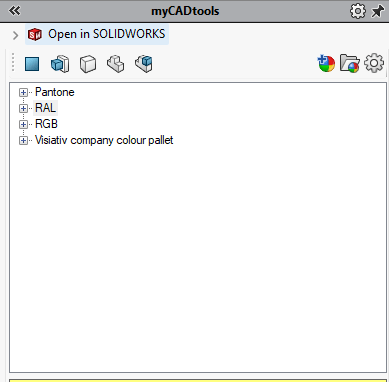
MyCADtools ColorChart open in the SOLIDWORKS task plane
How to use ColorChart
Ensure the myCADTools add-in is installed and is active in SOLIDWORKS.
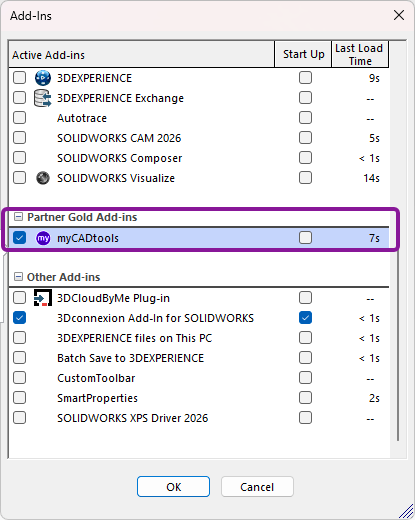
Turning on the myCADtools SOLIDWORKS add-in
With the add-in switched on, find the mtCADtools tab in SOLIDWORKS and select ColorChart.

myCADtools command tab in SOLIDWORKS
This will open the ColorChart in the task plane. Here, you can select any colour you like using one of the various colour systems supported by the tool.
Method 1
To apply a colour, drag and drop it onto the part or face you wish to apply it to, then select the appropriate option from the in-context menu.
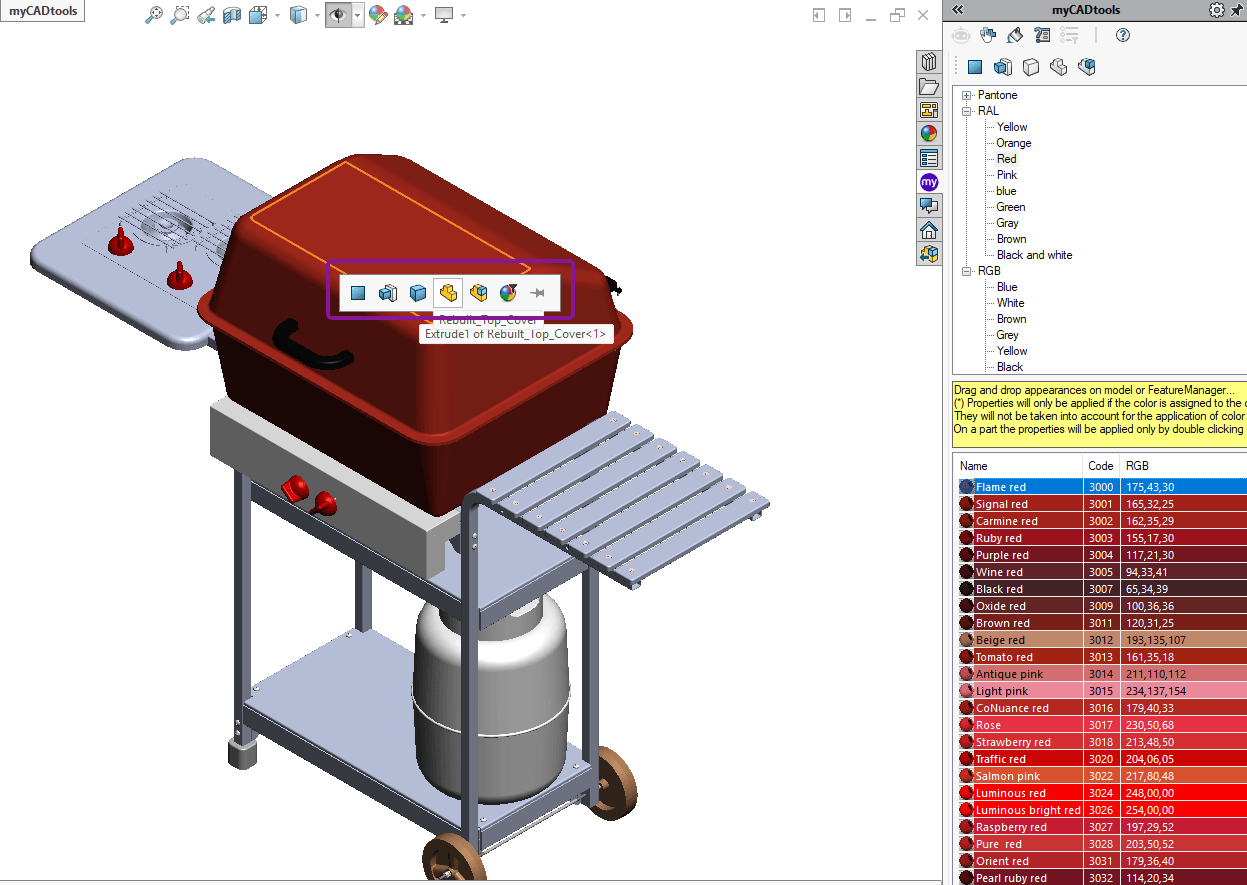
Applying a colour in an assembly using the drag and drop method.
Method 2
- Select one of the many colours on offer
- Select a filter type, such as part or body, from the top of the task plane.
- Select the item from the graphic area you wish to colour
- Click on the Add Appearance to selection button to apply the selected colour
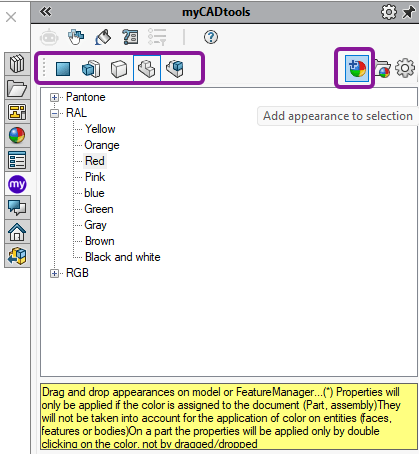
Showing how to add a colour to a part in an assembly using the Add Appearance button in the task plane.
Now, let’s look at some more advanced features of ColorChart
So how can ColorChart help standardise the use of my company’s colour palette
If your company standards require specific colours in your models, you can add your own colour system to myCADtools ColorChart. To do this, locate where your colour chart XMLs are stored. Usually found here on a typical installation: C:\Users\<user names>\AppData\Local\Visiativ\mycadtools\ColorChart\XmlFiles
Note that these files can be located on a shared drive if multiple users are involved; use the Select a folder button to change the location that the ColorChart app uses to find the XML files.

Where to find the Select a folder button
Once you have located the XML files governing the colours, you can copy one of them and edit it accordingly (note: Notepad can be used to edit the files). The example below shows a custom colour scheme with two families and two colours per family:
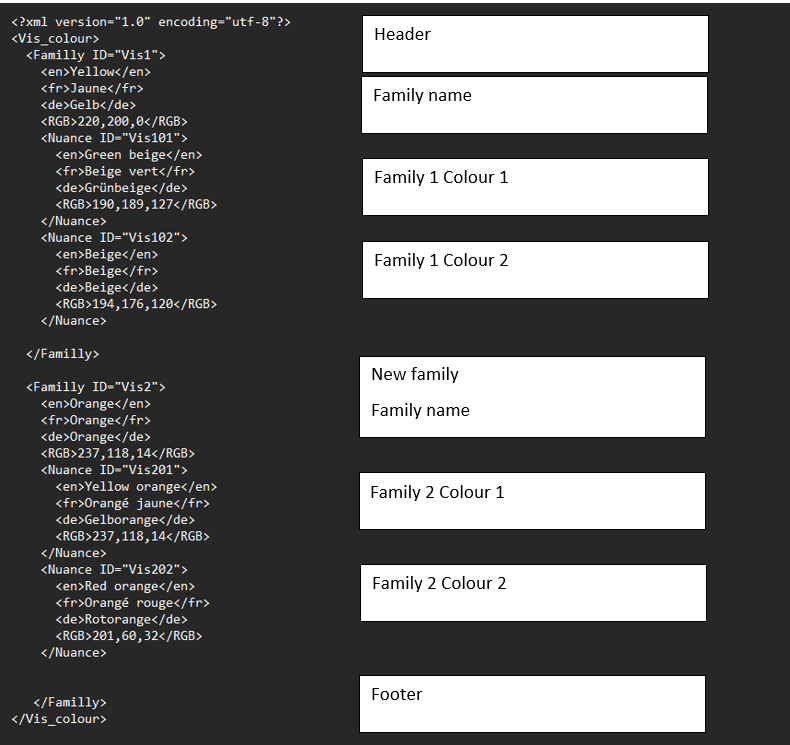
An example of an XML file colour palette used by myCADtools ColorChart.
The result inside SOLIDWORKS looks like this:
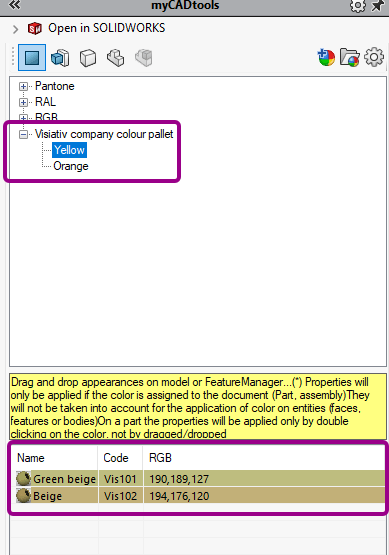
How the custom colour palette appears in the task plane.
Bonus functionality: Adding the colour information to the custom properties
If you click on the gear at the top right near the Add Appearance button of ColorChart and turn on the setting below, as seen in the image below.
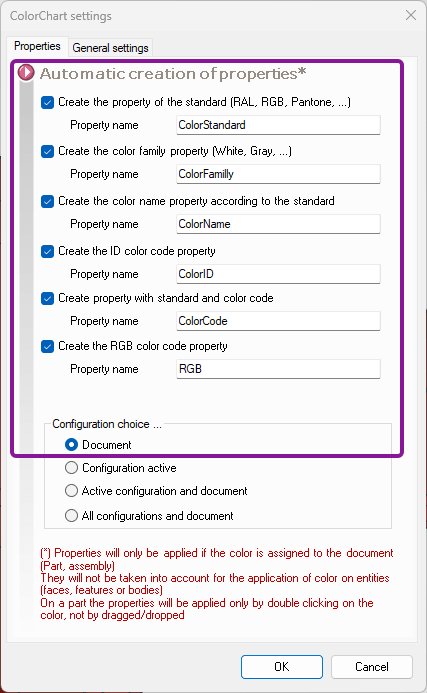
Showing myCADtools ColorChart setting
We can get the colour properties added to the part or assembly properties (note this only applies if the colour is added at the part or assembly level, not body of face, for example) to the custom properties of the part or assembly automatically.
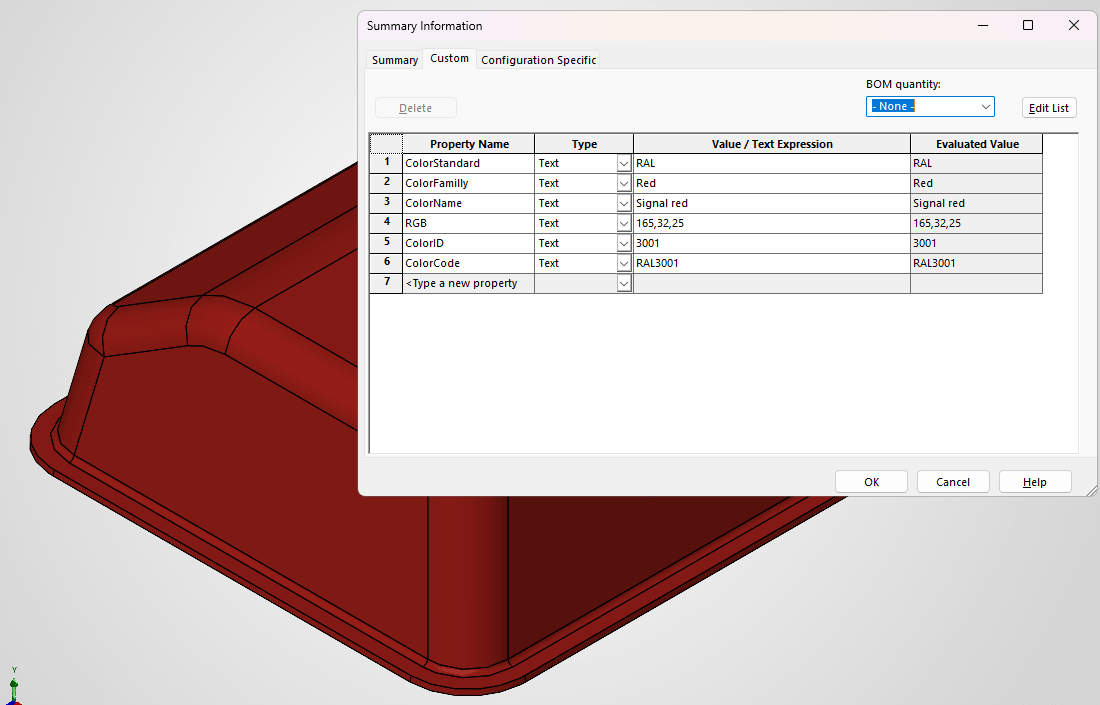
The part colour attributes have been automatically added to the custom properties.
Watch: myCADtools ColorChart in action
Summary
This tool for applying colours adds colour names and shows the different colour systems (RAL, Pantone, RGB), meaning we can easily see which colour to pick from the list. We can also customise ColorChart by adding our own colour systems, helping to standardise colours across your company. As a result, myCADtools ColorChart makes SOLIDWORKS modelling that little bit easier and faster. So, why not give it a go?
Got SOLIDWORKS already? Get a free trial of myCADtools here!
 |
About the author: This guide was written by SOLIDWORKS Applications Engineer, James Kingman. James has been with the Visiativ Technical Support Team since 2024. |
|||
|
|
||||