
How to: Preview Sketch Dimensions in SOLIDWORKS
16 June 2025
SOLIDWORKS introduced a new feature called ‘preview sketch dimensions’ in SOLIDWORKS 2024, which aims to speed up the process for adding dimensions in the sketch environment. When this option is checked on, the new feature allows the user to quickly view and add sketch dimensions as they work without activating the Smart Dimension tool.
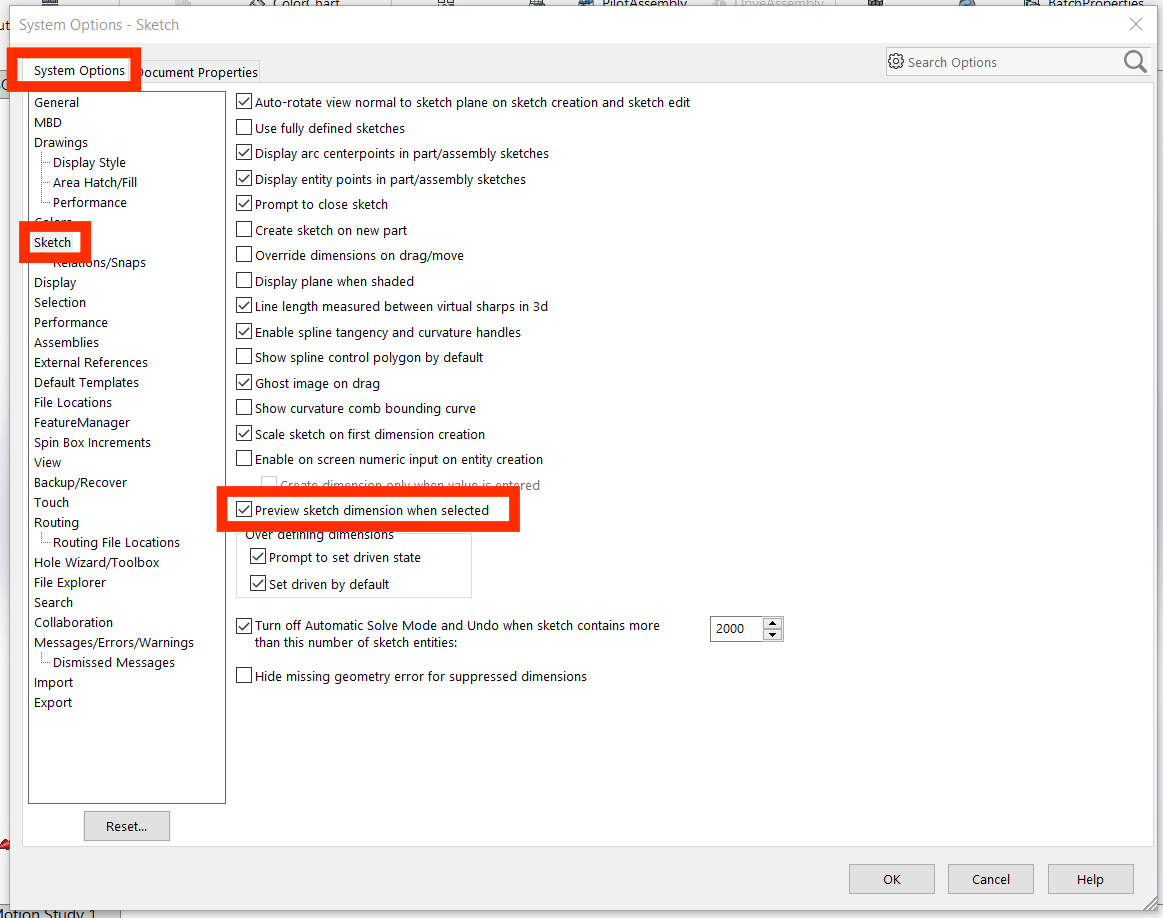
Please note that the new feature is turned off by default. To turn it on, head to System Options > Sketch > check on ‘Preview sketch dimension when selected’.
How to Use Preview Sketch Dimensions
- Select a sketch entity with a left mouse button click. A preview of the dimension will show in a light grey colour. To exit the preview, click in any blank area of the graphics window or press ‘Esc’ twice.
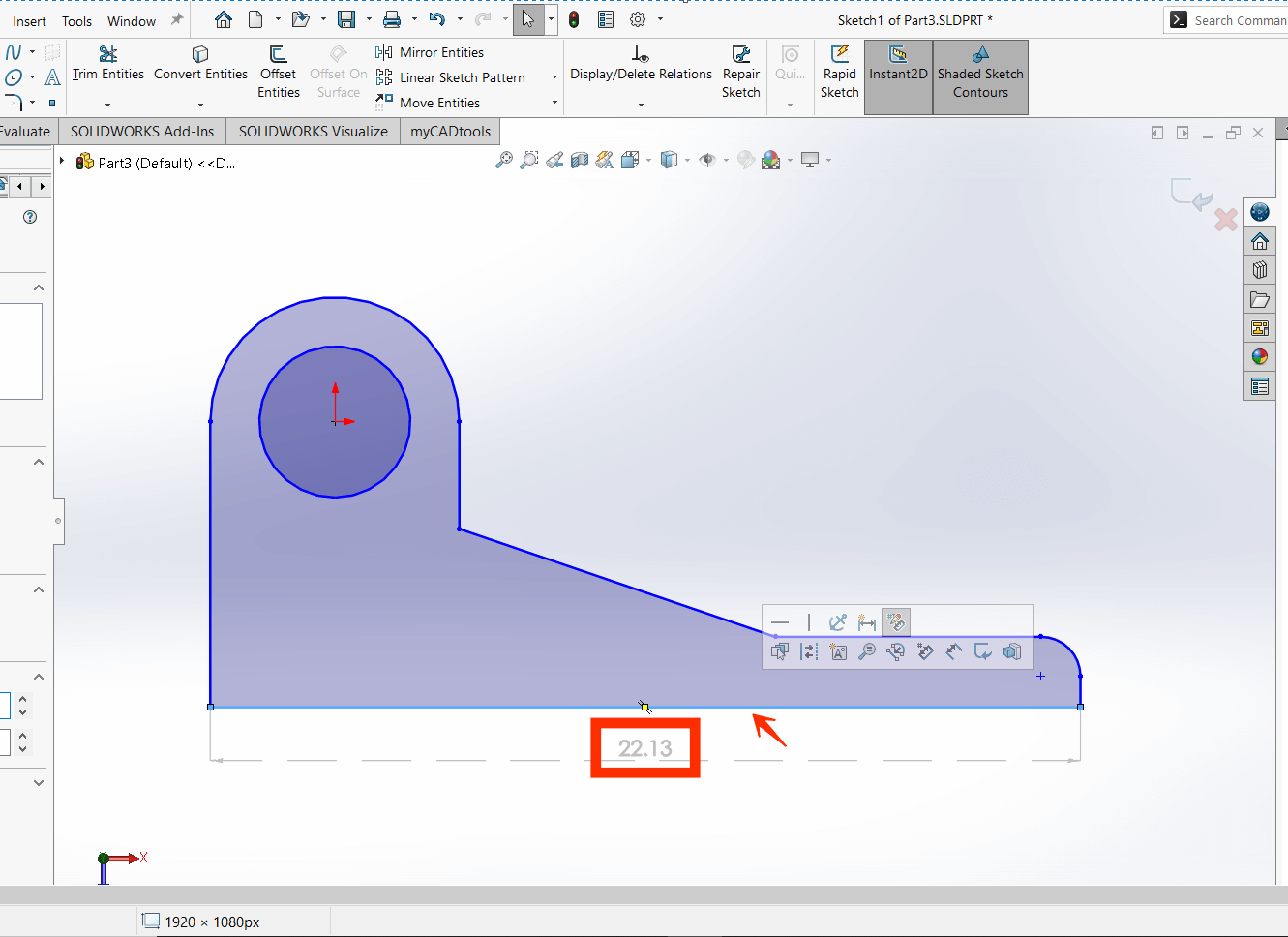
To change the dimension preview colour, click Tools > Options > System Options > Colors. Under Colour Scheme settings, edit the colour for Dimensions, Preview.
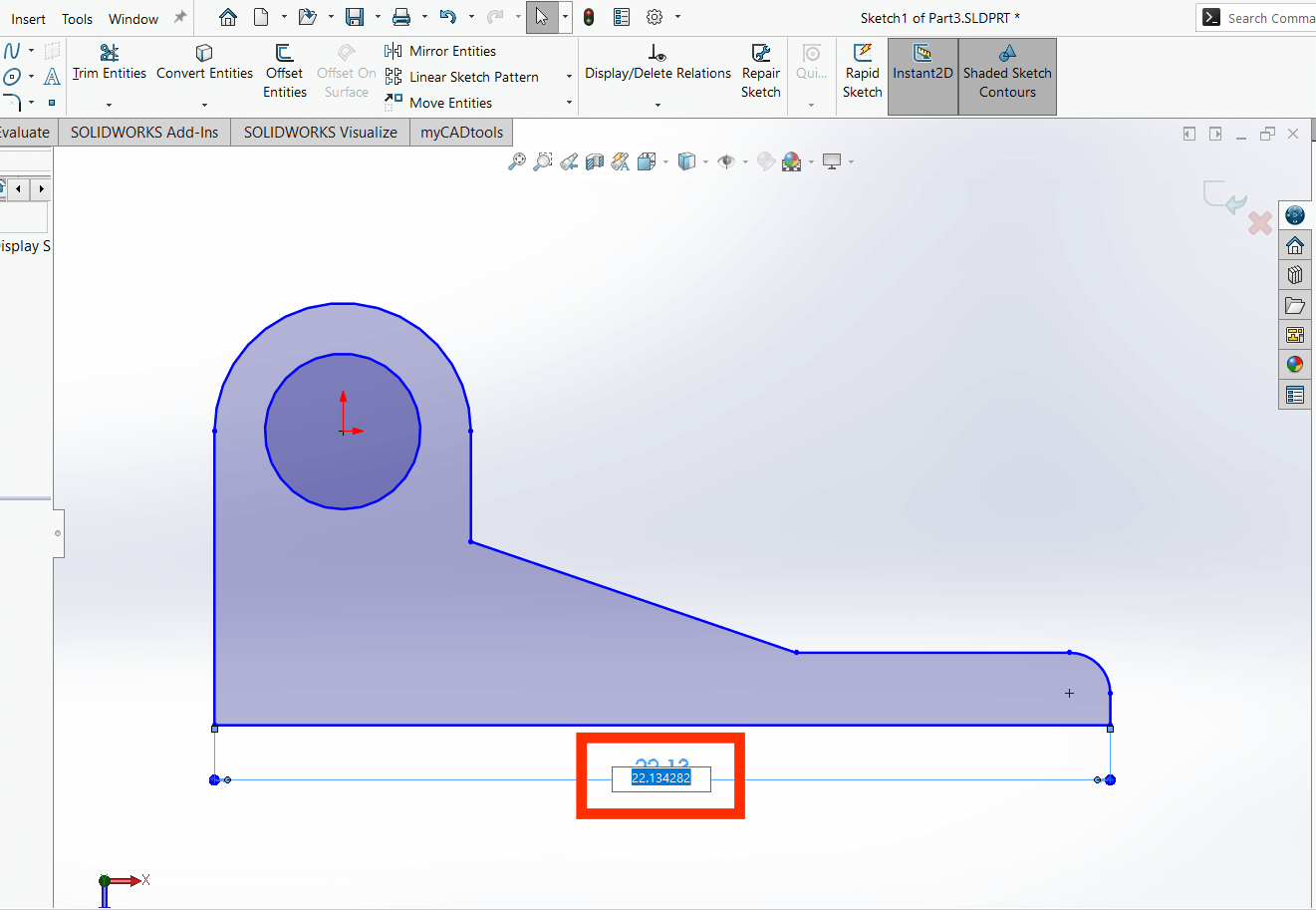
- Make the dimension permanent by selecting the preview dimension text. Enter a value and then select enter or click anywhere in a blank area of the graphics window to confirm.
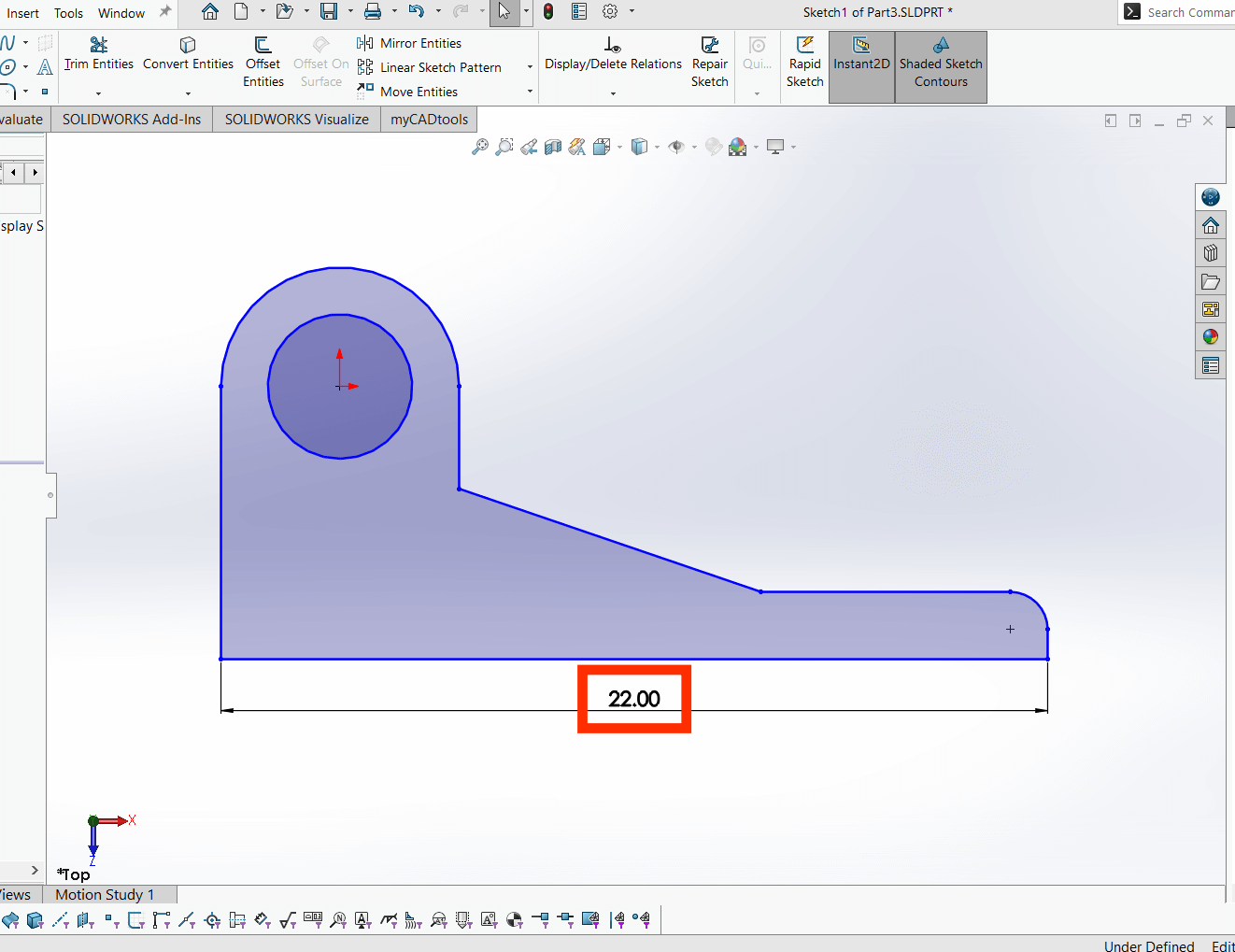
Once confirmed, the dimension will turn black and remain permanent.
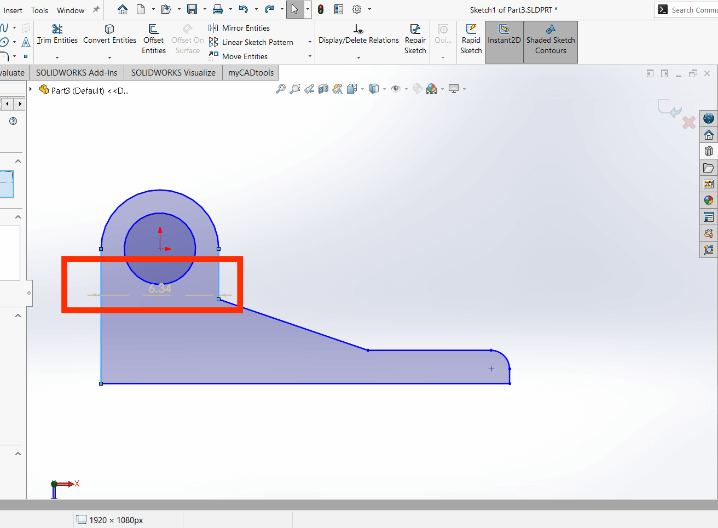
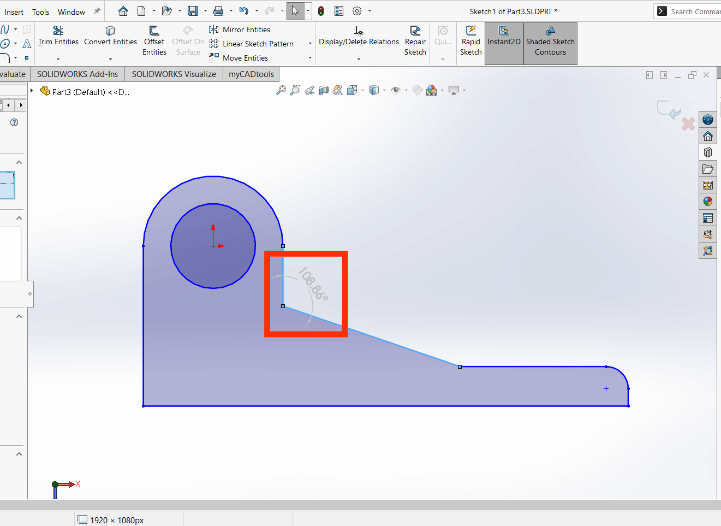
Note that it’s also possible to hold ‘ctrl’ and make multiple selections to retrieve a distance between them or an angular dimension. See the example images below.
Thank you for reading our latest SOLIDWORKS ‘How to’ Guide on using preview sketch dimensions, we hope you found it helpful.
Be sure to read our other guides and blogs here.
 |
About the author: This guide was written by SOLIDWORKS Applications Engineer, Jak Szura. Jak has been with the Visiativ Technical Support Team since 2023. |
|||
|
|
||||