

Understanding 3DEXPERIENCE CAD Families and Configurations
30 June 2026
3DEXPERIENCE introduces many new capabilities and functions to SOLIDWORKS. Some features are completely new, and they deserve extra explanation. One of these new features is the CAD Family. Read on to find out how you can take advantage of the SOLIDWORKS 3DEXPERIENCE CAD Families and Configurations.
What is a CAD Family?
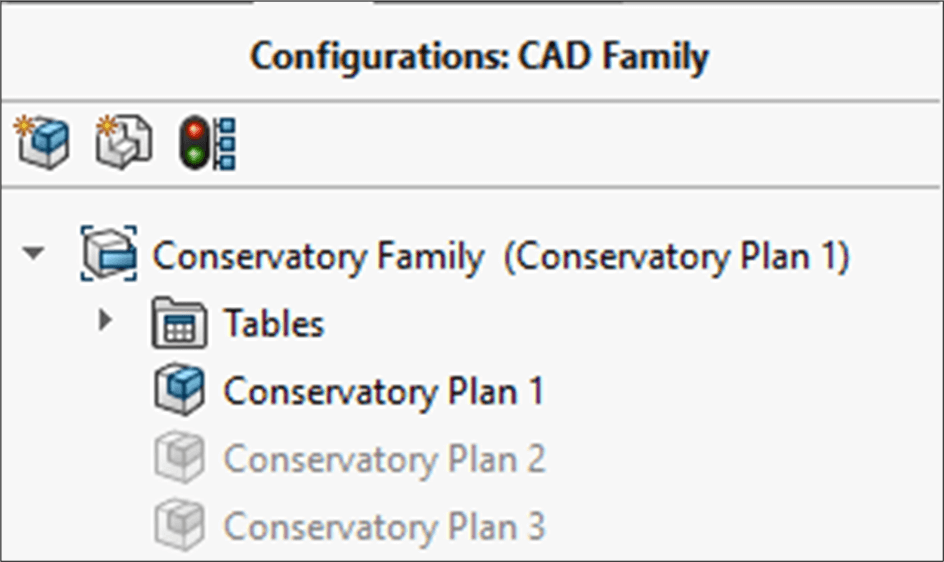
The CAD family is the main object in 3DEXPERIENCE that can assist you in creating different SOLIDWORKS configurations. You can think of it as the Master CAD File that holds all your configurations. When you create a new file in 3DEXPERIENCE SOLIDWORKS or update a file for 3DEXPERIENCE compatibility, the configuration tree displays as shown below:
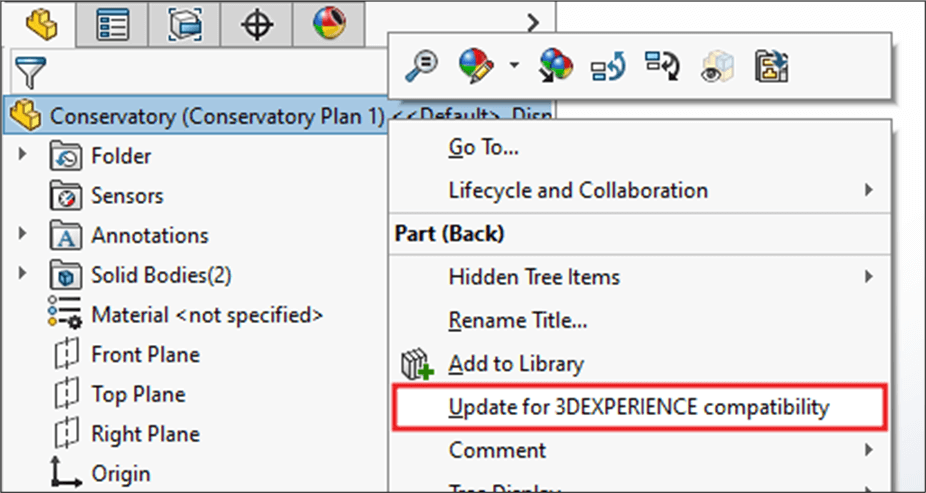
How to Update a file for 3DEXPERIENCE Compatibility
Right-click the top-level part in the feature tree, then choose Update for 3DEXPERIENCE Compatibility from the submenu.
What other types of files does 3DEXPERIENCE create?
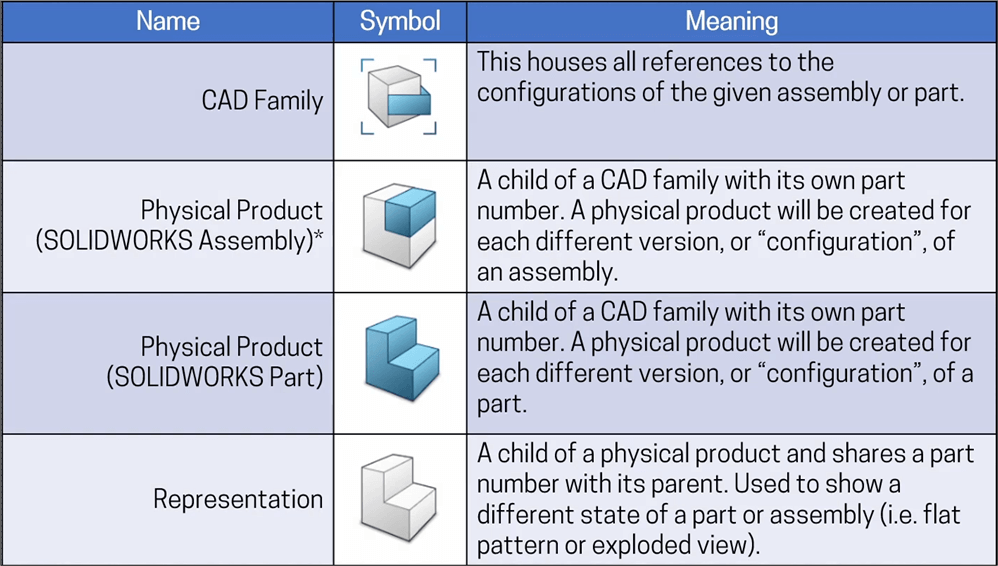
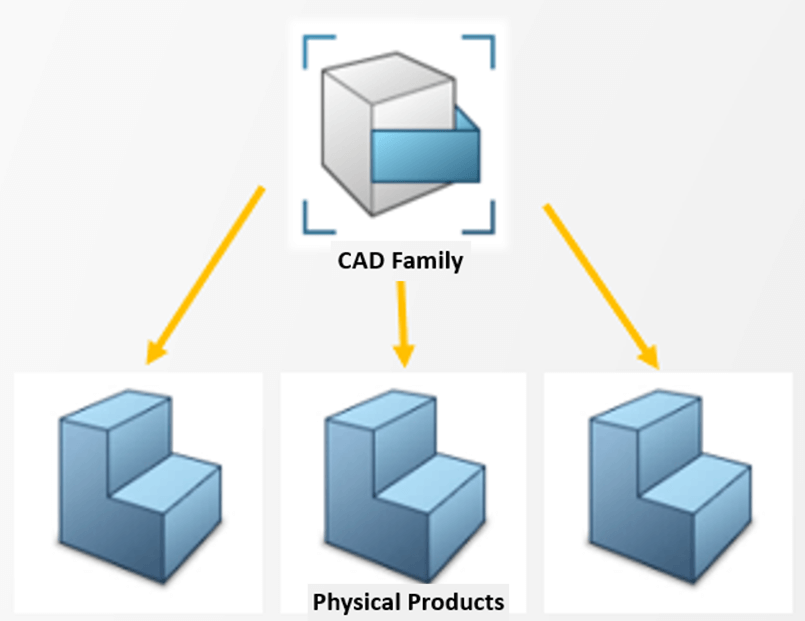
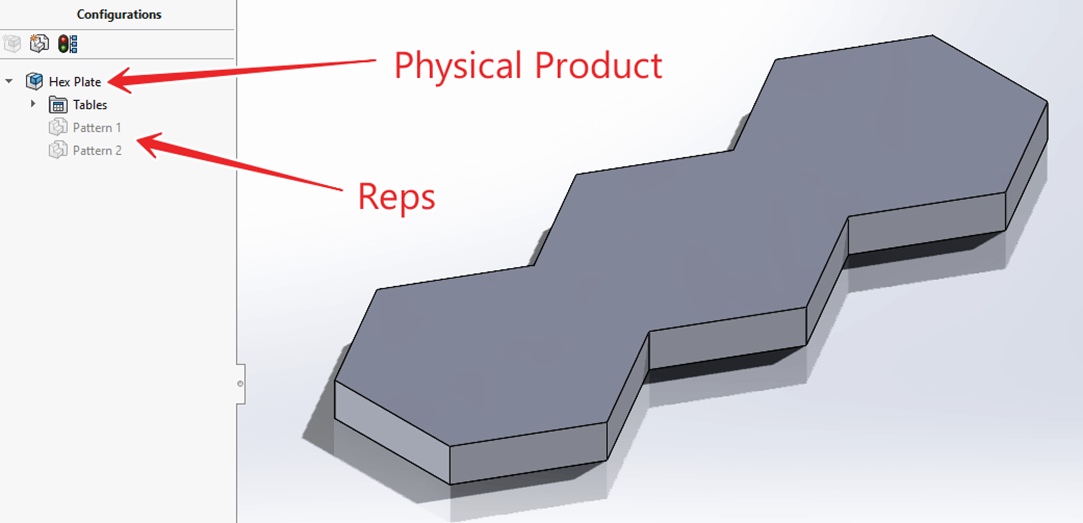
As well as CAD Families, 3DEXPERIENCE will save each configuration of a file as Physical Products. These Physical products can also have Representations:
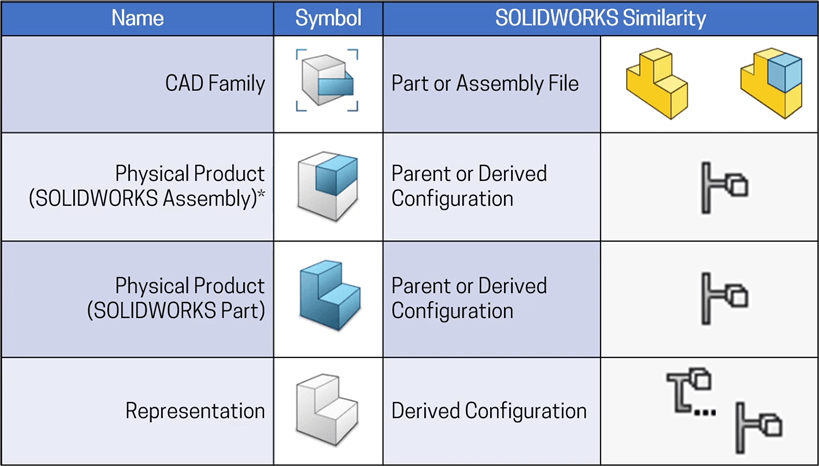
A comparison of SOLIDWORKS file types and 3DEXPERIENCE file types would look like this:
Why does this matter?
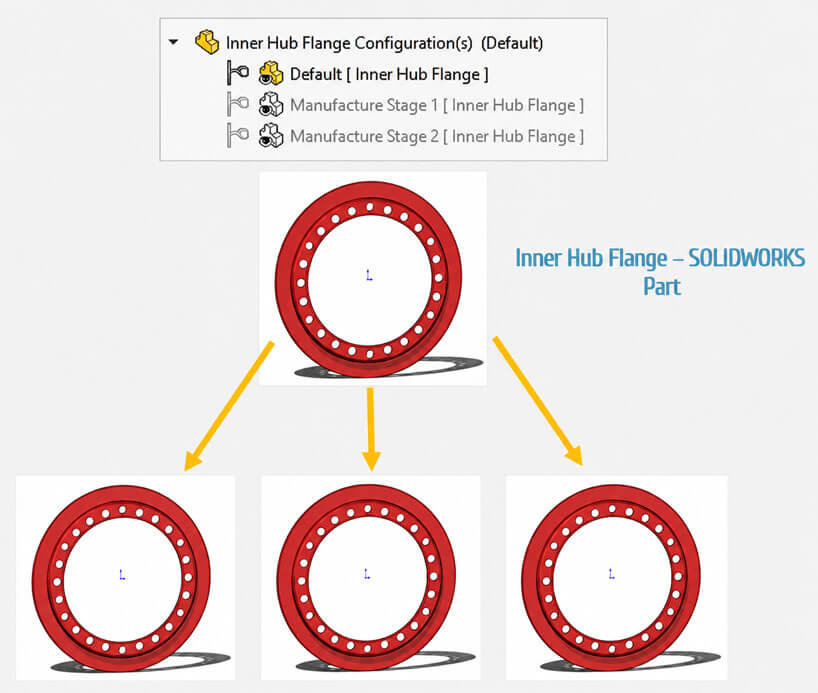
3DEXPERIENCE treats every configuration as a separate Physical Product. When you save a file with multiple configurations to 3DEXPERIENCE, the system creates a separate file for each configuration. Unlike other PDM solutions, which store one file and let you use different configurations within it, 3DEXPERIENCE separates them. This approach lets you assign different revisions and maturity states to each configuration.
How this would look in SOLIDWORKS:
Do I have to work this way?
This functionality is optional, and it’s possible to prevent SOLIDWORKS from creating new Physical Products for each new configuration of your product and instead, treat these as different representations. You can do this by turning on the following setting in System Options:
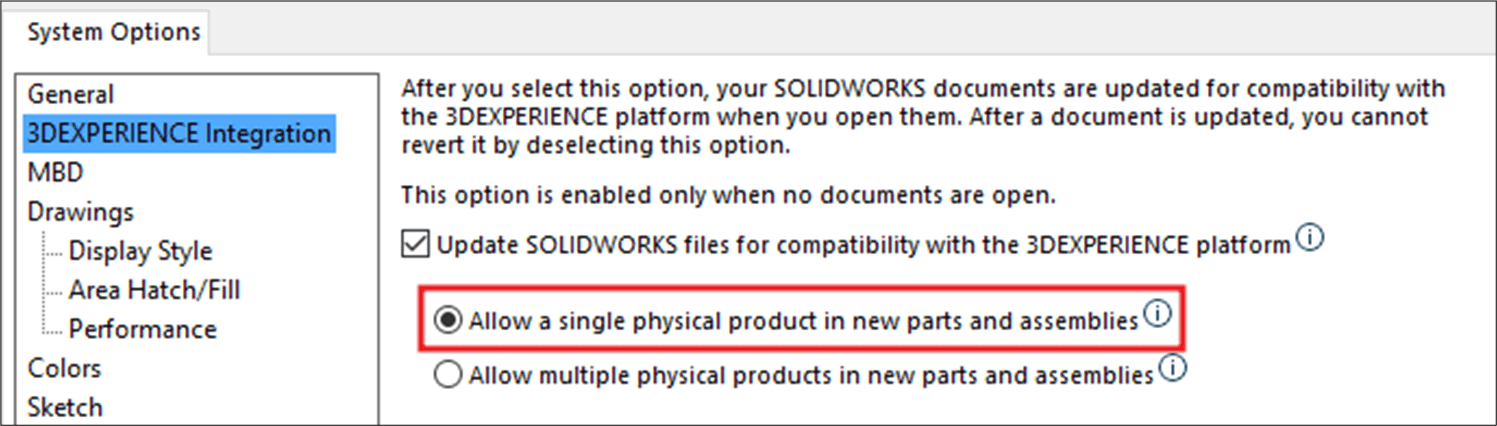
When you activate this option, SOLIDWORKS creates only one Physical Product for all new files, and treats each configuration as a Representation of the design rather than a separate Product.
Are there any further options?
The best way to filter what configurations get saved as Physical Products is to use the settings on the 3DEXPERIENCE Platform. In the CAD Collaboration admin settings under SOLIDWORKS, Configuration filters can be added:
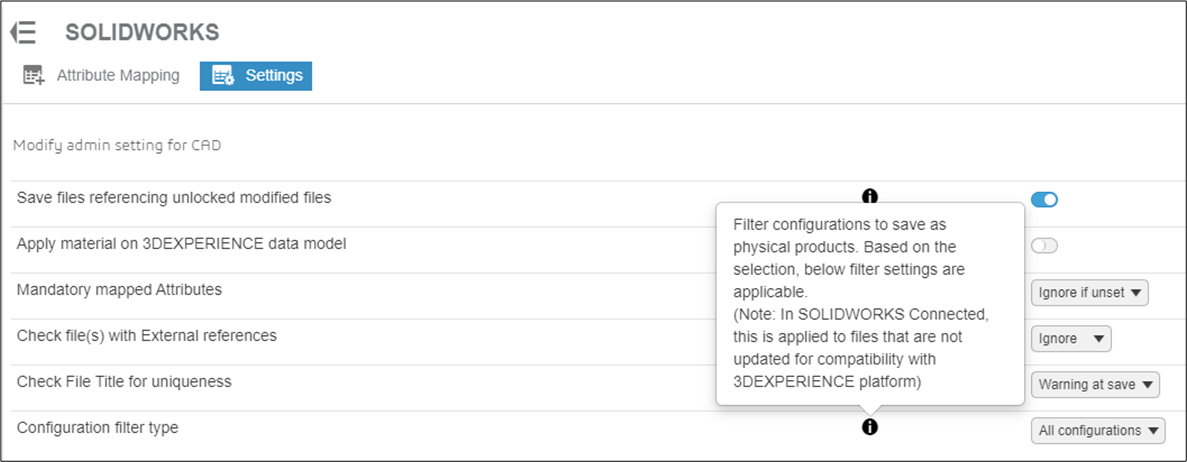
The Filter Options are as follows:
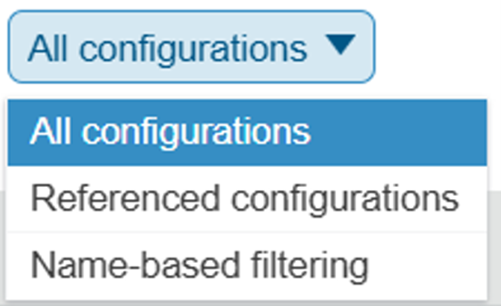
The options for each of these filters are explained here:
- If “All Configurations” is selected, an option to exclude derived configurations can be activated. Users can use this option to separate Physical Products and Representations by making Representations “Derived Configurations” in SOLIDWORKS.

- If you select “Referenced configurations”, you can choose to save only the Assembly configurations that are referenced as Physical Products.

- Name-Based Filtering lets users actively include or exclude configurations based on text in their titles. For example, if you filter for the words “Weld” or “Mold,” you can directly control whether configurations created with Weldment or Mold tools appear or are hidden, depending on your preference.
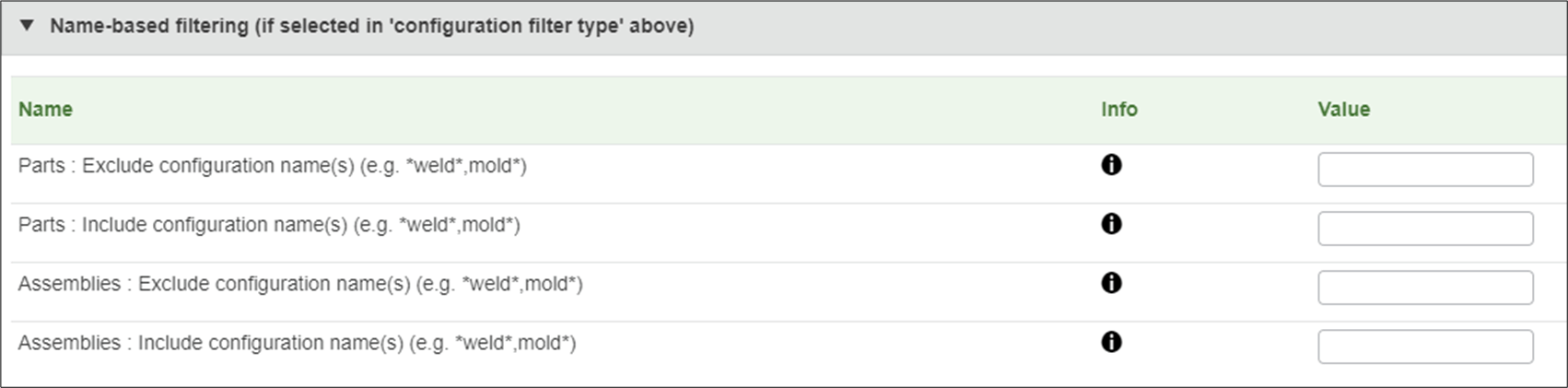
With this many options, it lets you decide exactly how to save configurations so they work for your company.
Click here for some additional information on SOLIDWORKS CAD families.
We hope you’ve found this useful. For more SOLIDWORKS tutorials, head over to our news and resources pages.
|
|
About the Author: This tutorial was written by SOLIDWORKS Applications Engineer Sam Barlow. Sam has been with the Visiativ Technical Support Team since 2023 |
|||
|
|
View Sam Barlow’s LinkedIn Profile here.
|
|||