

How to: Master the SOLIDWORKS Selection Tools
20 August 2026
When using SOLIDWORKS, you’ve probably found yourself needing to select multiple items in assemblies. If so, you’ll know that selecting items one by one can be tedious and time-consuming: you may select one item, hold “Ctrl”, and select the next, or use “Shift” Select when parts and subassemblies sit next to each other in the feature tree. To use Shift Select, click the first item, hold “Shift”, click the last item, and SOLIDWORKS highlights everything in between.
SOLIDWORKS provides several selection tools that help you select the right items quickly and accurately. To find these tools, go to the arrow icon at the top of the SOLIDWORKS window, then use the drop-down arrow to open the menu as shown below.
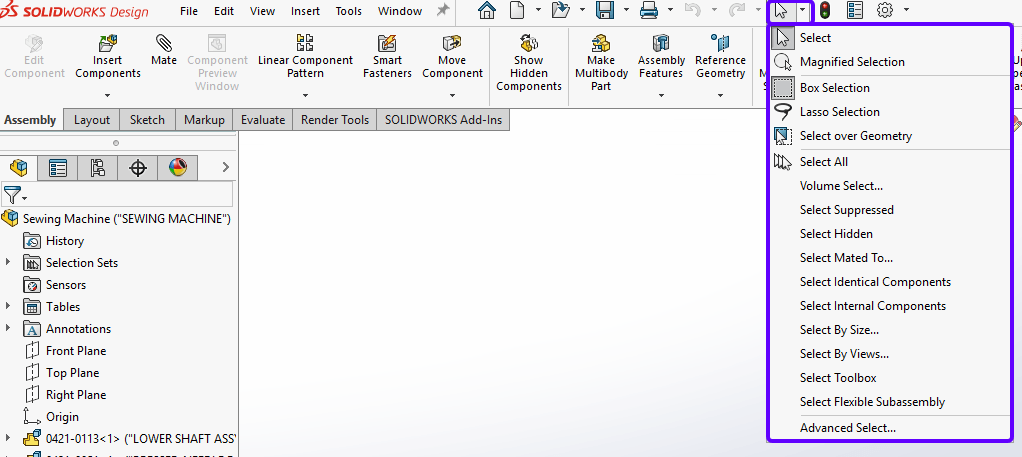
Two selection tools are already active by default: “Select” and “Box Selection”.
The different selection tools: what they are and how to use them
Working through the tools from top to bottom:
Magnified Selection
This tool displays a circle on the screen and magnifies the model inside it. Select entities within the zoomed-in area to improve accuracy on detailed models.
Box selection
This tool stays on by default. Click and drag in the graphics area to draw a selection box. The direction you drag changes how the tool selects objects: drag from left to right to select only objects fully inside the box, or drag from right to left to select objects that sit partly inside the box.
Lasso selection
Use this tool instead of “Box Selection” when you need more control. Draw a custom shape around the objects you want to select and avoid the objects you want to leave out.
Select all
Select all components that are not hidden.
Volume Select
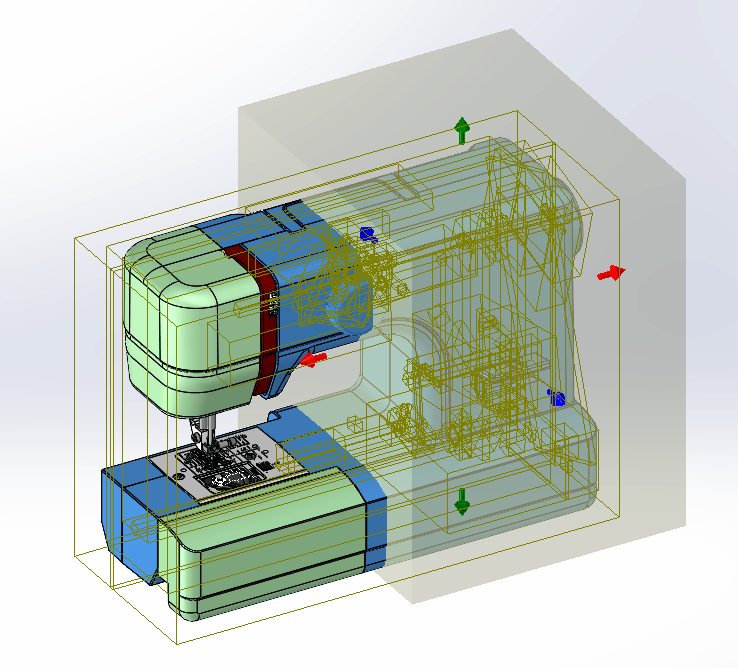
Use this tool to project a translucent volume through the model and resize it as needed. To do this, click on “Volume Select”, then click and drag to draw a rectangle. Adjust the volume with the onscreen arrow. Like “Box Selection”, “Volume Select” responds differently depending on whether you draw the initial rectangle from left to right or right to left, but it applies the selection in three dimensions.
Select suppressed
If you need to select all the suppressed items in the feature tree, try this tool.
Select hidden
To select all hidden items in the feature tree.
Select mated to
Pick out all components mated to a preselected component, or select the component when you start the command.
Select identical components
Do you need to select all identical components? This option will do this for you.
Select internal components
Select all components enclosed by other components and highlight them in the Feature Manager design tree. Note: The command checks the six orthogonal views of the assembly: top, bottom, front, back, right and left. If any part of a component appears in one of these views, even a single pixel, SOLIDWORKS doesn’t treat the component as internal and doesn’t select it.
Select By Size
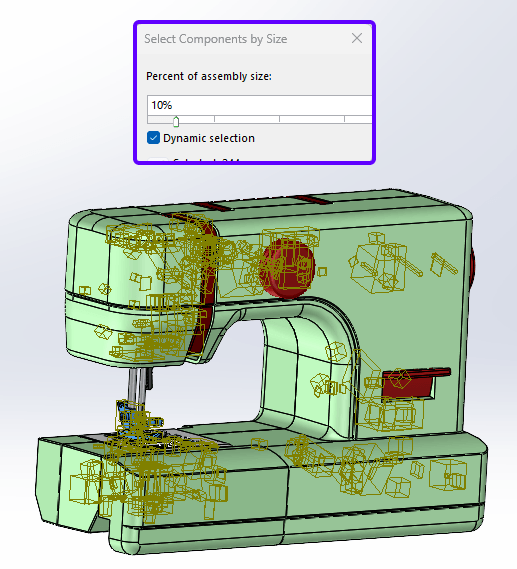
Use this tool to select components that are smaller than or equal to the percentage of the overall assembly size you specify.
Select by views
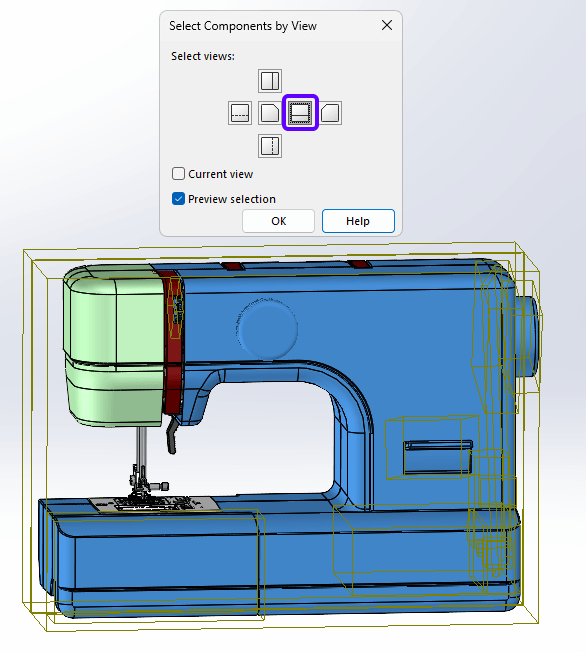
Select up to three views to define the selection. SOLIDWORKS selects any object visible from any of the selected views, even if only a single pixel is visible. To demonstrate, I’ve used the right view. Only the casing and parts seen through the vent on the side are selected.
Select toolbox
Select all Toolbox components in the assembly, or any component with the Toolbox flag applied to it. This can be useful if you wish to add them all to a folder to tidy up your feature tree.
Select flexible subassemblies
This enables you to select any flexible subassemblies.
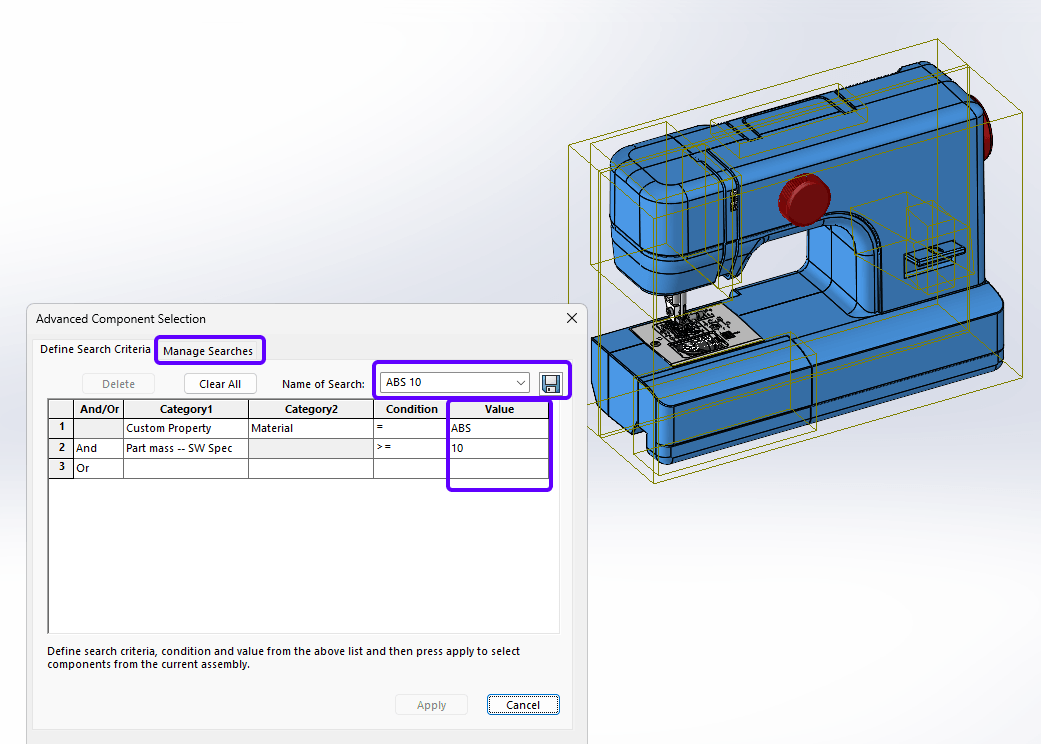
Advanced select
Can be used to make up customer search criteria; using and/or enquiries; for instance, I’m searching for all components made of material ABS, and a mass heavier or equal to 10g. It’s even possible to save your search criteria for later use by typing a name in the top right corner and clicking on the save icon. Click on the “Manage Searches” tab to find your saved search.
Time to put it into practice!
Now you’ve learnt about all the different selection tools in SOLIDWORKS. Why not give them a try and see if you can make your workflows more efficient and your selections more accurate? You’ll wonder how you ever managed without them!
Before you go: Our news and resources pages are full of helpful guides, tips, tricks and tutorials – you can take a look at them here. If you’d like to take it a step further, we also offer a full range of official SOLIDWORKS training courses online and in the classroom – why not take a look?
 |
About the author: This guide was written by SOLIDWORKS Applications Engineer, James Kingman. James has been with the Visiativ Technical Support Team since 2024. |
|||
|
|
||||