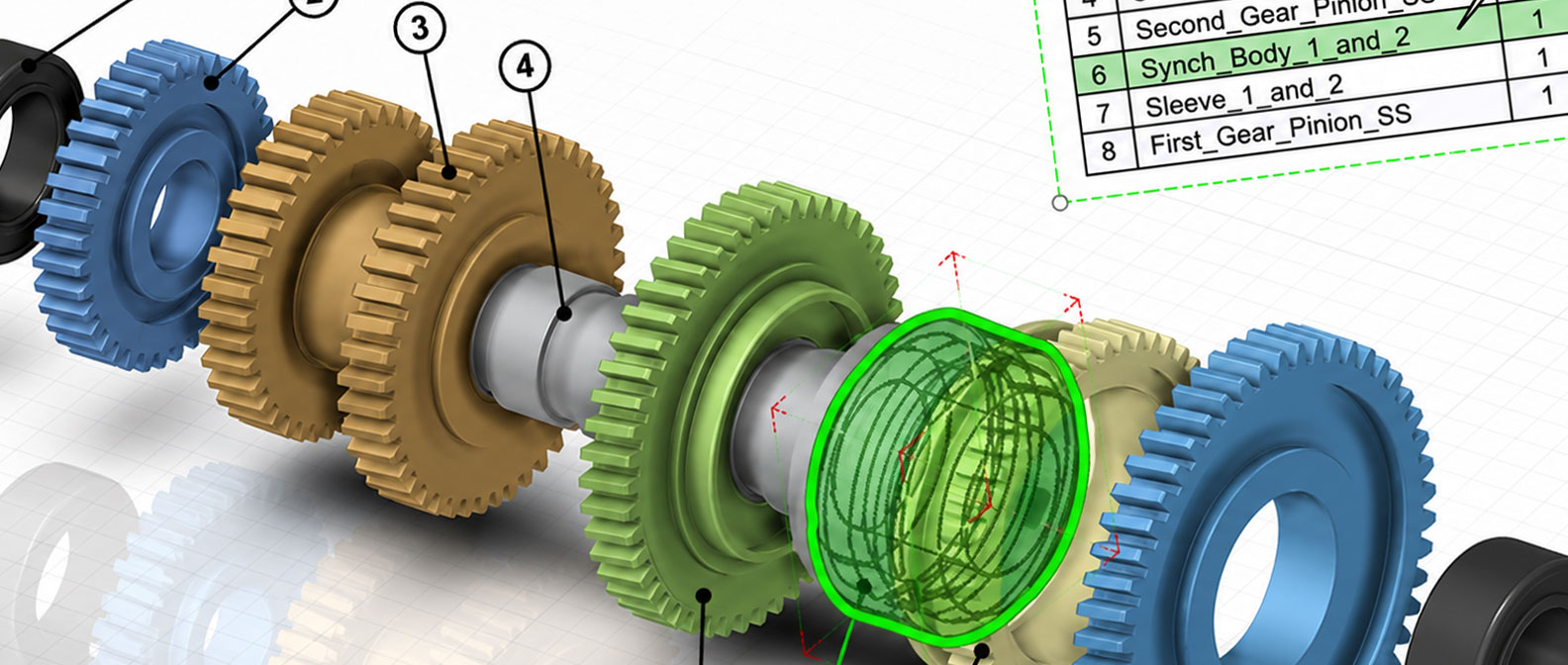
How to Set Your BOM to Cross Highlight in SOLIDWORKS Composer
15 May 2026
You may have noticed that when you export a technical illustration, hovering over an item in the bill of materials also highlights the corresponding component. This is useful functionality, as it makes it easy to find the component you are looking for. Read on to find out how to set your bill of materials to cross-highlight in SOLIDWORKS Composer.
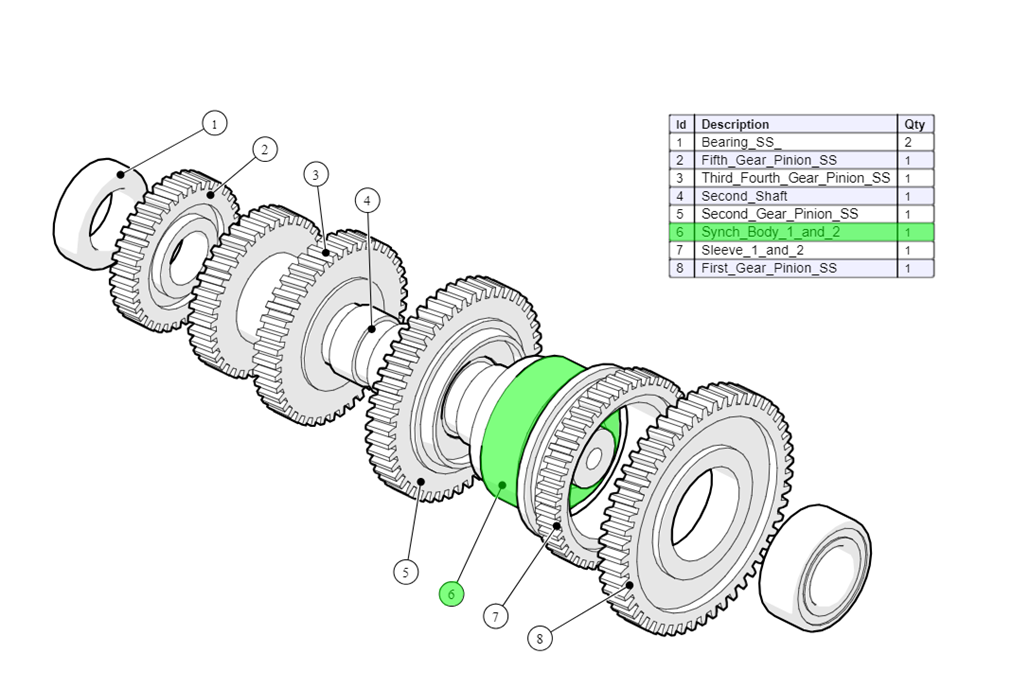
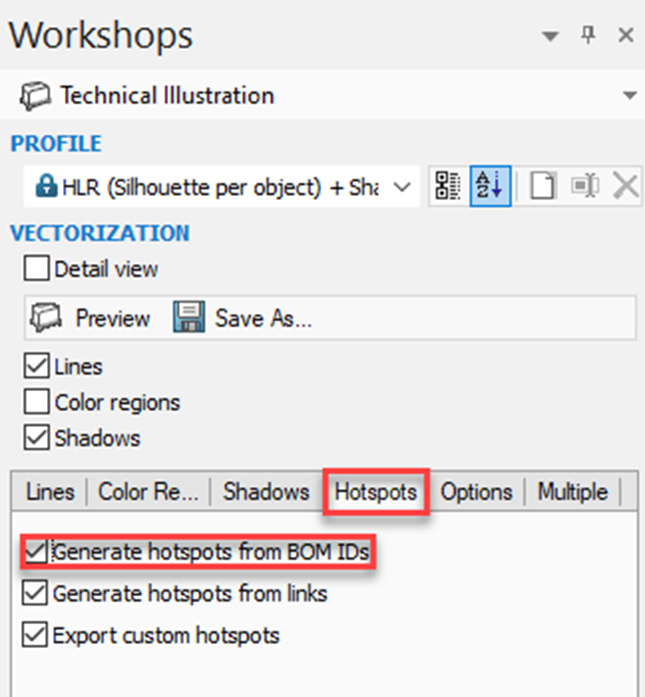
The BOM highlight setting can be controlled within the hotspots tab of the Technical Illustration Workshop. Toggle on ‘Generate Hotspots from BOM IDs. Note that this setting is on by default.
 |
Similar functionality is also available when viewing a document within Composer player:
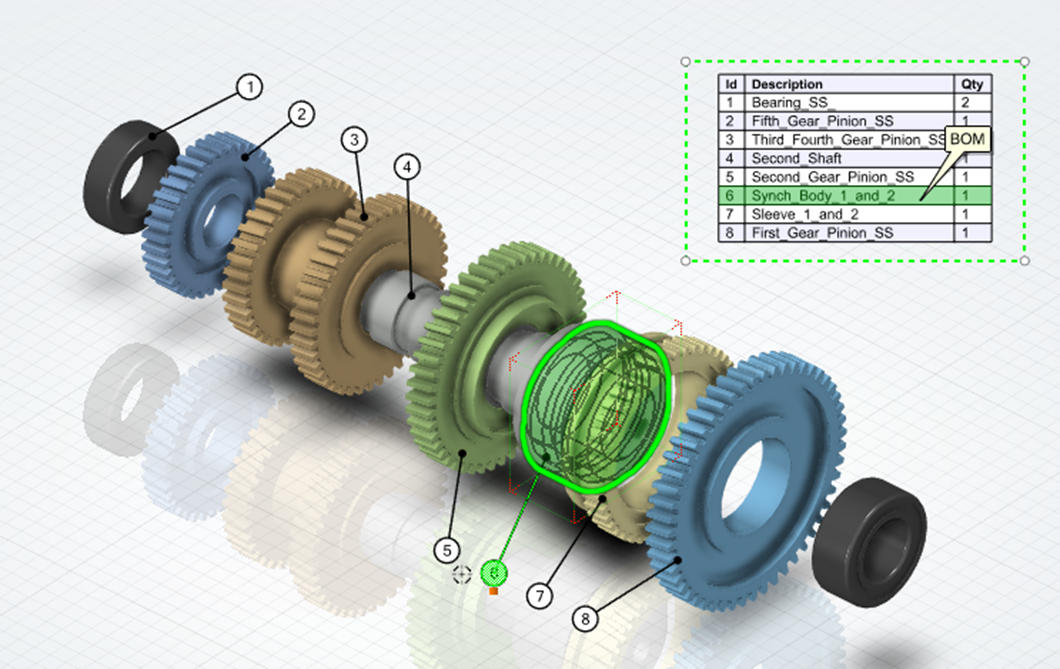
However, the setting to enable this is off by default.
Here’s how you can toggle it on: Select your BOM to access the BOM Properties. Within the BOM properties you will find the option ‘Model highlighting’:
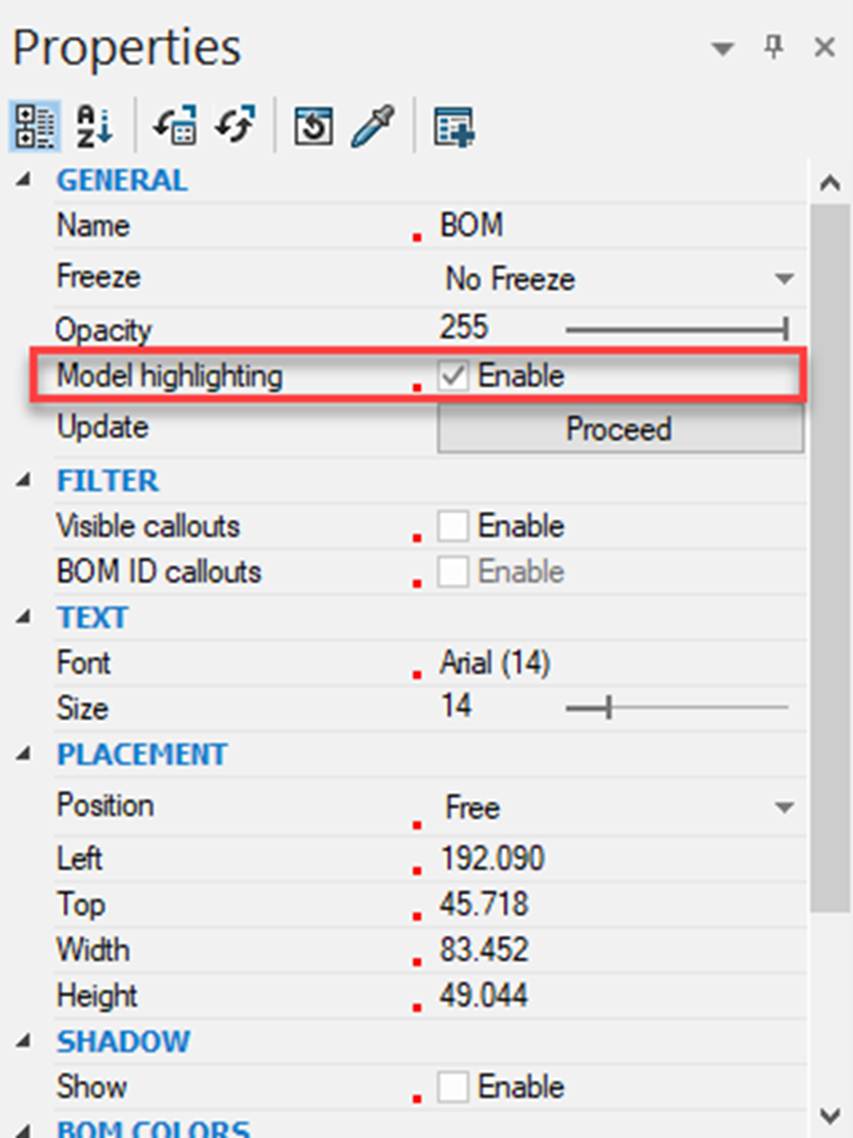 |
Select ‘Enable’ to turn it on. Your BOM will now cross highlight the component when hovering over it.
That’s how to Set Your BOM to Cross Highlight in SOLIDWORKS Composer!
We hope you’ve found this useful. For more SOLIDWORKS tutorials, head over to our news and resources pages.

|
About the author: This tutorial was written by Elite SOLIDWORKS Applications Engineer and Technical Support Manager, Alex Aprigliano. Alex has been with the Visiativ Technical Support Team since 2007. |
|||
|
|
View Alex Aprigliano’s LinkedIn Profile here.
|
|||