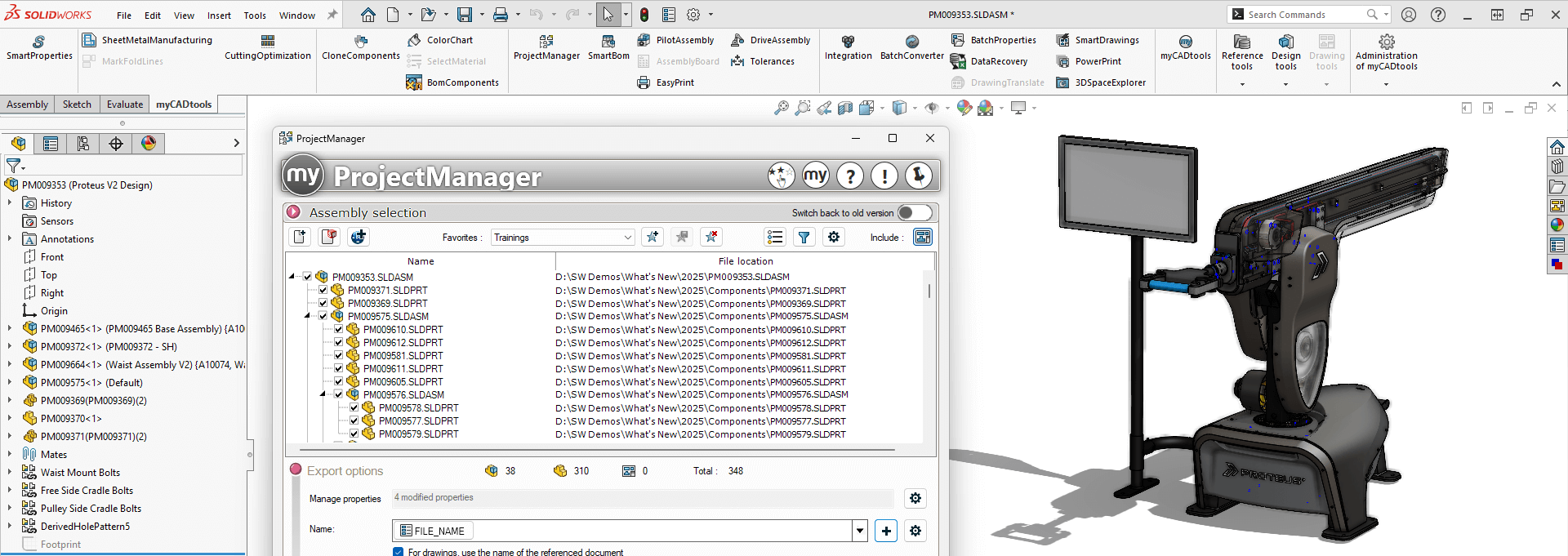
How to: Install and Activate myCADtools
14 March 2025
As a reseller of SOLIDWORKS software, Visiativ understand the importance of enhancing your design capabilities with the right tools. That’s why we’ve developed myCADtools, an indispensable suite of over 50 tools for SOLIDWORKS that streamline your design process, improve project management, and facilitate better collaboration within your team. In this tutorial, we’ll walk you through the steps to install and activate myCADtools, the official SOLIDWORKS Gold Partner Product from Visiativ.
Step 1: Download the Installation File
First, you’ll need to download the myCADtools installation files. You can download the file from the official myCADtools help site. Alternatively, Visiativ customers can request a direct link from our support team here.
Step 2: Run the Installation File
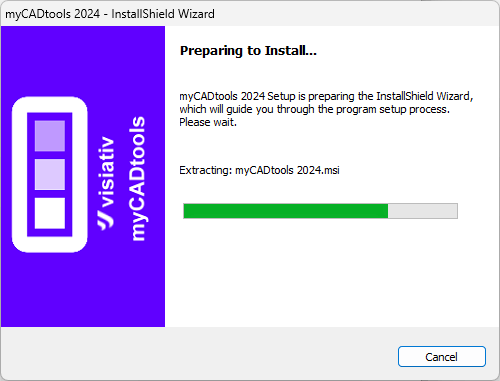
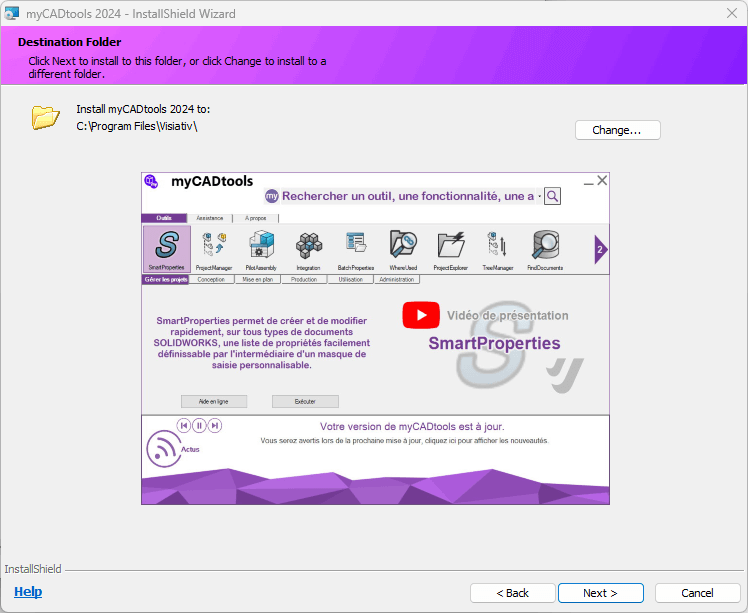
Once the download is complete, locate the installation file and double-click to run it, the software will self-extract at this point, if not already done so. You will initially need make sure to read and accept the terms and conditions. You can then choose to customise the installation location. Note: that if you are doing an upgrade you will need to uninstall the old version before running the installation.
Step 3: Follow the Installation Wizard
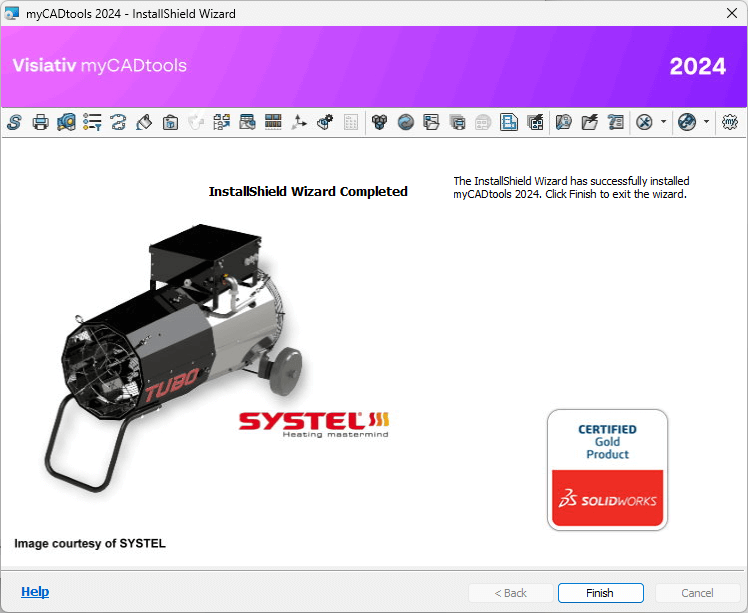
The installation wizard will guide you through the process. Follow the on-screen instructions, click Next & Install to complete the installation.
Step 4: Configure myCADtools
After the installation is complete, you will be presented with the myCADtools main application, from here you can launch each of the tools and configure myCADtools to suit your specific requirements. This includes setting up user preferences, integrating with SOLIDWORKS PDM (if applicable), and customising the tools to fit your workflow.
Step 5: Activate myCADtools
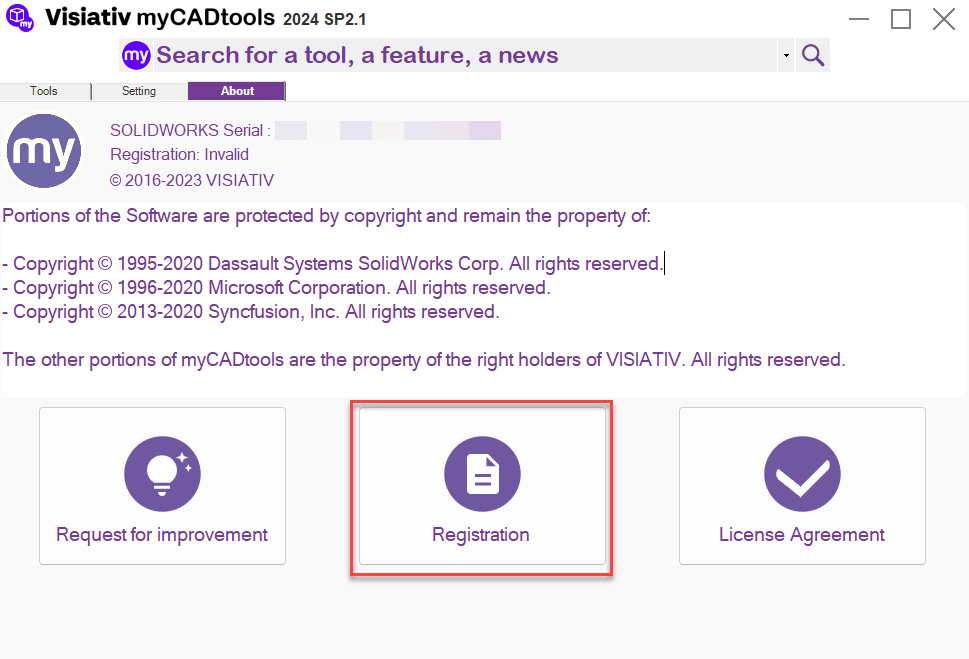
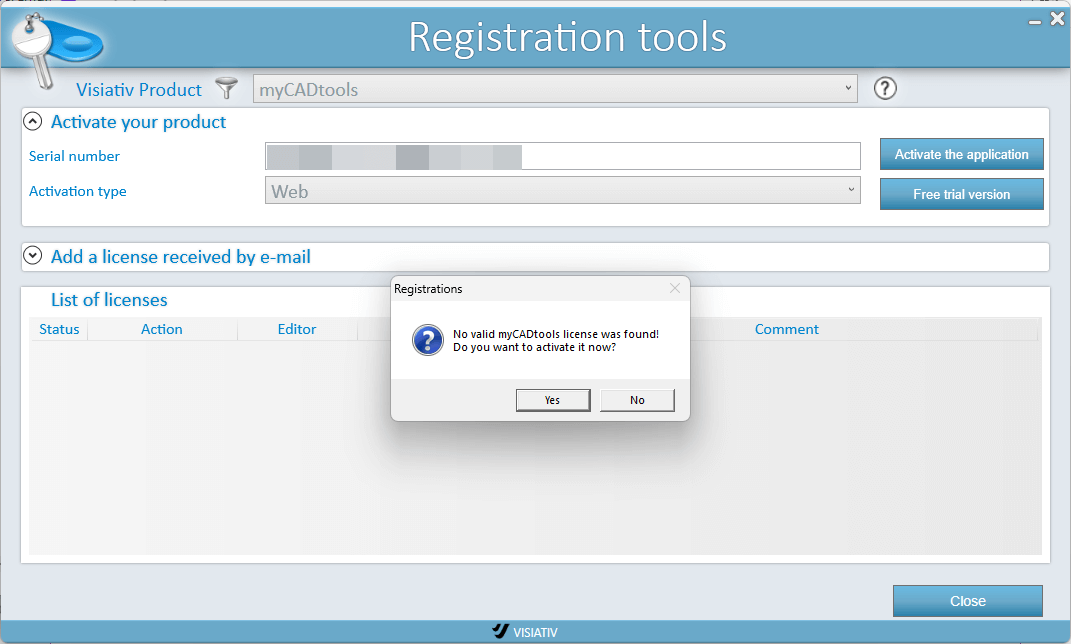
Finally, open the about screen and you can access the tool to register myCADtools. The license for which is linked to your SOLIDWORKS Serial No. If everything is in place, you should be able to activate the application successfully. Visiativ customers requiring assistance with this can raise a support ticket here.
Conclusion
Installing & activating myCADtools is a straightforward process, once installed the application can significantly boost your productivity and efficiency in SOLIDWORKS. By following these steps, you’ll be well on your way to leveraging the full potential of this powerful suite of tools. If you encounter any issues during the installation, Visiativ customers can reach out to our support team for assistance.
|
|
About the author: This tutorial was written by Elite SOLIDWORKS Applications Engineer and Training Manager, Adam Rose. Adam has been with the Visiativ Technical Support Team since 2010. |
|||
|
|
View Adam Rose’s LinkedIn Profile here.
|
|||