
How to: Get Started with AI Virtual Companions in SOLIDWORKS
24 September 2026
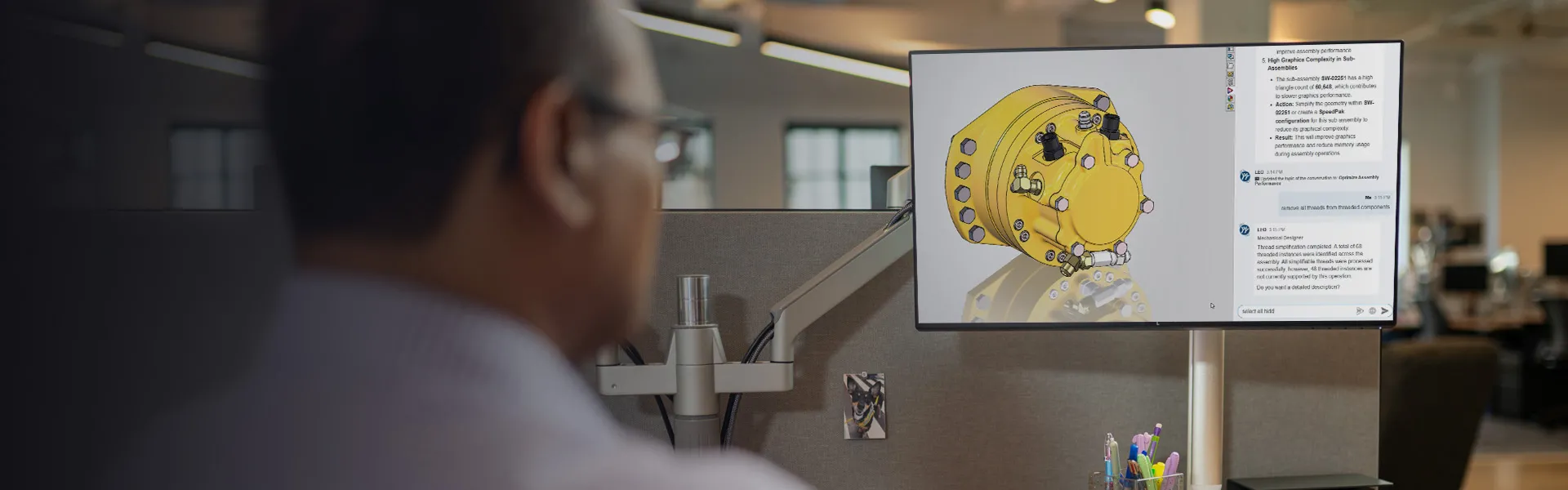
SOLIDWORKS customers now have access to AI Virtual Companions AURA and LEO, designed to help with engineering knowledge, design activities and workflow efficiency. This guide explains what you need to access these new AI capabilities and shows you how to get started within your existing SOLIDWORKS environment.
Why AI in SOLIDWORKS Matters
AI-enhanced tools in SOLIDWORKS help engineers streamline repetitive tasks, reduce design errors and accelerate product development – so they can focus on higher-value engineering work. As a result, these tools help users work more efficiently while also enabling them to make better-informed decisions earlier in the design process.
Prerequisites for Accessing AI Tools in SOLIDWORKS
Starting with the 2026 FD03 release of 3DEXPERIENCE, all commercial SOLIDWORKS Design Offer and SOLIDWORKS Design with Cloud Services customers will have access to SOLIDWORKS Virtual Companions (AURA and LEO).
But before you can access these new AI features in SOLIDWORKS, there are some things you need to have in place:
If you use SOLIDWORKS Design:
- A 3DEXPERIENCE account with appropriate roles assigned:
-
- 3DSwymer & Collaborative Industry Innovator
- SOLIDWORKS Design
-
- An installed SOLIDWORKS Design licence (Named-User License)
- A cloud ready workstation
If you use SOLIDWORKS Design with Cloud Services:
- A 3DEXPERIENCE account with appropriate roles assigned:
-
- 3DSwymer & Collaborative Industry Innovator
- Collaborative Designer for SOLIDWORKS
-
- An installed desktop SOLIDWORKS Design with Cloud Services licence
- An installed Design with SOLIDWORKS application
- A cloud ready workstation
Note: Upgrade to Version 2026 SP3.2 or later to access the Virtual Companions in SOLIDWORKS Design.
How to Access the tools within SOLIDWORKS
Step 1: Install the required SOLIDWORKS applications
- Guidance on how to install the SOLIDWORKS Design Offer, which has the Virtual Companions built in, can be found here.
- For users with desktop SOLIDWORKS Design, guidance on how to install the Collaborative Designer for SOLIDWORKS application can be found here.
Step 2: Connect SOLIDWORKS Design to the cloud
To access the AI Virtual Companions, first log in to the 3DEXPERIENCE platform through your SOLIDWORKS Design session. The most reliable way to do this is via the app in the browser.
- If you’re using the SOLIDWORKS Design role (Named-User License) click the compass and choose the SOLIDWORKS Design application:
|
|
-
If you’re using desktop SOLIDWORKS with Cloud Services click the compass and choose the Collaborative Designer for SOLIDWORKS application:
|
|
Step 3: How to access your Virtual Companions
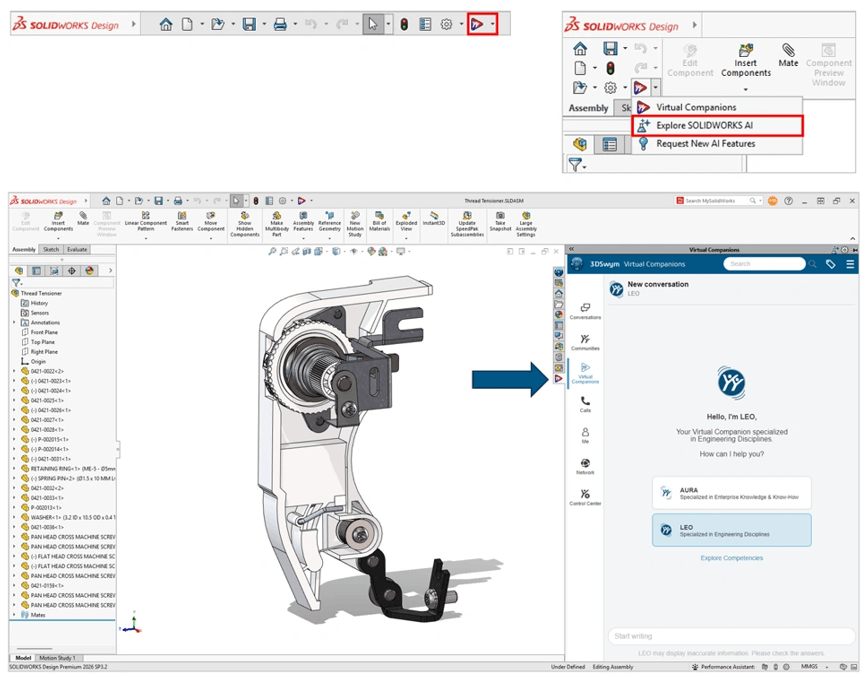
You can access Virtual Companions directly within SOLIDWORKS Design. To do so, simply select the Virtual Companions icon from the Quick Access Tools or, alternatively, select the Virtual Companions tab in the Task Pane.
Step 4: Start exploring SOLIDWORKS AI!
SOLIDWORKS Design roles provide access to two AI virtual companions. Each brings their own set of specialist competencies and skills.
- AURA focuses on connecting SOLIDWORKS users with relevant know-how
- LEO is an engineer’s best friend, helping with design activities and streamlining workflows
Note: Many Virtual Companion capabilities work without saving your SOLIDWORKS Design data to the 3DEXPERIENCE platform. However, storing your design data in the cloud will unlock additional skills.
Moving forward, AI usage will follow a consumption model based on Tokens. To help you get started, you’ll receive:
- Full access to AI Virtual Companions inside your existing SOLIDWORKS environment
- A one-time allocation of 2,100 tokens per Cloud Services licence in your tenant. Note: token consumption will vary per activity
To check your token allocation, visit the Members area of your Platform Management dashboard within your personal 3DEXPERIENCE tenant.

Further Reading:
If you’re interested in this topic and would like to learn more, you can have look at our other guides about AI:
- SOLIDWORKS AI: What It is, How It Works and Why It Matters in 2026
- SOLIDWORKS AI Companions Explained: Aura, LEO and Marie
Any questions? If you’re covered by our support service, please contact the Visiativ technical support team on 01223 200699 and we’ll be happy to help. You can also find more guides and tutorials here.
 |
About the author: This guide was written by 3DEXPERIENCE Product Manager, Lucy Bryan. Lucy is an Elite SOLIDWORKS Applications Engineer and has been with the Visiativ Technical Support Team since 2019. |
|||
|
|
||||