Creating an Interactive SVG in SOLIDWORKS Composer
15 May 2026
Creating Interactive Content with SOLIDWORKS Composer
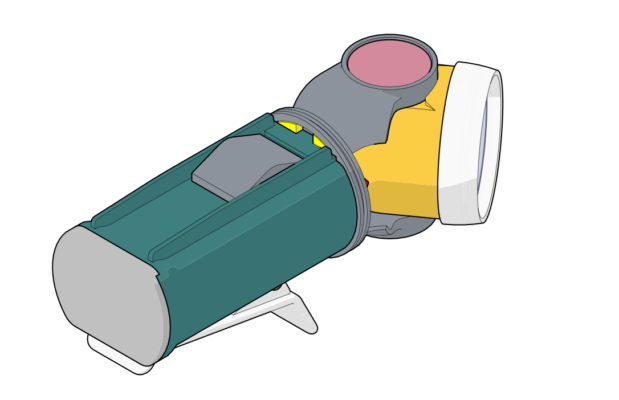
I will be using a flash light assembly which is made up of two sub-assemblies, a Base and a Head. When either of the sub-assemblies are clicked this will link to another page containing an exploded view and a BOM.
Creating Hotspots
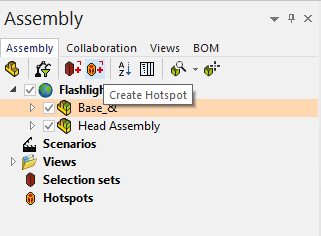
In Composer we can create hotspots within our documents that will take a user to a new view or webpage. You can create a Hotspot from a selection set or components from the model, in this example we’re using the sub-assemblies. First select the sub assembly in the tree.
Then click the “Create Hotspot” command.
 |
Name the Hotspot something related to the selection e.g. “Base”, then in the properties for the hotspot, enter a filename under EVENT>Link. This will be the name of the target page when exported.
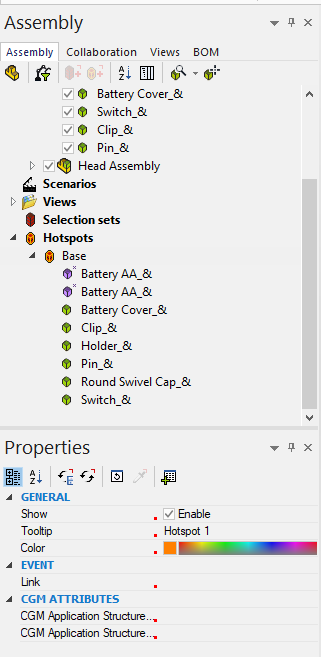 |
An important thing to note is that you must type the name correctly for the link to work, so using a simple naming structure can save a lot of time on larger projects.
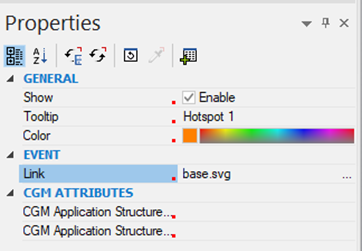 |
Once this is complete, repeat this process for the Head Hotspot, this will then link your first view to the two exploded views. The different methods of using the link are as follows:
- Filename.svg (if the target file is in the same folder as the source)
- http// (Target is a website page)
- File:// (Full file path location and name)
- View// (link to composer view)
Once complete we go to our Technical Illustration workshop.
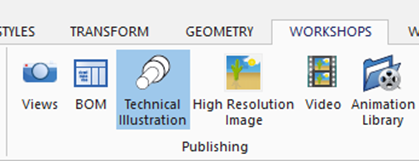 |
Select the visual settings for the svg file, such as colour regions and line outline. Then on the hotspot tab and clear create hotspots from BOM IDs. Save the svg files to the same folder and then test the views.
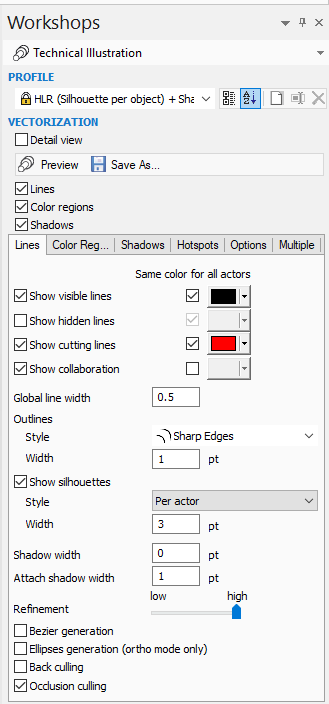 |
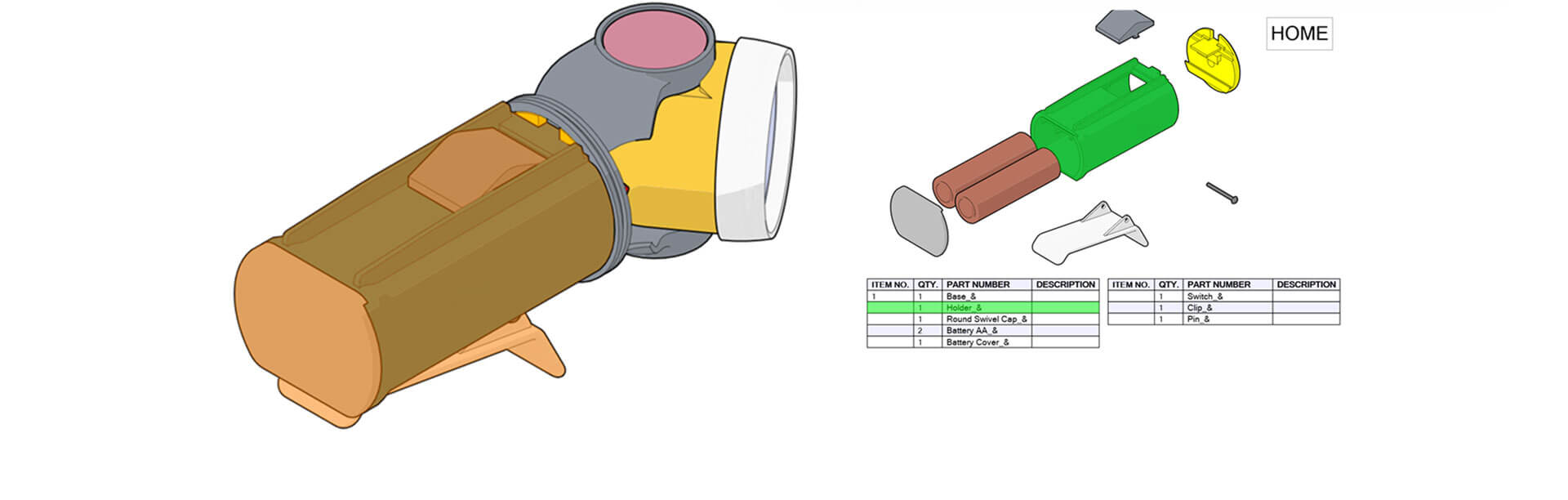
Once saved out we can test by opening the Home.svg, we can see the full holder subassembly highlights in orange and once clicked goes to our exploded view with BOM.
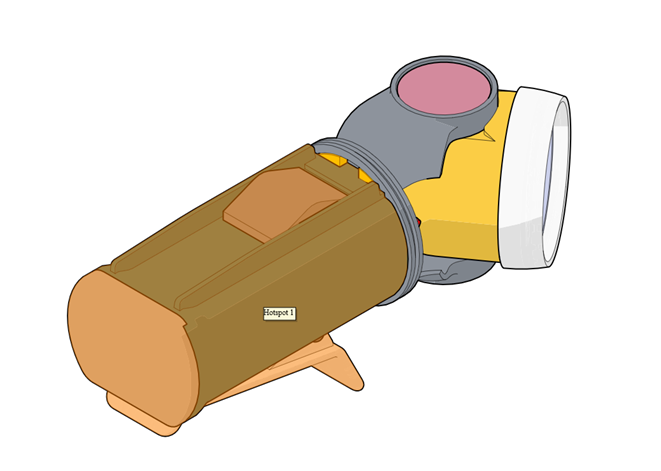
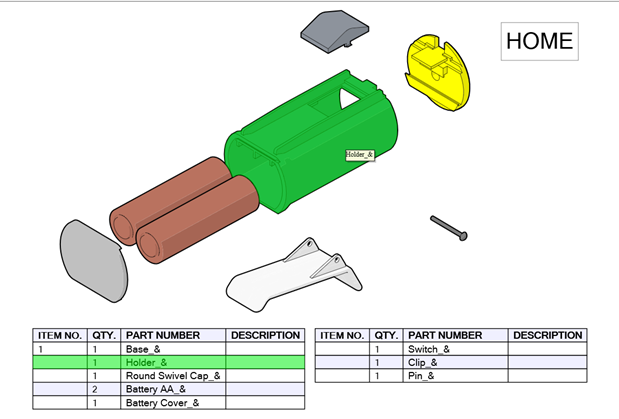
Repeat this process for all required views.
For more information on SOLIDWORKS Composer check out this video.
Now you know how to create an interactive SVG in SOLIDWORKS Composer!
If you experience any challenges with this process and you’re covered by our support service, our team will happily help you. Call 01223 200699 or email support@visiativ.co.uk.
If you’d like to find out more about SOLIDWORKS Composer, give us a call on 01223 200690 for more information, pricing, free trials, or to organise a live demonstration. We’re here to help!
Before you go…
You can also explore our collection of SOLIDWORKS guides, tutorials and technical resources for more helpful tips and advice.
 |
About the author: This guide was written by SOLIDWORKS Applications Engineer, Graeme Billingsley. Graeme has been with the Visiativ Technical Support Team since 2022. |
|||
|
|
||||