
How to: Add Your New Product to SOLIDWORKS
16 July 2026
Have you recently purchased a new SOLIDWORKS product that you want to add to your existing installation?
Here we’ll show you how you can quickly add to the package using the SOLIDWORKS installation manager within Windows Installed Apps.
What packages can be added to SOLIDWORKS?
You can add many different SOLIDWORKS packages by entering the relevant serial number into the installer.
- SOLIDWORKS Design
- SOLIDWORKS Visualize
- SOLIDWORKS Visualize Boost
- SOLIDWORKS Flow Simulation
- SOLIDWORKS Motion
- SOLIDWORKS Plastics
- SOLIDWORKS Simulation
- SOLIDWORKS CAM
- SOLIDWORKS Composer
- SOLIDWORKS Composer Player Pro
- SOLIDWORKS Inspection
- SOLIDWORKS MBD
- SOLIDWORKS Electrical
- SOLIDWORKS Electrical 3D
What do I need to add my new product?
Before you begin, to add your new SOLIDWORKS product you’ll require access to your new serial number and administrative rights to the machine you’re going to install it on.
How do I install my Product?
The steps below will quickly guide you through the installation process.
Starting the installer:
- Locate your new serial number provided by your SOLIDWORKS VAR
- Close any active SOLIDWORKS packages that may be running
- Open “Installed Apps” within Windows
– This can be done by Either right-clicking the Windows icon in the taskbar or Press Windows key + R and run the command: “ms-settings:appsfeatures“ - Scroll down to the most recent version of SOLIDWORKS installed
- Click the 3 Dots to the right and choose “Modify“
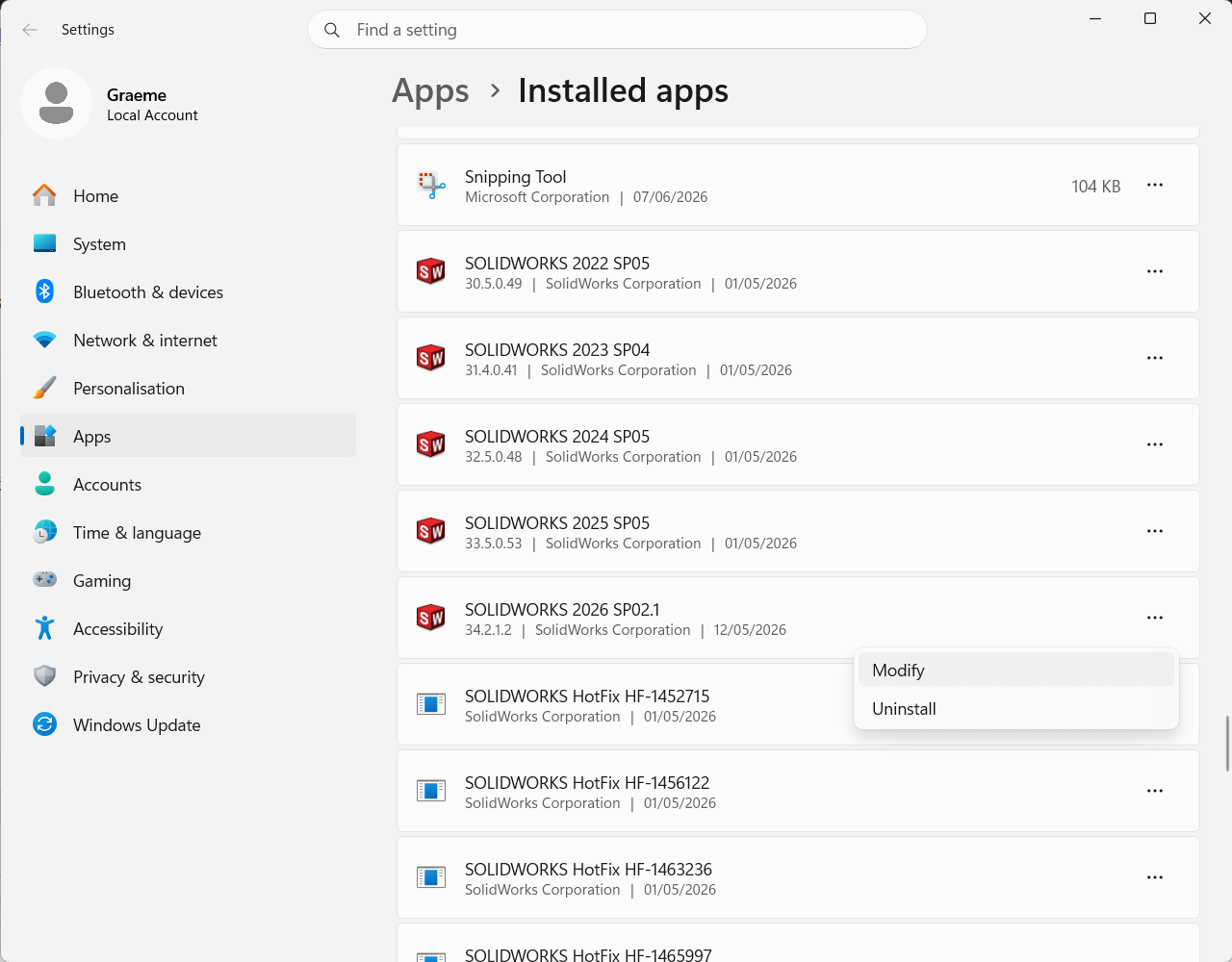
At this point, you may need to enter your administrator credentials if the system prompts you for them.
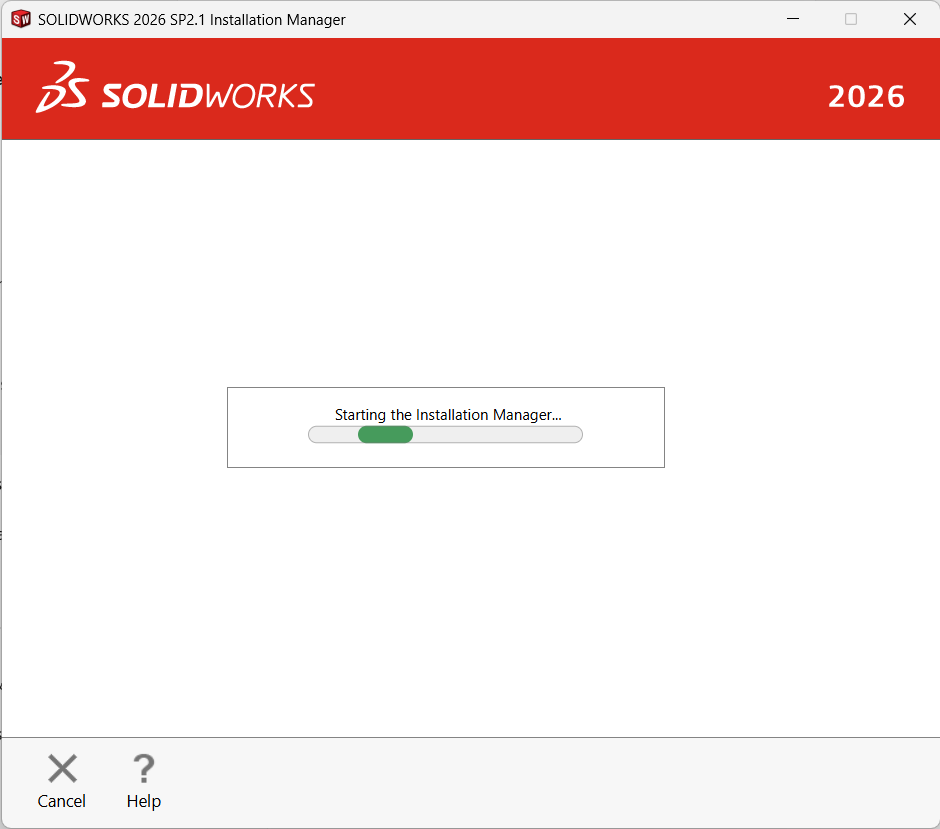
Then the SOLIDWORKS installer will load.
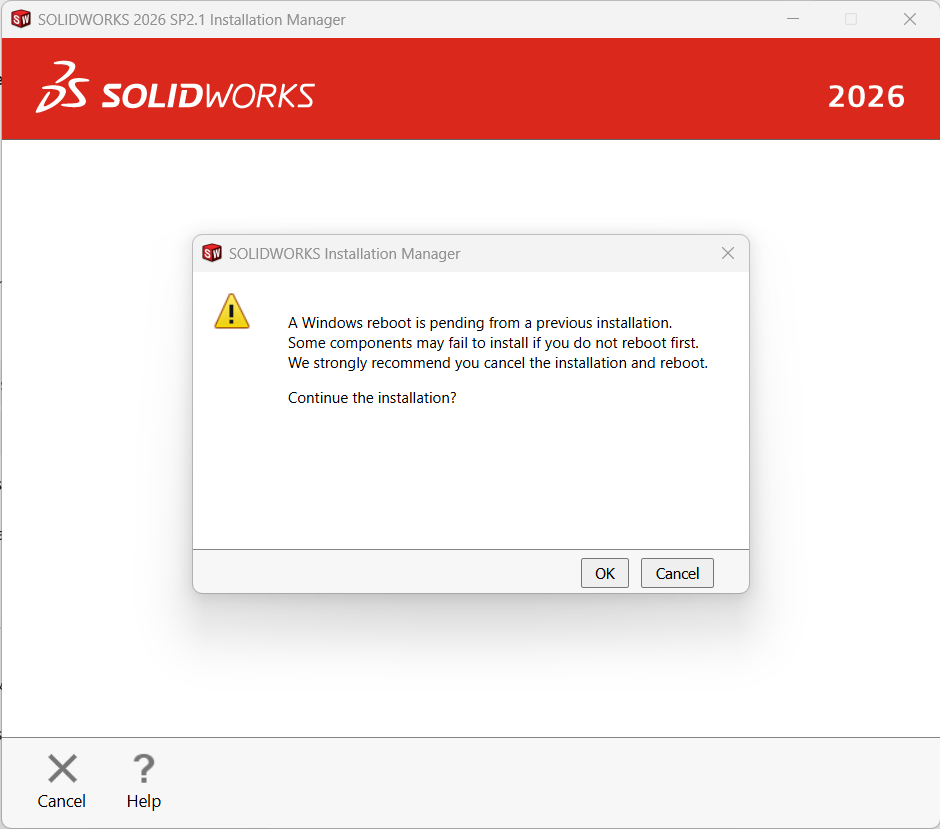
Click “OK” if prompted to restart the system. However, you can safely dismiss this message for now.
The Installer will communicate with the SOLIDWORKS servers to determine the currently active Licences.
Modifying the installation
Select the “Modify your installation” option and click “Next”.
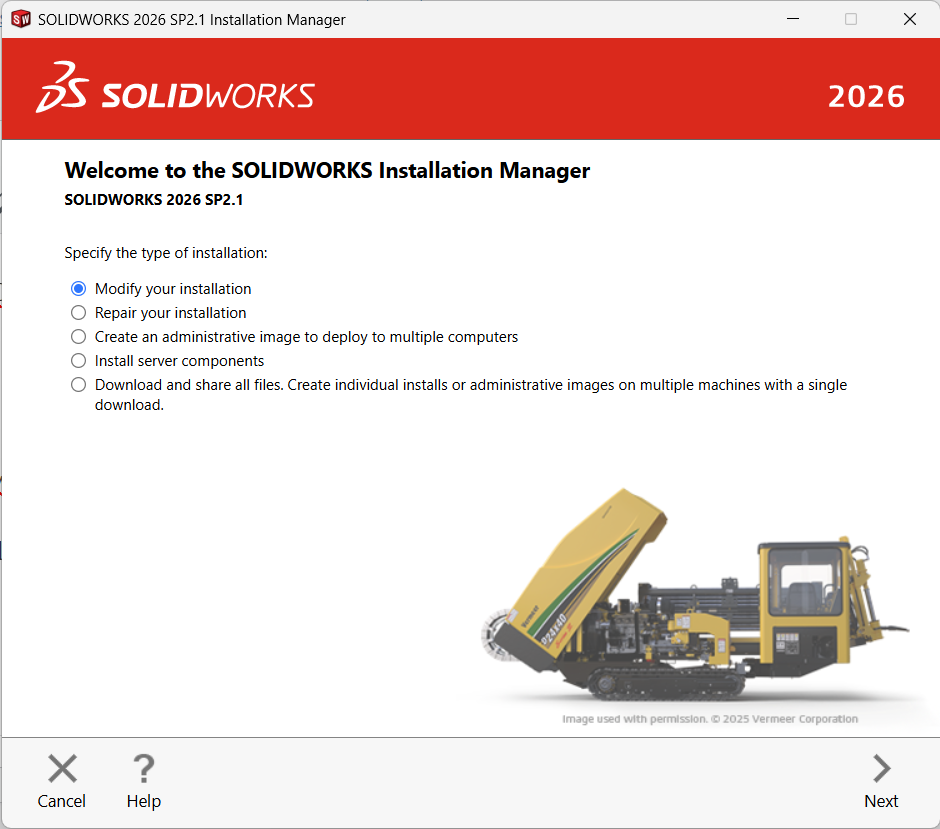
You’ll now see a list of your currently installed serial numbers.
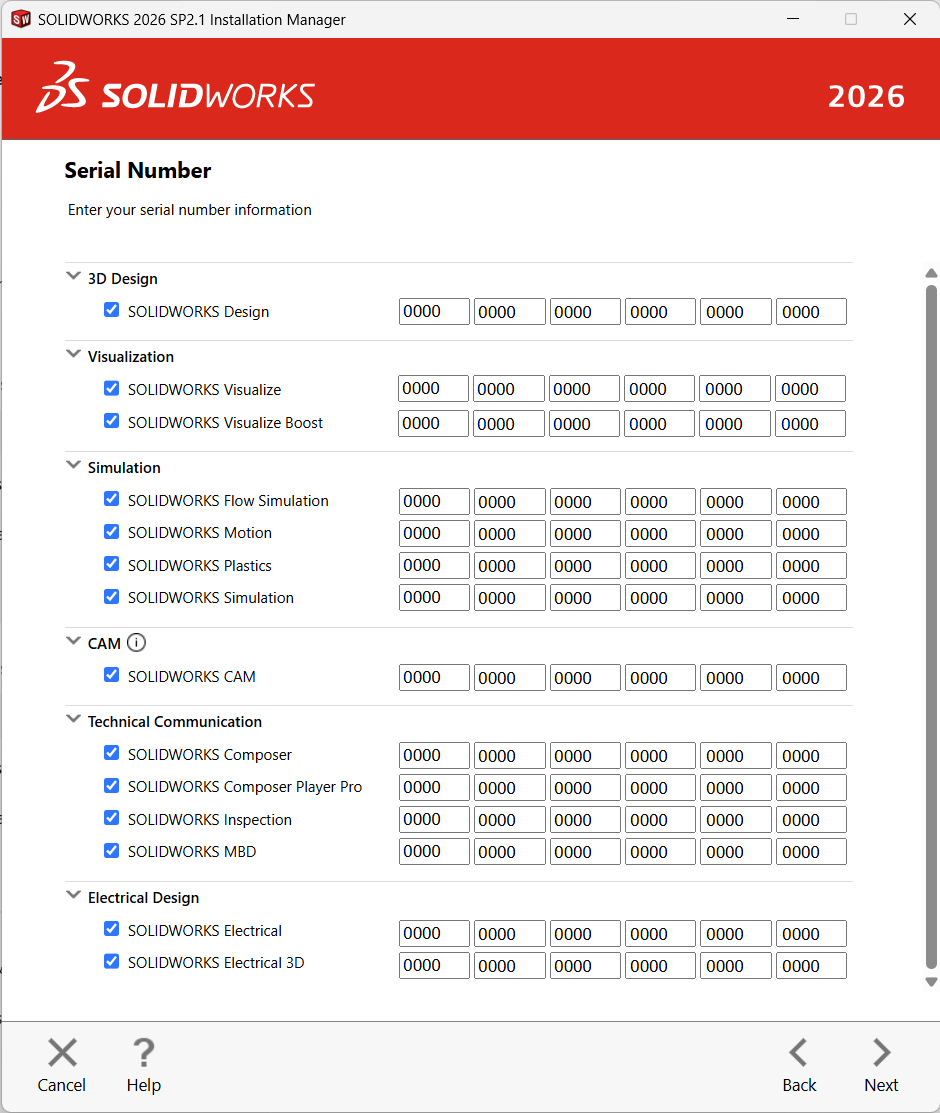
Check the box for the required product and enter the new Licence number.
Click “Next“.
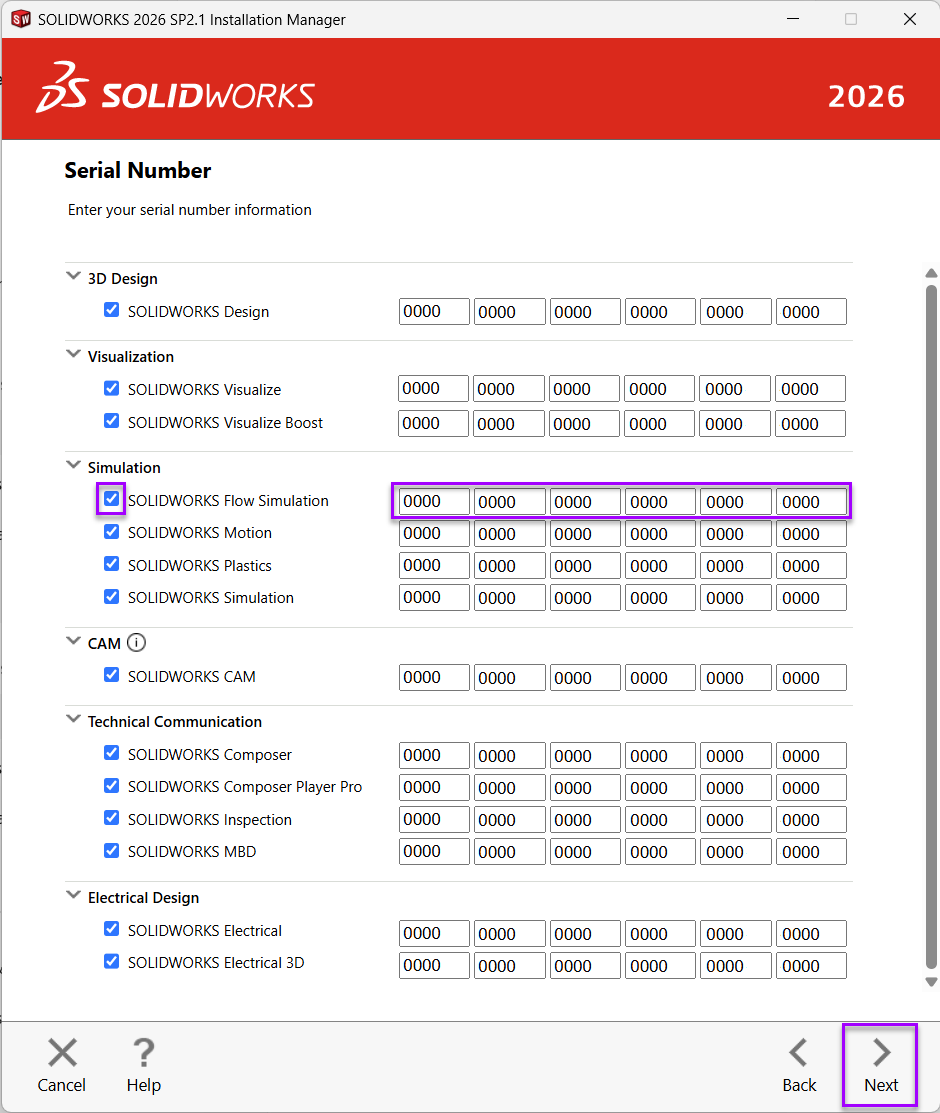
At this stage, you may need to enter your administrator credentials if the system prompts you for them.
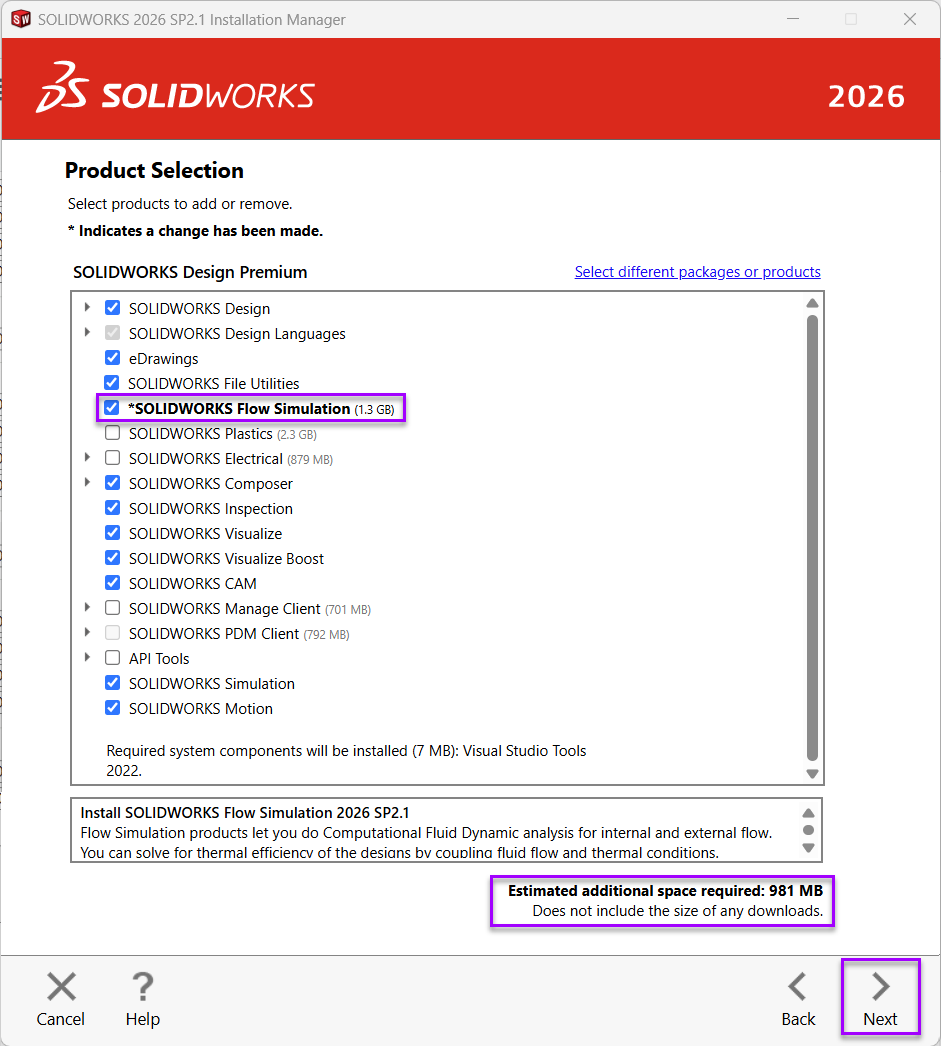
Tick the box for your new product.
You’ll see details of the additional space requirements and install notes.
Click “Next“.
The final page will show a Summary of the changes to the installation.
Products to Add | Products to Remove
This section shows the products to be changed – select the change pencil to modify again.
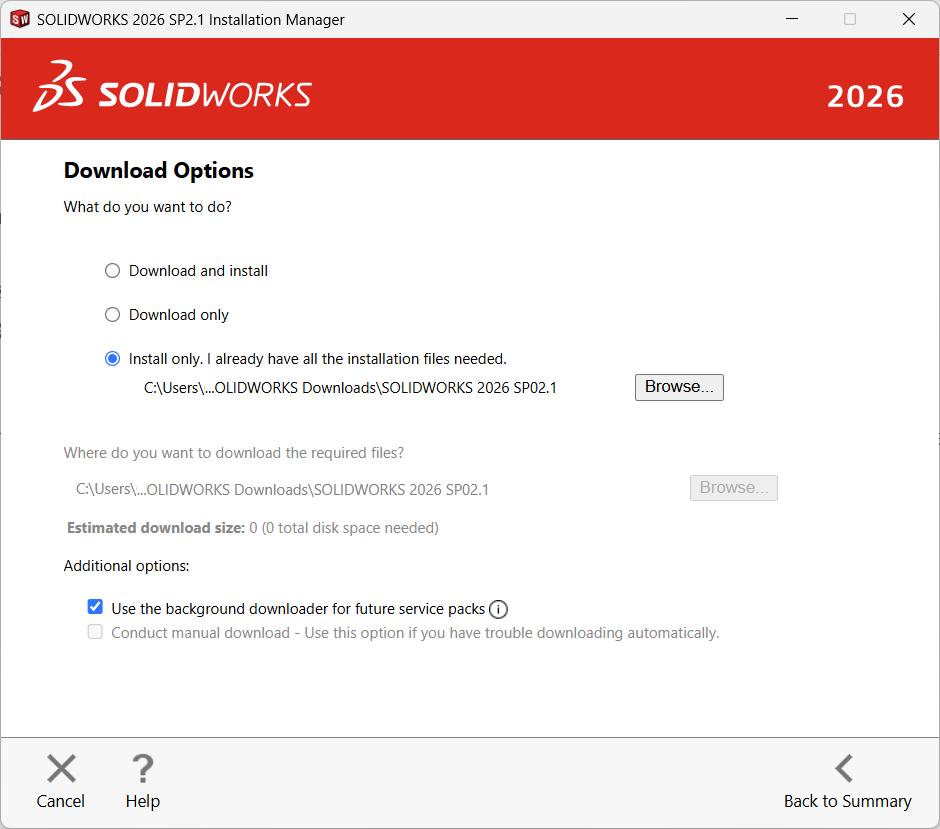
Download options
The SOLIDWORKS installer will automatically download any new files that are not part of the existing installation media, you can change these options if required.
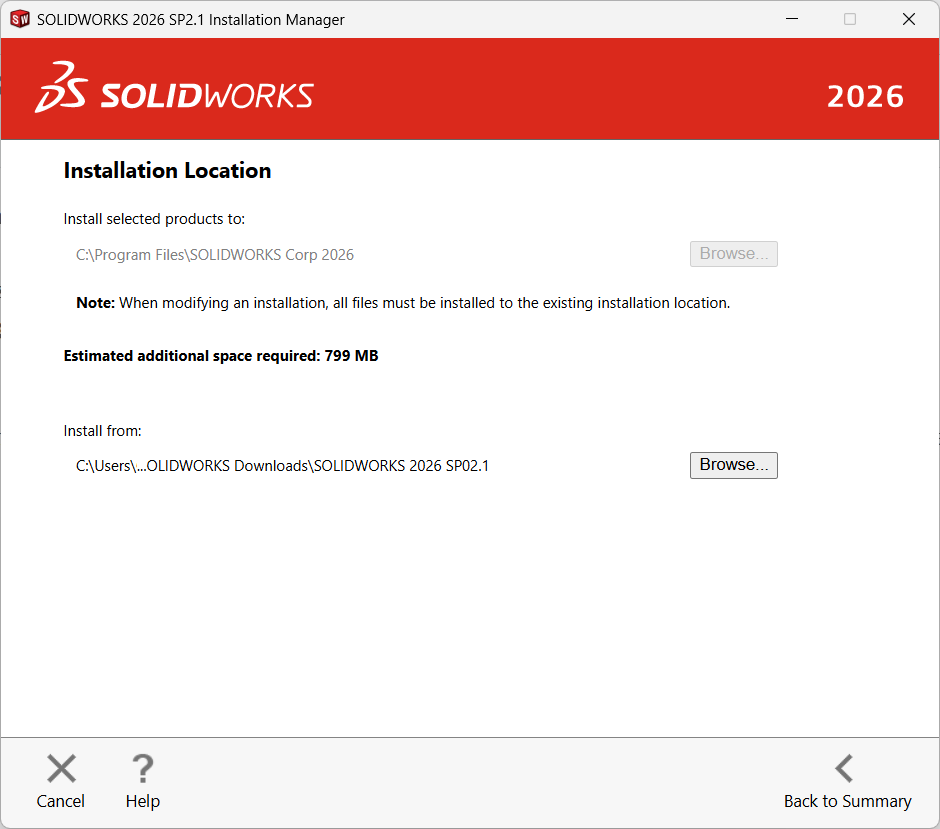
Installation Location
The installation location will be fixed as you’re technically editing an existing Installation.
Whereas, the Source location is the location of the existing installation files. This location can be modified if required.
Toolbox hole Wizard
The Toolbox settings are also fixed due to it being an existing installation.
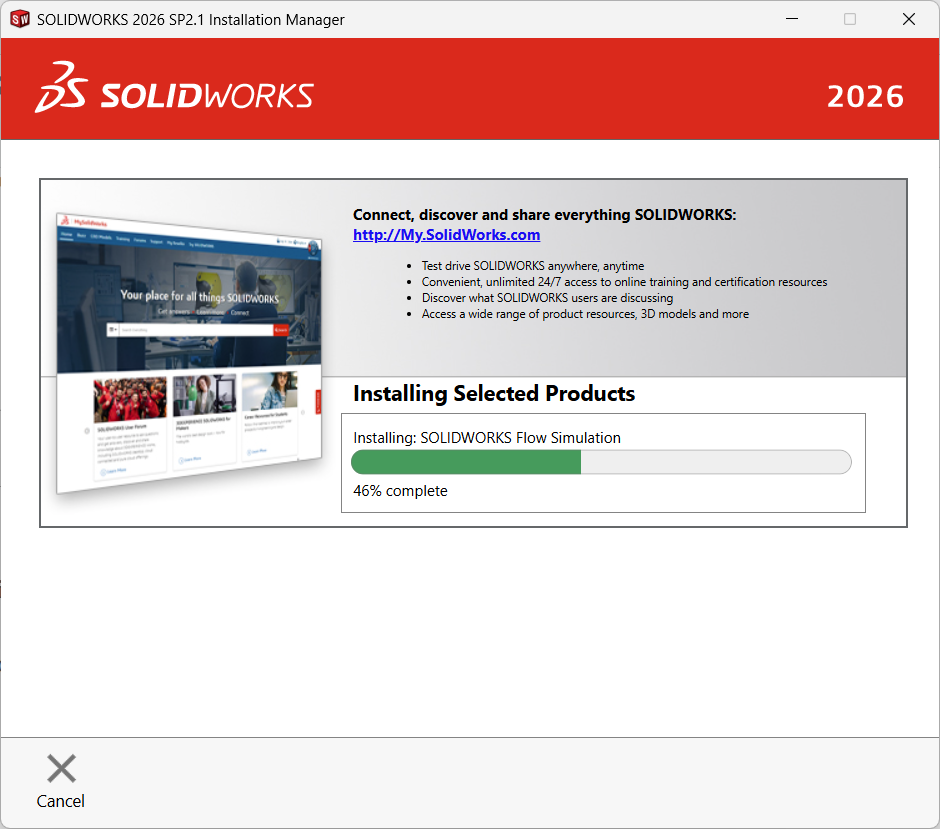
Once you’ve decided upon your settings, hit the “Modify” button and wait for the selected products to be installed.
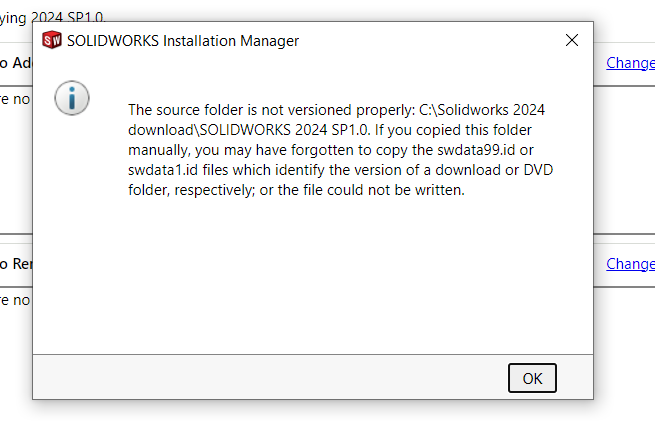
Additionally, please note that you may receive the error “The Source Folder is Not Versioned Properly” during the installation process. This is a common error that you can resolve easily. Our article here provides the steps for a quick fix.
Restarting your computer
Once the installation is complete then you can complete the installation and restart the computer.
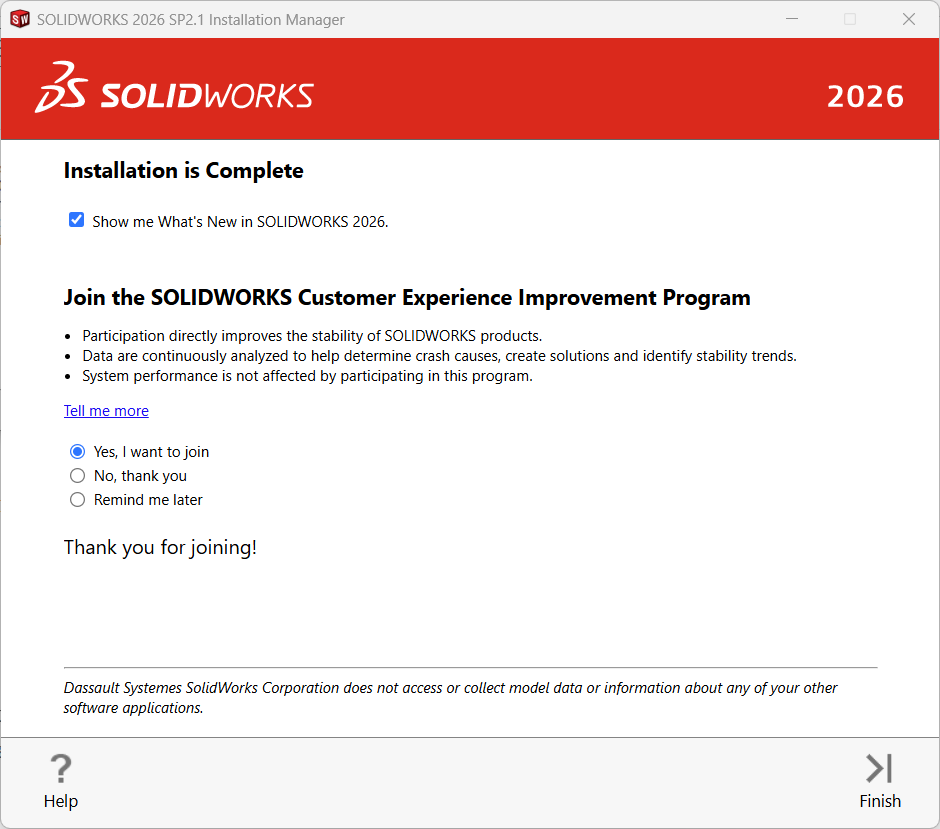
Activate your Product
At this point the product is installed and you’ll need to activate it to allow it to be used on your system. Depending on the product added the activation process may differ.
1. For “Standalone products” such as Visualize or Inspection the activation wizard will show when you first launch the product.
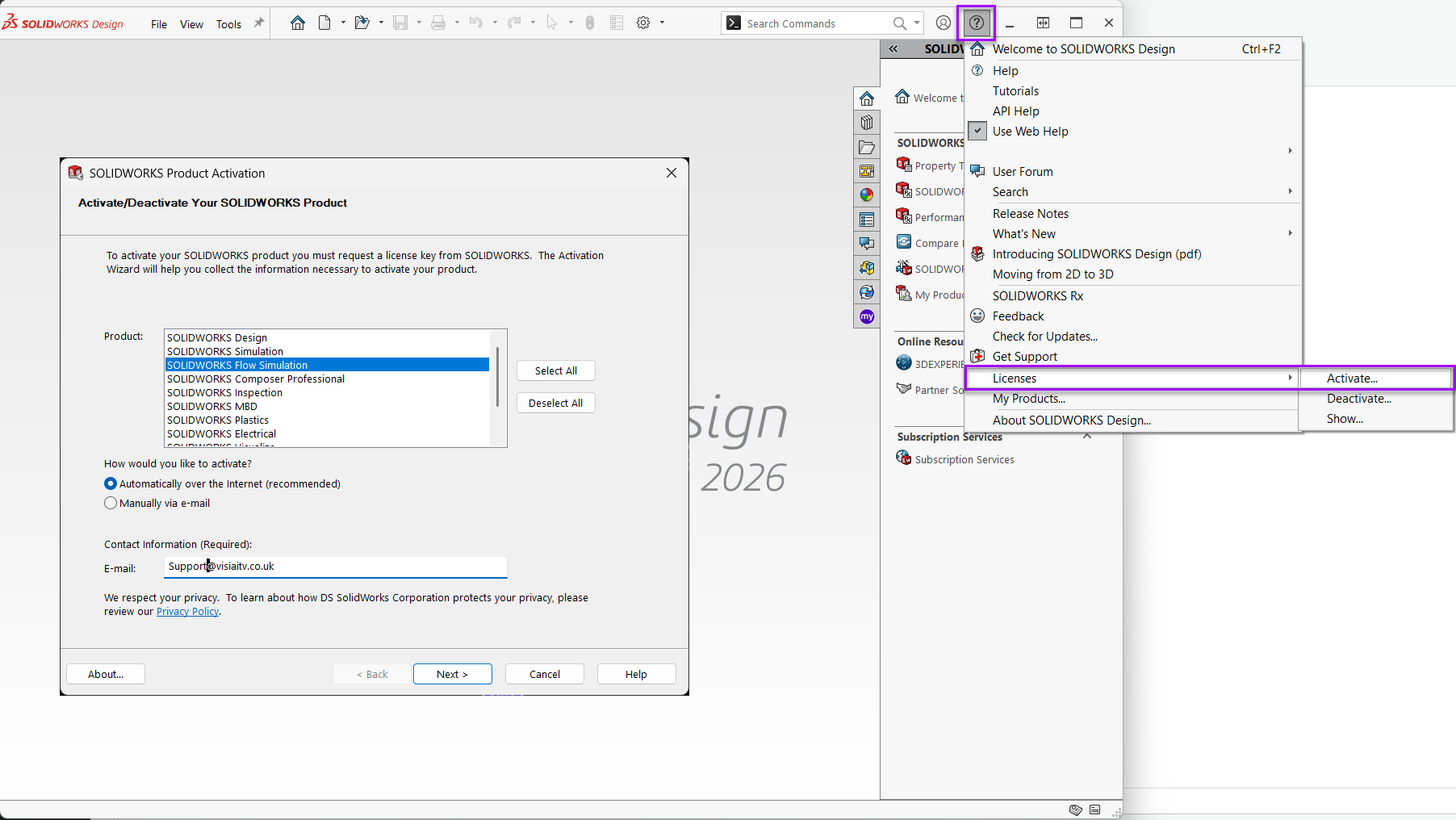
2. For “SOLIDWORKS Addins” such as Simulation these can be activated by:
- Launching SOLIDWORKS
- Select the “?” in the top right of the Window
- Select “Licences > Activate“
- Choose the new product and again follow the activation wizard
We hope you’ve found our article useful and provides all of the information to get you up and running quickly with your new SOLIDWORKS Licences.
Bonus tip
Finally, if you’re looking for details on how to change an existing SOLIDWORKS licence or move to another system have a look at our YouTube short video below.
 |
About the author: This guide was written by Elite SOLIDWORKS Applications Engineer, Graeme Billingsley. Graeme has been with the Visiativ Technical Support Team since 2022. |
|||
|
|
||||