3DEXPERIENCE Troubleshooting Guide: Tips for Faster Problem Solving
12 February 2026
Navigating complex CAD environments like SOLIDWORKS can be challenging when issues arise – and that’s before considering the additional data management complexities introduced by 3DEXPERIENCE or SOLIDWORKS PDM. Knowing how to troubleshoot effectively is essential for maintaining productivity and avoiding workflow interruptions. Of course, our support team is always available to assist users on subscription, but in this 3DEXPERIENCE troubleshooting guide, we’ll explore general best practices to help you with troubleshooting for SOLIDWORKS and 3DEXPERIENCE, before hopefully resolving them independently.
1. Browsers, Caches & Cookies 🍪
Which browser should I use?
To start this 3DEXPERIENCE troubleshooting guide, we’ll look at the browser. 3DEXPERIENCE has three officially supported browsers; Mozilla Firefox, Google Chrome and Microsoft Edge. It’s recommended that you choose one of these browsers to run 3DEXPERIENCE. If you experience an issue in your browser of choice, it’s always good practice to try again in a different one. This will help you establish whether the issue is browser specific or program specific. For up to date browser requirements, please view the official Program Directories (opens in new tab).
Why should I clear out my cache and cookies?
It’s good practice to regularly clear your browser cache and cookies for several reasons. Over time, cached data can grow significantly depending on your browser settings, consuming disk space and potentially slowing down web browsing. Cached files can also cause issues when viewing updated web pages – particularly important for platforms like 3DEXPERIENCE, where pages are updated frequently.
Clearing your cache and cookies can help troubleshoot issues such as unexpectedly long page load times, problems loading the latest versions of web pages and reduced performance when using browser-based functions.
A lot of issues reported within the 3DEXPERIENCE web application can be resolved by clearing your cache and cookies.
How to clear cache and cookies per browser?
IMPORTANT: Be sure to close/quit the browser and restart it after clearing the cache and cookies.
Google Chrome:
- Click the “Tools” menu (three dotted lines in the upper-right corner)
- Select “History”
- Select “Clear Browsing Data” from the left-hand side. Set the Time Range to “All Time”. Check-mark “Cookies and other site data” and “Cached images and files” and select “Clear Data”
- If on a Windows computer, close and re-open Chrome to save your changes. If on an Apple computer, go to the Chrome menu on the top menu bar and select “Quit” for the changes to take effect
Firefox:
- Click on the “Tools” bar
- Click “Settings” (On Mac, it’s labelled “Preferences”)
- On the menu to the left, select “Privacy & Security”
- Under the Cookies and Site Data option, click the “Clear Data…” button
- Select only the two options and hit “Clear Now”
- If on a Windows computer, close and re-open Firefox to save your changes. If on an Apple computer, go to the Firefox menu on the top menu bar and select “Quit” for the changes to take effect
Microsoft Edge:
- Click the “Tools” menu (three dotted lines in the upper-right corner) and open the Settings menu
- Click “Privacy, search, and services” on the left-side menu
- Under the section “Clear browsing data”, Click “Choose what to clear”
- Select “Cookies and other site data and Cached images and files”
- Click “Clear Now”
- Close Microsoft Edge completely for your changes to take effect
2. 3DEXPERIENCE Access Denied ⛔
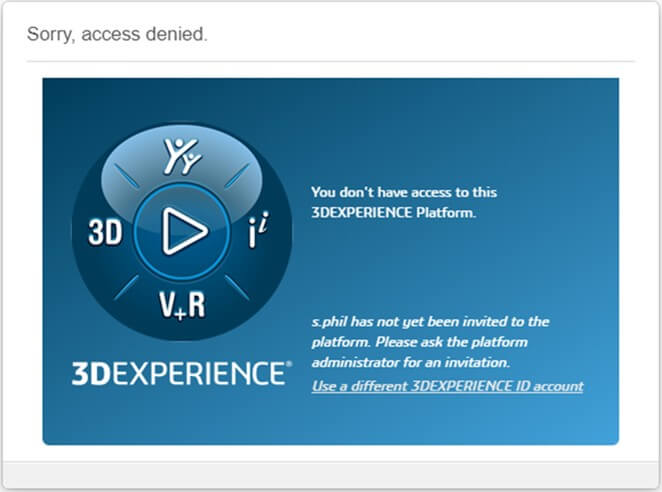
The error above generally means you don’t have the required permissions to access that 3DEXPERIENCE location. It can show as a result of one of the following:
A. Missing or incorrect roles
Your 3DEXPERIENCE passport (user login) may not grant access to the tenant you’re trying to open. These are the most common causes of this error and can include:
- You don’t have any roles assigned to you within the tenant
- If you know you have roles assigned to you, they may have expired
- You roles may have become over subscribed
- You’re trying to access the wrong tenant – check your tenant number in your 3DEXPERIENCE URL
- Your 3DEXPERIENCE tenant hasn’t yet been activated, or has by a different user who is now administrator
If you’re experiencing issues with your roles, it’s best to contact your 3DEXPERIENCE administrator. Alternatively, Visiativ UK & Ireland customers can contact our support team.
B. Session or authentication issues
An expired or corrupted login session can cause the platform to deny access, even if your roles are correct. This is common after:
- Long periods of inactivity
- Platform updates
- Switching between multiple 3DEXPERIENCE tenants
- Browser cache or cookie issue
Here, the recommendation is to firstly log out of 3DEXPERIENCE before logging back in. If the issue persists, clear the browser cache or trying an incognito/private window, as shown in step 1. This usually resolves these types of issue.
C. Platform or service availability issues
Occasionally, backend service interruptions or incomplete platform updates can temporarily trigger access errors, even for correctly configured users.
To check the 3DEXPERIENCE Server Status follow the steps here. This will allow you to see whether there is a 3DEXPERIENCE update issue or if the servers are impacted.
3. 3DEXPERIENCE Compatibility 🤝
The 3DEXPERIENCE Compatibility Checker (often referred to as the Cloud Eligibility Tool) is a diagnostic utility that is used to verify whether a user’s system is correctly configured to run the 3DEXPERIENCE platform. It helps identify configuration issues that may lead to login failures, performance problems, missing apps, or unexpected errors within the platform. It’s useful for highlighting errors or unexpected behaviour as a result of:
- Unsupported or outdated graphics drivers
- Browser configuration problems
- Missing prerequisites
- Network or security restrictions that may block platform services
You can to test your compatibility on the official SOLIDWORKS website here.
4. Additional Troubleshooting Recommendations 🔎
For more complex issues when 3DEXPERIENCE troubleshooting, it’s sometimes necessary to collect further information to help with the troubleshooting process. This can be used by your SOLIDWORKS support team to diagnose and resolve any issues. The type of tool that’s best-suited to troubleshooting is dependent on the type of issue being experienced.
SOLIDWORKS Rx
SolidWorks Rx is a tool that comes packaged with every download of SOLIDWORKS. It can log and save data that can be used by support to identify the cause of SOLIDWORKS issues. This includes:
- Recording workflows with Problem Capture
- Packaging SOLIDWORKS files
- Analysing a user’s system
- Suggesting possible solutions
It’s recommended to use SOLIDWORKS Rx if there is unexpected behaviour within SOLIDWORKS (e.g., crashing when launching a specific feature, graphical errors etc.)
SOLIDWORKS Rx (with 3DEXPERIENCE Debug Logs)
If there’s unexpected behaviour within SOLIDWORKS that relates to 3DEXPERIENCE (e.g., SOLIDWORKS not connecting to 3DEXPERIENCE, or an error message when opening a part from 3DEXPERIENCE) it’s recommended to use SOLIDWORKS Rx with the 3DEXPERIENCE Debug Log option enabled. An example workflow is shown below using the “Problem Capture” tab.
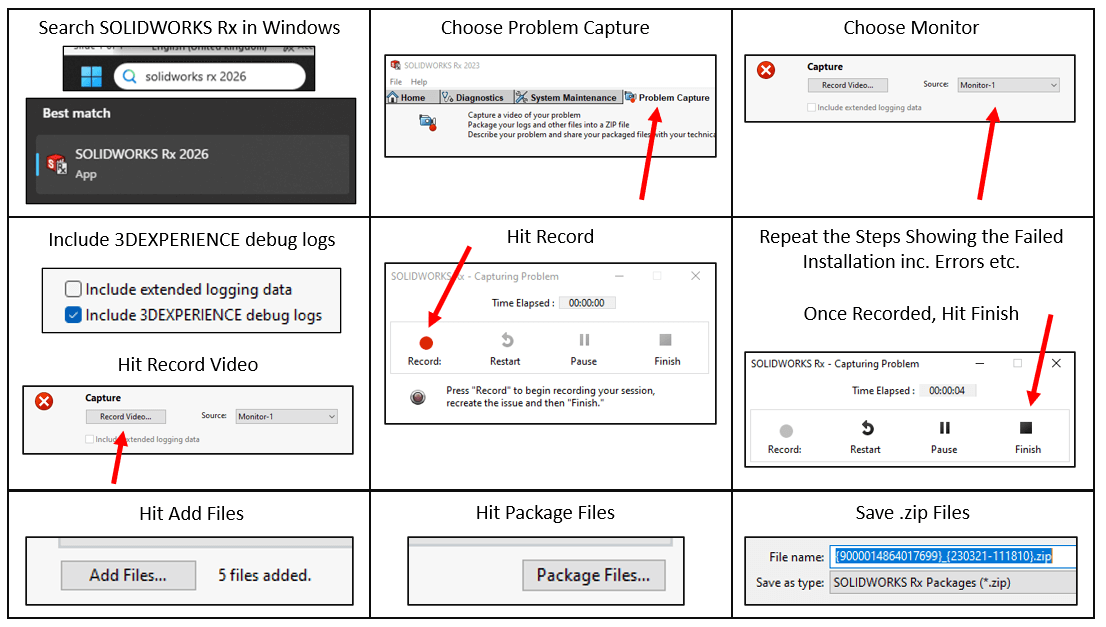
For more information on 3DEXPERIENCE Debug Logs visit this official Knowledge Base article – QA00000103804 (opens in new tab).
Troubleshooting Machine for Web Apps
If there’s unexpected behaviour with 3DEXPERIENCE apps in the web browser (e.g., something will not load in 3DPlay or an unexpected behaviour in the browser) then it’s best to record logs via the Troubleshooting Machine for Web Apps. It’s the easiest and quickest way to record a video and collect traces of a 3DEXPERIENCE platform scenario with web applications. It captures a screen recording of the issue, traces, http(s) exchanges and system information.
For additional information on the TSM, please refer to this official Knowledge Base article – QA00000303283 (opens in new tab).
Enable App Logs
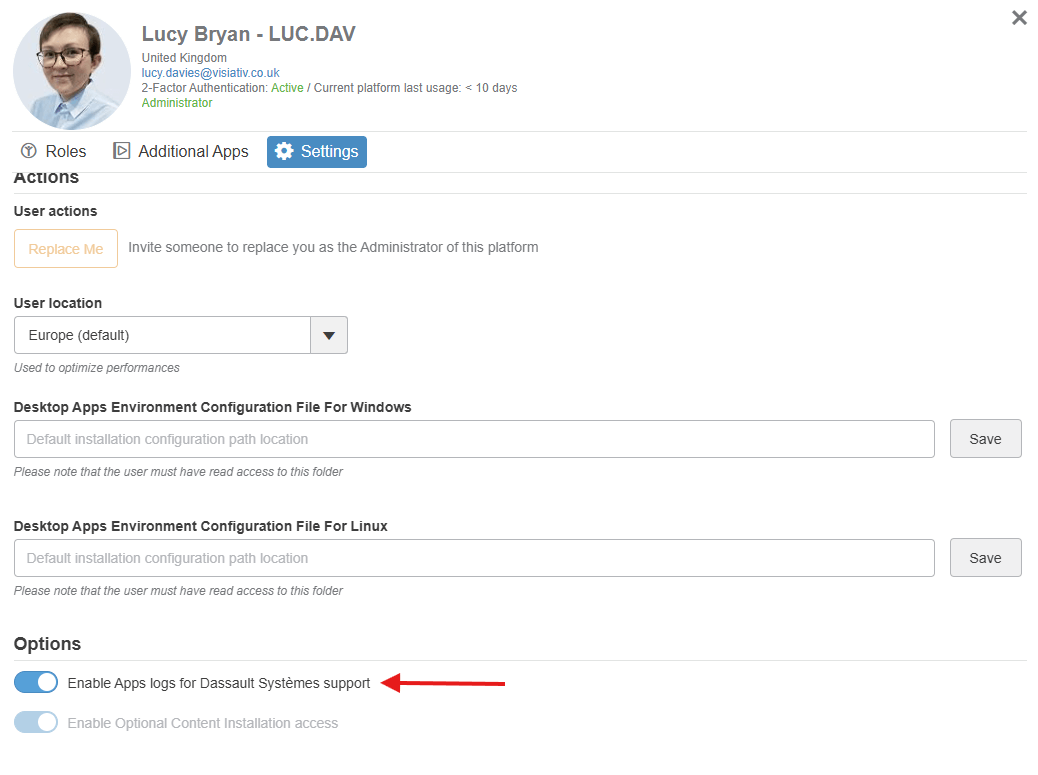
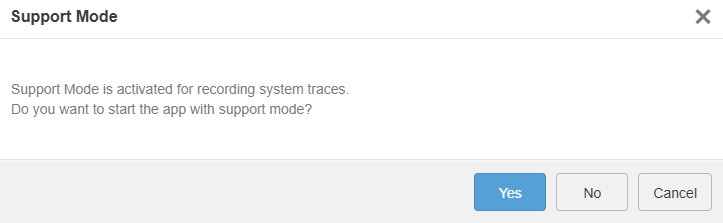
Enabling App Logs within the user profile of a user within a 3DEXPERIENCE tenant will allow the user to launch native apps in Support Mode. This is useful for collecting additional information for errors with Native App installations.
It can be enabled by activating the options in the user settings.
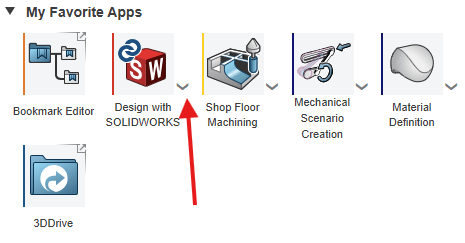
Then, when a native app is launched, the user has the option to launch it in Support Mode.
We hope you found this 3DEXPERIENCE troubleshooting guide helpful. For any further assistance or guidance you may need regarding 3DEXPERIENCE and SOLIDWORKS, use our support services or give us a call on 01223 200699.