
Missing SWOOD CommandManager Features in SOLIDWORKS
25 June 2026
Some users running SWOOD 2024 or 2025 may encounter a bug that causes SWOOD CommandManager features to go missing in SOLIDWORKS, even though the add-in remains active. In the example below, the Edit Panel and New Edgeband commands are missing. Until a future update resolves this issue, you can restore the missing commands using the following workaround.
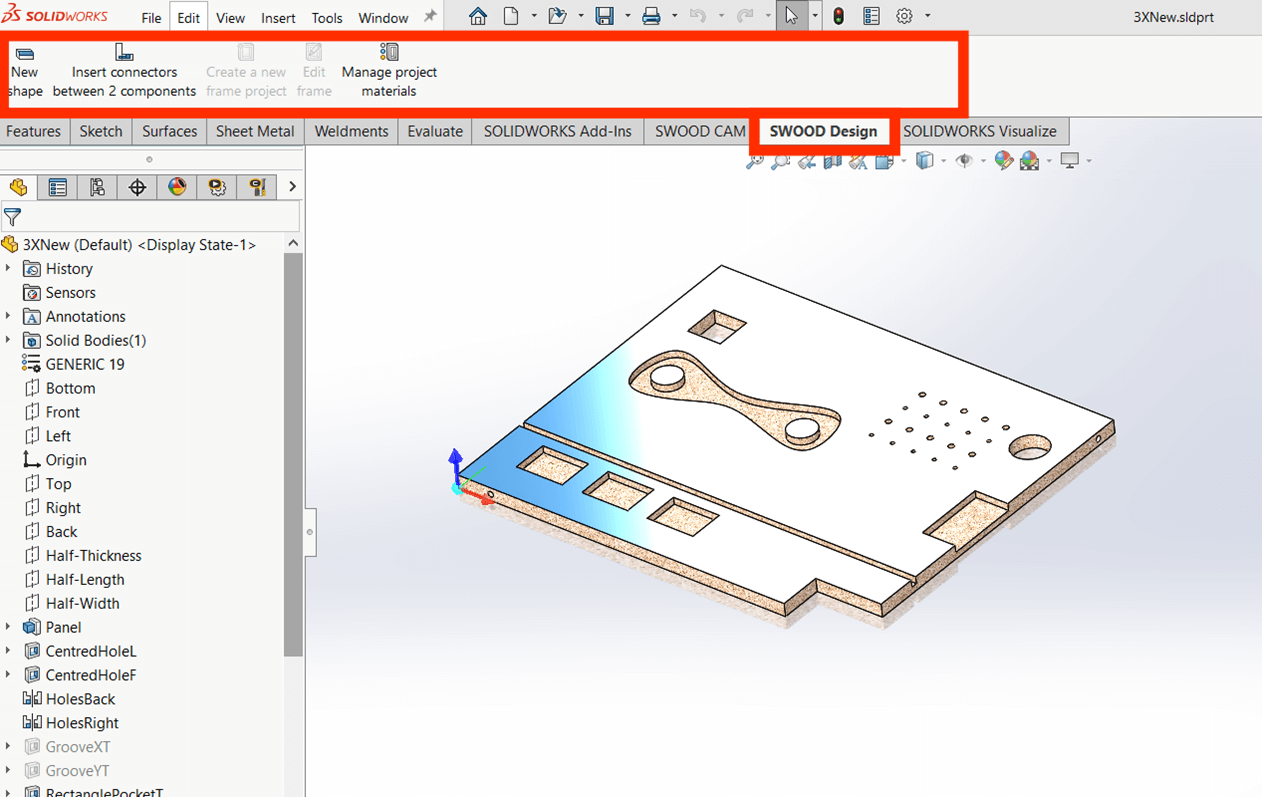
Workaround Steps for SWOOD CommandManager
Right-click anywhere in the CommandManager and select “Customize”.
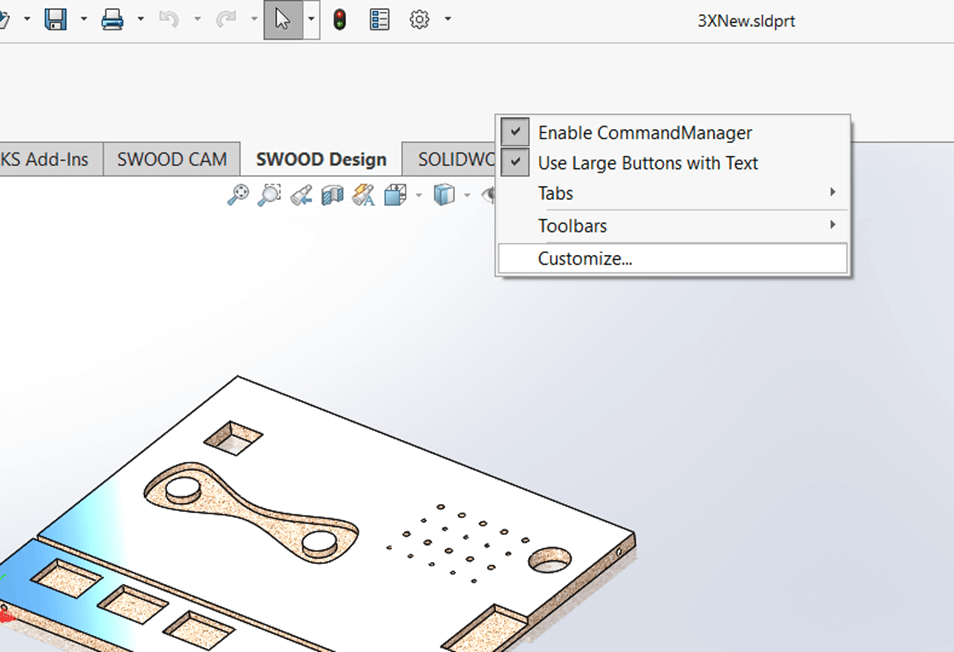
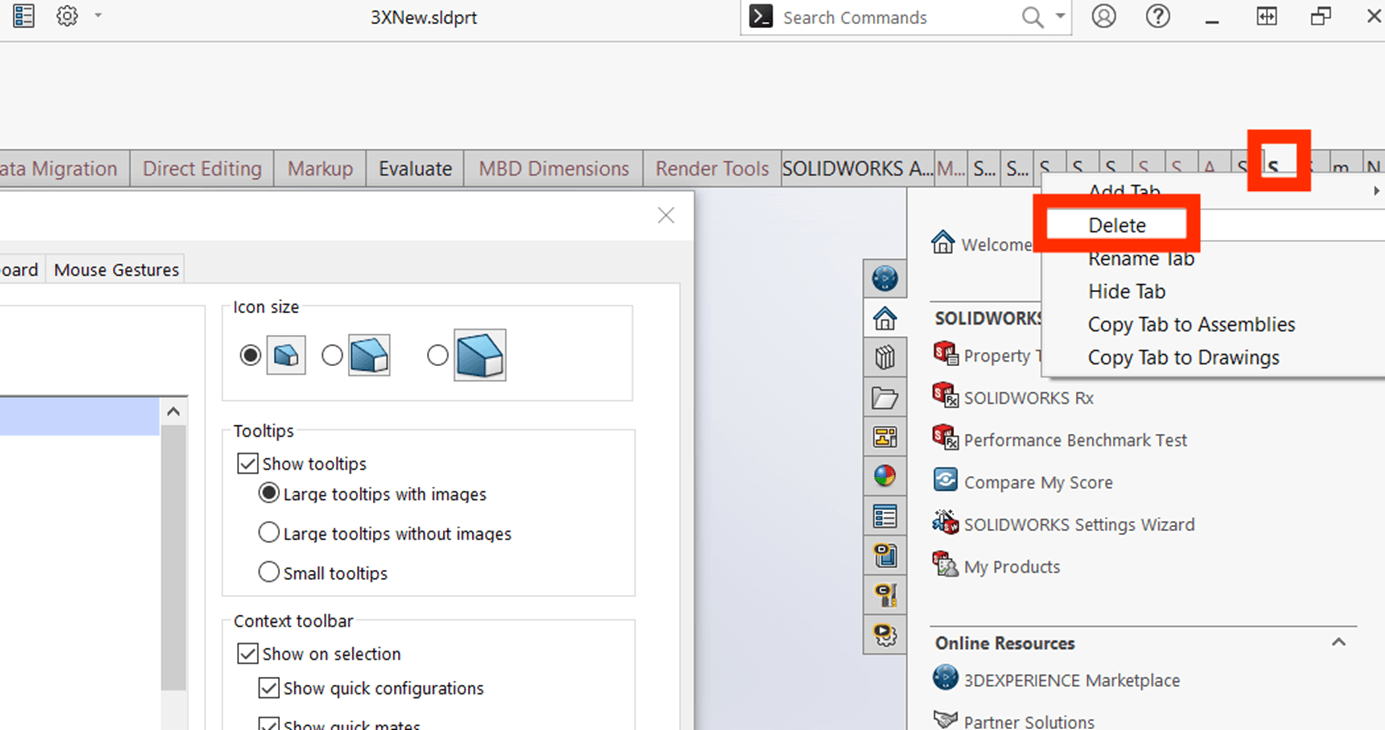
Delete the affected tab(s) (SWOOD Design and/or SWOOD CAM) by right-clicking the tab and selecting “Delete”. Click “OK” to close the Customize window.
To add the SWOOD tabs back in, Right-click in the SWOOD CommandManager, select “Customize”, then choose “New Tab”.
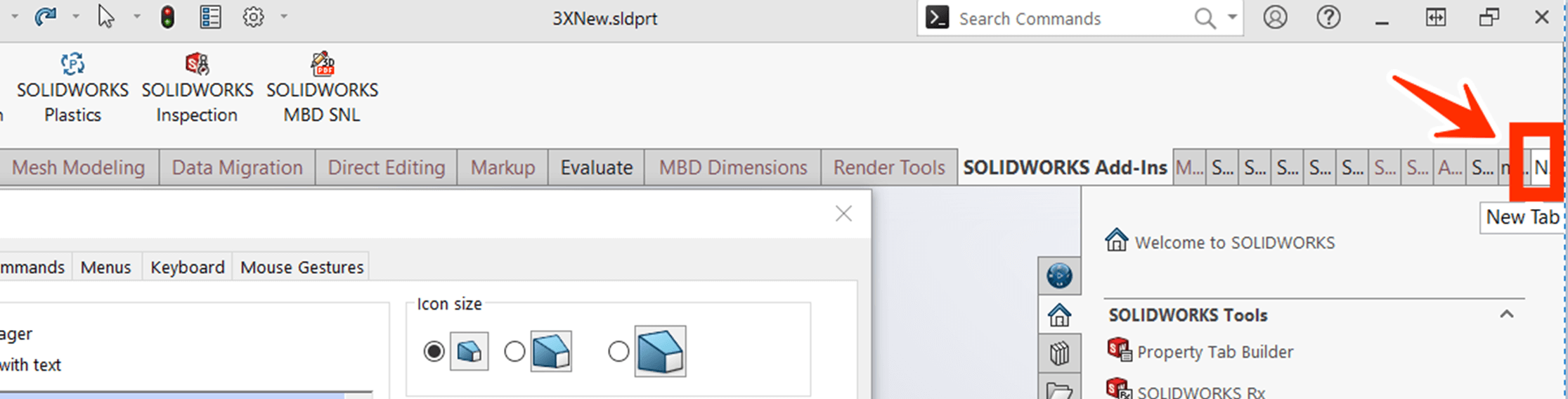
Select “SWOOD Design” to add the tab back in. Repeat these steps for SWOOD CAM if needed.
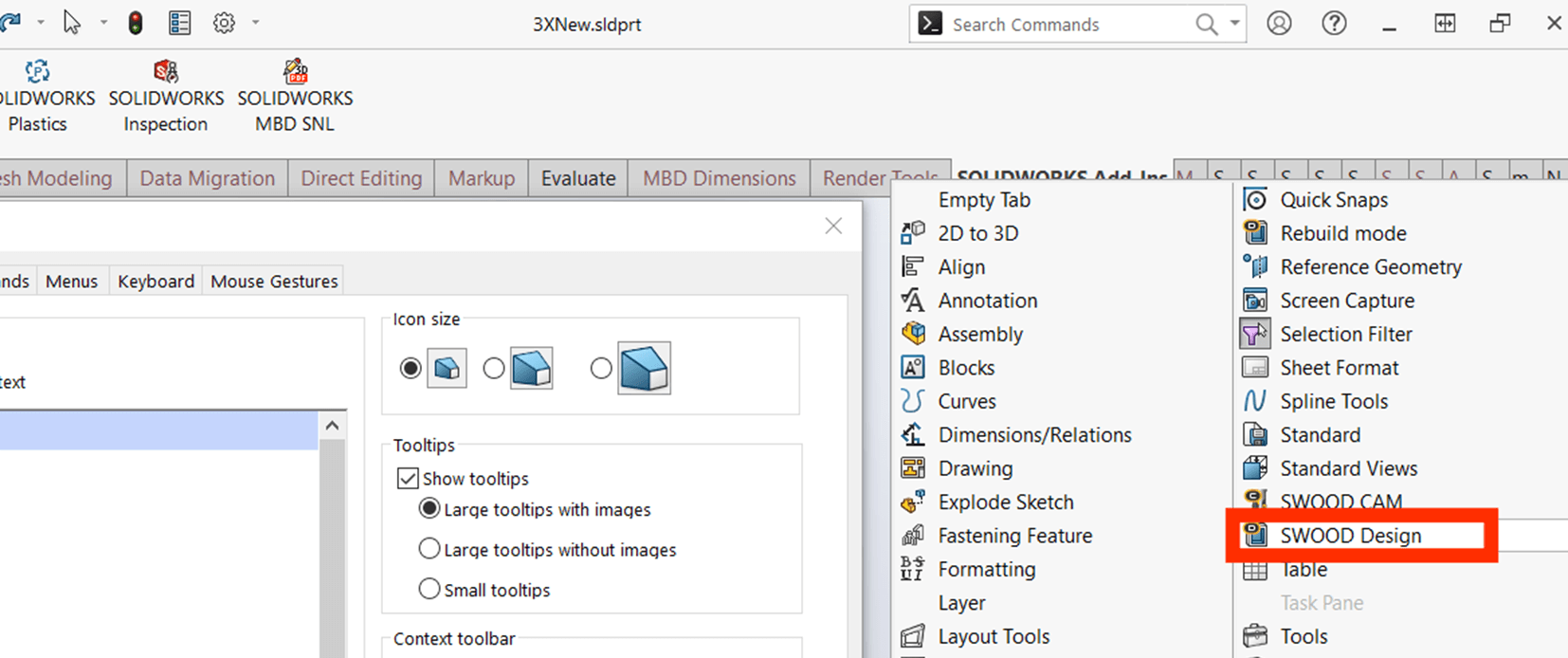
Verify that the missing commands have been restored.
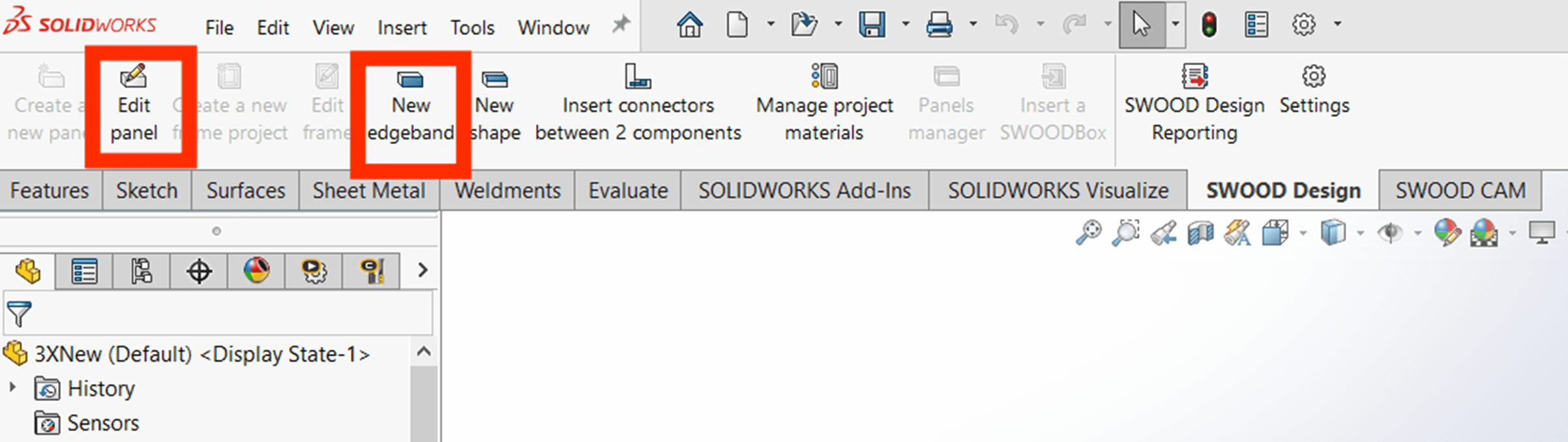
We hope this guide helped you successfully restore your missing SWOOD CommandManager features in SOLIDWORKS. For more SOLIDWORKS tutorials and product guides, head over to our news and resources pages.
 |
About the author: This guide was written by SOLIDWORKS Applications Engineer, Jak Szura. Jak has been with the Visiativ Technical Support Team since 2023. |
|||
|
|
||||