
SOLIDWORKS Electrical: Importing Manufacturer Parts from Electrical Content Portal
24 June 2026
Creating manufacturer parts and symbols from scratch can be time-consuming, but the SOLIDWORKS Electrical Content Portal provides access to thousands of ready-made components from leading manufacturers. In this guide, we’ll show you how to find, download and import content from the portal into your SOLIDWORKS Electrical libraries.
What is the Electrical Content Portal?
The Content Portal is a collection of manufacturer parts and symbols already made for you, ready to download and add to your Electrical libraries. You’ll need an active subscription to access it.
How do I access the Content Portal?
Open SOLIDWORKS Electrical, now navigate to the help tab, and click on “Electrical Content Portal”.

This will take you to the following page once you’ve logged in with your 3DEXPERIENCE login. (Your email address used for logging in with will need to be associated with the SOLIDWORKS account Your VAR can help with this).
Next steps 👇
Finding the content
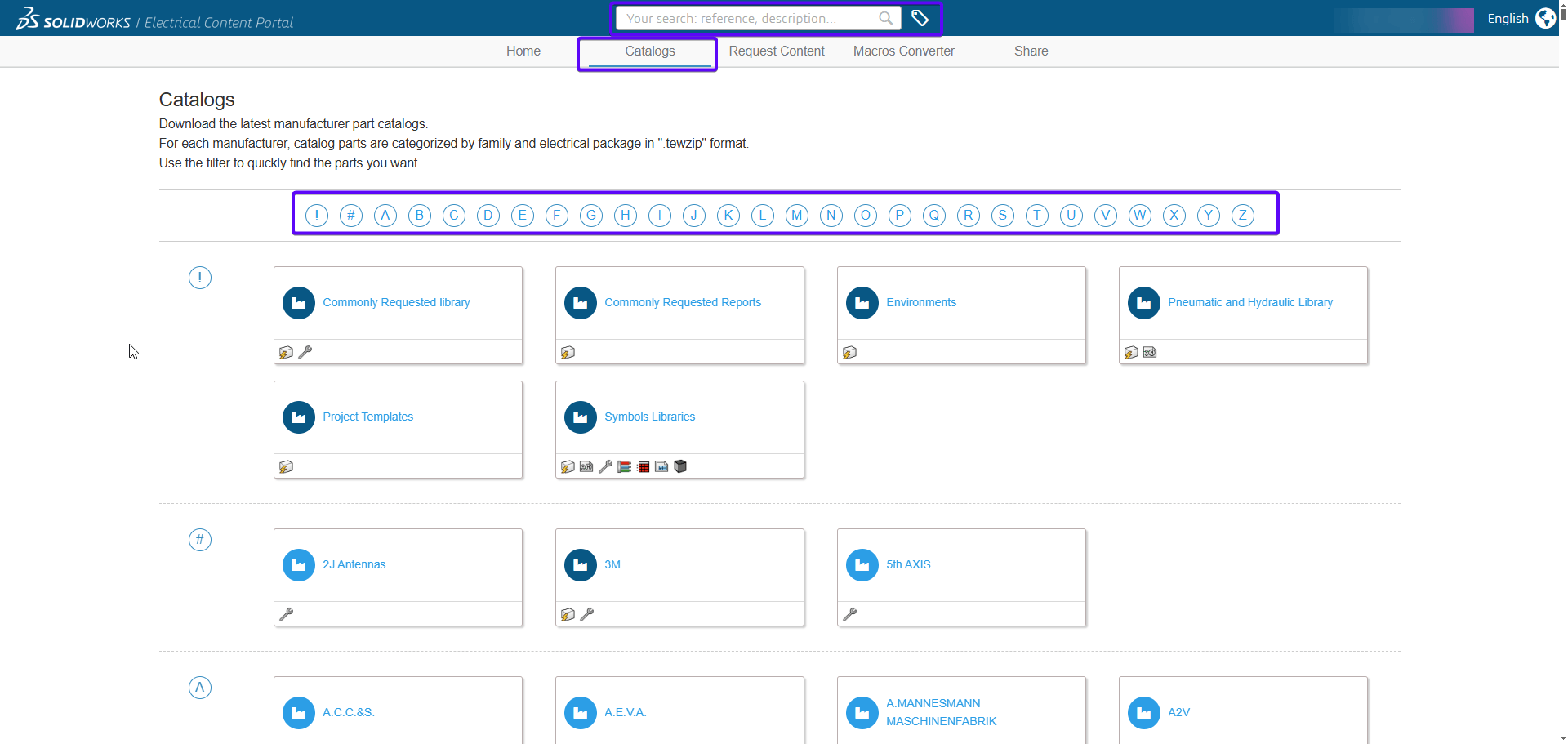
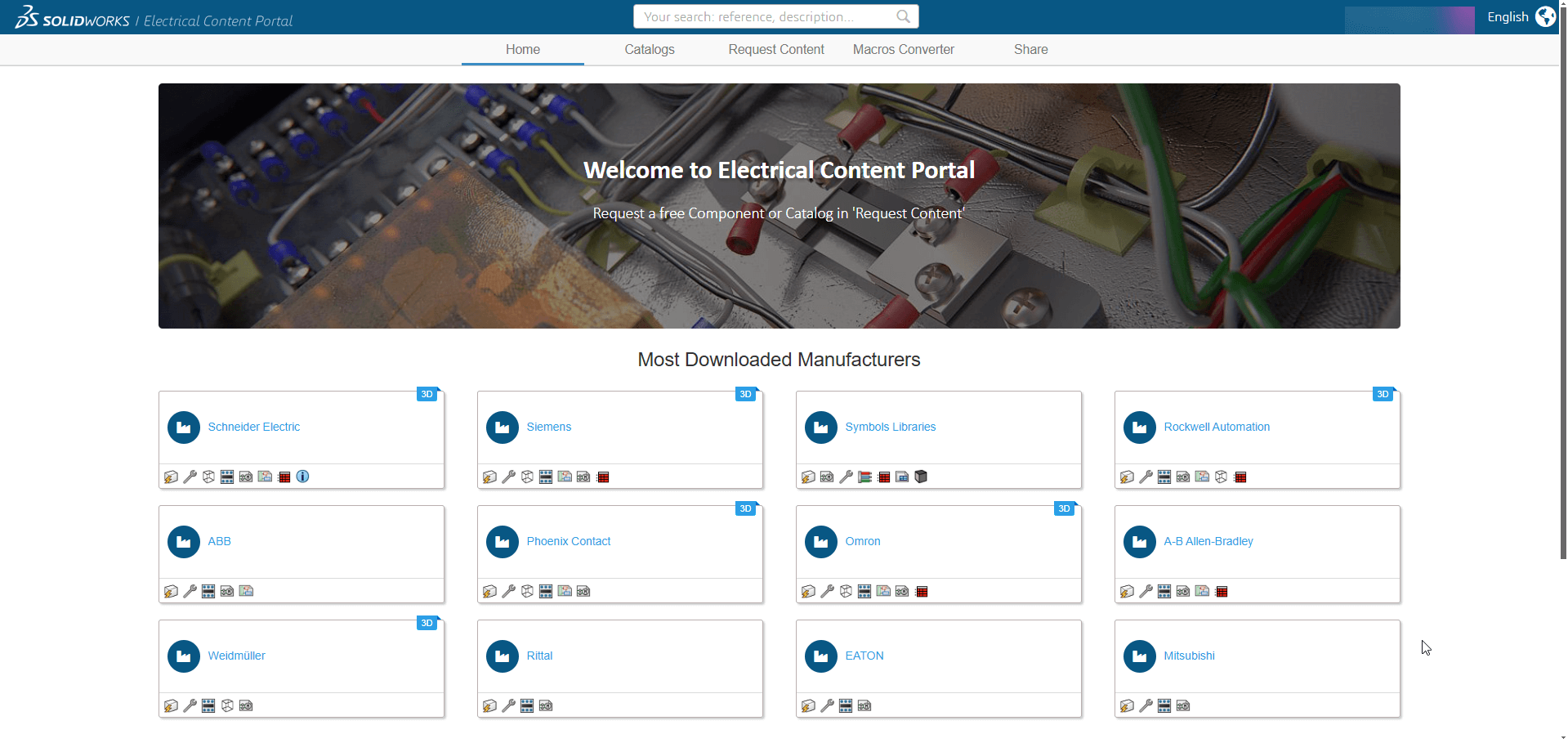
To find the content you want there are several ways. On the home page there’s a selection of popular downloads, or you can use the search box at the top of the page. Alternatively you can also search by category, select the category tab and use the A to Z filter to help you find your content.
What happens now you’ve found something you wish to download?
Once you’ve found parts you’re interested in, you can download them ready to import them into SOLIDWORKS Electrical. To download the parts, click on the arrow to the right of the content you desire.
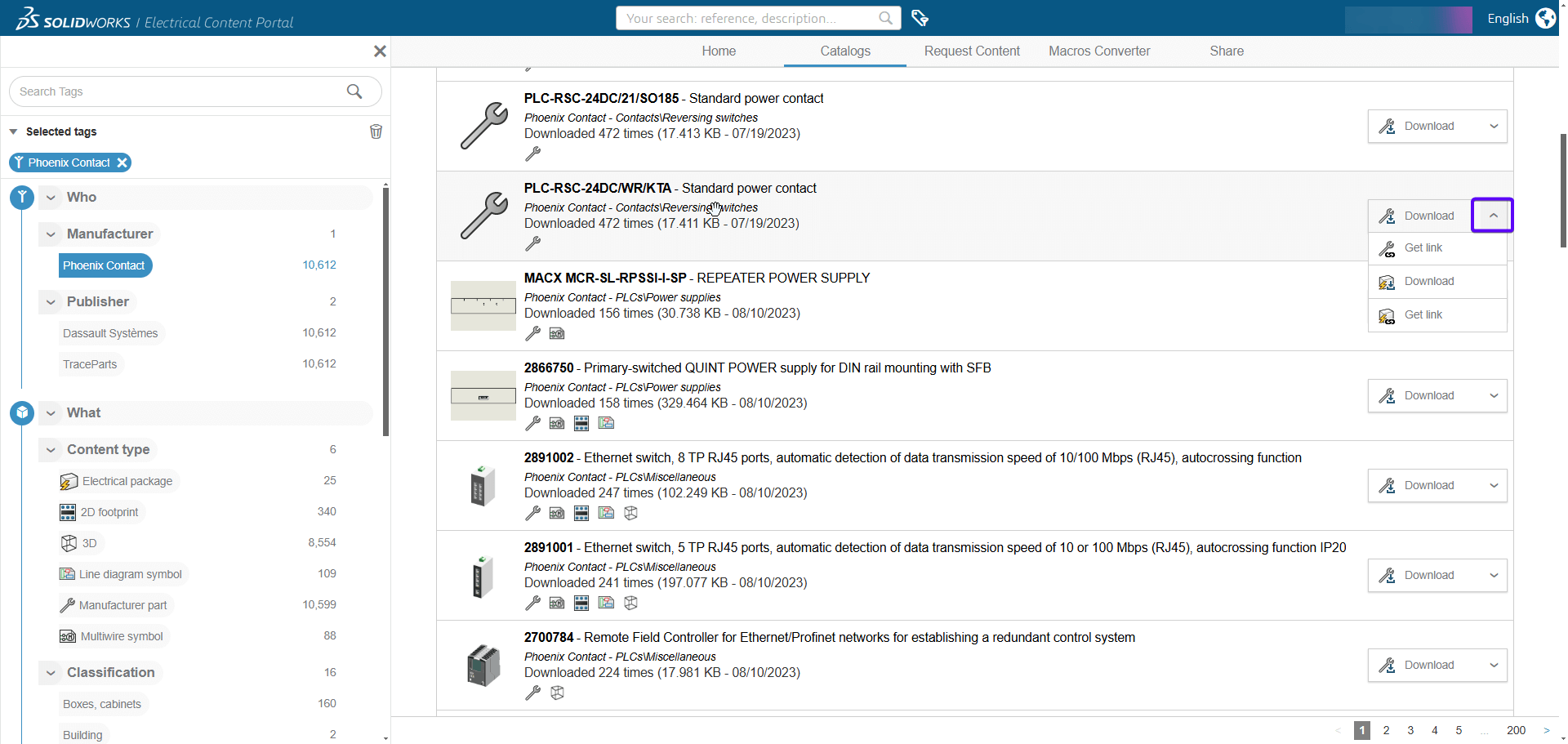
To download parts details only choose the spanner:
 |
Or all content including any symbols choose the electrical archive symbol:
 |
What to do now you’ve downloaded the content
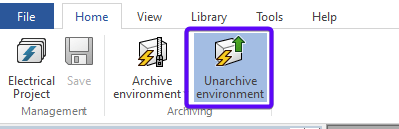
Go to the home tab and select “Unarchive environment”. Navigate to your downloaded content in Windows Explorer. Select it and press “Open”.
 |
Now press “Next”.
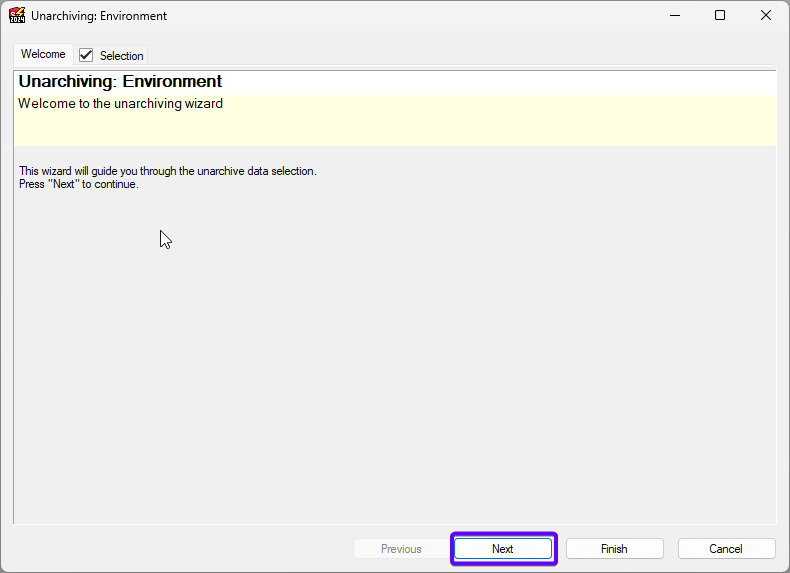
Make sure all the items have a tick next to them and press “Next”.
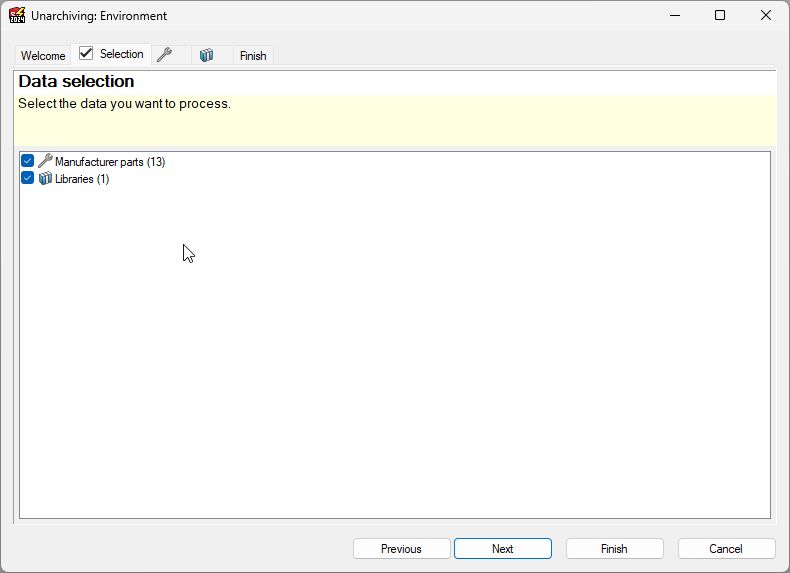
In this tab, you can choose what the unarchive tool does with specific item types. In this case, we would like to add them as we don’t have them in the library already. After you make your selection, press “Next”.
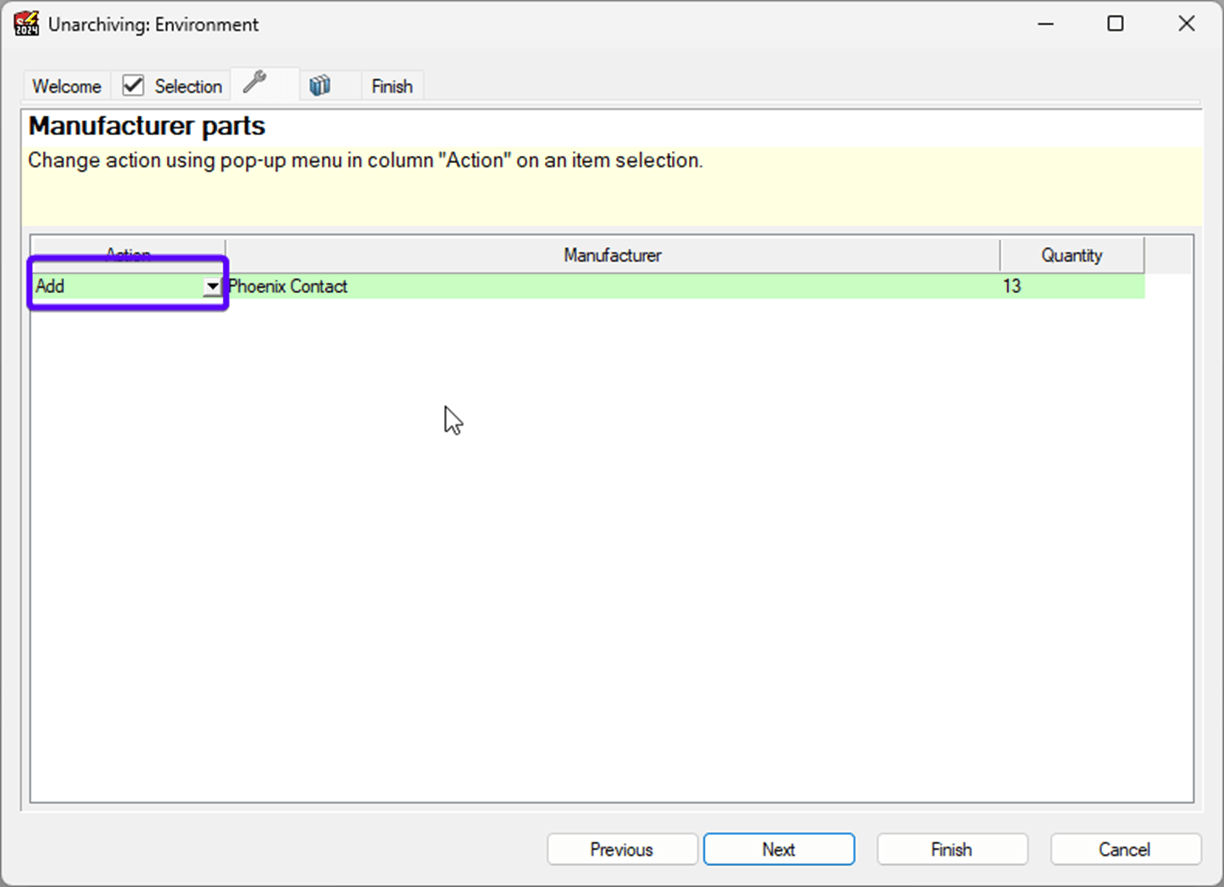
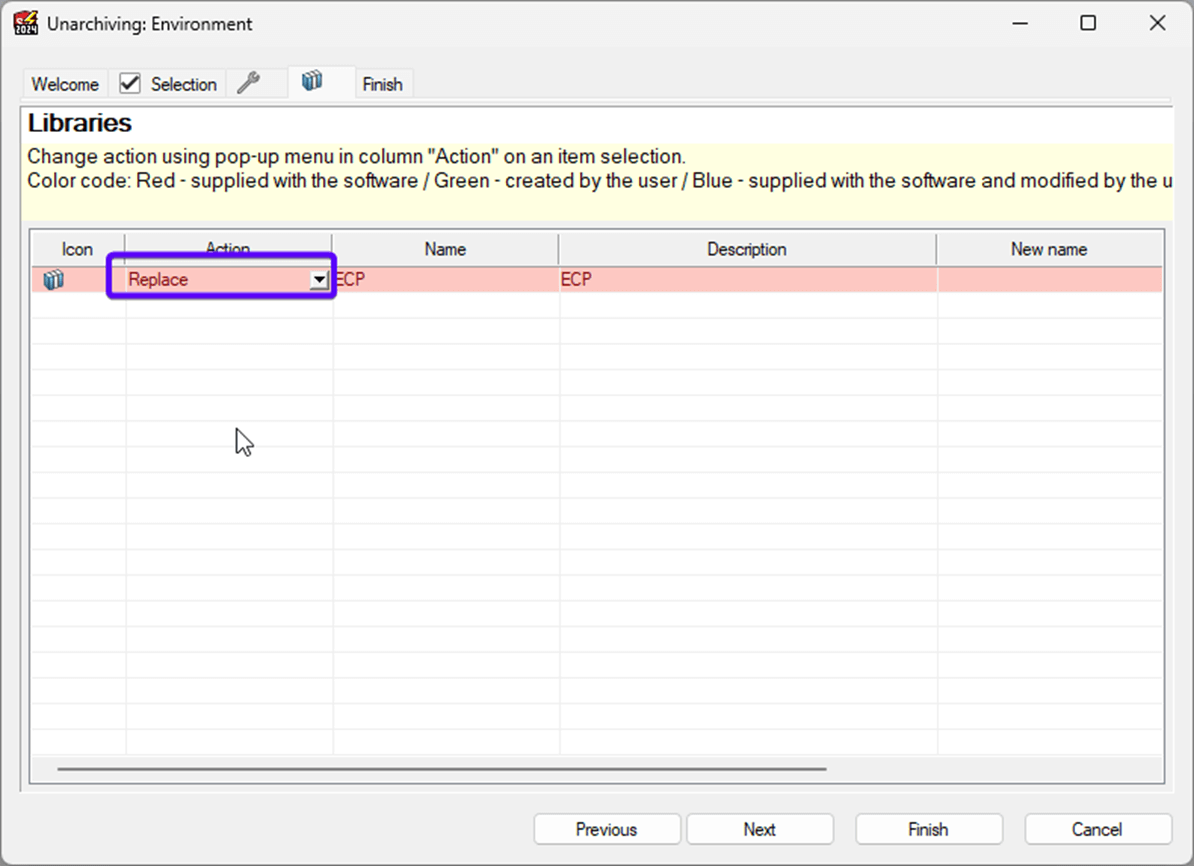
This takes you to the next item type – libraries to add in this case. If the items are already in your electrical environment the selection will be red instead of green and you can select replace from the drop down to update the existing items. Select an action from the drop-down and press “Next” to proceed.
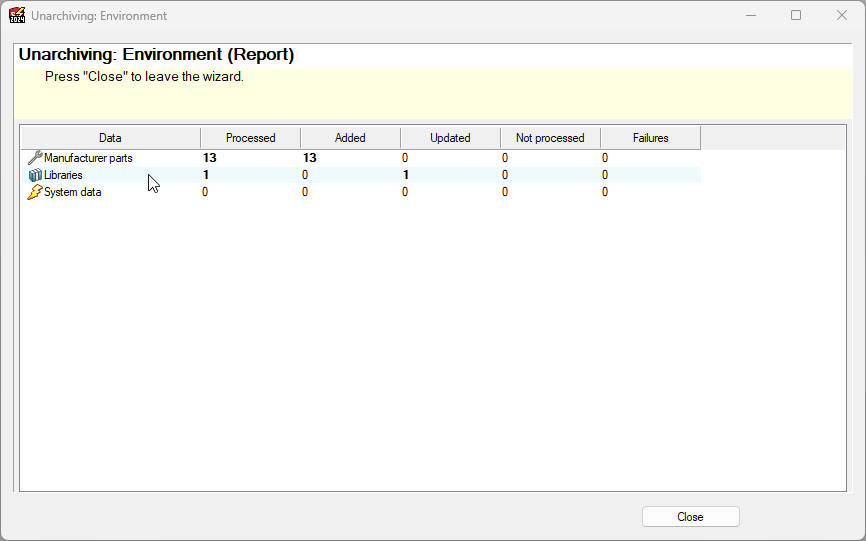
You’ll now see a summary of the items you selected to unarchive. Press “Finish” to complete the unarchive. SOLIDWORKS will now unpack and store the new content in your library.
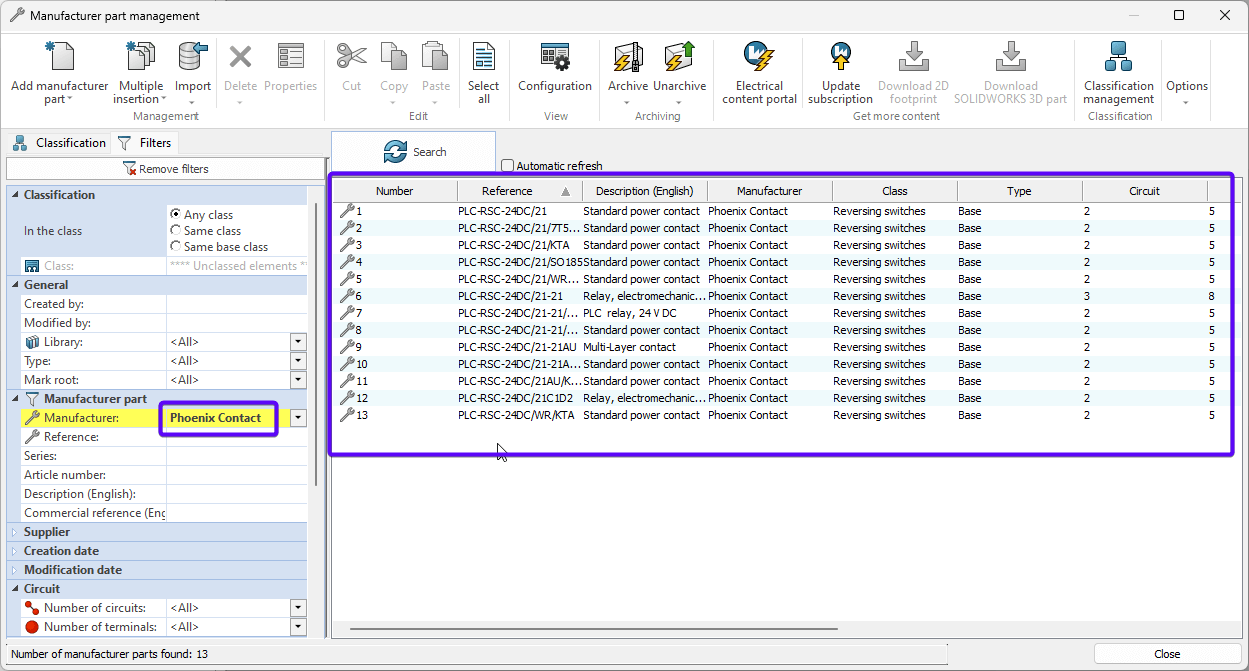
You should now be able to find the new content in your library, whether they’re parts or symbols.
To request additional content be added to the portal
The ECP interface allows you to send a request for manufacturer parts or symbols, which are not currently part of the available libraries. To do this, fill in the form on the request content page as seen below.
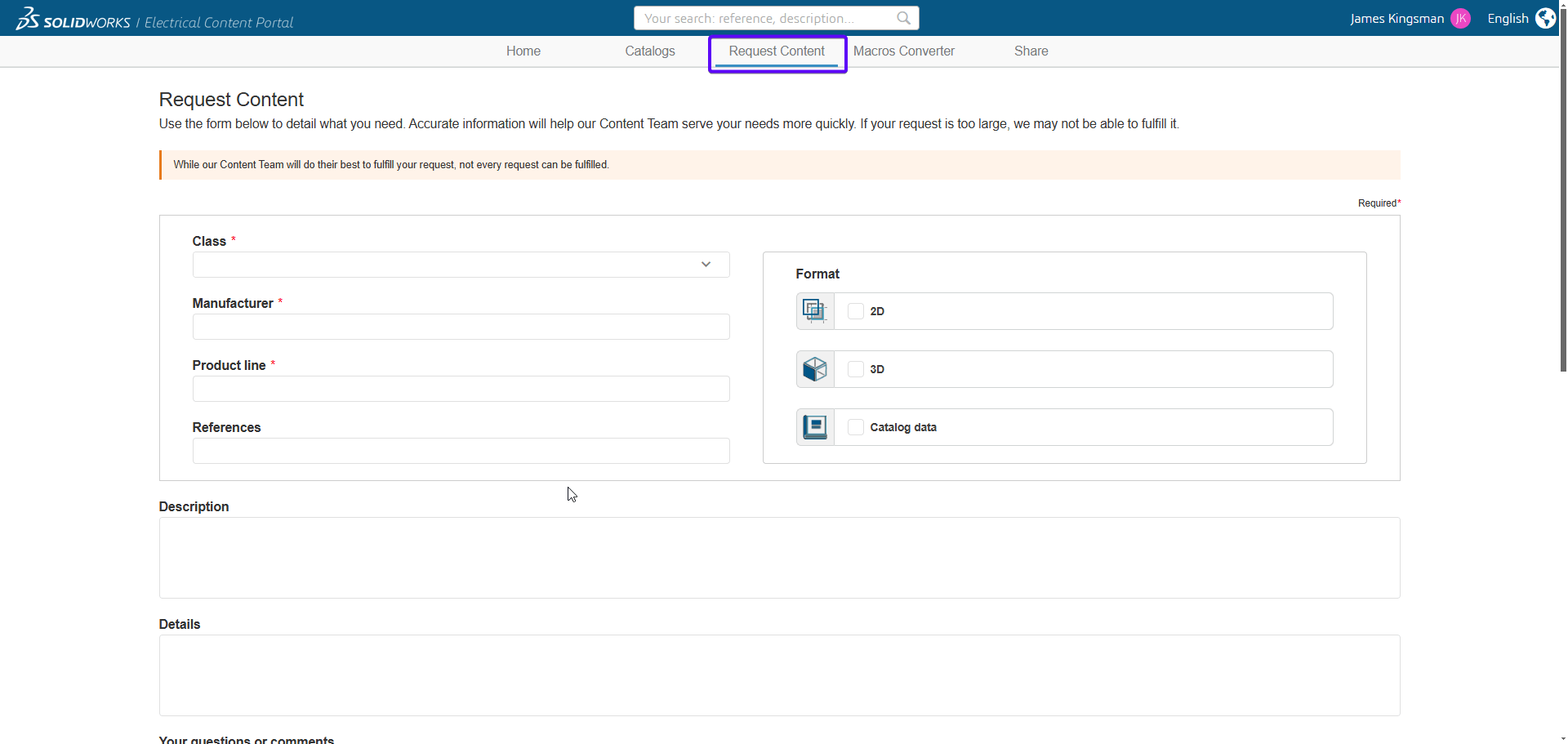
The SOLIDWORKS Service team will review your request, but cannot guarantee it will be provided.
If you need any further assistance on this subject, and are covered by our support service, please contact our support team and we’ll be happy to help.
 |
About the author: This guide was written by SOLIDWORKS Applications Engineer, James Kingman. James has been with the Visiativ Technical Support Team since 2024. |
|||
|
|
||||