
How to: Use SOLIDWORKS Composer 360° Capture
28 October 2025
The 360° Capture feature in SOLIDWORKS Composer allows users to create a complete rotational view of their model. This functionality is useful for visualising designs from all angles and for producing clear, detailed documentation. In this guide, we’ll outline the steps to set up and use the 360° Capture tool effectively.
360° Capture in SOLIDWORKS Composer
SOLIDWORKS Composer introduced a new feature called “360° Capture” several releases ago that allows you to efficiently create a 360-degree view of your model. Here’s how it works:
1. Set the plane of rotation 🔄️
First you’ll need to define the vertical axis within the viewport. Then, you can determine the plane of rotation by selecting it from the viewport properties here:
 |
- If you define Z as the vertical axis, the rotation plane becomes XY.
- If you define Y as the vertical axis, the rotation plane becomes XZ.
- If you define X as the vertical axis, the rotation plane becomes YZ.
2. Define the 360 Capture 📸
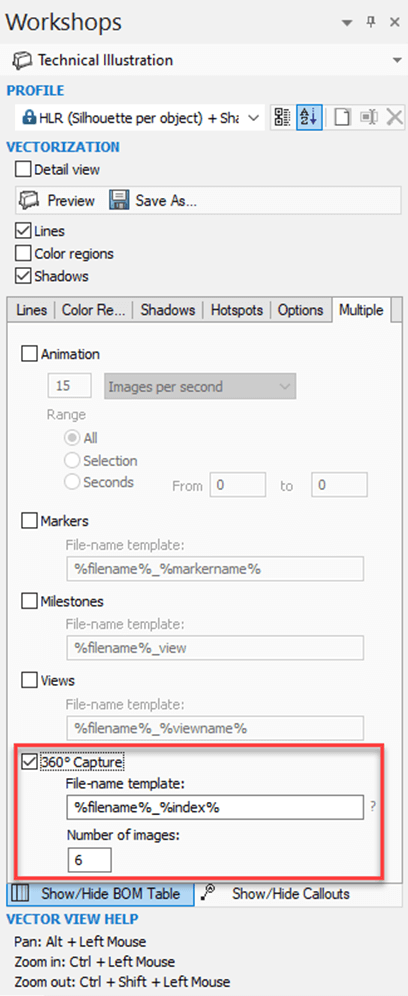
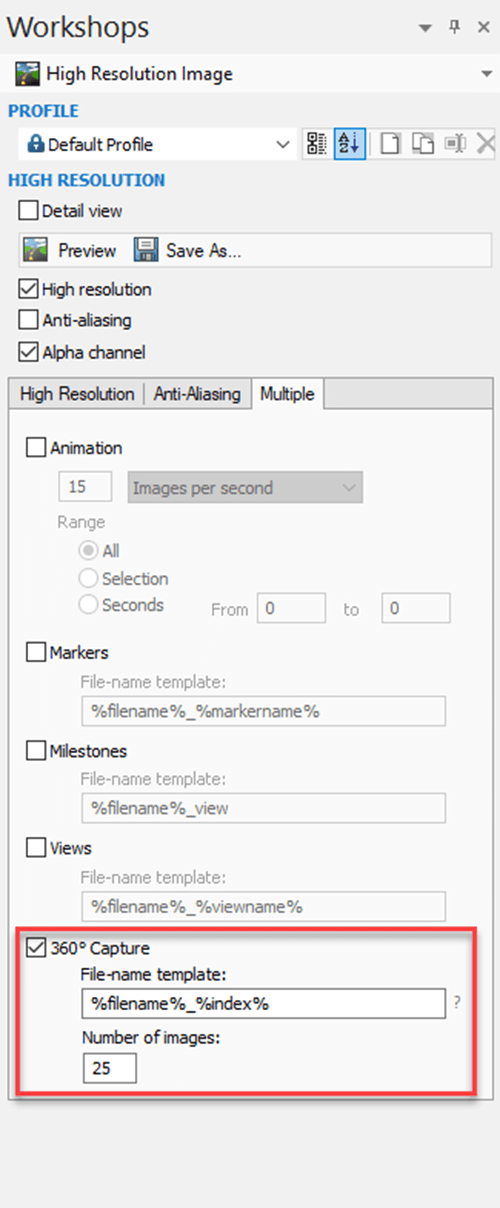
Next step is to launch either the “High Resolution Image” or “Technical Illustration” Workshop, select the “Multiple” tab and enable “360° Capture”.
 |
 |
“File Name Template” allows you to define the naming convention of your exported images:
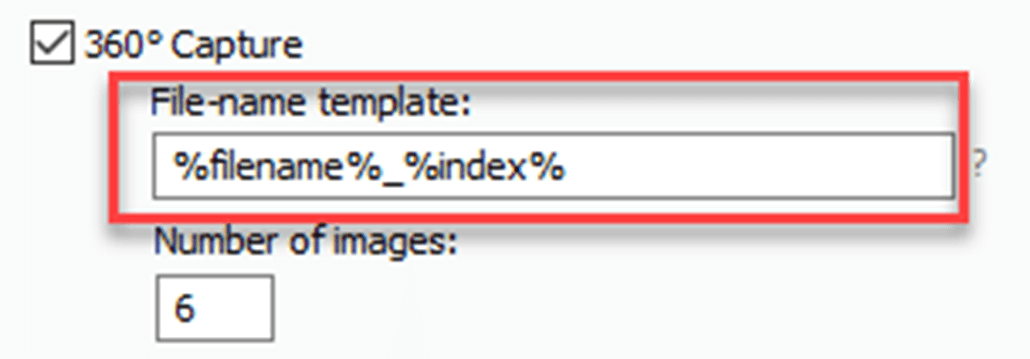 |
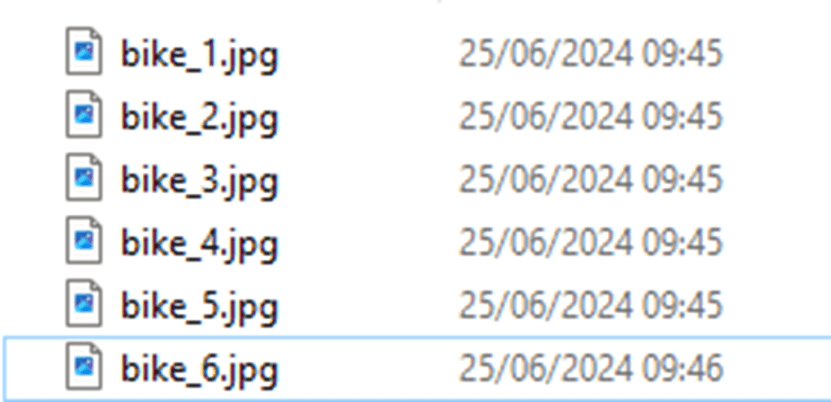
In this instance the file name is “bike” and the index is a counter – here is the result.
 |
“Number of Images” specifies the number of images you want to capture along the 360° path.
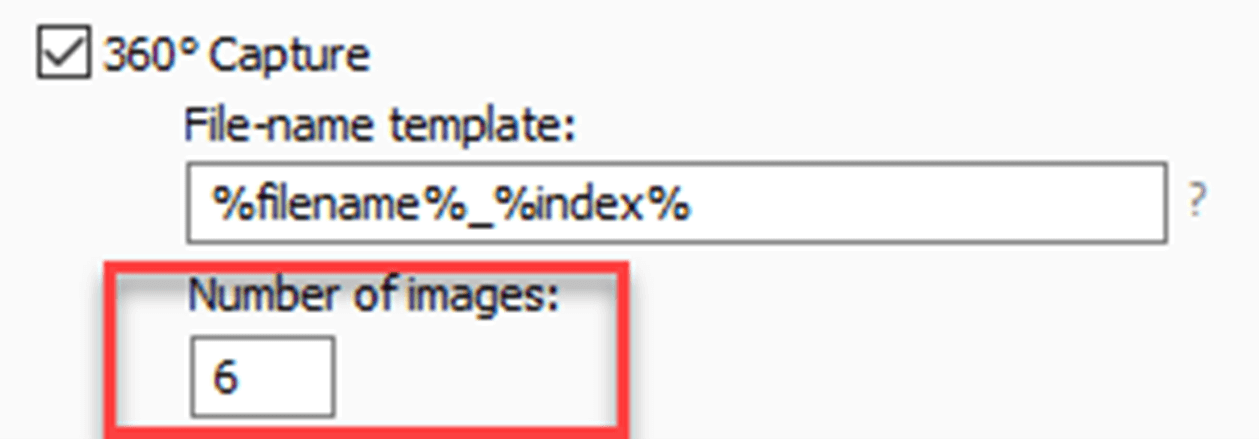 |
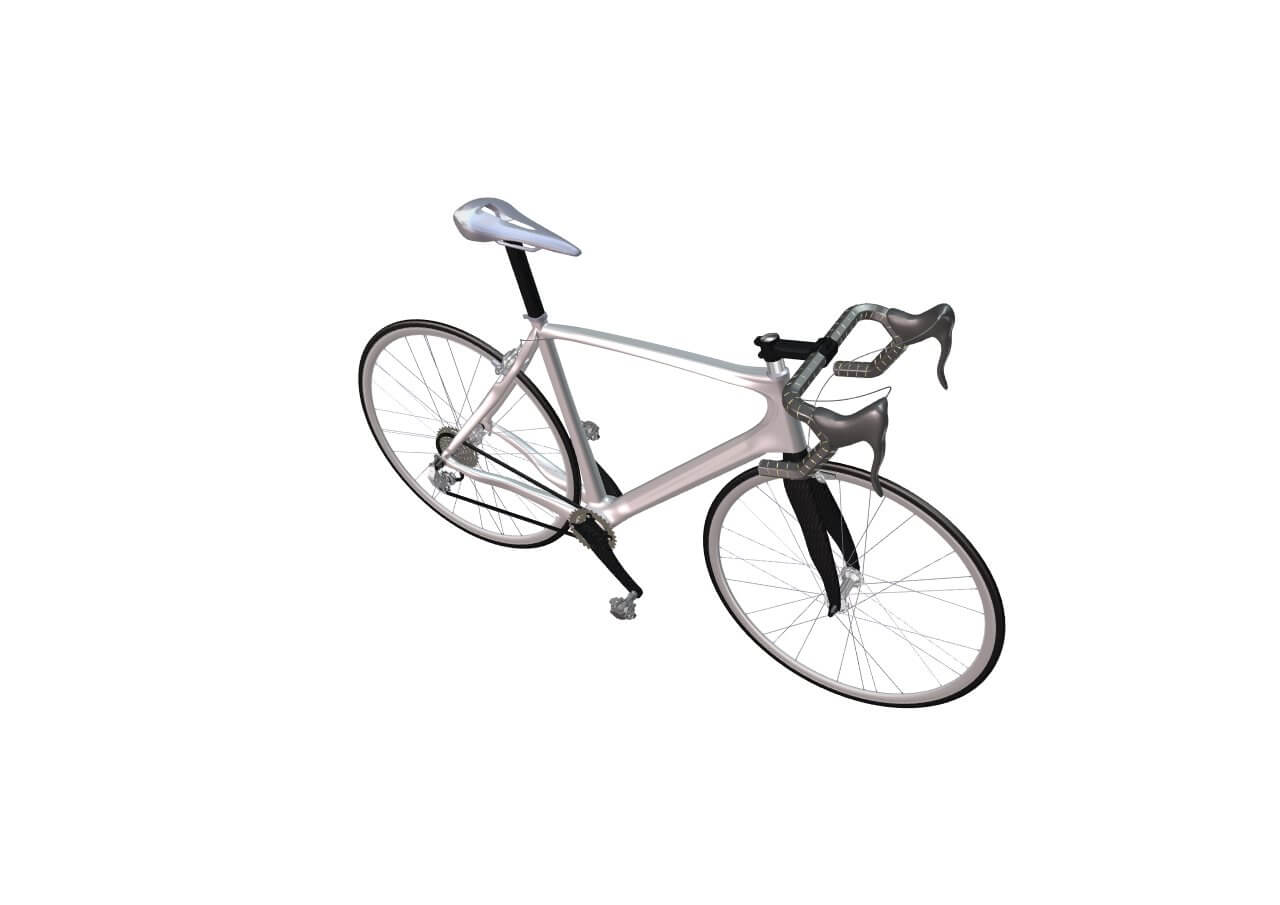
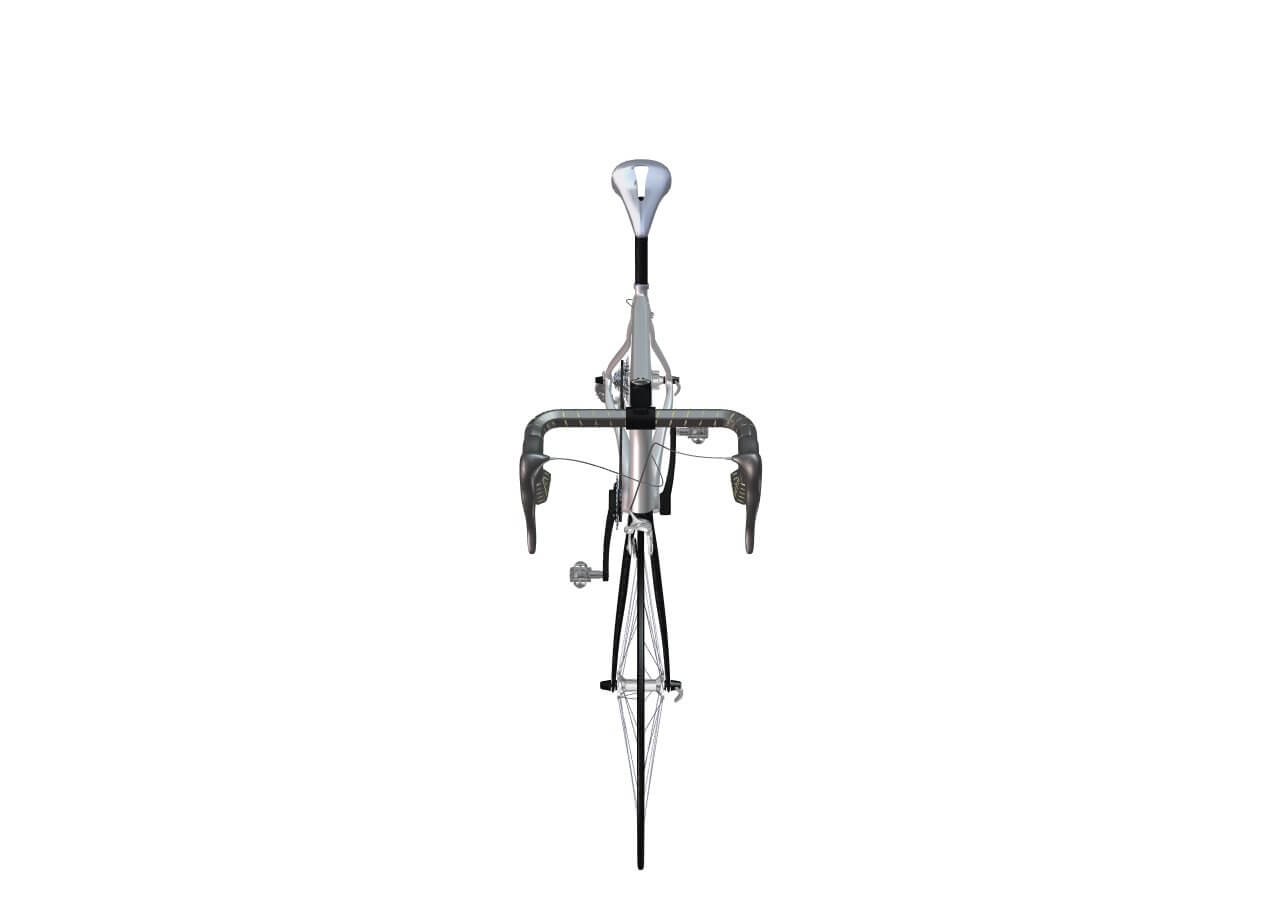
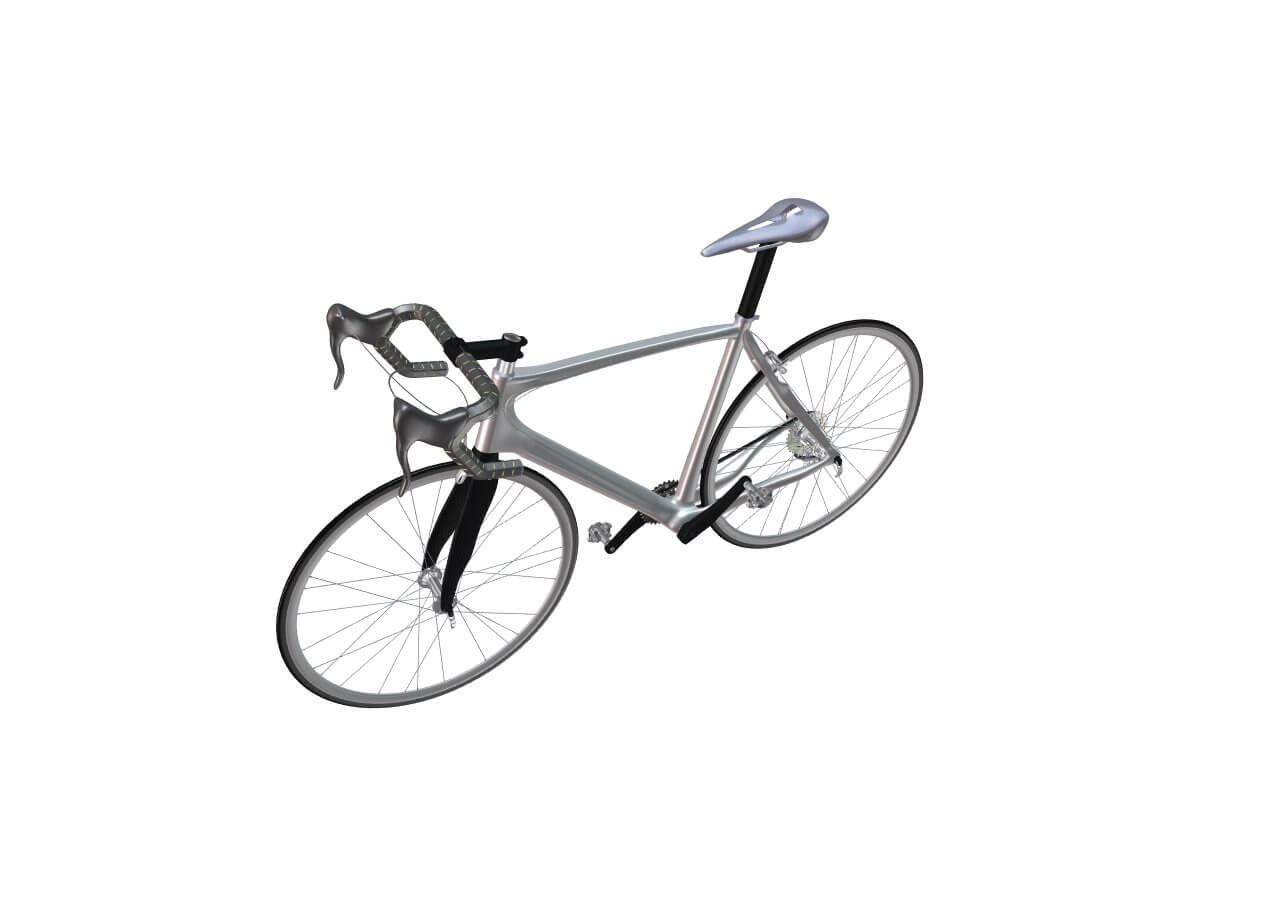
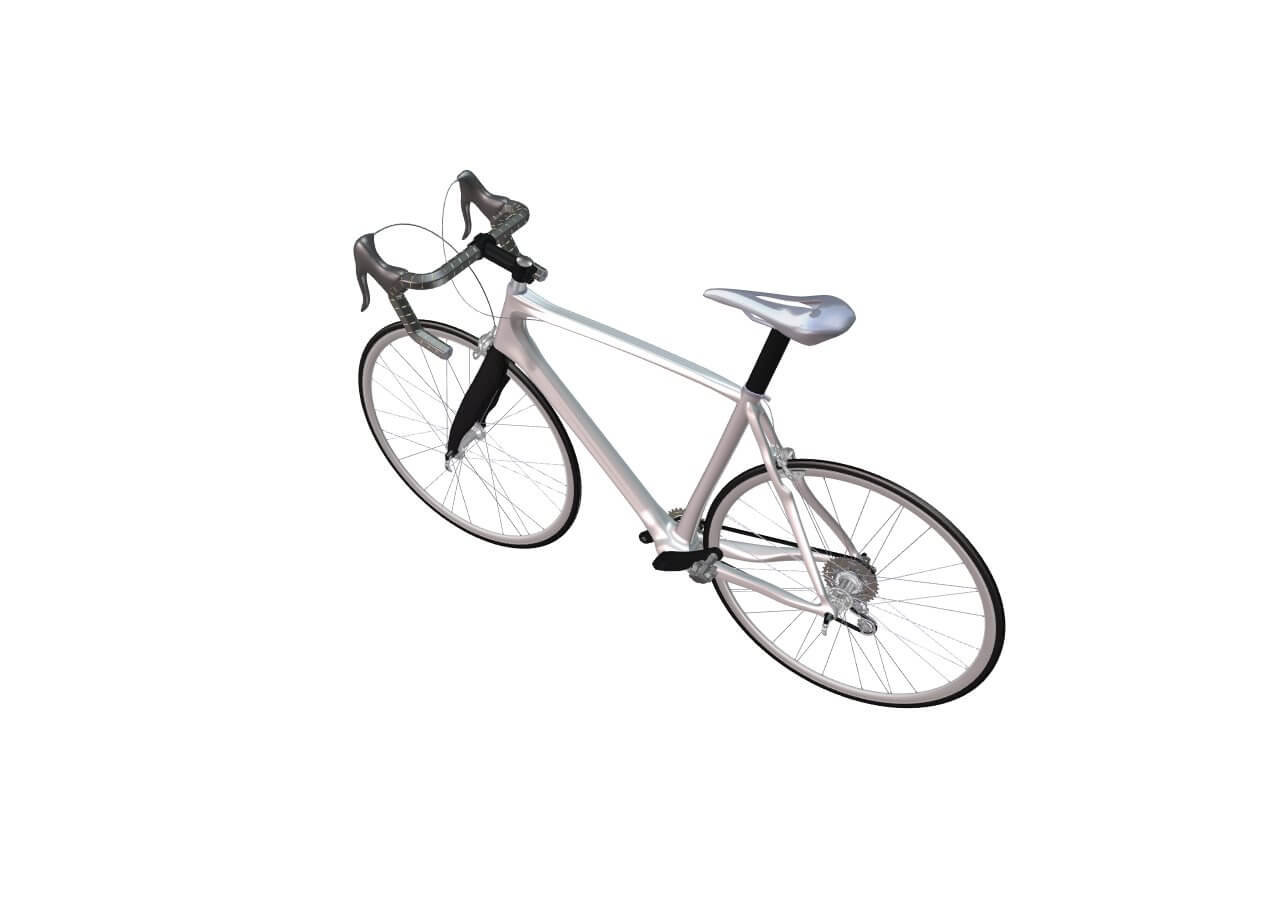
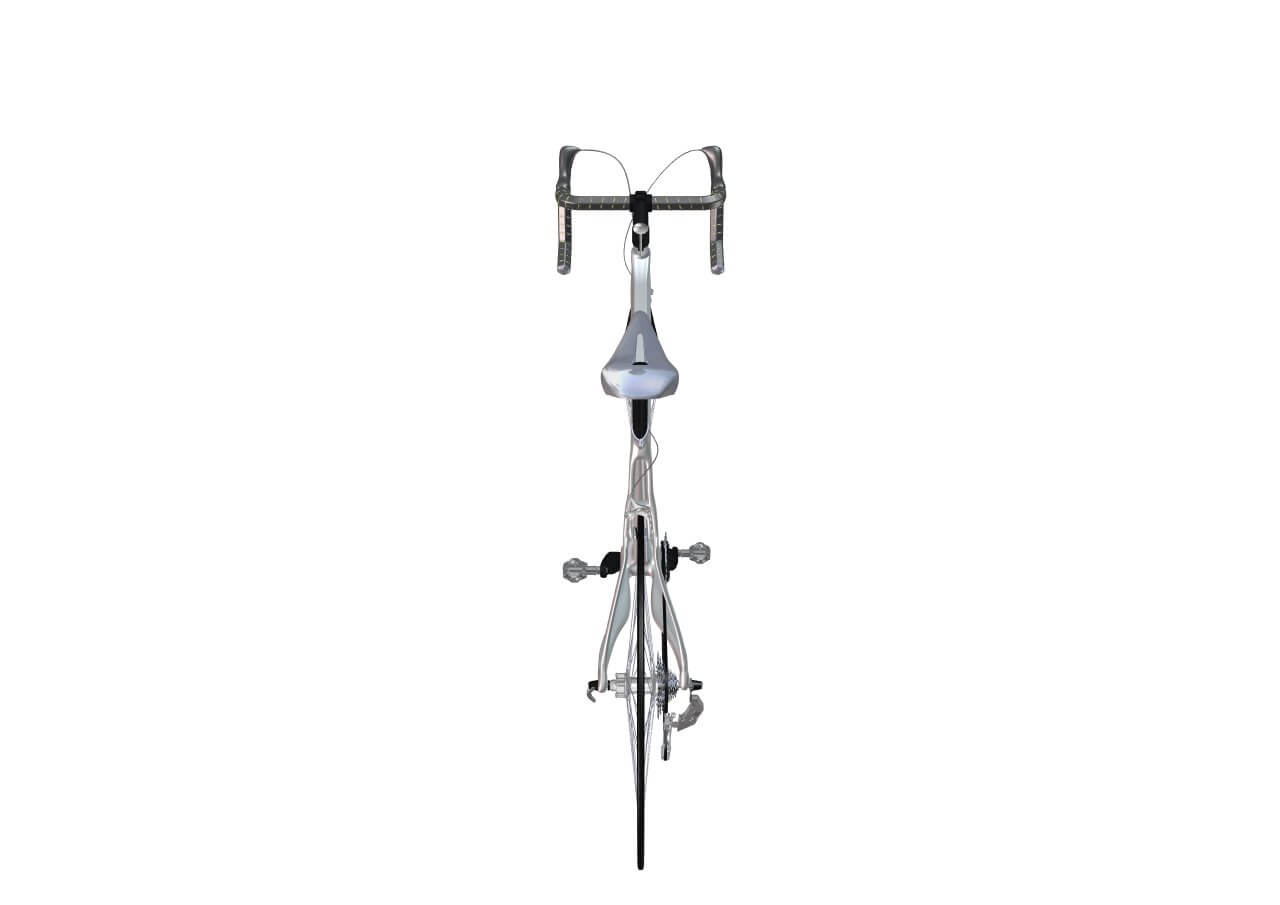
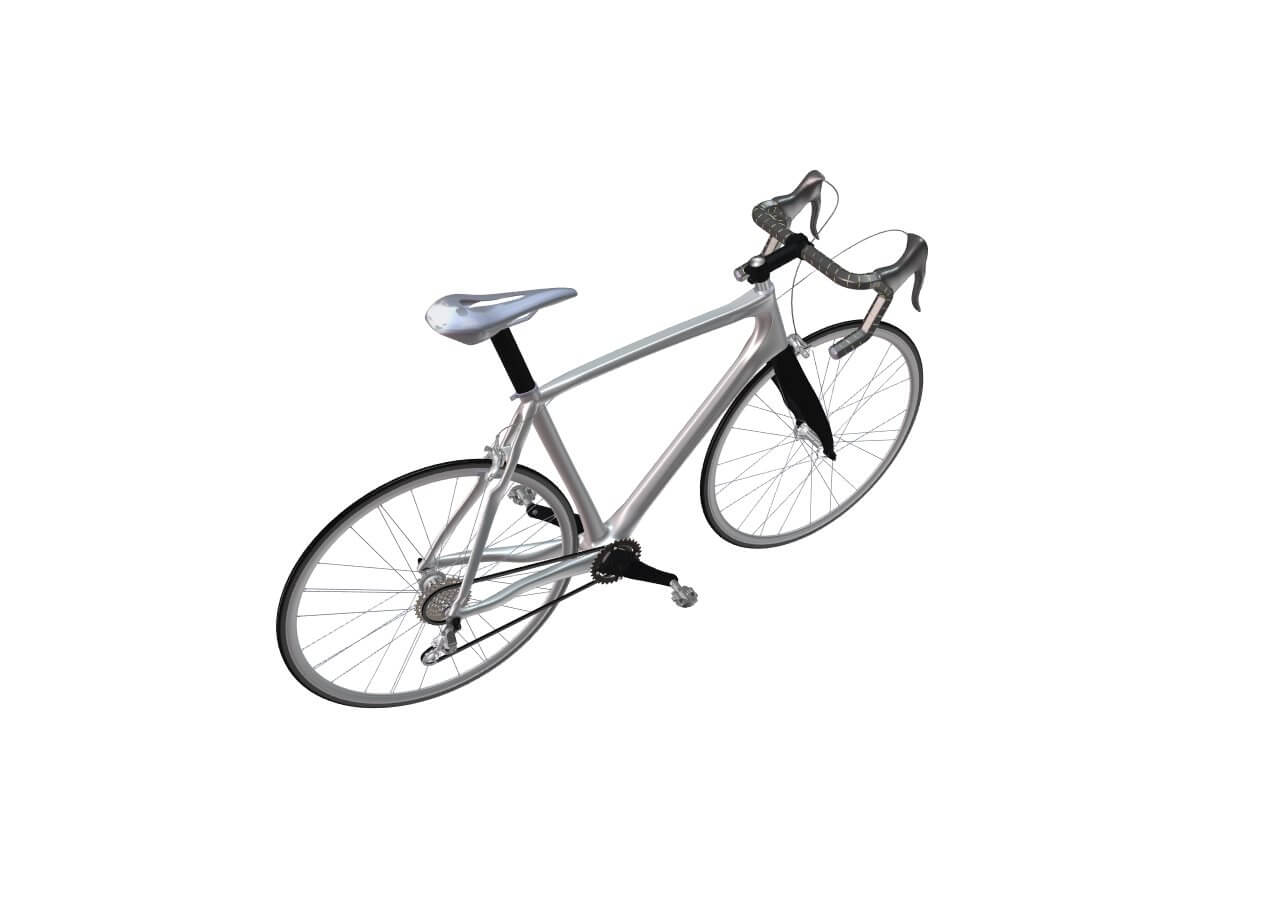
Here, I set the number of images to 6, Composer creates 6 images during a clockwise 360° rotation.
3. The Result ✅
Here is the result:
 |
 |
 |
 |
 |
 |
By following these steps, you can quickly generate a 360° view of your model to improve visual communication and design reviews. This feature offers an efficient way to showcase assemblies or parts from every angle, directly within SOLIDWORKS Composer.
We hope you found this guide useful!

|
About the author: This tutorial was written by Elite SOLIDWORKS Applications Engineer and Technical Support Manager, Alex Aprigliano. Alex has been with the Visiativ Technical Support Team since 2007. |
|||
|
|
View Alex Aprigliano’s LinkedIn Profile here.
|
|||