How to: Float 3DEXPERIENCE SOLIDWORKS Licences
13 March 2025
Have you ever tried to float 3DEXPERIENCE SOLIDWORKS Roles?
For years, users of 3DEXPERIENCE and SOLIDWORKS have struggled with the 30-day lock period on role assignments. So, unlike with traditional desktop SOLIDWORKS licences, they didn’t lend themselves to floating easily. A restriction that limited flexibility, slowed down workflows, and forced teams to over-commit on licencing.
Traditionally, once a role was assigned, it couldn’t be reassigned for a period of 30 days minimum. This 30-day lockout prevented frequent role-swapping and ensured users had continuous access to the tools they need. This was, however, very restrictive for users who didn’t need a SOLIDWORKS licence for full-time use. Until now…
Big News: 3DEXPERIENCE SOLIDWORKS Role Lock Period Changed from 30 Days to Just 1 Day!
R2025x FD01, brought a major update to 3DEXPERIENCE role management. The lockout period is now reduced from 30-days to just 1-day for 3DEXPERIENCE SOLIDWORKS roles. This long-awaited improvement means greater agility for businesses, better licence optimisation, and fewer bottlenecks for teams that need to adapt quickly to project demands.
In this post, we’ll break down what this change means for users, how it will impact licence management, and how you can take full advantage of this new flexibility.
3DEXPERIENCE SOLIDWORKS Roles include:
- 3DEXPERIENCE SOLIDWORKS (All Versions)
- Collaborative Designer for SOLIDWORKS (Design with SOLIDWORKS Connector for 3DEXPERIENCE)
- All Cloud Modelling Roles (xDesign, xShape etc.)
- Structural and Fluid Simulation Roles for SOLIDWORKS
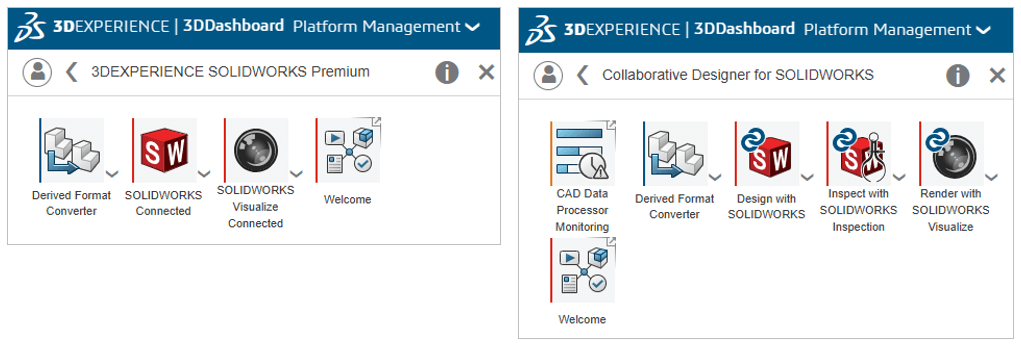
What the new 1 Day lockout means for 3DEXPERIENCE and SOLIDWORKS users
Reducing the 3DEXPERIENCE role lockout from 30 days to just 1 day brings significant advantages to customers:
- Increased Flexibility: Users can switch roles daily instead of waiting a month to access the tools they need when required. This is ideal for multi-functional teams where users perform different tasks throughout a project.
- Better Licence Optimisation & Cost Savings: Companies no longer need to buy extra roles to accommodate short term projects. Efficiently share a single 3DEXPERIENCE SOLIDWORKS role across multiple employees on different days, reducing unnecessary expenses.
- Efficient Use of Licences: Dynamically assign roles to new hires and temporary workers. It’s easier to integrate them into projects and short-term consultants, or freelancers, can use a role for just a few days, rather than needing a full-month commitment.
- Fluid Productivity: No more waiting 30 days to correct role assignment mistakes!
The Bottom Line:
A 1-day lockout gives businesses the flexibility they need, reduces wasted licences, and allows users to adapt to changing needs without long-term restrictions.
How do I float 3DEXPERIENCE SOLIDWORKS Licences?
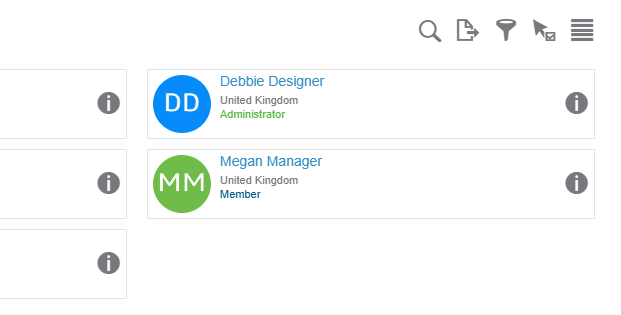
Your Platform Administrator will have access to the Members Control Center of the Platform Management Dashboard, which looks like this:

Here, they can access users via the ‘i’ icon on their profile as per below:
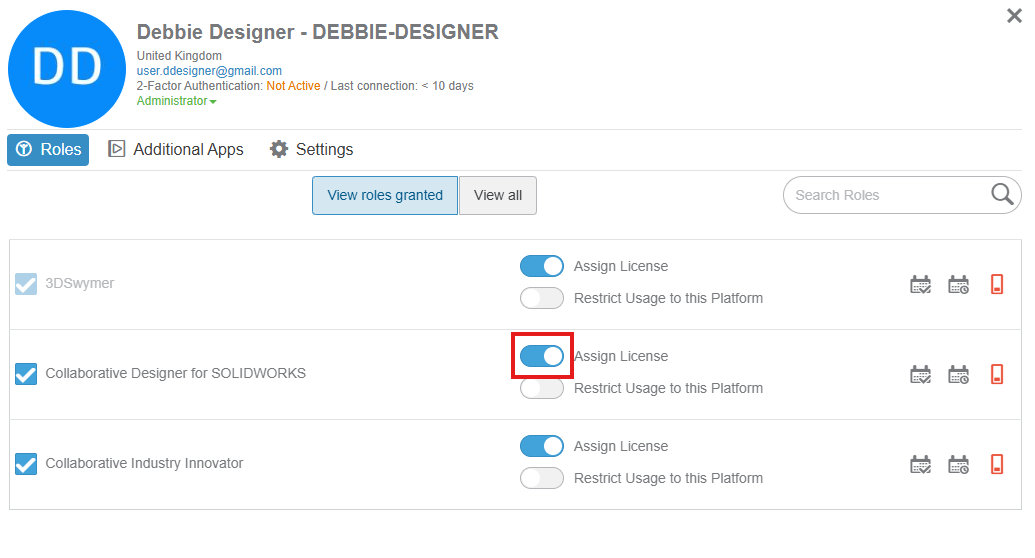
Unassign 3DEXPERIENCE Roles by toggling the blue slider (below) to grey/off.
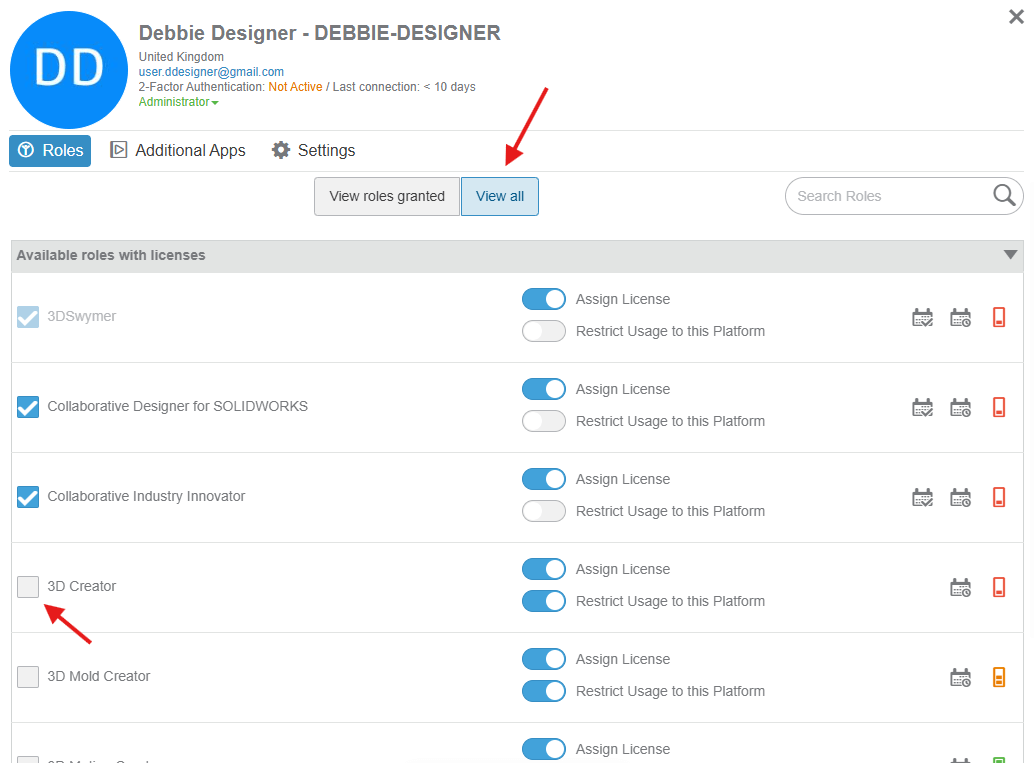
You can grant 3DEXPERIENCE Roles by choosing to ‘View all’ and selecting the additional roles:
That’s how easy it is to float 3DEXPERIENCE SOLIDWORKS Licenses!
We hope you found this quick 3DEXPERIENCE tutorial useful. Visiativ customers needing assistance can get in touch with us on our technical support page.
 |
About the author: This guide was written by SOLIDWORKS Applications Engineer, Mat Jones. Matt is a 3DEXPERIENCE specialist and has been with the Visiativ Technical Support Team since 2023. |
|||
|
|
||||