
How to: Add Additional Users to 3DEXPERIENCE
21 August 2025
In this tutorial we provide an overview of how you can add additional users to 3DEXPERIENCE if you have multiple licences and are an administrator user. Once added, the other users will then be able to access your Visiativ Solutions – SOLIDWORKS Dashboard. This process is a Visiativ Value Added subscription benefit. It gives you and your team easier and quicker access to SOLIDWORKS serial numbers and download media, among other benefits.
Not sure which licence type you have or need a hand with your dashboard? Contact our support on support@visiativ.co.uk.
How to activate the Platform Management dashboard
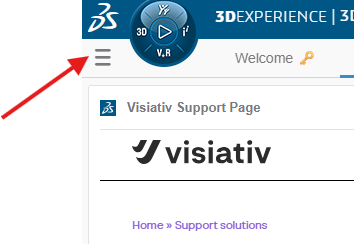
1. Firstly, as an admin user, you’ll need to activate the Platform Management Dashboard. To choose the dashboard, click on the Dashboard List icon to the left of the compass.
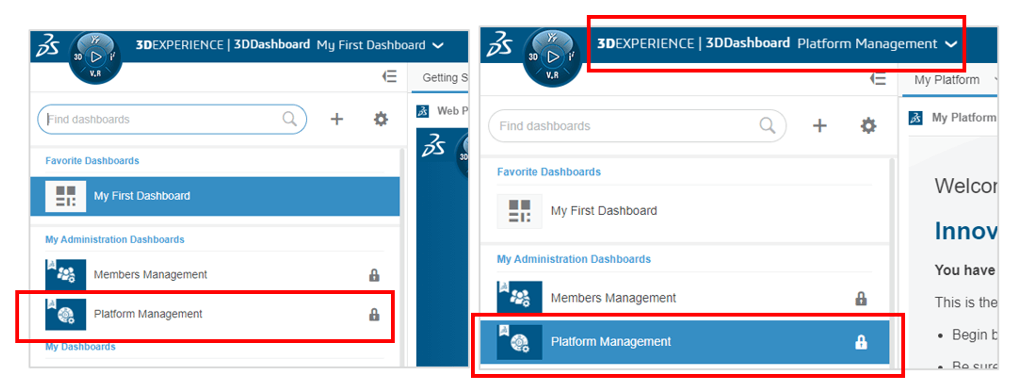
2. From the Dashboard List, choose the Platform Management dashboard.
The dashboard is now active. It highlights blue in the Dashboard List and the name shows in the top corner.
How to add additional users
1. In the dashboard, select the Members tab. Click Invite Members to bring up the Invite Members Dialogue.
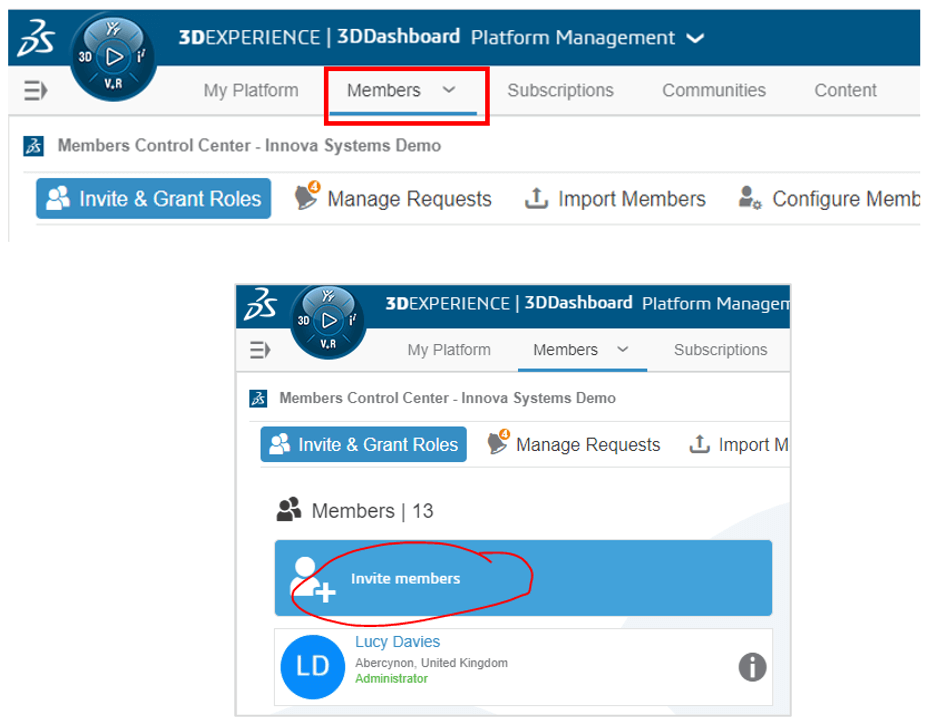
Note: Available roles are shown on the members tab, below the Members section. For a user to access the Visiativ Solutions – SOLIDWORKS dashboard, they will need a minimum of a 3DSwymer role.

2. To add the user, you’ll first need to enter their email into the dialogue as below. You must then choose their user rights – whether they are a standard member or an administrator. Administrator users are able to access the Platform Management area (think admin portal or licence portal). Click Next.
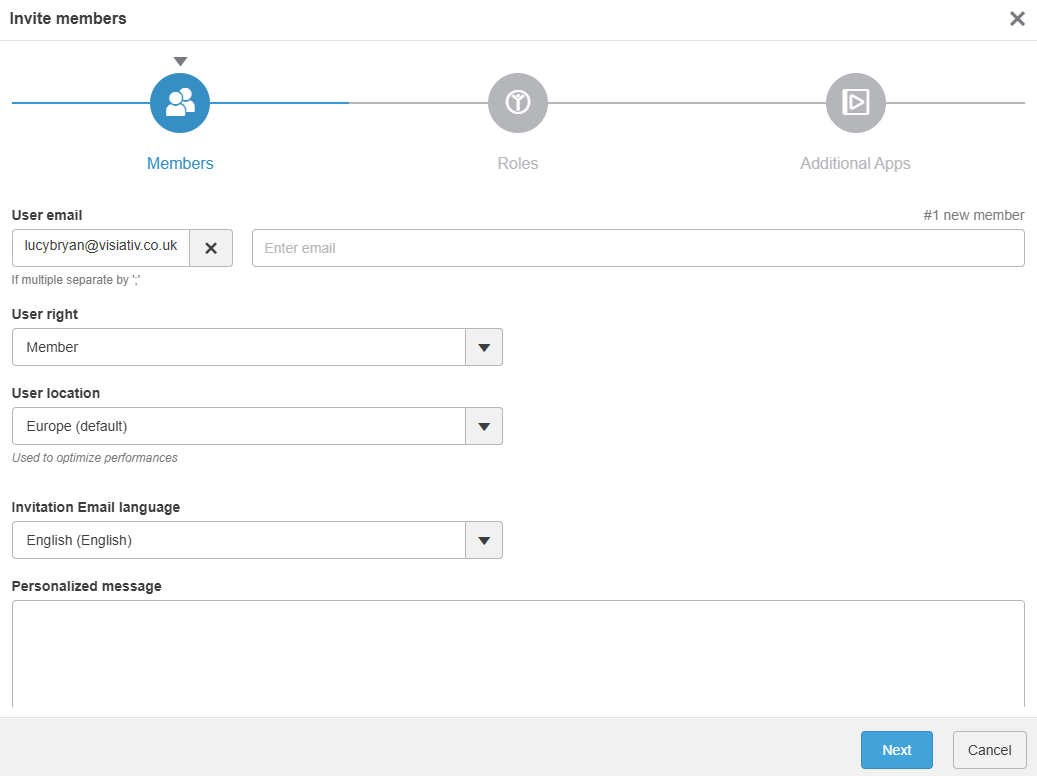
3. On the next page, you’ll need to select their roles. 3DEXPERIENCE assigns a 3DSwymer role automatically as it’s a pre-requisite role. Any user that logs in to 3DEXPERIENCE requires it.
Additionally as an admin user, you can assign additional roles if required or if they are available.
4. Clicking Invite will trigger an email to the added user’s email address. It will include a link that the user can click to access the correct location. This link will take them to the log in page to your tenant. Users should bookmark this location in their browser of choice.
Once a user has been added, you’re able to share the Visiativ Solutions – SOLIDWORKS Dashboard with them.
 |
About the author: This guide was written by 3DEXPERIENCE Product Manager, Lucy Bryan. Lucy is an Elite SOLIDWORKS Applications Engineer and has been with the Visiativ Technical Support Team since 2019. |
|||
|
|
||||