How to Activate DriveworksXpress
06 February 2025
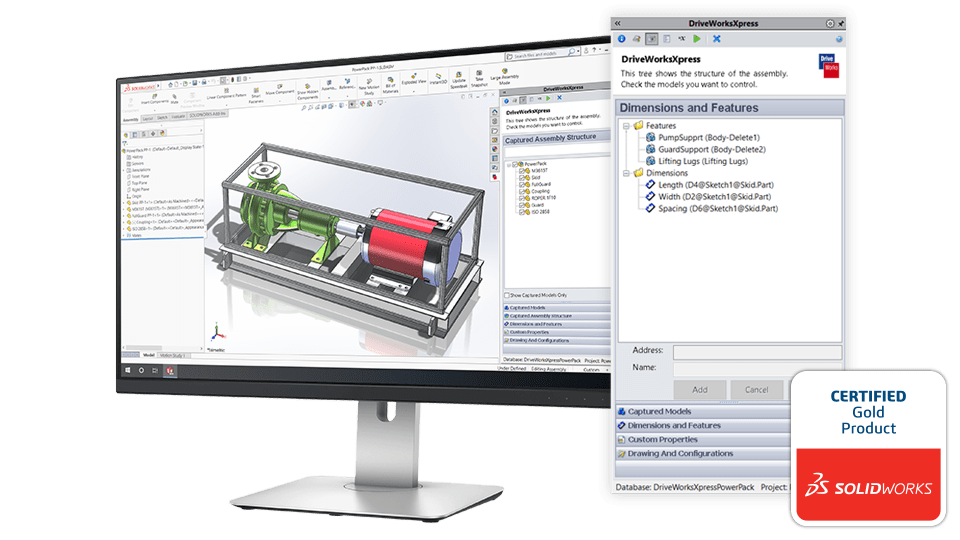
DriveWorksXpress is a free design automation tool included with every license of SOLIDWORKS, designed to automate repetitive design tasks and creating variations of a model quickly and efficiently. It saves time by automating the creation of multiple design versions, allowing engineers to focus on more complex tasks. The tool is user-friendly, requiring no programming skills, and uses a rules-based approach with standard Excel functions.
Get Started With Design Automation in DriveWorkXpress!
To get started with DriveWorksXpress, users need to activate the add-in in SOLIDWORKS, create a new project, capture models and features, build rules, and run the project to generate new design variations. Integrating DriveWorksXpress into the design process streamlines workflow, reduces manual effort, and improves overall design quality.
1: How to obtain your product code
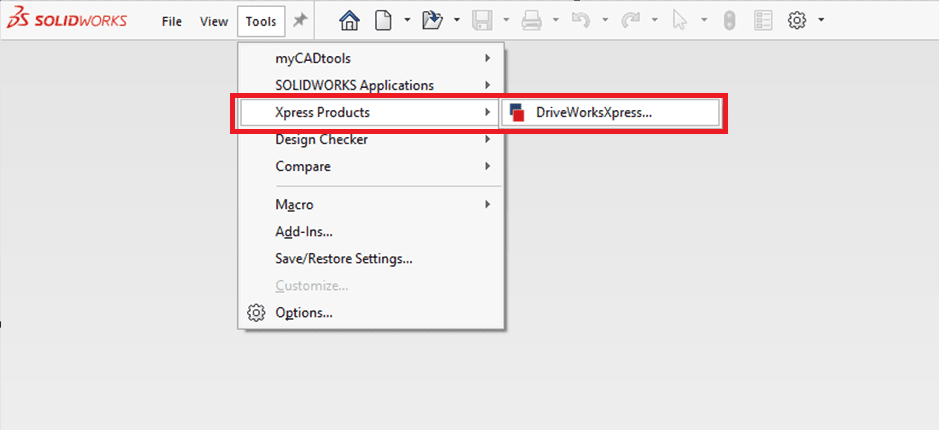
The first step to active the product will be inside of SOLIDWORKS, follow the directions in the picture below, Select Tools>Xpress Products>DriveWorksXpress.
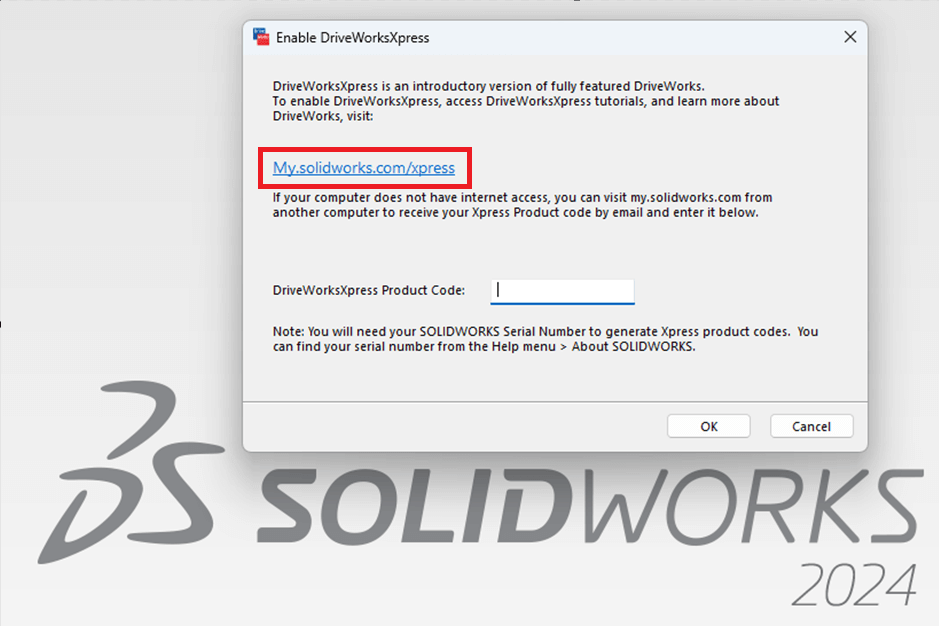
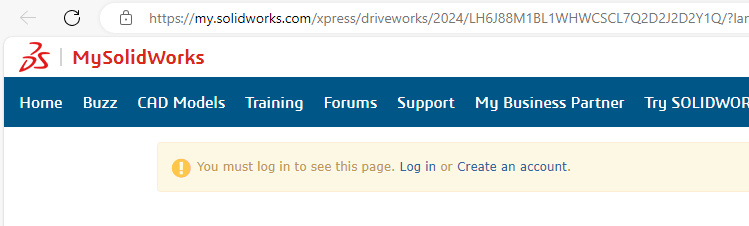
Next click on the link for my.solidworks.com/xpress, this will take you a webpage to display your activation code.
Either log in or create a new 3dexperience id.
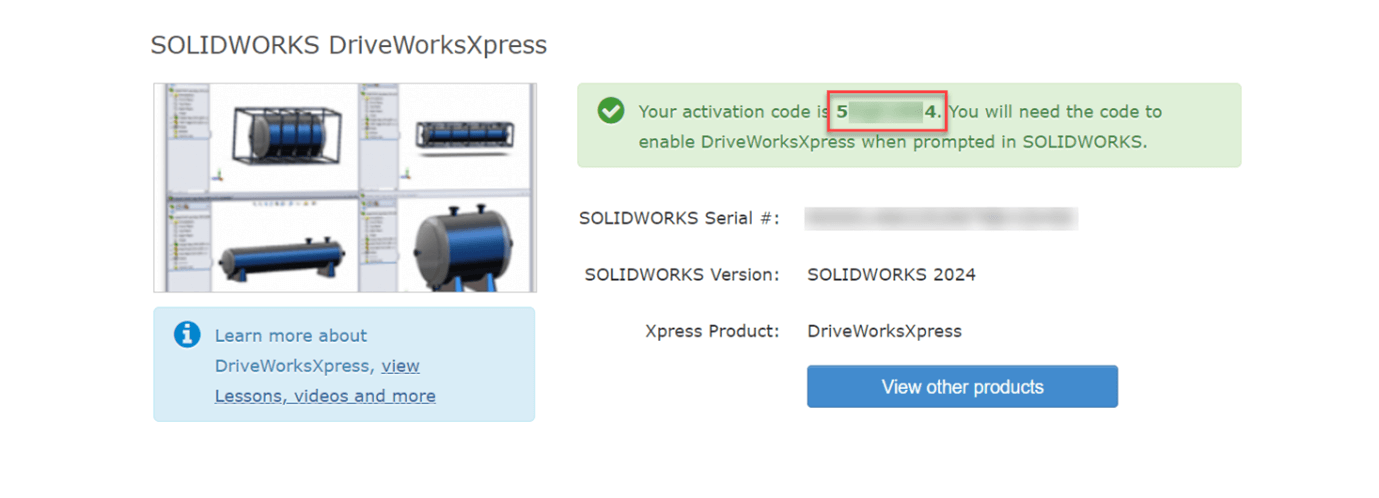
The next screen will show your code you need to enter in the dialogue box in SOLIDWORKS.
2: How to activate DriveWorksXpress
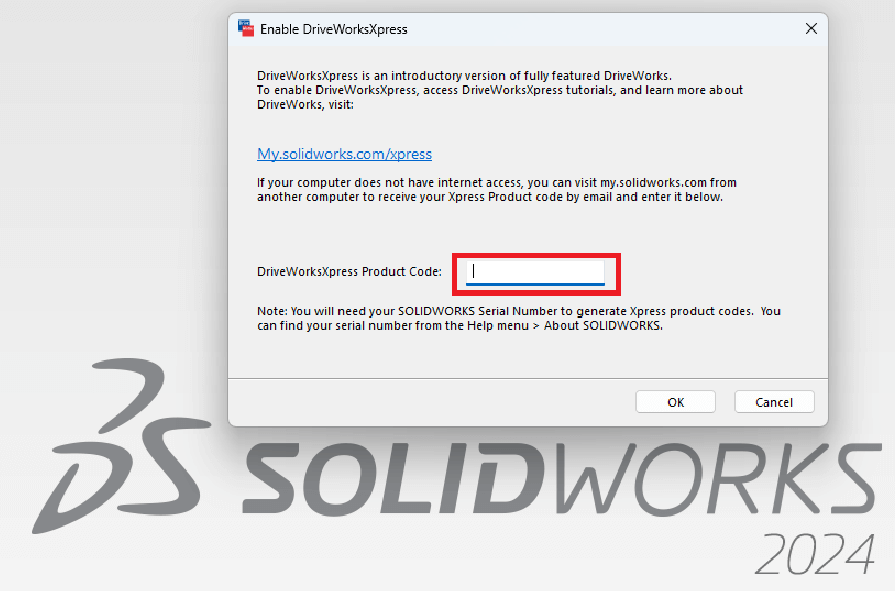
Enter this number into SOLIDWORKS and select OK.
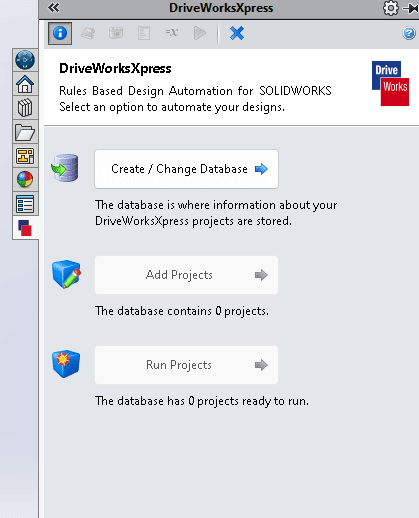
DriveWorks will now open in the task pane, and you’re ready to start.
By integrating DriveWorksXpress into your workflow, you can significantly improve efficiency and design quality.
Check out this DriveWorksXpress overview video:
Take the Next Step
DriveWorksXpress is just the beginning. To fully leverage the power of design automation, consider upgrading to the full version of DriveWorks. With advanced features and greater flexibility, you can take your design process to the next level. Check out our DriveWorks product page to learn more, or get in touch with Visiativ to schedule a personalised demonstration and to get your questions answered.
Join DriveWorks’ Monthly Webinars:
- 2nd Tuesday of the month: Introduction to DriveWorks
- 3rd Tuesday of the month: Using DriveWorks as a 3D Sales Configurator
- 4th Tuesday of the month: Creating a CPQ Solution Using DriveWorks
|
|
About the author: This tutorial was written by Elite SOLIDWORKS Applications Engineer and Training Manager, Adam Rose. Adam has been with the Visiativ Technical Support Team since 2010. |
|||
|
|
View Adam Rose’s LinkedIn Profile here.
|
|||