
Deep Dive: 3DEXPERIENCE Relation Sets
28 November 2025
This blog in our deep dive series focuses on relation sets on the 3DEXPERIENCE Cloud platform.
What Are Relations?
Within any CAD, relations refer to dependencies or connections established between different components, objects or features. Relations ensure that parts of the design behave in a coordinated manner when changes are made, and they play a crucial role in maintaining design integrity. For example, if you use SOLIDWORKS you’re probably familiar with sketch relations and file dependency processes.
The 3DEXPERIENCE platform is no different. It tracks and maintains a wide range of different relationships within its data management system. There are over 100 different relations that can be established between files on the 3DEXPERIENCE Platform but key types of relations in the context of 3DEXPERIENCE include:
-
- Children – A child relation is between a parent and child part. For example, a part that exists within an assembly is a child component of the top-level assembly. The parent is also a notable relation in the same vein
- Attachment – Any attachment such as 3DMarkups, supporting documents, etc. can be linked to a file and easily identified in the Relations app
- Change – If any change actions/requests exist on the platform and have the root file added as content, it will be shown in the file relations under Change
- Alternate/interchangeability – If any alternate parts are allocated for a file they will show in the relation tree as an alternate
What Are 3DEXPERIENCE Relation Sets?
Relation sets are collections of relations that can be bundled together and used as filters in various apps within 3DEXPERIENCE. For example, we might only want to see files with child relationships to an assembly and exclude anything extra such as issues, attachments, bookmarks, etc. Or we may want to view any drawings associated with an assembly easily. To allow this filtering with a simple click, we would create our own relation set and apply it within the relevant app.
Let’s look at how we can create a relation set!
Set up a New Relation Set
It’s beneficial to start by creating a new dashboard for this kind of operation or add a new tab to an existing data management dashboard called “Relation Sets”. In this example, we’ll start by creating a new dashboard.
|
|
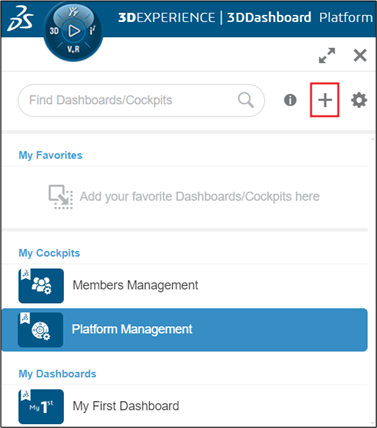
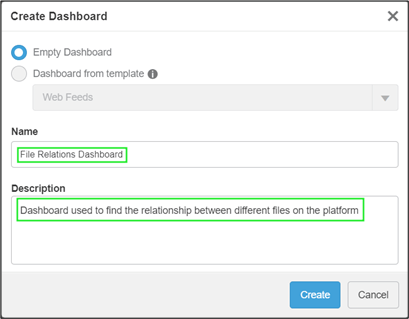
We choose to create an empty dashboard and assign it a name and description.
|
|
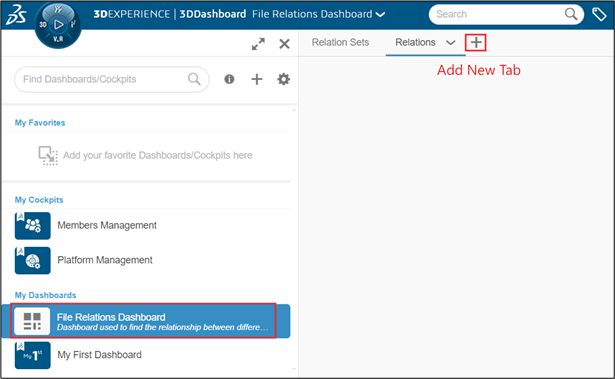
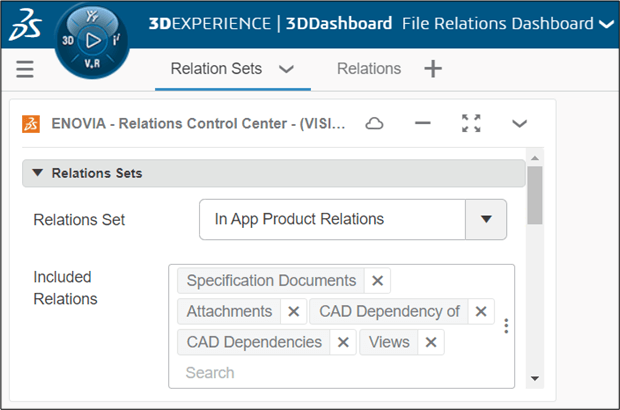
We can now create new tabs and build our dashboard as required. In this example, separate tabs for setting up our relation sets and another for file relations will be a neat solution.
|
|
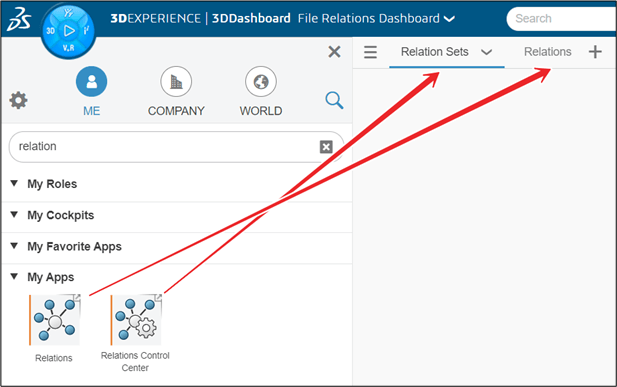
The next step is to add the applications we need to each tab by dragging and pinning them from the compass.
|
|
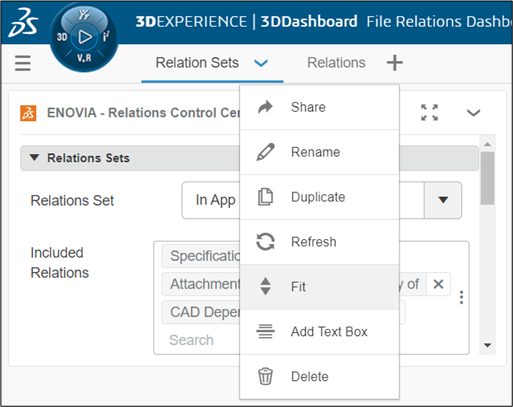
Fitting the apps to the screen gives us a better view of the app content. We can do this by hitting the dropdown on the tab and selecting “Fit”.
|
|
|
Now on to creating the relation set. There are already a lot of pre-built relation sets in 3DEXPERIENCE that we can use.
|
|
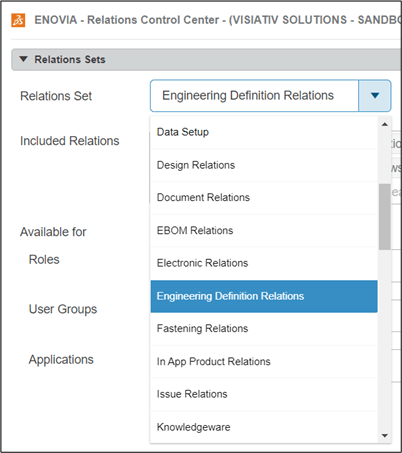
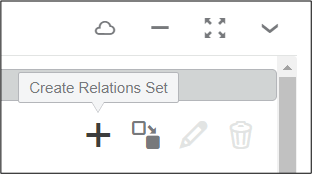
Or, we can create a bespoke relation set for a specific task. In this example, we will create a relation set that fetches all the children of a particular file.
|
|
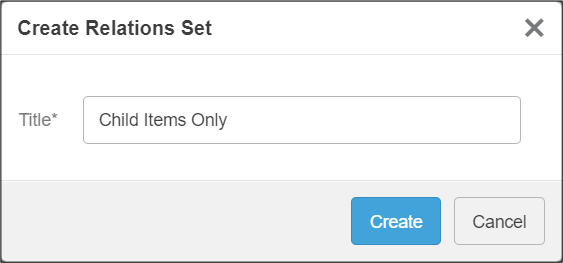
|
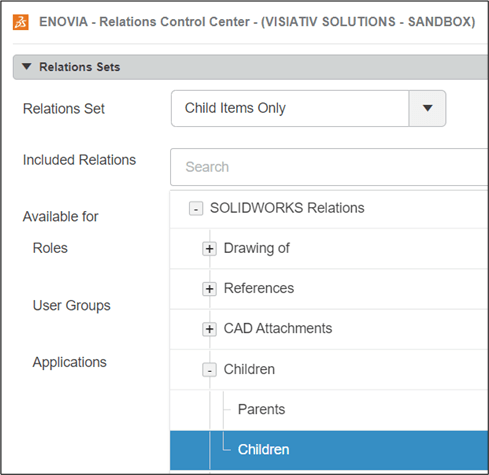
There are many different options here that cover every aspect of the platform. We’re going to focus on SOLIDWORKS relations, particularly children.
|
|
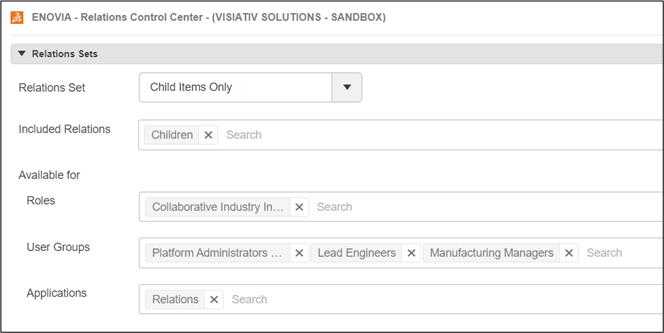
We can then define which user roles we want this filter accessed by or which groups can use it. If required, we can also make the filter available in other applications or widgets.
|
|
Use the New Relation Set
We can now use the relations app to expand one of our products.
|
|
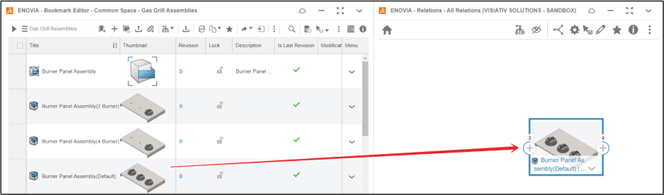
Adjusting the relations app settings changes which relationships appear in the graph.
|
|
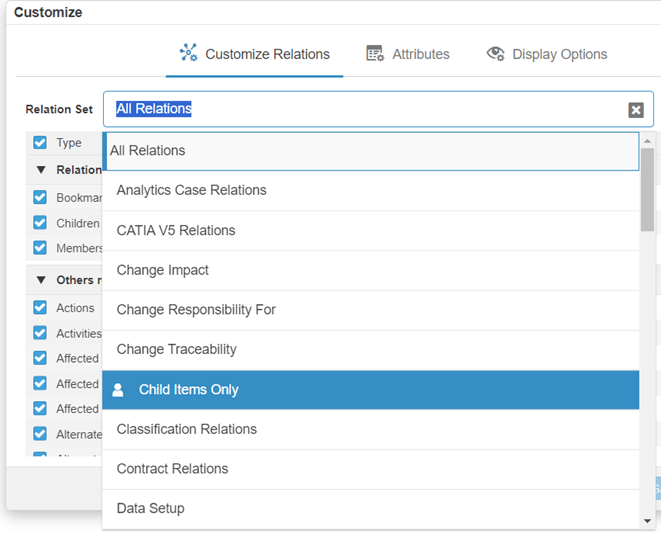
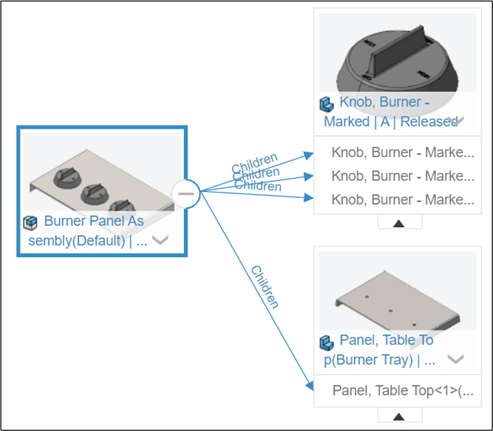
Once the “Relation Set” setting has been changed, only the files that satisfy the relation set will be shown. The relationship graph will now show as:
|
|
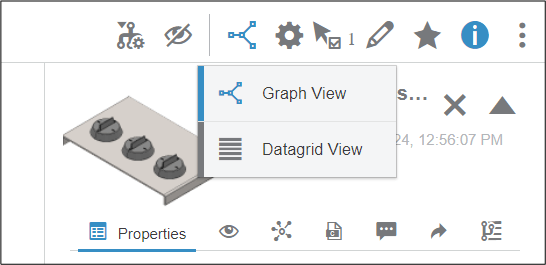
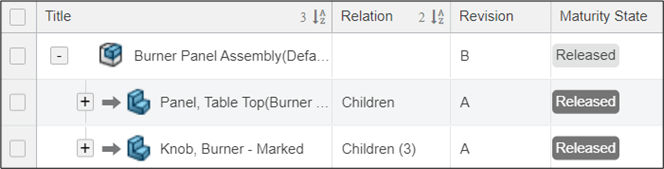
Note: You also have the ability to swap to a datagrid view.
|
|
|
|
Use Cases:
Some use cases for creating relation sets are:
1.To quickly gather all the files related to an object to add them to a Bookmark.
It can be very difficult to gather all the files you need to place them into a bookmark. Using relation sets to fetch all the files you want can make this job easier.
|
|

2.Gathering all the drawings related to an entire project
You could add a relation of “Drawings of” to the example in this article to identify all of the drawings from a particular project
And that’s it! For any further assistance or guidance you may need regarding 3DEXPERIENCE and SOLIDWORKS, use our support services or give us a call on 01223 200699.