How to: Common 3DEXPERIENCE Connection Challenges and How to Resolve Them
05 June 2025
There are a range of common 3DEXPERIENCE connection challenges that show from time to time. So what are the possible solutions?
🔧 1. Login Issues
3DEXPERIENCE licences are named users, so are assigned to a user’s email address. Users log in via their 3DEXPERIENCE ID and associated password. Issues related to logins are easy to spot as they result in this message:
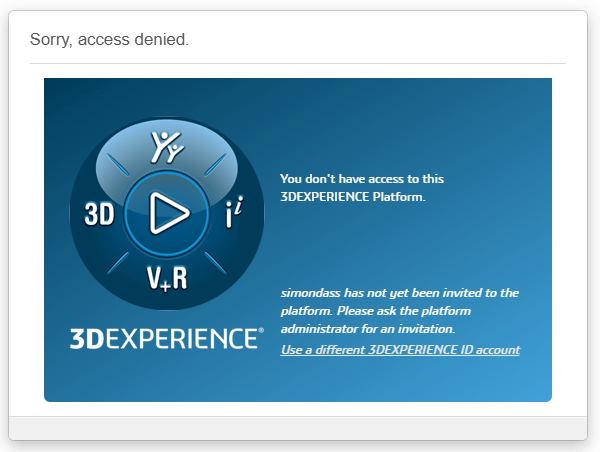
Seeing this message could be as a result of:
- Incorrect credentials or account not linked properly.
Make sure to log in to the correct 3DEXPERIENCE tenant using the correct 3DEXPERIENCE ID. If you’re still unable to log in, check that you have the correct licences assigned to your ID and they haven’t expired. - Network restrictions blocking access to 3DEXPERIENCE (firewalls, proxies).
Make sure your firewall allows all incoming traffic from *3ds.com. It is also a good idea to try in another browser.
🌐 2. Internet or Server Connectivity
Connection to 3DEXPERIENCE requires a stable internet connection to allow connection to the 3DEXPERIENCE servers.
- Unstable or no internet connection.
You’ll have issues logging in or connecting to 3DEXPERIENCE within your native apps, such as SOLIDWORKS, if you’re internet connection is unstable. We can provide information on how best to use your products while offline. - 3DEXPERIENCE servers might be down or under maintenance.
Server Status can be checked here: https://www.3ds.com/support/cloud - VPNs or certain network setups can interfere with connection.
If you’re using a VPN make sure firewalls aren’t blocking 3DEXPERIENCE on either end.
The 3DEXPERIENCE Cloud Eligibility tool is the easiest and quickest way to check the compatibility of your environment with 3DEXPERIENCE.
🧩 3. Add-in Not Enabled in SOLIDWORKS
Connection to 3DEXPERIENCE requires the 3DEXPERIENCE add-in. For SOLIDWORKS Desktop users, they will need to install the SOLIDWORKS Connector application. This comes built in to SOLIDWORKS Connected.
- The 3DEXPERIENCE add-in must be enabled:
- Go to Tools > Add-Ins in SOLIDWORKS.
- Make sure the 3DEXPERIENCE Add-in is checked.
💾 4. Version Incompatibility
3DEXPERIENCE is supported for 3 years backwards against SOLIDWORKS Desktop versions. Using a non-supported version may cause unexpected issues.
- Example: Using the latest version of the 3DEXPERIENCE Connector may cause strange or incorrect behavior in SOLIDWORKS 2022.
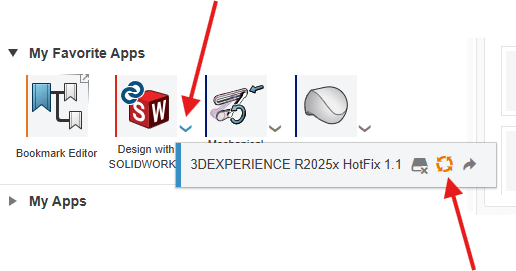
Update the connector on the platform by selecting ‘update’ from the drop down menu.
🧱 5. 3DEXPERIENCE Roles or Permissions
If you’re able to log into your 3DEXPERIENCE Tenant, but it doesn’t look like you expect it or you’re missing some tools:
- You may not have the required roles (like Collaborative Designer for SOLIDWORKS) assigned to your 3DEXPERIENCE account.
Check with your Platform Administrator to see if you’ve been assigned the correct Roles. If you’re the Platform Administrator, you’ll find this information in Platform Management.
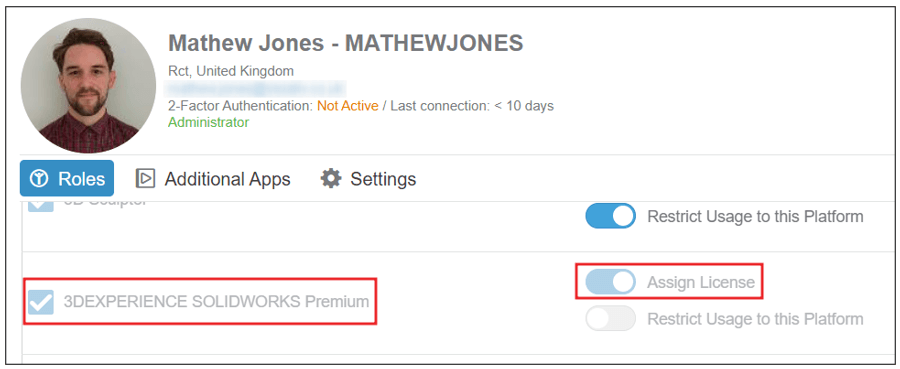
- Your Roles may have expired.
Check the Role information on your 3DEXPERIENCE Platform.

📂 6. Local Cache or Temp Folder Corruption
- Clear the browser cache from your internet browser for browser issues.
- When experiencing any issues, login or otherwise, within the browser the first recommended action is to log out, clear your browser cache and log back in. Usually, this resolves most issues.
- A Corrupt file cache can interfere with file sync between SOLIDWORKS and 3DEXPERIENCE.
- Try clearing Remote Folders from the 3DEXPERIENCE local cache.
- Navigate to C:\3DEXPERIENCE and clear out any ‘Remote Folders’ that you see.
- Clear the %Temp% folder from your local user if you have persistent connection issues within SOLIDWORKS.
- Press Windows Key + R and type %temp%.
- Rename DSTempWeb2 to DSTempWeb2_old.
- If this doesn’t fix the connection issue, delete all contents of %temp% and retest.
For more information on understanding how 3DEXPERIENCE Caches files, read our blog.
If you’re still having connection challenges with 3DEXPERIENCE and the solutions above haven’t helped, please get in touch with the Visiativ Technical Support Team* or call 01223 200699.
*Supported customers only.
 |
About the author: This guide was written by SOLIDWORKS Applications Engineer, Mat Jones. Matt is a 3DEXPERIENCE specialist and has been with the Visiativ Technical Support Team since 2023. |
|||
|
|
||||