How to: use EIN numbers in 3DEXPERIENCE
18 February 2026
If you’re on this page, you’ve probably googled “what are EIN numbers?”, “EIN numbers in 3DEXPERIENCE”, or similar. Well, you’re in the right place and it’s actually pretty straightforward to use in your 3DEXPERIENCE setup as Visiativ Applications Engineer, Mat Jones explains…
What are EIN numbers?
Organisations assign Enterprise Item Numbers (EINs) to uniquely identify their products. They play a crucial role in inventory management, supply chain operations and sales tracking.
Here are some key aspects of Enterprise Item Numbers:
- Uniqueness: each EIN is unique to a specific product, enabling identification and differentiation from other items
- Structure: Their structures can vary, but usually they contain customisable components – which can be linked to file meta-data
- Integration: EINs can be integrated across many systems (CAD data management, ERP, POS etc.) and ensure data is managed correctly across each
- Applications: They have the ability to be used across a number of different processes:
- Inventory Management: Helps track stock levels, reorder points and stock movements
- Sales Tracking: Facilitates detailed sales analysis and reporting
- Supply Chain Efficiency: Enhances the ability to manage and trace products through the supply chain
- Customer Service: Improves the ability to quickly locate and provide information about products
- Production: Helps to track production data against CAD items
By using EINs, organisations can achieve better control and visibility over their products, leading to more efficient operations.
What are EINs in 3DEXPERIENCE?
In 3DEXPERIENCE, an EIN uniquely identifies and tracks CAD data, parts, and assemblies throughout the product lifecycle. You assign an EIN to each CAD part, assembly, or document, ensuring that every item in the data management system remains uniquely identifiable – even when names or descriptions are similar. As well as individual items, the EIN allows the system to track revisions, versions, and lifecycle states of the CAD data. For example, multiple revisions of the same part will share the same EIN but differ in revision numbers.
How can I create EIN formulas in 3DEXPERIENCE?
In 3DEXPERIENCE, creating EINs follows a multi-level process that generates EINs based on a defined set of rules. In this tutorial, we want to talk about smart item numbering and will focus on formula-driven serial numbers.
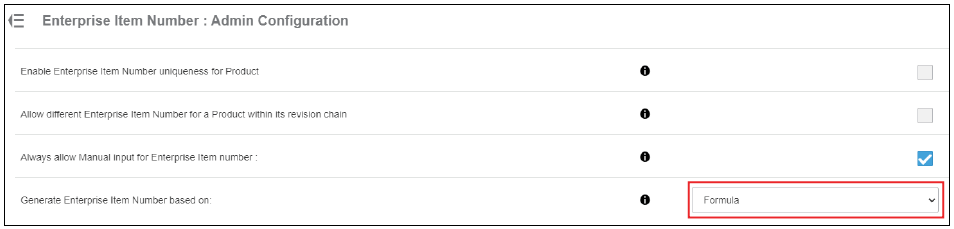
You can force 3DEXPERIENCE to use a formula by going to the Engineering Definition setting (Platform Management > Collaborative Spaces Configuration Center > Engineering Definition) and selecting Enterprise Item Number: Admin Configuration. You can then select Formula from the drop-down list shown below.
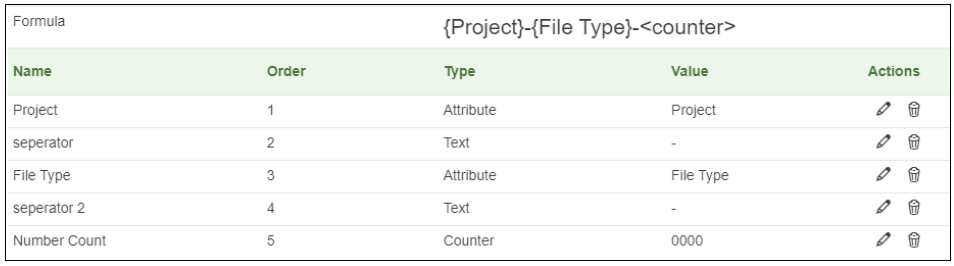
This formula can then be defined in the Enterprise Item Number: Formula Configuration setting. In the example below, there is a simple formula defined: {Project}-{File Type}-<counter> (eg. MITER-PRT-001).
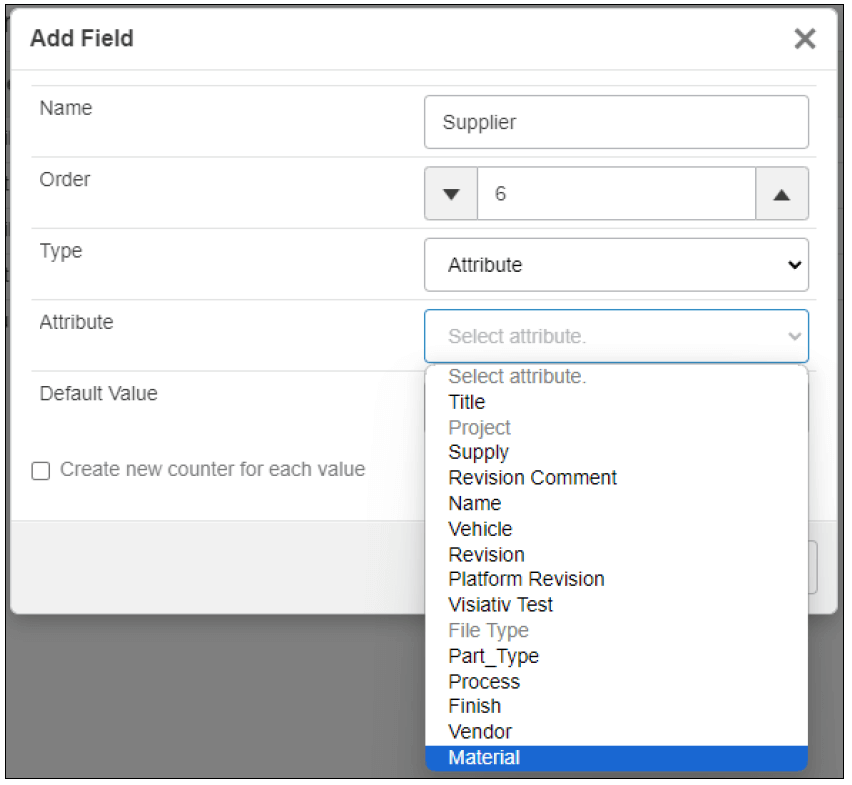
The formula is driven using a combination of Attributes (custom properties), counters and text as illustrated below.
When creating a formula field you provide the following information:
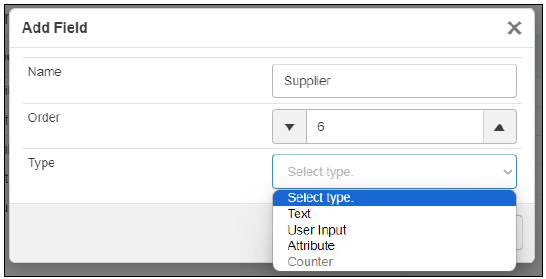
- Name: name the field within the formula for easy reference
- Order: where in the formula the entry will sit
- Type: what type of entry it is
- Text – free text that is pre-defined in the formula (it can not be modified during the EIN assignment)
- User Input – a field that can me modified by the user during EIN assignment
- Attribute – a field linked to a file attribute or SOLIDWORKS custom property
- Counter – a sequential counter that can be added to give uniqueness to each serial number
Note: When you select Attribute, the system lists all established attributes.
How can I assign EIN formulas to Physical Products?
After defining the formula, you can quickly assign it to parts and assemblies in SOLIDWORKS. The first step is to open a file previously saved inside of 3DEXPERIENCE.
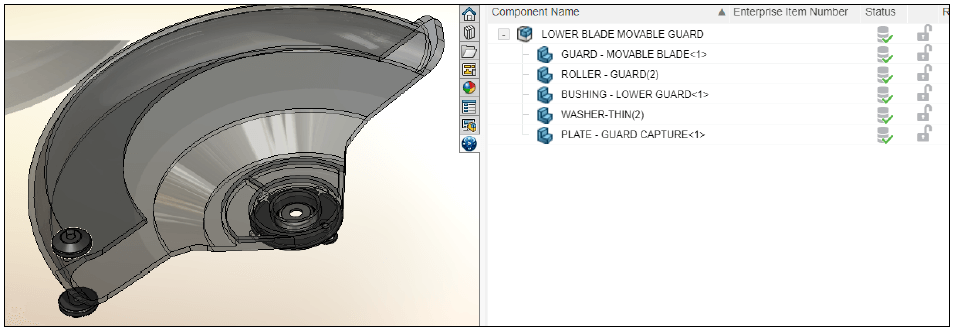
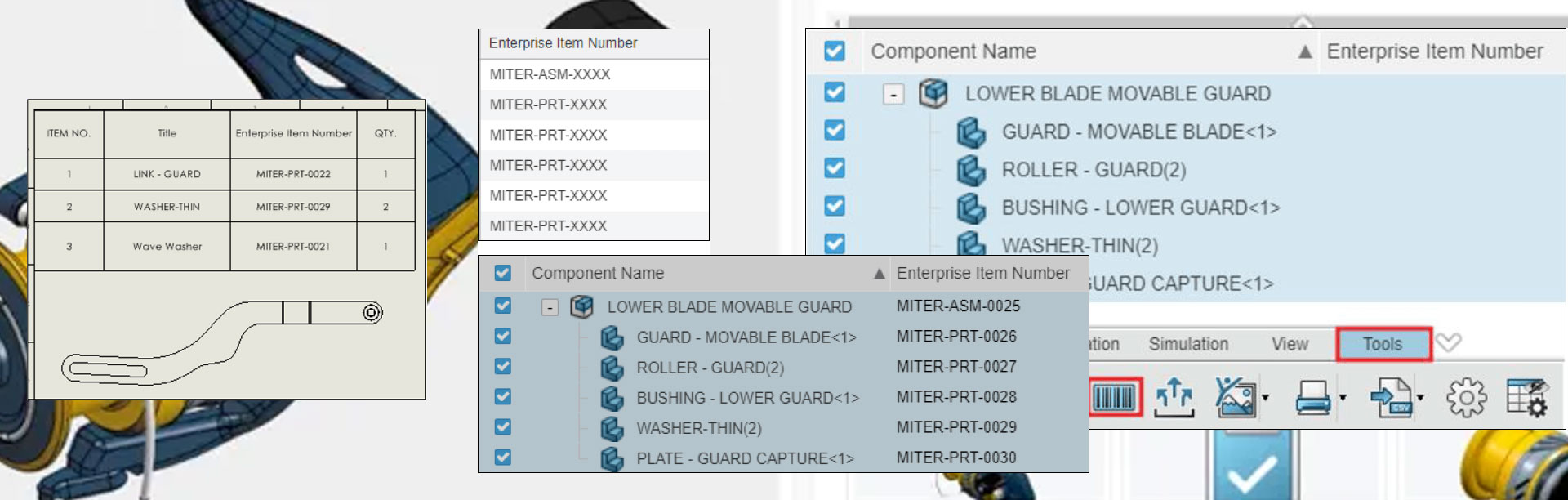
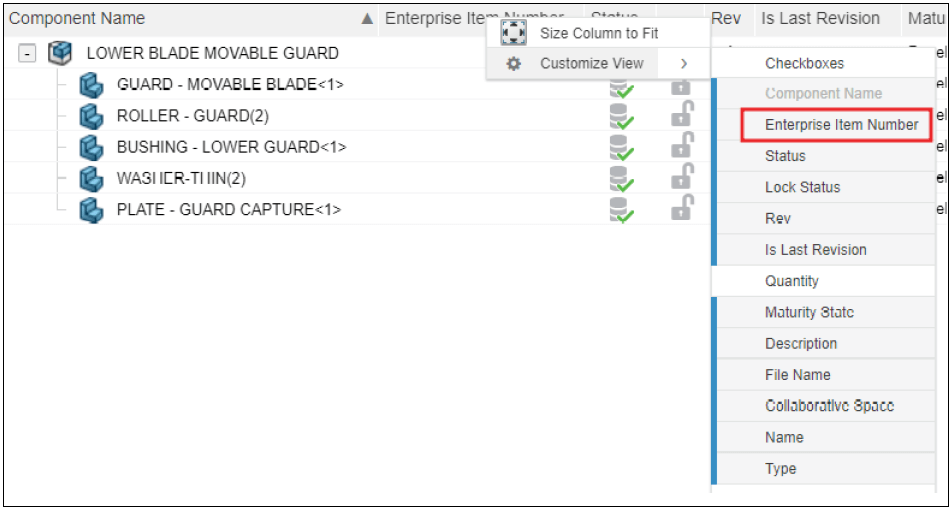
In MySession, we recommend enabling the Enterprise Item Number column.
Any file that requires an EIN, must be able to satisfy any field that exists within the EIN formula.
For example, if you include an attribute, you must populate it or it will appear blank in the formula. Open the Property panel from MySession to enter attribute values. Note: Depending on your system configuration, you can also do this from the SOLIDWORKS Custom Property panel.
|
|
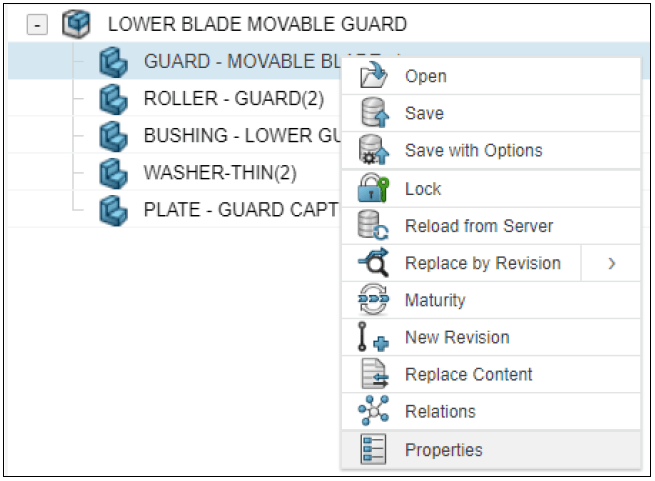
The attribute fields that exist within the formula were File Type and Project.
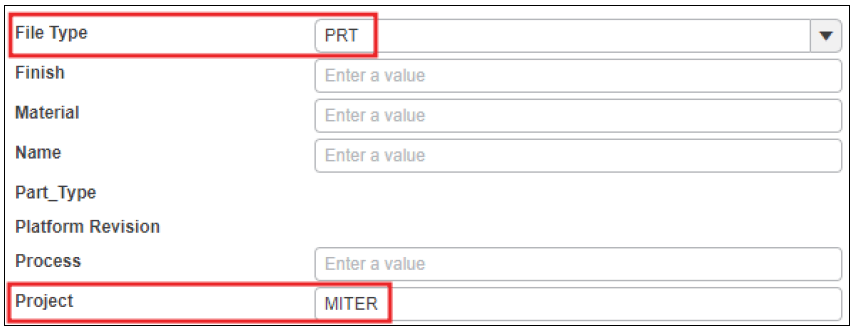
Applying the properties requires re-saving the files to 3DEXPERIENCE from within SOLIDWORKS. Note: they may require a Lock during the save process.
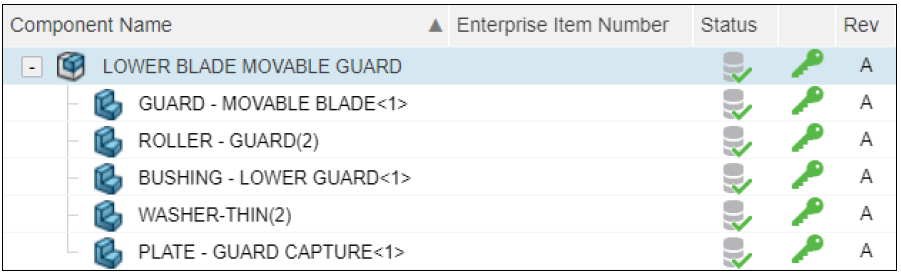
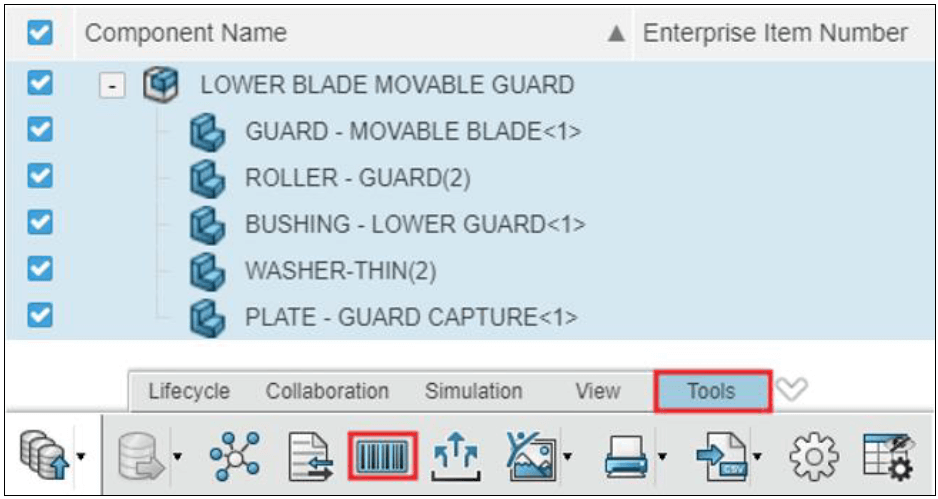
Once the system populates the attribute values, it assigns the EINs. Select the files and choose Set Enterprise Item Number.
On the following window, select the items and then Request New Enterprise Item Number.
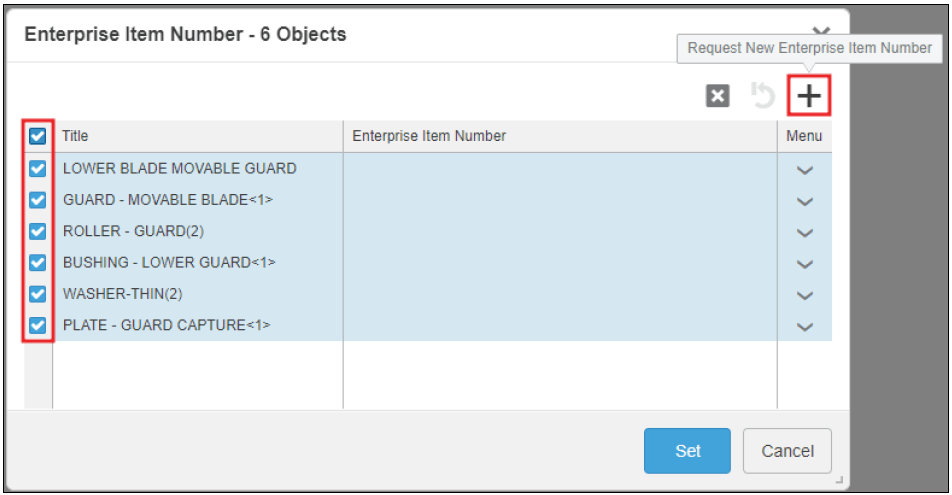
The system displays a preview of the assigned EINs, and applies them when you select Set.
|
|
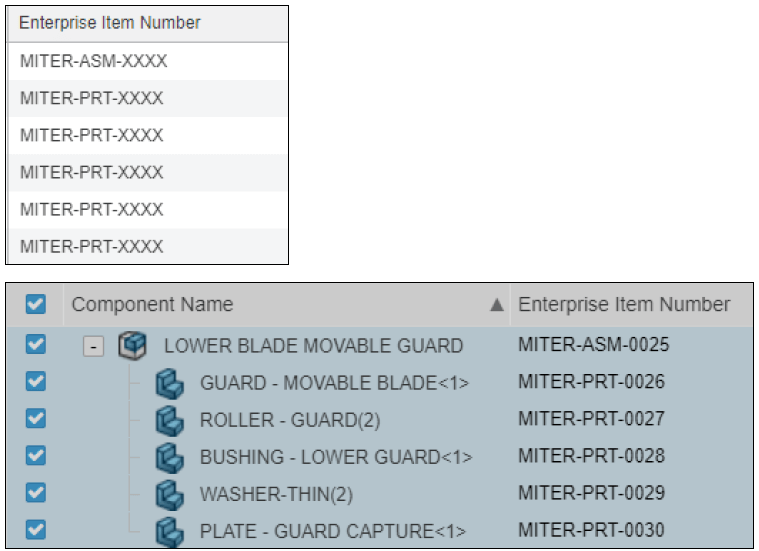
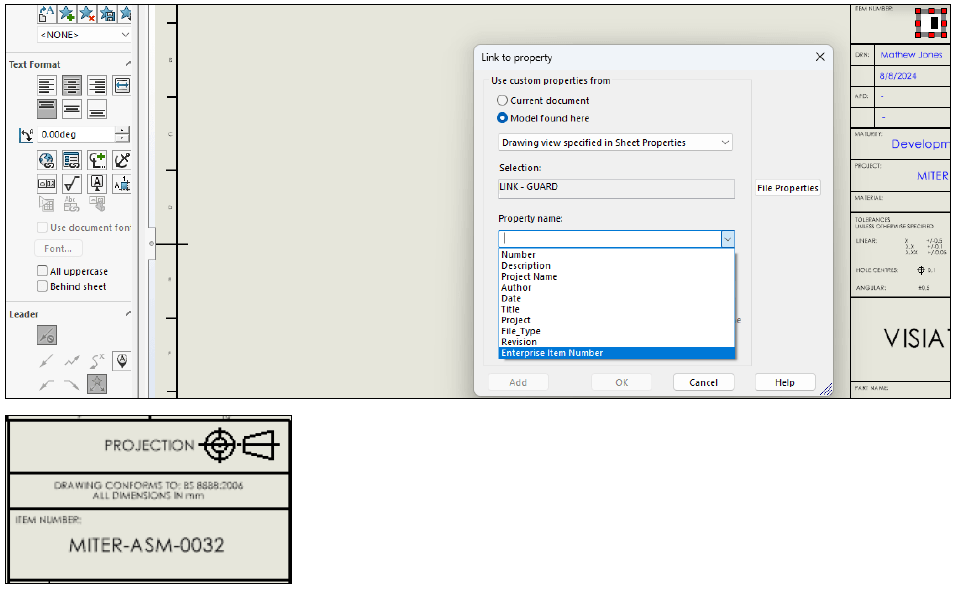
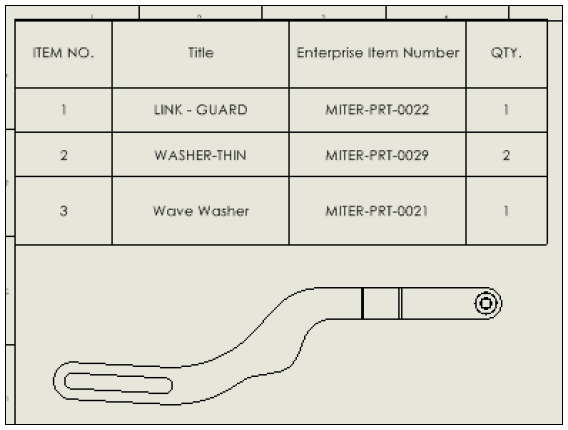
You can now add these EINs to file templates, BOM tables, and other areas just like any other attribute or property.
|
|
We hope you found this tutorial useful! Why not check out our other tutorials and user guides here? Visiativ UK & Ireland customers requiring assistance with EIN numbers in 3DEXPERIENCE can get in touch with the technical support team here.