Deep Dive: 3DEXPERIENCE Compare
17 September 2025
This deep dive focuses on the 3DEXPERIENCE Compare application, which is part of the Collaborative Industry Innovator role on the 3DEXPERIENCE platform. This tool is especially valuable for designers and engineers who need to keep track of design changes, verify accuracy across revisions and ensure consistency within complex projects.
What is the 3DEXPERIENCE Compare Tool?
The 3DEXPERIENCE Compare app helps visualise and analyse differences between two file versions. Typically revisions of CAD parts or assemblies.
How do You Access the Compare Tool?
To access the Compare widget, you can:
- Drag the widget from the Compass to the dashboard.
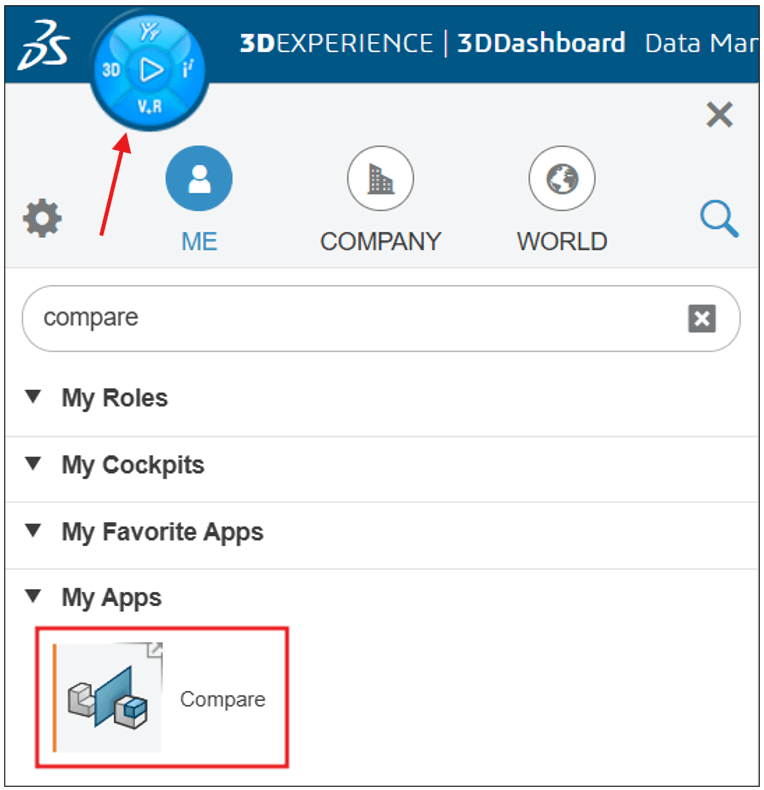
- Click Compare within the action bar, Shortcut Menu, or toolbar.
💡 Tip: You can also add a Compare widget to any of your data management dashboards for easy access.
3DEXPERIENCE Compare User Interface
Within the dialog, there is space to open two different models or revisions of the same model side by side.
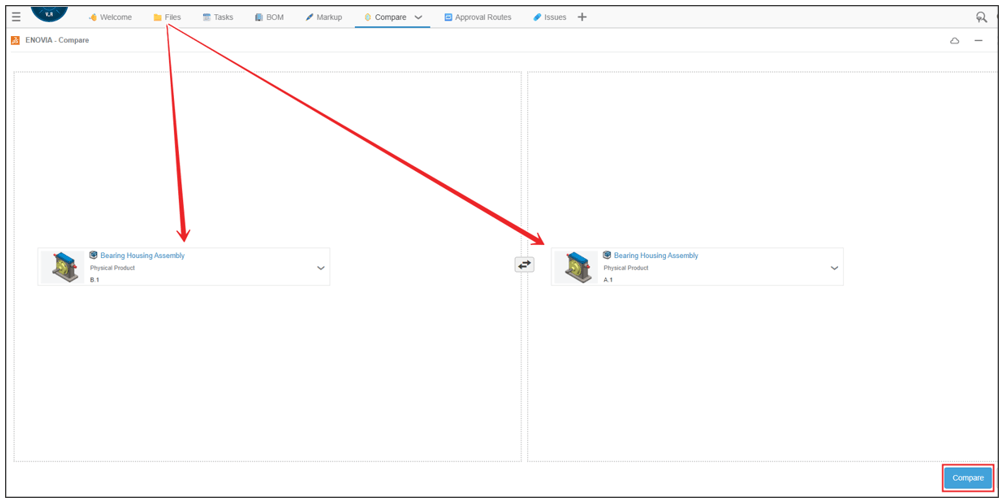
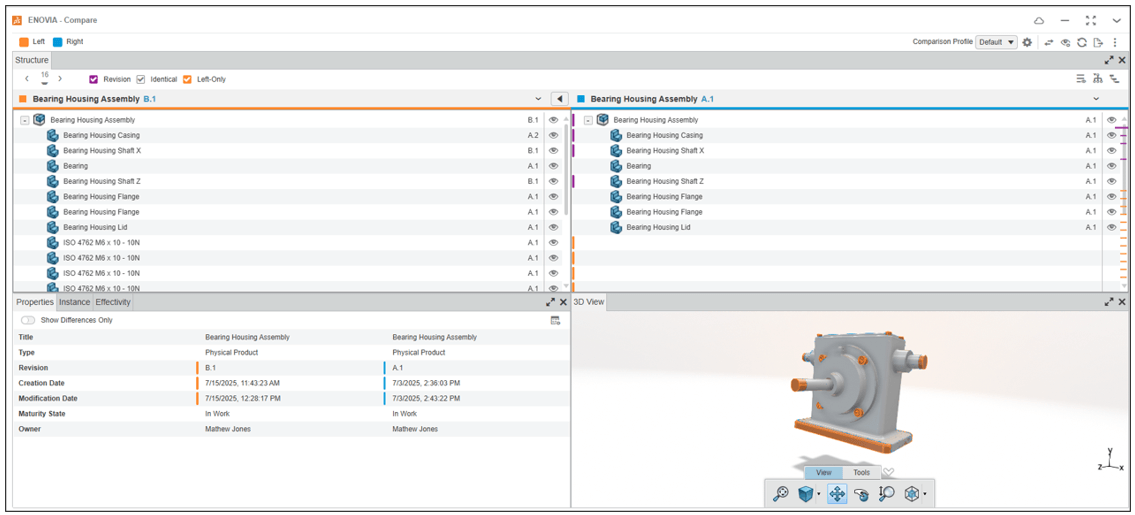
Once loaded, the Compare App gives a detailed comparison of the two objects:
💡 Tip: Drag and drop files from the Bookmark Editor into Compare! For more information on Bookmark Editor, view our Deep Dive: 3DEXPERIENCE Bookmark Editor Blog.
What Can You Do with it?
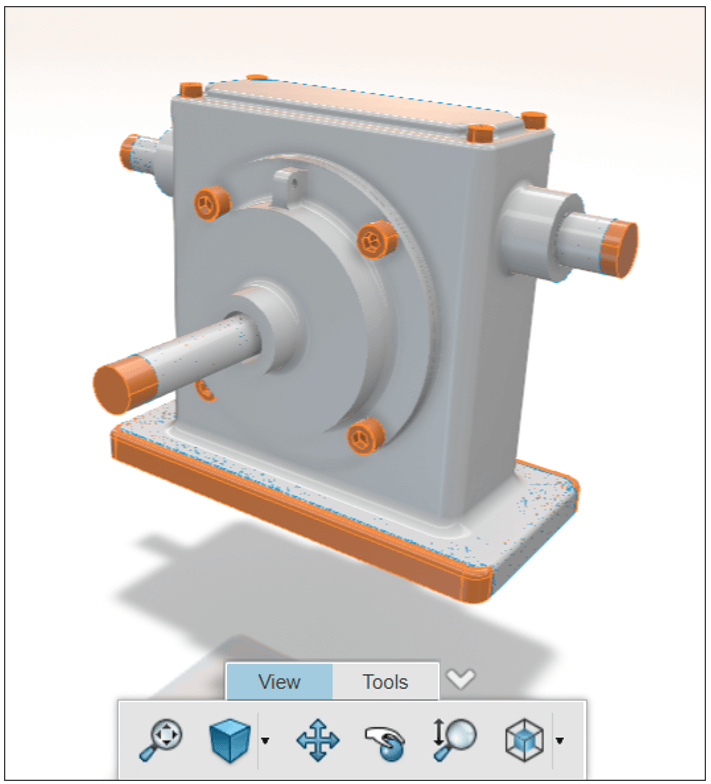
Geometry comparison: Drop two versions of a 3D model side by side. The app visually highlights new, removed or modified geometry – think added slots or changed shapes – making it easy to spot version-to-version changes. The orange parts of the model below are from a newer version, for example.
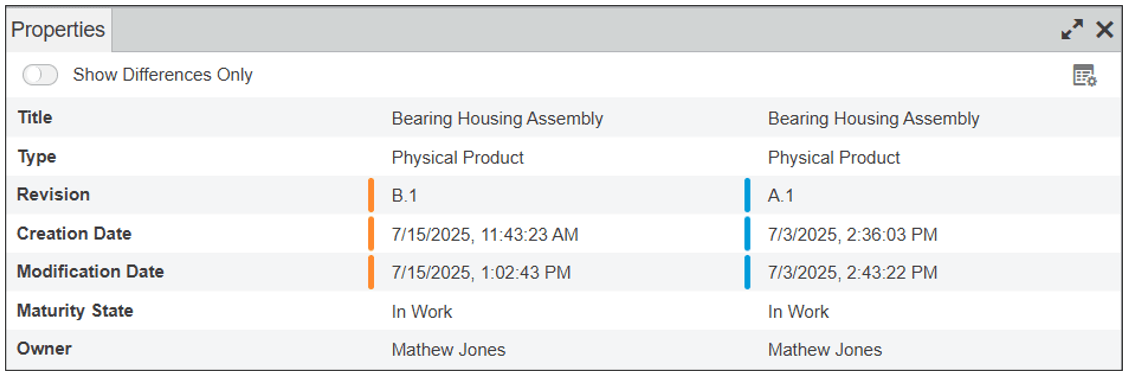
Property comparison: It displays altered metadata in a list, so you don’t miss non-geometric changes. It also lets you track who made the changes and when.
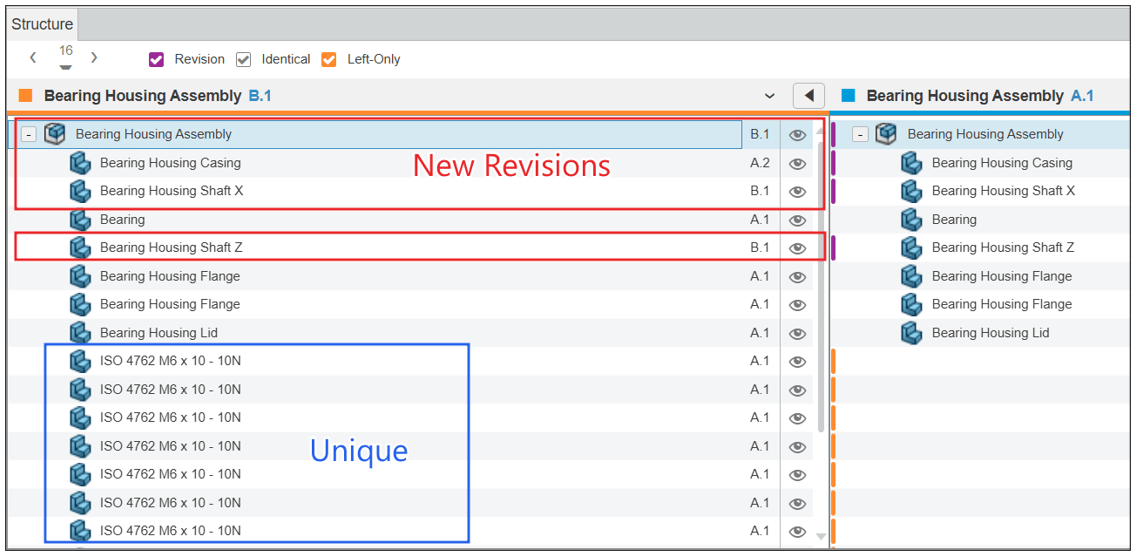
Revision-to-revision feature differences: Great for checking incremental edits across revisions A, B, C, etc., and generating reports on what changed. Colour-coded keys help you see exactly what has changed.
3DEXPERIENCE Compare Toolbar Overview
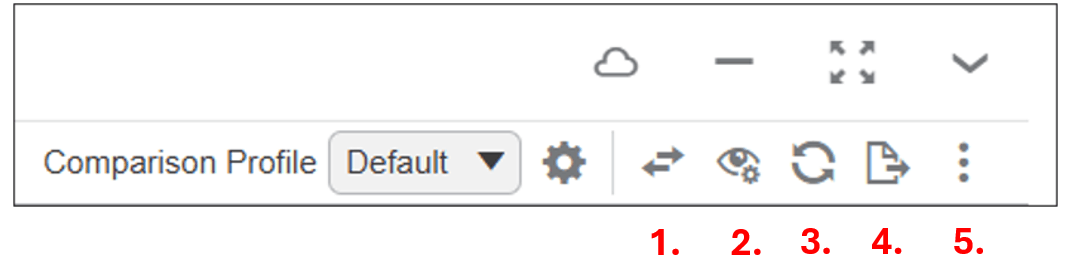
1.Swap Column Order: Switches the columns that are currently assigned to objects
2.Display Tabs: Lets you select the tabs you want to display in Compare
3.Refresh: Refreshes the Widget
4.Export Compare Results: Exports the result of the structure and properties comparison into a .csv file
5.Additional Options: See Flyout for Choosing Displayed Objects and Restoring the Layout
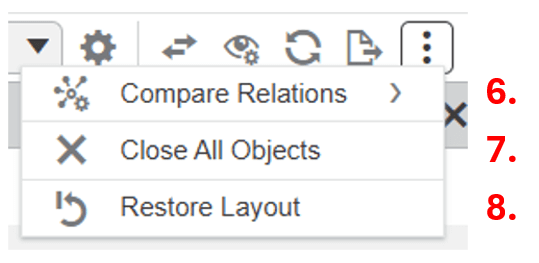
6.Choose Relations: Display and compare the attached documents and the specification documents, or the other available relations
7.Close All Objects: Removes all current objects from the widget
8.Restore Layout: Removes all your layout modifications and restores the initial layout of the widget
Real-World Use Case for 3DEXPERIENCE Compare
⚠️ Problem: An Engineering company finds an issue with a component that didn’t exist prior to the current revision.
✅ Solution: Users can open different drawing or model revisions within the Compare app. Afterwards, they can see clearly what has changed, by who and when. With the information showing clearly, resolutions are identified and actioned.
📉 Outcome: Find component issues quickly and effectively. The issue with the new revision is resolved.
 |
About the author: This guide was written by SOLIDWORKS Applications Engineer, Mat Jones. Matt is a 3DEXPERIENCE specialist and has been with the Visiativ Technical Support Team since 2023. |
|||
|
|
||||