Deep Dive: 3DEXPERIENCE Bookmark Editor
16 September 2025
This deep dive focuses on the 3DEXPERIENCE Bookmark Editor application, which is part of the Collaborative Industry Innovator role on the 3DEXPERIENCE platform.
What is the 3DEXPERIENCE Bookmark Editor?
The Bookmark Editor is a core app that is used to organise and manage your engineering data (files, assemblies, drawings, documents) in place of traditional folders. It acts as a quick link area to reference content stored in the 3DEXPERIENCE data management vault.
The 3DEXERIENCE Bookmark Editor lets you create bookmark structures to enhance convenience and efficiency while retrieving content from different locations. For example, you can bookmark content stored in Collaborative Spaces and Communities that are relevant to specific projects, interests or work.
Bookmarks offers several benefits:
- Quick Access: Bookmarks allow you to quickly access frequently used content without having to remember specific criteria and search every time.
- Organization: You can organise the bookmarks, making it easier to manage and find saved content, especially when you deal with unstructured content stored in different locations.
How do you Access and Manage the Bookmark Editor?
You can access Bookmark Editor from your 3DEXPERIENCE Compass as per below:
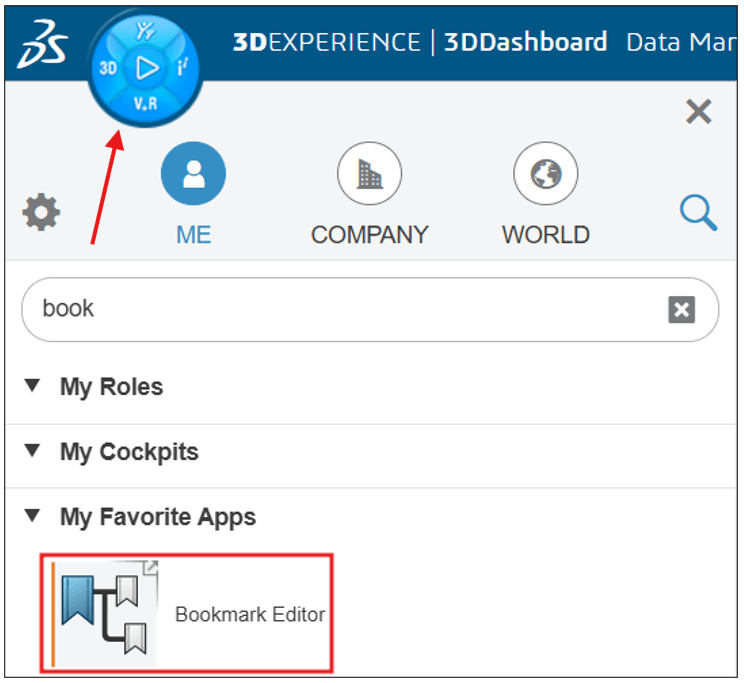
For easy access, we recommend that you add the app to your Favorites area.
💡 Tip: You can also add a Bookmark Editor widget to any of your data management dashboards for easy access to project data for use in other tools.
What Can You Do with the 3dEXPERIENCE Bookmark Editor?
Bookmark Editor lets you:
- Manage Bookmark Structures
- Create file structures for personal use as well as for collaboration with other members of team.
- Create complex or simple folder systems that are flexible to your processes.
- Delete a bookmark structure. After deletion, all the contents of the bookmark are removed from the bookmark but kept in the Collaborative Space.
- Subscribe to bookmark folders. Get notified of changes to folders and content within.
- Manage bookmarked content
- Organise content stored in different collaborative spaces and communities together in one structure.
- Add content to multiple structures as needed. As the files are just referenced, the same item can exist in multiple bookmark folders.
- Use common commands such as lifecycle and collaboration commands to revise or move files through the workflow.
- Upload local files (images, videos, audio files, documents) as bookmarked content. Note: uploaded files are stored as document objects not CAD objects.
- Download files to your local disk from document content. Documents can hold multiple files.
- Subscribe to bookmarked content to be notified of changes.
- Easily browse and drag the bookmarked content to other apps for specific work.
Real-World Use Cases
⚠️ Problem: Teams working in different offices had no shared folder structure and lost track of latest revisions.
✅ Solution: Created a shared bookmark structure on the cloud with 3DExperience.
📉 Outcome: Everyone worked on the same live data, eliminating duplicate files and reducing errors during handoffs.
⚠️ Problem: A design team has a very complex folder structure. Standard parts need to be organised with data from multiple projects at the same time.
✅ Solution: Created a project bookmark structure on the cloud with 3DExperience.
📉 Outcome: A single standard item is referenced in multiple bookmark structures so data is always where it needs to be.
User Interface
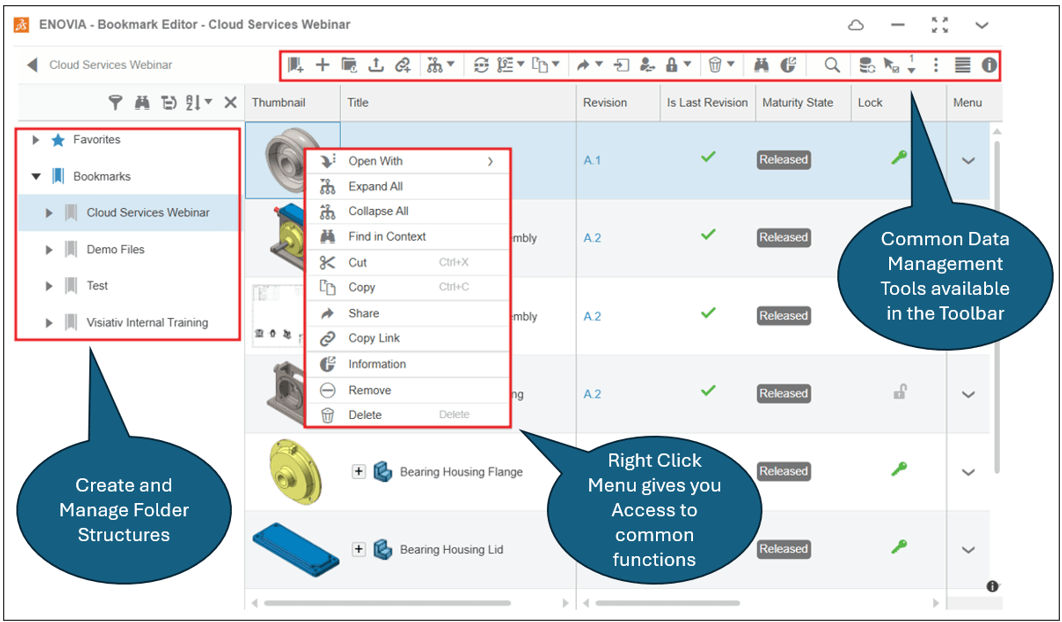
The UI of the Bookmark Editor app gives quick access to the most used features:
- Build and manage folder structures.
- Bookmark Toolbar gives you access to Data Management functions like ‘New Revision’ & Change Maturity.
- Right Click menu allows quick access to common functions.
- View all the latest meta data related to our files i.e. Revision, Maturity, Lock Status.
💡 Tip: Drag and drop files from Bookmarks into your other Apps!
Toolbar Overview
The Toolbar allows you to manage your data directly in the cloud. Here’s a quick overview of these tools:

The first few commands are for file management. You can add new bookmarks or content using these tools as well as add or import new folder structures.

The next few tools are Data Management specific. With one or more files selected, you can use these tools to change the maturity or revision of an item as well as duplicate or copy them.

The next row of commands is used for managing the logistics of the files in the bookmark. Select files can be shares with others or moved to a different collaborative space or owner. The remove and delete function is also on this row of tools.

The last few tools are mostly used for some extra utility. There are search and export options as well as some tools to show file information.
Bonus Content!
Here’s some helpful links and articles about this topic:
🔗 Bookmark Editor Help File (opens in new window)
🎓 10 Minute Bookmark Training Course (opens in new window)
Need help?
Visiativ customers with a support contract can contact our support team for assistance.
 |
About the author: This guide was written by SOLIDWORKS Applications Engineer, Mat Jones. Matt is a 3DEXPERIENCE specialist and has been with the Visiativ Technical Support Team since 2023. |
|||
|
|
||||