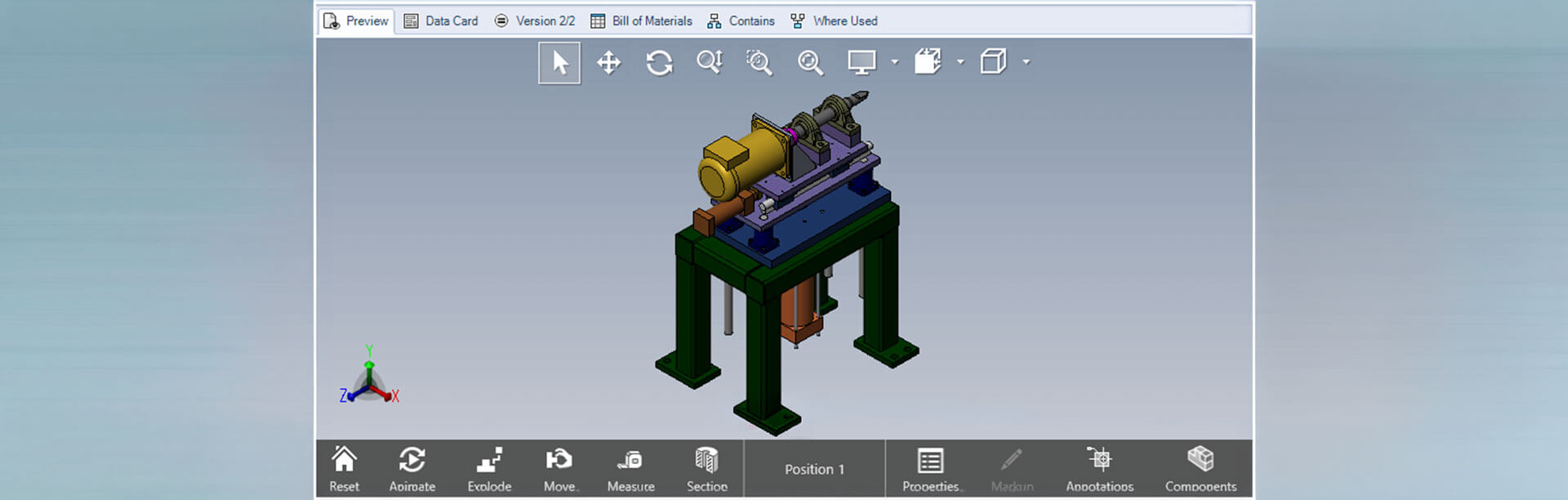
How to: Activate the measure tool in SOLIDWORKS PDM preview
08 May 2026
Opening large CAD files for reviewing purposes can be time-consuming, but there’s a faster alternative: use eDrawings. It loads significantly quicker and allows you to take measurements directly from the model. Fortunately, SOLIDWORKS PDM includes an integrated eDrawings preview within its user interface. Read on to find out how to activate the measure tools and more within the preview.
Unlocking Full eDrawings Functionality in PDM
When you’re inside the PDM vault view, you’ll notice a Preview tab. By default, this uses eDrawings to display the file, but it doesn’t enable all of eDrawings’ powerful features.
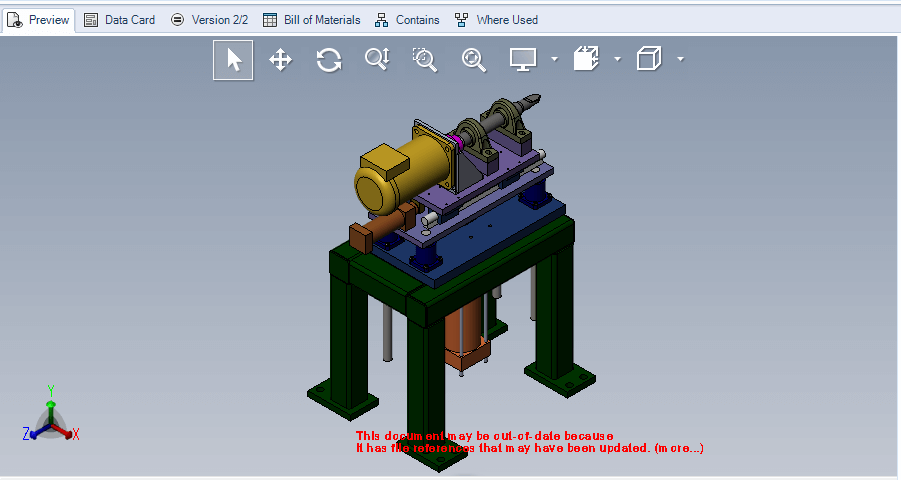
To activate the measure tool in PDM Preview and access advanced tools like:
- Hide/Show Components
- Viewing exploded models
- Sectioning the model
…you’ll need to enable a specific setting.
How to Enable Full eDrawings UI in PDM
- Log in to SOLIDWORKS PDM.
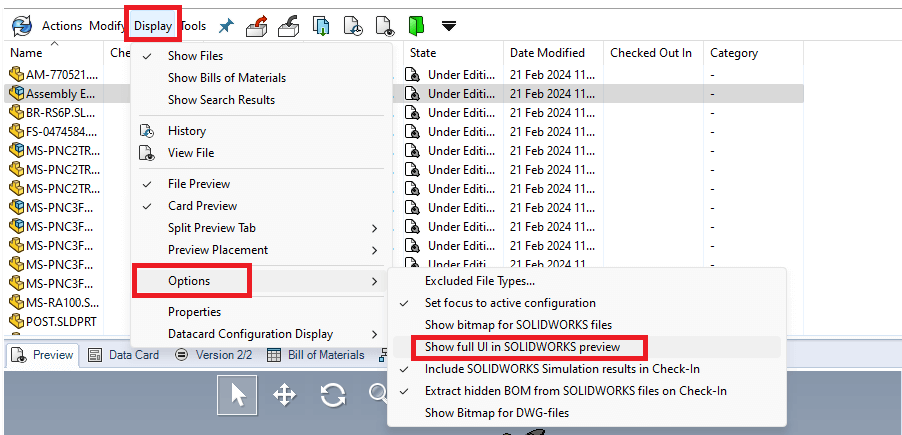
- Go to Display > Options.
- Check the box for “Show full UI in SOLIDWORKS preview.”
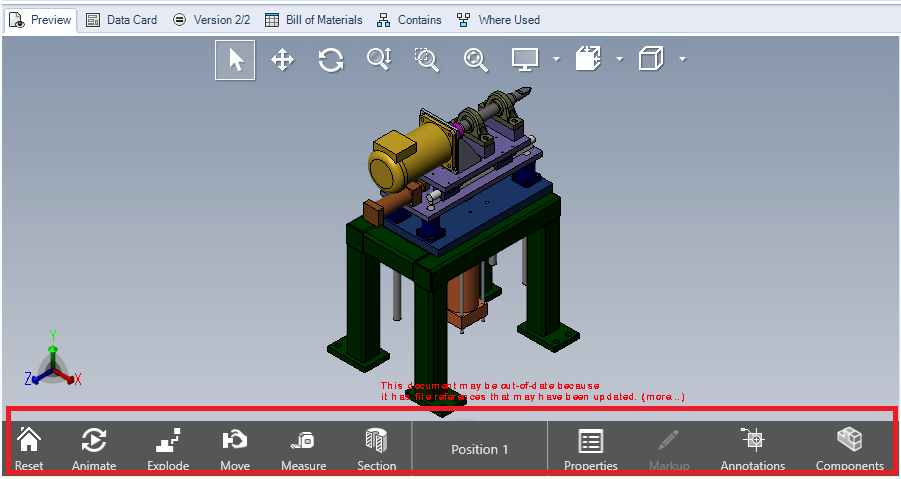
Once enabled, you’ll see a toolbar at the bottom of the preview window. This activates the measure tool in PDM and gives you access to all the enhanced features mentioned above, making it easier to inspect and interact with your models without fully opening them in SOLIDWORKS.
We hope you found that useful!
Need Further Information?
If you’re a Visiativ customer and require further support, please reach out to our Support Team, or explore our extensive collection of SOLIDWORKS tutorials and product guides.

|
About the author: This tutorial was written by Elite SOLIDWORKS Applications Engineer, James Giddings. James has been with the Visiativ Technical Support Team since 2007. |
|||