How to: Use myCADtools BatchConverter with 3DEXPERIENCE
04 November 2025
Sometimes it may be necessary to convert your SOLIDWORKS files to neutral file formats for use by people who don’t have SOLIDWORKS. For example, you may want to send a .step file to your component supplier during your design process. Likewise, you may send a .pdf format to your manufacturing department for production. In this guide we’ll explore how we can use Visiativ’s myCADtools BatchConverter with 3DEXPERIENCE to easily convert your SOLIDWORKS data.
When you need these neutral formats you usually have 2 options. Either use the ‘Save As New’ command in SOLIDWORKS or use the SOLIDWORKS Task Scheduler. These methods get the job done but can be time consuming and are prone to human error. And this can be made even more difficult if needing to export a large amount of neutral formats from a 3DEXPERIENCE Collaborative Space. So what’s the solution? BatchConverter!
What is BatchConverter?
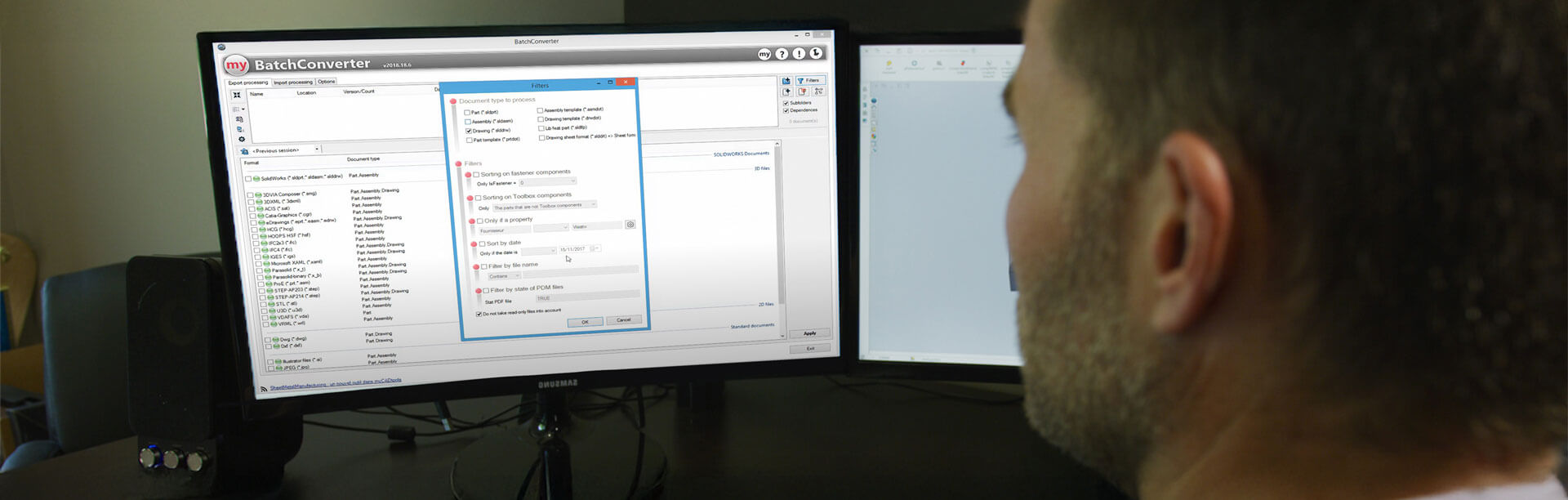
BatchConverter is a tool included in myCADtools that enables designers to convert their SOLIDWORKS data into almost any other format! This can be done with a single file all the way up to massive folder structures – and recently, entire 3DEXPERIENCE bookmarks.
myCADtools is a suite of over 50 SOLIDWORKS Add-ins and is available exclusively for Visiativ customers. Take a look here.
What can BatchConverter do?
- Batch export SOLIDWORKS documents
- Automatically retrieve all drawings from an assembly and concatenate all generated PDF files
- Batch import to SOLIDWORKS format
- Automatic export of a document per configuration
- Have naming rules based on file properties and choose destination directories
- Export multiple formats simultaneously
Watch: BatchConverter Overview
How can I use BatchConverter to convert data from 3DEXPERIENCE?
Here are the steps to follow in order to use BatchConverter to convert entire bookmarks from 3DEXPERIENCE.
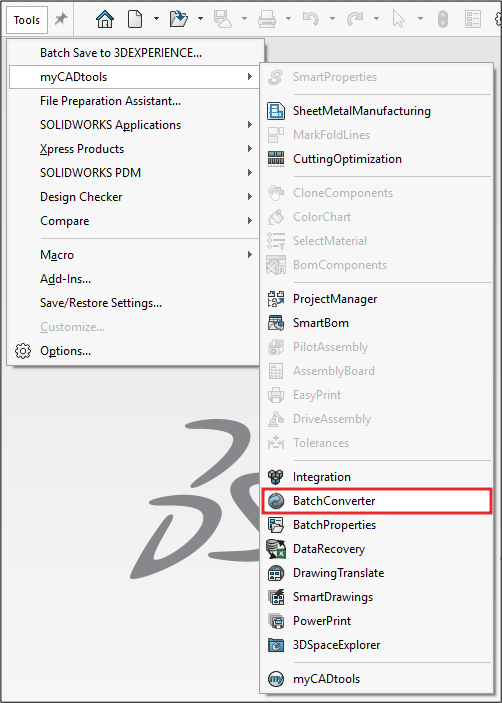
A. Start the Batch Converter from Tools > myCADtools > BatchConverter
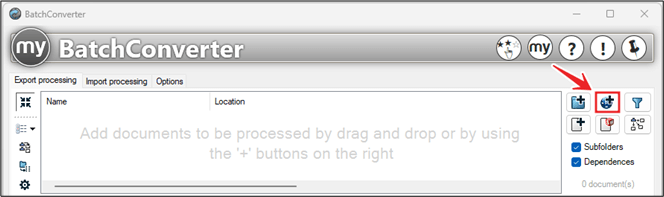
B. Select the 3DEXPERIENCE icon
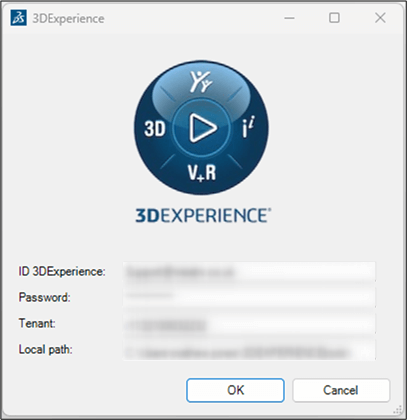
C. Log in to the 3DEXPERIENCE Platform using your credentials. Note: Locate your Tenant number within your platform’s unique URL
D. Click the search icon, this finds all the Bookmarks available to you
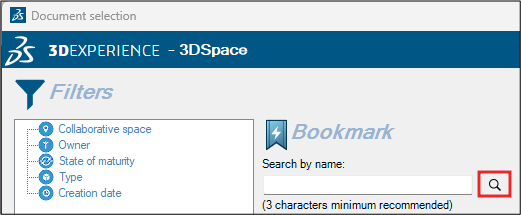
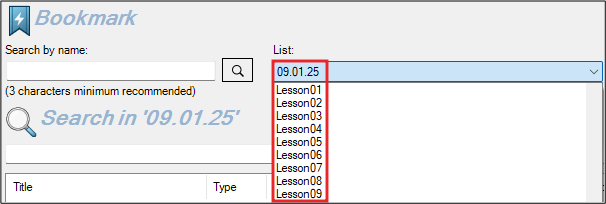
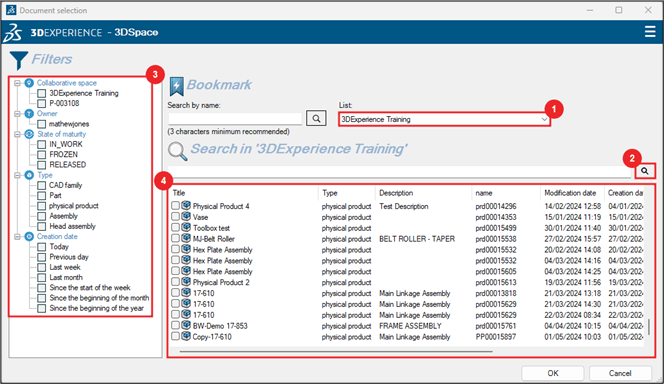
- Select the Bookmark you want
- Hit the search icon
- Filter the results
- Select the file required (Ctrl +A will select all)
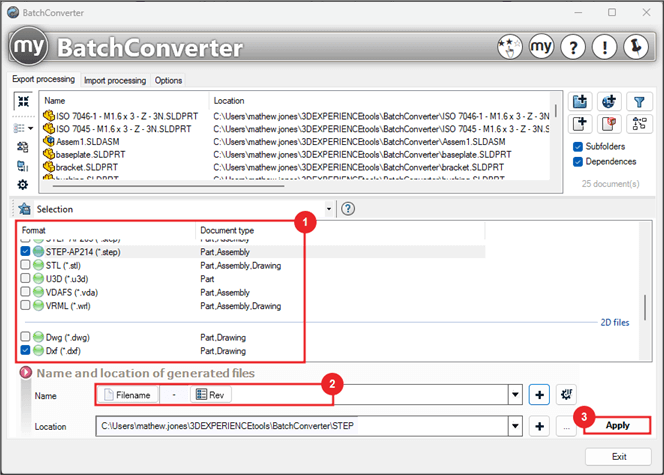
E. Finally, choose how you want to convert the file
- Select the formats you want to create
- Give the files a naming convention
- Click “Apply”
And that’s it! Now you can quickly access and convert your SOLIDWORKS data saved inside of 3DEXPERIENCE.
Discover myCADtools today
With a small hard drive footprint and running inside the SOLIDWORKS User Interface that you’re used to, myCADtools is simple to configure and implement to both compliment and improve your current workflow.
With over 50 tools, myCADtools promises to revolutionise the way you work with SOLIDWORKS. Every part of your design process is covered, from 3D design, to drawings, to project management, to production, to administration and even SOLIDWORKS UI customisation.
myCADtools is exclusive to Visiativ customers, but you can start a free trial today. If you want to find out more, please get in touch and we’ll be happy to advise you on your options.