SOLIDWORKS 2026 Tips & Tricks
06 January 2026
From Parts to Assemblies and everything in between, learn the latest SOLIDWORKS 2026 tips & tricks from the experts at Visiativ UK & Ireland.
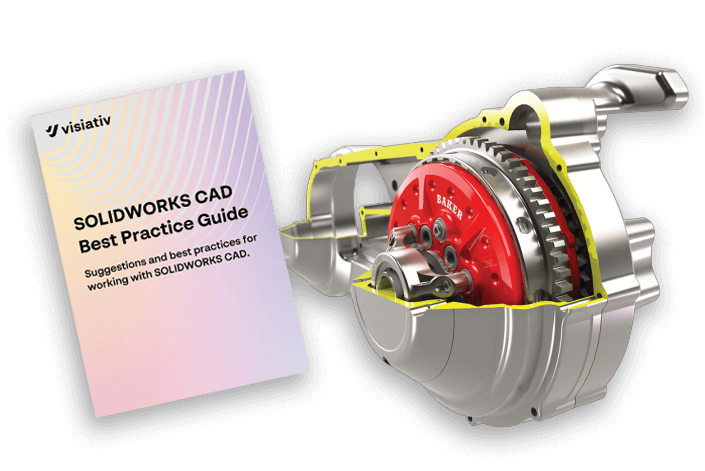
SOLIDWORKS CAD Best Practice Guide
This guide brings together a concise set of up-to-date best practices to help SOLIDWORKS users work more efficiently and achieve more reliable results. It highlights how simple, fully defined sketches, clear design intent, and well-structured part-modelling techniques can significantly reduce errors and make everyday design changes far easier to manage.
It also outlines practical, real-world advice for building assemblies that perform smoothly, using configurations with confidence, following recognised drawing standards, and maintaining consistent file and data management.
Whether you’re refining your workflow or looking to adopt more robust modelling habits, the guide offers straightforward improvements that will make a noticeable difference to the quality and speed of your SOLIDWORKS work.
Download the Visiativ SOLIDWORKS CAD Best Practice Guide here!
Video: SOLIDWORKS Parts Tips and Tricks
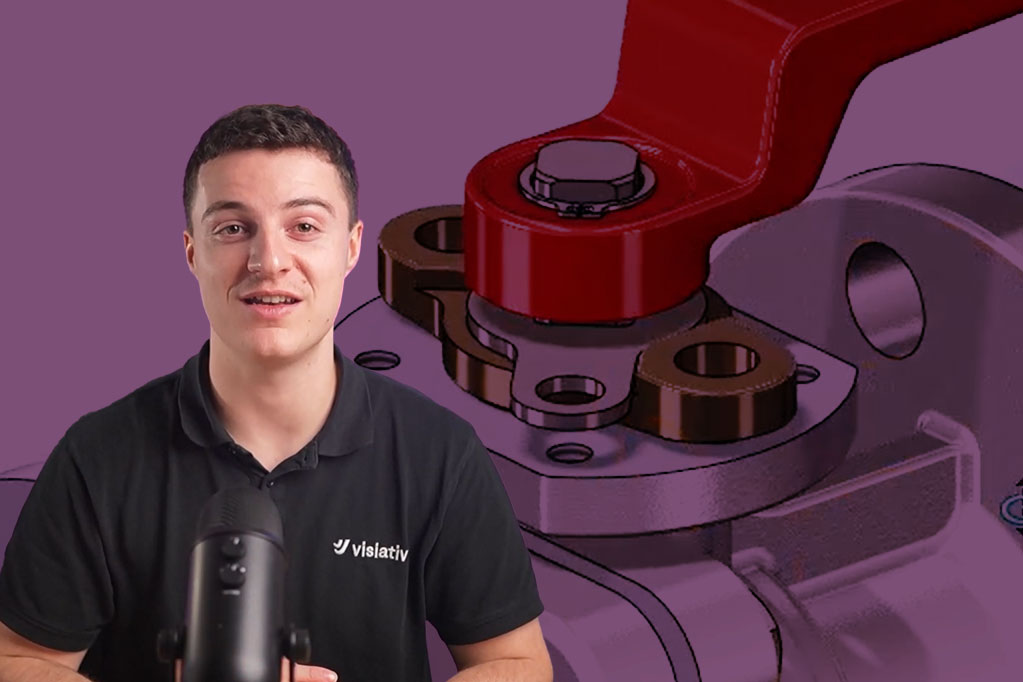
In this video, Elite SOLIDWORKS Engineer, Graeme Billingsley, shares the latest tips & tricks for SOLIDWORKS Parts.
The video walks through a series of practical SOLIDWORKS 2026 modelling tips, showing how to use new axis options, customise the interface, and work efficiently with sketch tools, mouse gestures and shortcut bars. You’ll see sketches being created, dimensioned and adjusted using Instant 2D and Instant 3D, along with demonstrations of patterns, fillets, mirrors and feature edits. The workflow highlights trimming, offsets, dynamic relations, sweep and fill features, plus tools for repairing sketches. It concludes with hole-creation techniques, display controls and a look at upgraded DSPBR materials for more realistic visuals.
Watch the video now!
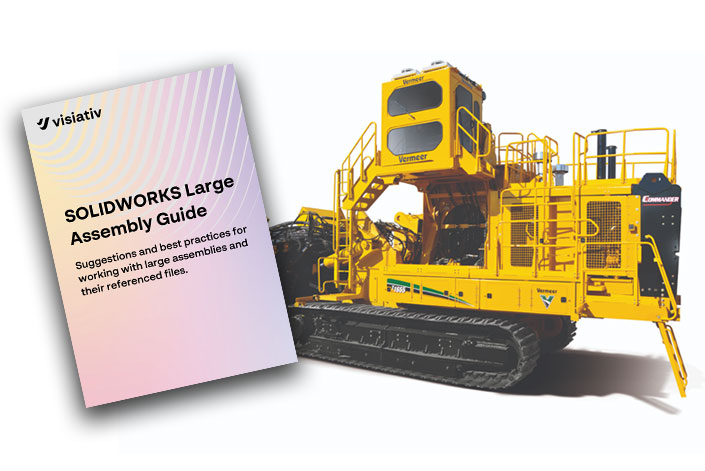
SOLIDWORKS Large Assembly Guide
Working with large assemblies can slow SOLIDWORKS, but the right tactics keep performance sharp. This guide offers you practical advice and latest best practices so you can keep things moving in the right direction.
Key highlights:
-
Design efficiently with subassemblies, SpeedPak and simplified configs.
-
Boost performance using Large Assembly Mode, Lightweight Components and fewer mates.
-
Optimise parts by suppressing detail and using cosmetic threads.
-
Improve drawings with Detailing Mode and Draft Quality views.
-
Choose fast SSDs, high-clock CPUs and certified graphics.
Video: SOLIDWORKS Assembly Tips & Tricks
In this video, Elite SOLIDWORKS Applications Engineer and Visiativ Training Manager, Adam Rose, shares his tips & tricks for working with Assemblies in SOLIDWORKS.
In this short video, Adam demonstrates how to streamlines everyday assembly tasks, from minimising unnecessary top-level saves when making cosmetic edits, to managing complex configurations with improved display and table controls. You’ll also see how AI-assisted fastener recognition can automatically detect and mate common hardware, saving you repetitive manual input, and how performance-focused enhancements help you explore and resolve large assemblies with greater responsiveness. Whether you’re refining design intent or speeding up your assembly workflows, these tips will help you stay efficient and take full advantage of the latest SOLIDWORKS capabilities.
Watch the video now!
Video: SOLIDWORKS Drawings Tips & Tricks
In this video, Elite SOLIDWORKS Engineer, Cameron Piper, shares twenty SOLIDWORKS drawing tips that will save you time and make your drawings easier to read on the shop floor.
Cameron starts with core workflow habits that work in any recent version of SOLIDWORKS. He then moves onto SOLIDWORKS 2026-specific enhancements, including smarter dimension breaks, upgraded magnetic lines, flat BOMs, and AI generated drawings.
“This is not theory – These are the things that actually make your life easier when you’re pushing drawings out all week – hope you find them useful!”
Cameron.
Watch the video now!
We hope you found these guides useful!
To take your SOLIDWORKS skills to the next level, why not take a look at our official SOLIDWORKS training courses?