How to: Export 3DEXPERIENCE data with myCADtools 3DSpacExplorer
03 March 2025
myCADtools 3DSpacExplorer is available exclusively to Visiativ customers and is part of a suite of over fifty SOLIDWORKS utilities provided free with every SOLIDWORKS purchase.
So what is myCADtools?
The myCADtools suite enhances and streamline daily tasks within SOLIDWORKS and SOLIDWORKS data management environments. Now, thanks to myCADtools 3DSpacExplorer, users can effectively integrate, manage and expand design processes in 3DEXPERIENCE Works, too!
Let’s take a look at a real-world use case for myCADtools 3DSpacExplorer…
The Challenge: 3DEXPERIENCE Data extraction
Extracting data from the 3DEXPERIENCE platform down to local locations is a manual task. As a result, capturing entire projects to duplicate them or caching complex Bookmarks structures locally for editing can be a tricky, lengthy process.
The Solution: myCADtools 3DSpacExplorer from Visiativ
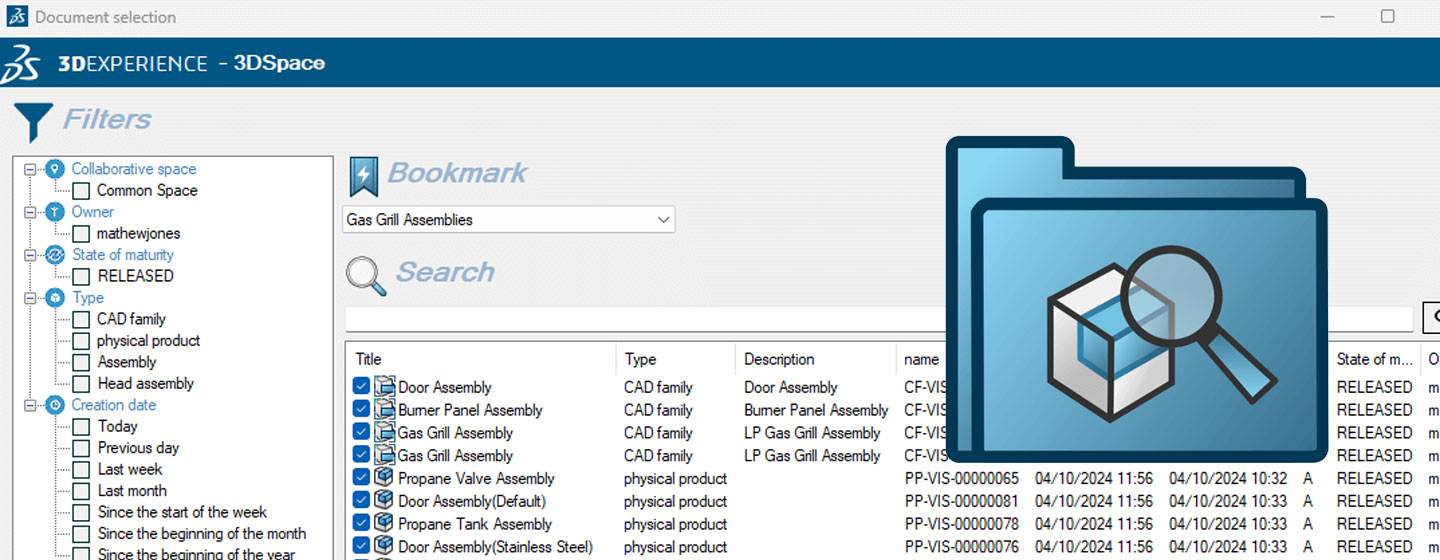
myCADtools 3DSpacExplorer can easily retrieve documents and their dependencies from 3DEXPERIENCE. It allows users to search an entire 3DEXPERIENCE Collaborative Space or navigate to a Bookmark structure and extract data into a local folder.
Once extracted, this data can be:
- Renamed to create a duplicate file set with Pack and Go
- Used as a means of refreshing the data in the cloud. We’ll look at a specific example of this later
The 3DSpacExplorer tool provides simple connection to a 3DEXPERIENCE Tenant via a dedicated button, so users can then find their data quickly using Bookmarks or a keyword search.
How to use myCADtools 3DSpacExplorer
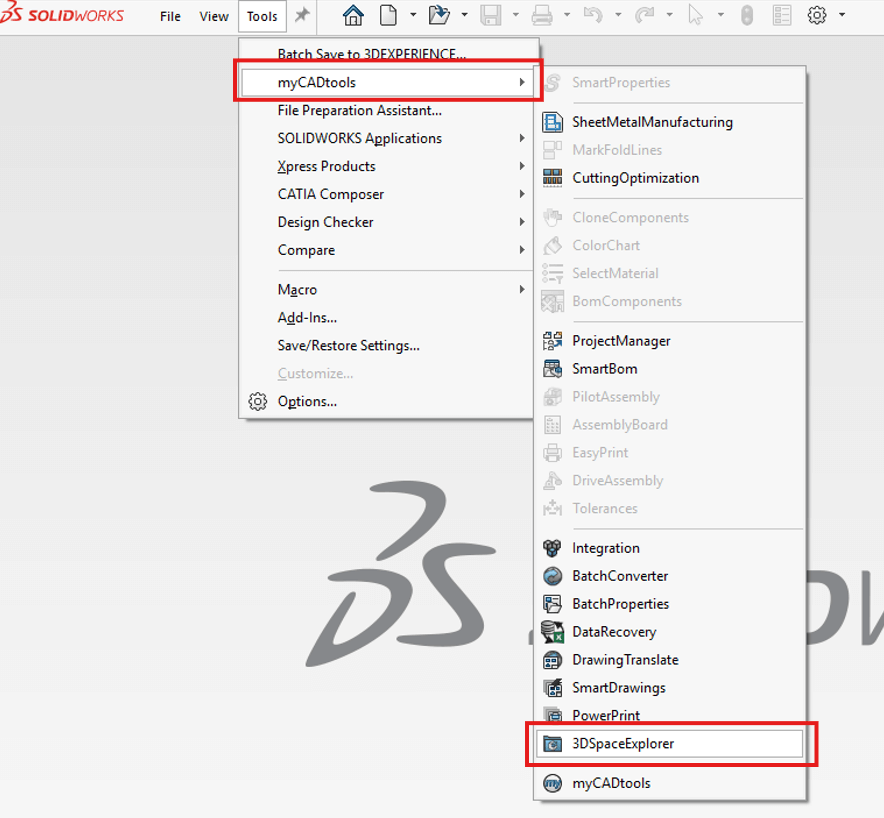
Step 1 – Run 3DSpacExplorer
First of all, run the 3DSpacExplorer from SOLIDWORKS.
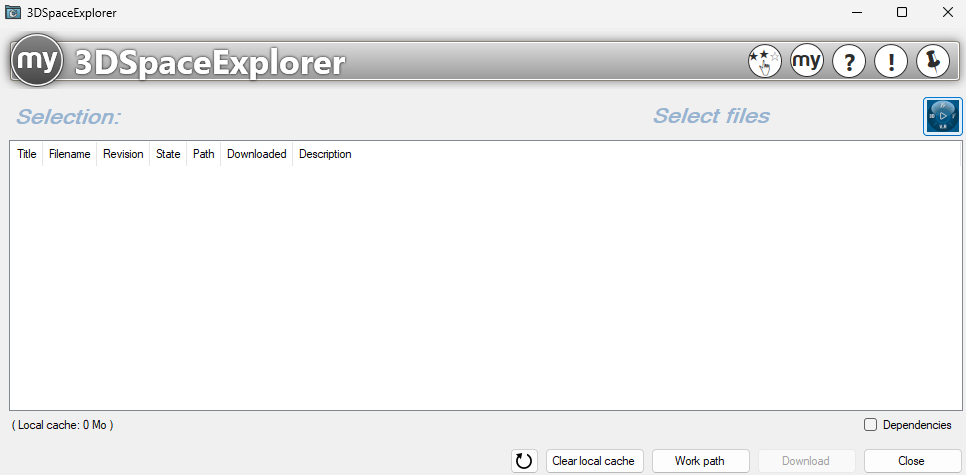
Step 2 – Connect to 3DEXPERIENCE
Select the 3DEXPERIENCE compass in the 3DSpacExplorer application.
Step 3 – Select your data
Select a specific Bookmark from the dropdown list or use ‘All’ to extract all data. Note: extracting large amounts of data can be time consuming and quite quickly fill up space on your hard drive.
Then hit the magnifying glass icon to search for the data. Without adding any additional keywords, 3DSpacExplorer will identify all of the files in the selected bookmark and include them in the download.
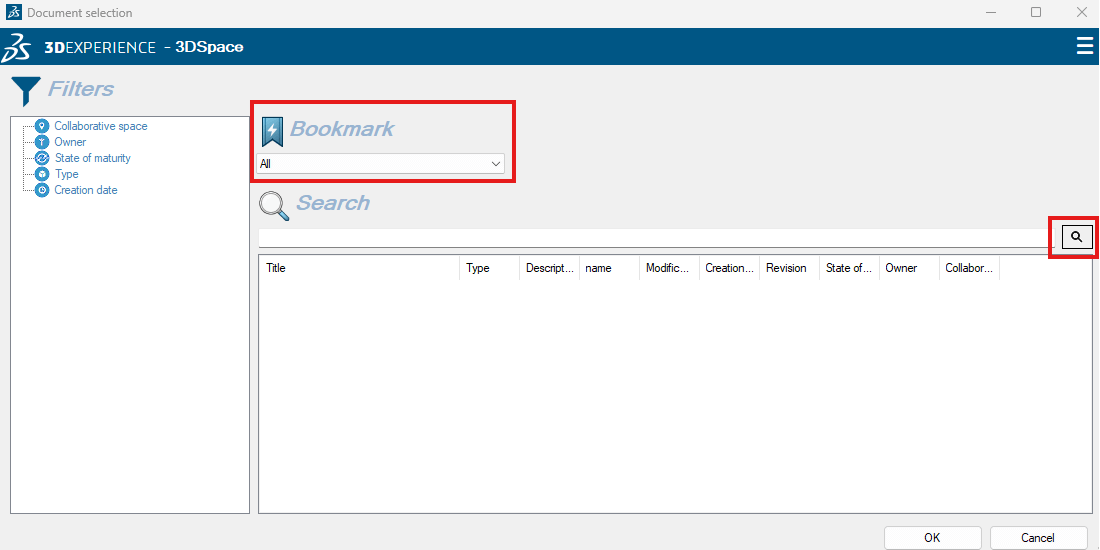
Select items from the list, and hit OK to include all.
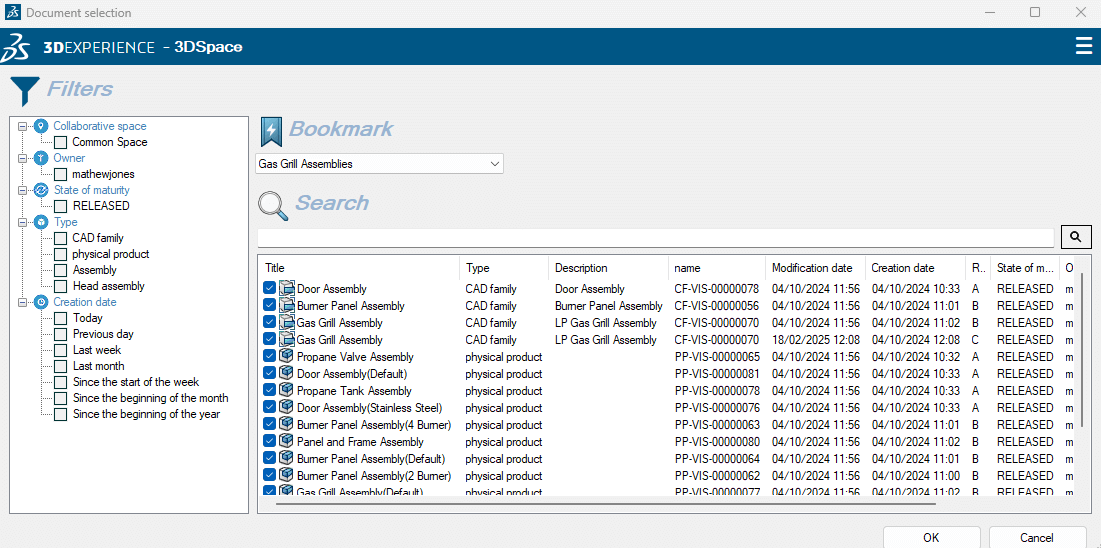
Step 4 – Download the data
Hit the Download button to download the files in to the predefined local folder.
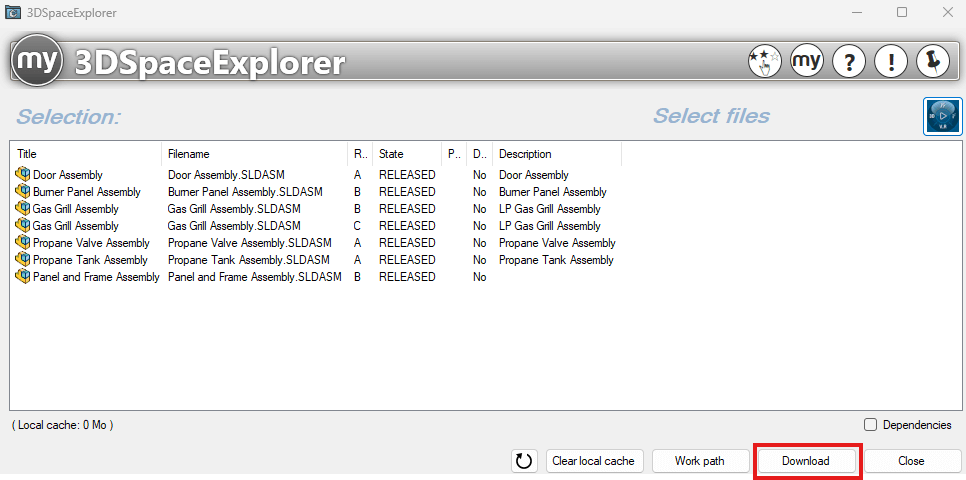
Step 5 – Download complete
And that’s it! All of the data has been extracted from the chosen location.
It’s worth noting that this data set is now a duplicate of the data stored in 3DEXPERIENCE. It won’t have any historical property values such as Revision or Maturity State linked to 3DEXPERIENCE, although there may be existing values in the SOLIDWORKS Configuration Properties as string values. Inside of SOLIDWORKS, mySession would recognise these files as ‘new’ or not yet existing in 3DEXPERIENCE.
Real-World Use Case for myCADtools 3DSpacExplorer
A company uses 3DEXPERIENCE as a data management solution for their SOLIDWORKS file. The revision scheme they use for SOLIDWORKS files in 3DEXPERIENCE needs to change from Alphabetical to Numerical (A to 1).
As Revision is a historical property value, it cannot be changed from A to 1 within 3DEXPERIENCE. The file set needs to be extracted and re-uploaded as new, with the target revision scheme in place.
Traditionally, this would not be possible without the need for additional 3DEXPERIENCE roles and a lot of invested time. However, using myCADtools they are able to complete a full data extraction at no additional cost.
The company just needs to:
- Extract the full dataset using myCADTools 3DSpacExplorer
- Change the revision scheme in the Platform Management administration area of 3DEXPERIENCE
- Save the new data set back to 3DEXPERIENCE using the Batch Save to 3DEXPERIENCE tool within SOLIDWORKS. This also recreates the existing Bookmark structure within the 3DEXPERIENCE cloud vault
We hope you found that useful – For more SOLIDWORKS & 3DEXPERIENCE tutorials, visit our news and resources page here.
Need help? Visiativ customers can get assistance from our technical support team. Open a SOLIDWORKS Support ticket here.