
How to: Check 3DEXPERIENCE Server Status
06 June 2025
As the number of users on the 3DEXPERIENCE platform continues to grow, we decided to write this guide to help you check the availability of the online services across the globe. If you can’t connect to your 3DEXPERIENCE tenant and have tried all of the troubleshooting options here, the connection issues may be out of your hands. But how do we check the 3DEXPERIENCE server status?
This guide will give you an overview of the Cloud Services for SOLIDWORKS server status tool. First, access the 3DEXPERIENCE cloud support page HERE where you can scroll down to view the 3DEXPERIENCE Platform SaaS Availability tool. But what does this mean and what information does it provide?
1) Tool Layout.
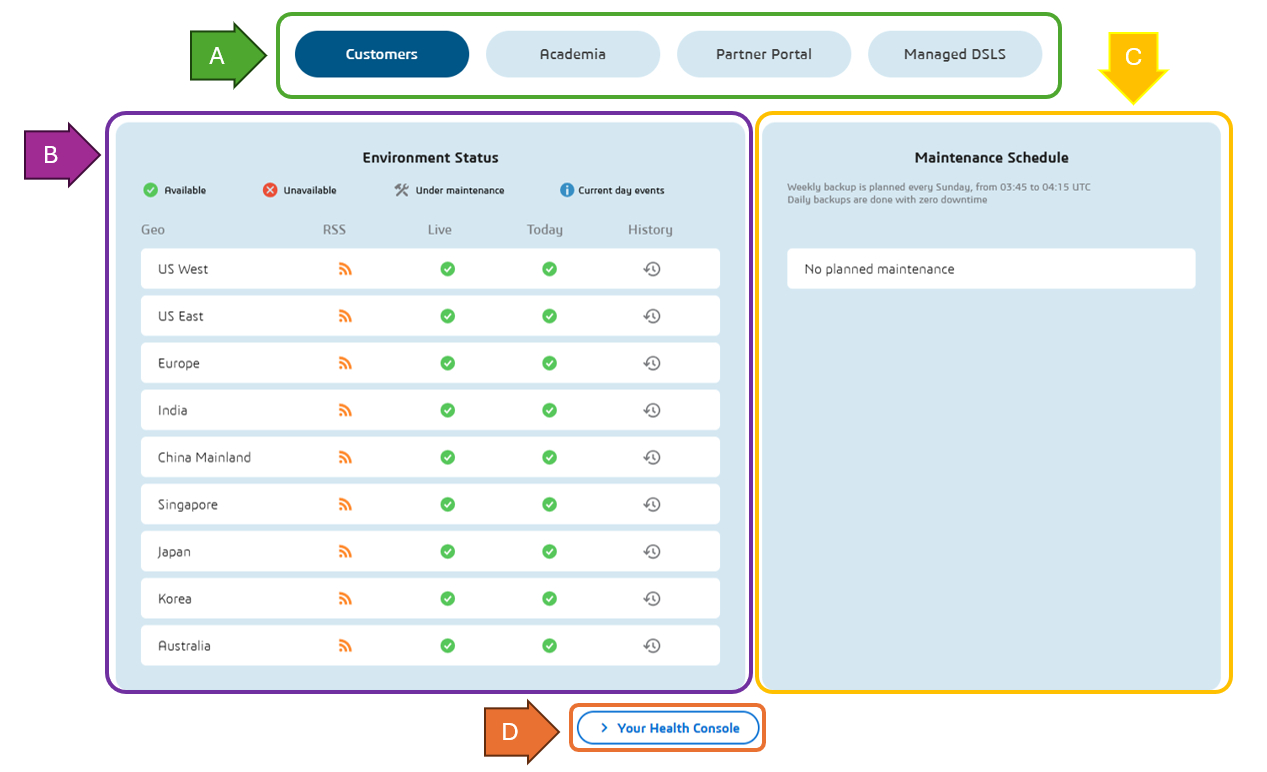
The tool is divided up into four main sections:
A – Portal Type
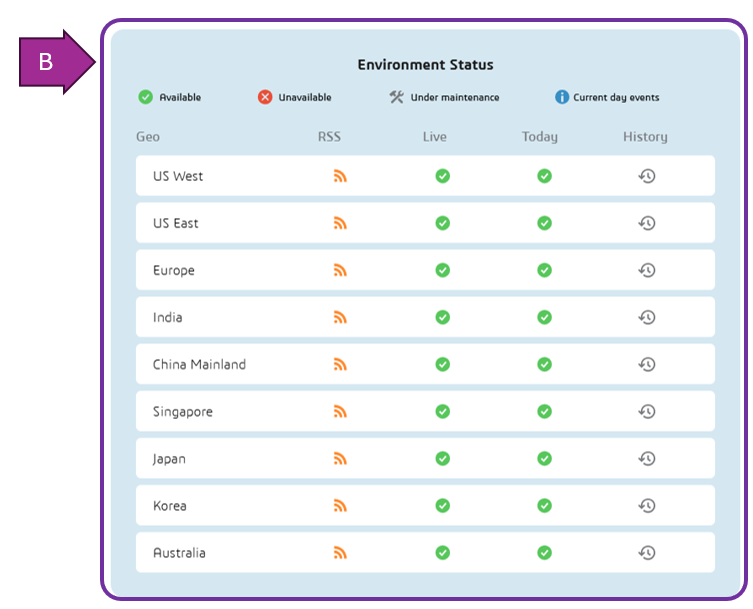
B – Server Status
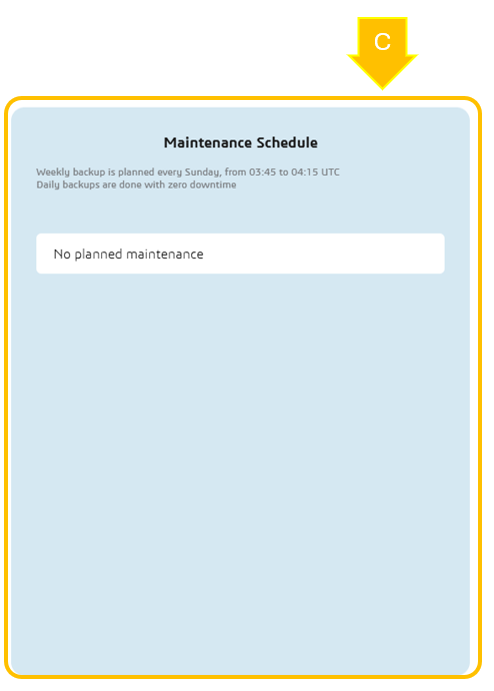
C – Maintenance Schedule
D – Your Health Console
2) Portal Type.
This allows you to select between the different web service portals: Customers, Academia, Partner Portal and Managed DSLS. Most customers will likely be interested in the ‘Customers’ tab which will show the status of the servers that house your company’s tenant dashboard.

3) Server Status
| Green |  |
Available |
| Orange |  |
Degraded |
| Red |  |
Unavailable |
| Grey |  |
Under Maintenance |
This section provides the status of the servers around the globe with access to historic data.
- Geo – shows the server location
- RSS – provides the link that users will use to sign up to an RSS feed of that server’s status
- Live – displays information about ongoing events
- Today – displays information about events that occurred during the current day
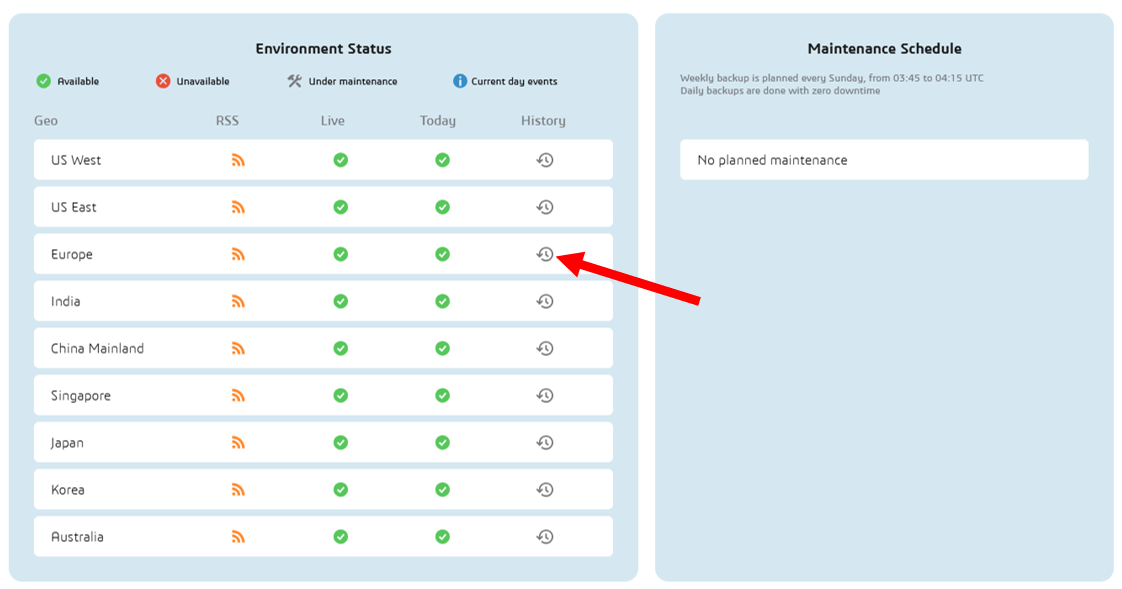
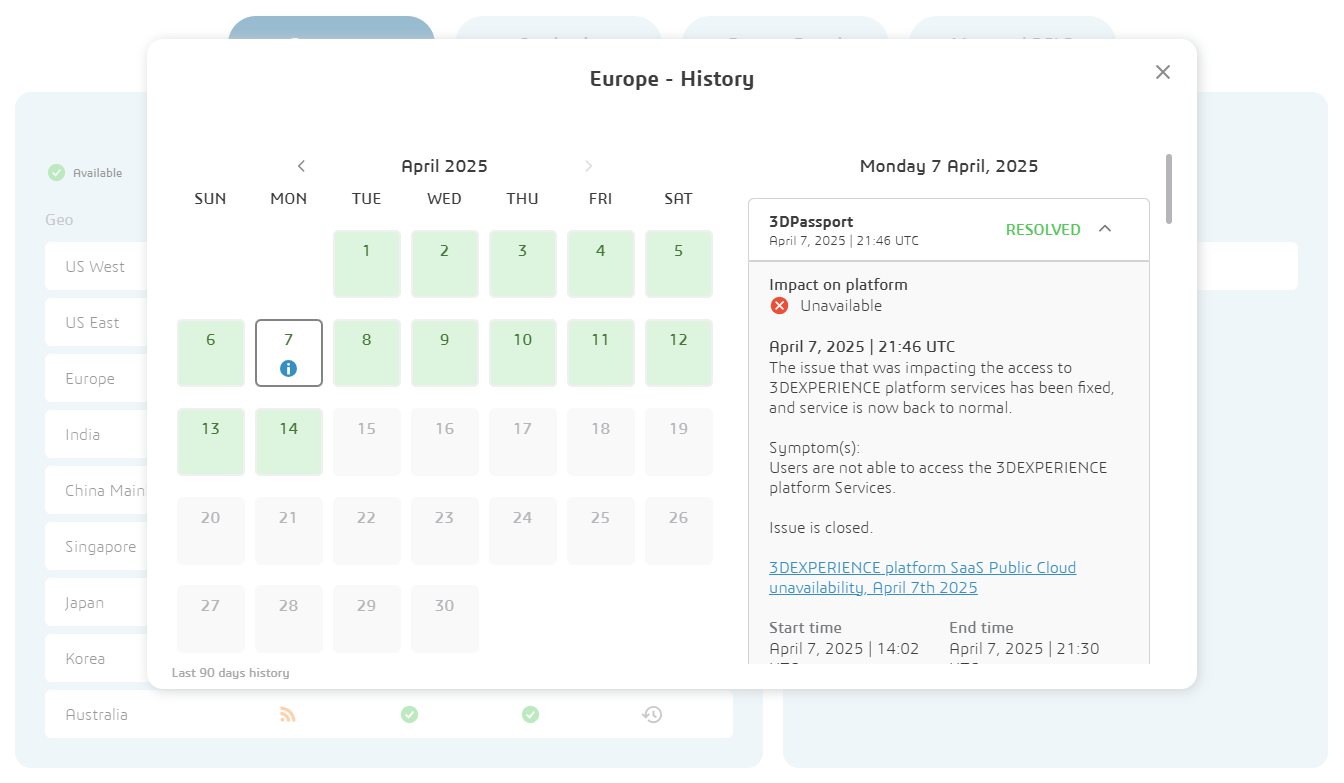
- History – shows a popup detailing the information of historic events over the last 90 days
4) History Pop-up Window
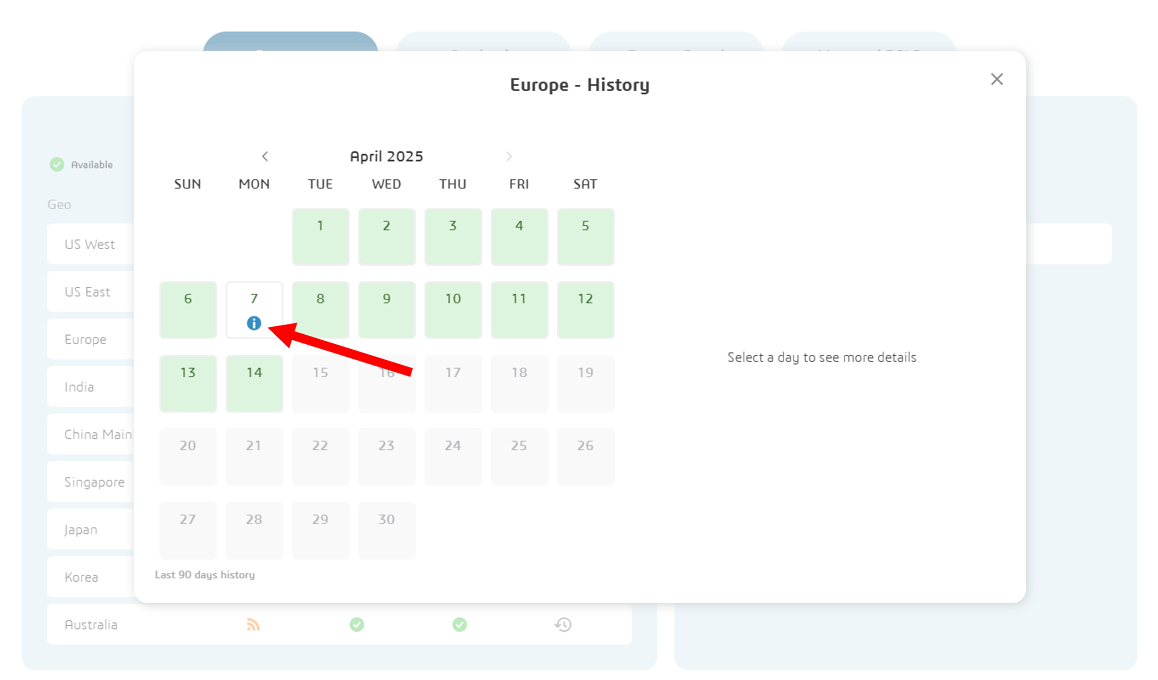
Selecting the ‘History’ icon opens the pop-up window displaying historic data for the selected server. For each incident that occurs, regular communications are published to inform users of resolution progress. You can also retrieve the complete thread of communications that has been published for any past incident within the last 90 days.
Any dates with an information button will have an incident logged against it.
5) Maintenance Schedule
The ‘Maintenance Schedule’ box displays any planned maintenance tasks or pending downtime across all of the services. Choosing the dropdown, if available, provides some additional information on the task.
6) Your Health Console
Choosing to view ‘Your Health Console’ will show the current status of any 3DEXPERIENCE tenants you have access to.

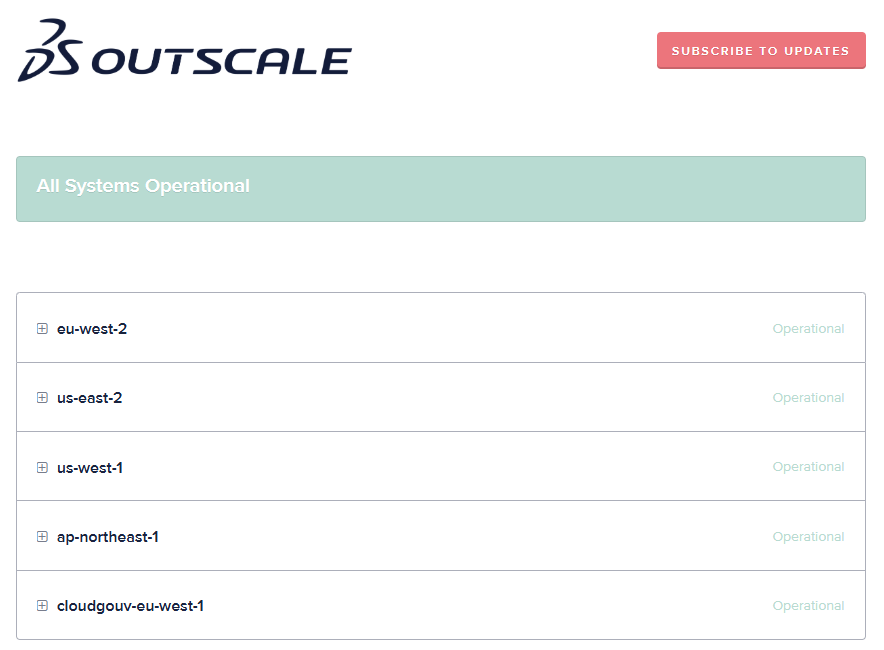
7) OUTSCALE Server Status
If the status of the 3DEXPERIENCE servers are unavailable, it may be worth reviewing the OUTSCALE server status. All 3DEXPERIENCE servers are hosted on OUTSCALE servers.
If you find that you’re experiencing any problems connecting to the cloud 3DEXPERIENCE platform, and the solutions above haven’t helped, please get in touch with the Visiativ Technical Support Team* or call 01223 200699.
*Supported customers only.
 |
About the author: This guide was written by SOLIDWORKS Applications Engineer, Graeme Billingsley. Graeme has been with the Visiativ Technical Support Team since 2022. |
|||
|
|
||||