


Recommended PC hardware for SOLIDWORKS 3D CAD
Confused about choosing the best laptop, desktop PC or components for SOLIDWORKS? From CPU to GPU and everything in between, our buyer’s guide details everything you need to know…


How to buy the best PC hardware for SOLIDWORKS
Guide updated 17th June, 2026.
It goes without saying that having a computer capable of running SOLIDWORKS is essential for ensuring smooth performance and stability. However, there are many variables to consider and choosing the right PC for the job can be a very confusing process.
We’ve created this comprehensive guide to show you what to look for, whether you’re configuring a new Windows machine from scratch, or buying an off-the-shelf model from a retailer, such as our preferred supplier, Dell.
Understanding the components inside your computer is a good place to start when deciding which specs will suit your needs. We’ve broken our guide into sections to give you an overview of how each component impact system performance:
1) Processor/CPU – Skip to section
2) Memory/RAM – Skip to section
3) Graphics Cards/GPU – Skip to section
4) Storage – Skip to section
5) Operating System – Skip to section
Short for time?
At the end of the guide, we’ve suggested a selection of machines based on performance requirements, official SOLIDWORKS recommended specs and the all-important budgetary costs. If you just want to find out which machine to buy, you can skip straight to this section here.
Watch our 3 minute overview video:
🚀 Recommended Processor (CPU) for SOLIDWORKS
The processor is one of the most important components of the computer. As the “Brain” of the system, choosing an underpowered model can be detrimental to your overall performance.
Clock Speed/Turbo Boost
The core clock speed of a processor determines how fast it will perform day to day, as you would expect the higher the speed the better the performance for the machine.
Modern processors have a feature called “Turbo boost” which allows for automatic adjusting of clock speeds for short periods of time providing certain criteria such as sufficient power limits and cooling headroom are met. This gives an extra speed boost when working with heavy workloads such as SOLIDWORKS Simulation calculations and Rendering.
Also note that you may not achieve the higher turbo speeds at all times, with systems usually settling just below the quoted speeds under sustained intensive tasks.
When identifying a suitable system be sure to check the processors core and turbo boost speeds as they are not always detailed in marketing material, i.e.
| Marketing Description | Actual Breakdown |
| Intel core Ultra 9 285k 24 cores @ 5.7GHz. |
8 performance cores @ 3.7GHz Base / 5.7GHz Turbo 16 Efficiency cores @ 3.2GHz Base / 4.6GHz Turbo |
The Intel website provides additional information for further reading here
Multicore/Hyperthreading
Current processors also sport multiple cores within a single processor, and some also feature hyperthreading, which allow a single core to perform two operations at the same time.
Both technologies allow the computers operating system to assign different programs to different cores to help spread the workload and increase performance.
As we have touched on above, Intel’s newer CPU’s also now incorporate new “efficiency” cores (E-cores) that process lighter tasks while performing at slower speeds to save power. These are coupled alongside the more common “Performance” cores (P cores) that are used for intensive tasks.
For Intel’s newest 2nd Gen Core Ultra processors, Hyperthreading has now been removed to help with power consumption but is offset with having high physical core counts.
Some software can leverage these multicore processors to offset tasks onto different cores to speed up workflow however, due to the nature of the modelling process SOLIDWORKS is predominantly a single-core application.
The rebuilding of models is a linear process due to the hierarchy of the design tree within a document. Therefore design features higher up the tree are reliant on earlier ones needing these to be rebuilt first.
When Multicores can be used
Some processes in SOLIDWORKS use multiple cores, such as opening and rebuilding drawings with multiple views. Rendering also utilises multiple cores and runs very effectively with a higher thread.
Simulations will also use more cores – most effectively with up to eight cores, but any benefits above this level begin to diminish. If you’re running these features frequently we’d recommend that you consider getting a processor with a high core count.
- Ideally be looking to balance a high processor speed with a suitable number of cores.
- A higher clock/turbo boost speed is generally more beneficial to performance in SOLIDWORKS.
- We generally try to recommend the latest Intel or Xeon processors to our customers as they have a good overall performance with high clock speeds and more mature driver support.
Processor Naming Schemes
When researching take note of the generational naming schemes as these can be confusing.
The table below provides brief overview of the processor generations with links from the manufacturer websites.
| Intel | AMD | ||||
|---|---|---|---|---|---|
| Platform | Desktop | Laptop | Desktop | Laptop | |
| Current Gen | Core Ultra X 2XX | Core Ultra X 2XXV* * 2025 Launch |
Ryzen X 9XXX | AMD Ryzen AI 300 | |
| Last Gen | Core iX 14XXX | Core Ultra X 1XX | Ryzen X 7XXX | Ryzen X 8XXX | |
| Previous Gen | Core iX 13XXX | Core iX 14XXX | Ryzen X 5XXX | Ryzen X 7XXX | |
👨💻 System Memory (RAM)
As with many programs, the more system memory available to your computer the smoother SOLIDWORKS will run.
SOLIDWORKS loads parts and assemblies directly into RAM while working with the data. Therefore more complex models and drawings require more RAM to load effectively.
If a machine runs out of memory the load times for files can increase drastically, as when memory is low windows will begin to offload extra data (Caching) onto the Disk Drive which will be significantly slower.
Another overlooked option when choosing a memory configuration is Multi-Channel Mode.
For example: a system fitted with 2x 16gb DDR DIMM modules would perform better than the same system with a 1x 32gb module as the system can process data more quickly.
Also look at the system memory speed as ever the higher the memory speed the fester a system can access data stored in memory. This also is important when running newer processor generations such as AMD Ryzen systems where slower ram speeds can see a notable performance drop.
Currently the are two common memory generations: DDR4, which is the outgoing standard with a theoretical advised speed of 3600Mhz. This is being replaced with DDR5, which has a starting speed of 4400Mhz.
In addition we’re seeing the breakthrough of new Memory formats, the most widely used and common format is known as DIMM the speeds shown above are based upon this standard.
However a new technology currently being seen in new laptops is known as CAMM memory, which designed for higher data speeds for DDR5 memory, however upgradability of this format can be more complex and expensive, so be sure to check before buying.
Ensuring the amount of RAM in a machine is sufficient for the typical day-to-day size of datasets is important.
Running regular, data-heavy Simulations, for example, increases the need for RAM, because large amounts of data typically need to be loaded during calculations.
The minimum amount of RAM recommended is at least: 16GB with an advisory of 32GB where possible
🖥️ Graphics Card (GPU)
A good graphics card is one of the most important elements for running SOLIDWORKS efficiently, however, it’s important to make sure there is an effective balance between Graphics Card and CPU.
A high-end graphics card will not run effectively if paired with an entry-level CPU as it would be waiting around for data to be passed from the processor.
Professional Workstation Cards
To run SOLIDWORKS at its optimal and help prevent system instability, requires the use of a Professional Grade Workstation Graphics Card such as those in the links the below.
The card must be capable of running the OpenGL engine to function correctly and have the most suitable SOLIDWORKS-certified Software Drivers installed as these have undergone more stringent testing.
Historically many people would have recognised the branding of Nvidia Quadro or ATI/AMD Firepro but as new cards are released branding changes.
The manufacturer websites below show the latest Graphics Card ranges and specifications.
Nvidia RTX ADA Series Nvidia Workstation Cards
AMD Radeon Pro AMD Workstation Cards
Currently the branding of certain workstation cards can be difficult to determine, please be sure to check the most recent currently supported cards on the SOLIDWORKS hardware certification website: Solidworks.com/support/hardware-certification
Avoid Gaming GPUs!
Although it is possible to run SOLIDWORKS on mainstream “Gaming Graphics Cards”, these types of cards are not always suited to the workloads they would be undertaking in a professional environment. These cards are optimised for performance in gaming and use Software Drivers that are tested for stability in DirectX rather than OpenGL.
Users may also experience frequent graphical glitches and find that features of the software such as Realview Graphics will not function correctly, if at all. SOLIDWORKS therefore does not officially support the use of these types of graphics cards and may not be able to help if there are problems with the software. Instead SOLIDWORKS focus certification to the more stable workstation cards to help ensure that a system is achieving its best performance within the software.
Choose the latest GPU?
TX ADA Lovelace architecture NVIDIA’s latest and greatest. The cards are powerful with modern features making them ideal for the SOLIDWORKS environment.
Look for workstation card models with RTX branding. e.g. NVIDIA RTX 4000 ADA. As a rule of thumb, the higher the number the better the performance.
Graphics Card Memory (vRAM)
Due to the complexities of Graphics Hardware, the GPU has its own dedicated video Memory (vRAM). This operates at a much higher speed than normal system memory and cannot usually be upgraded, so plan ahead and choose the right amount of memory not just for now but also the future.
If working with visually complex models (such as models with large patterns, or lots of textures) SOLIDWORKS will require a graphics card with a larger amount of on-board memory.
Generally, we would recommend a minimum of 4-6GB for general use, with this scaling up if you intend to build large assemblies.
Graphics Card Drivers
It’s also very important to make sure that the Graphics Card Driver Software is supported for use with SOLIDWORKS.
Drivers allow the operating system to communicate with the hardware and Incorrect/outdated drivers can affect stability and performance.
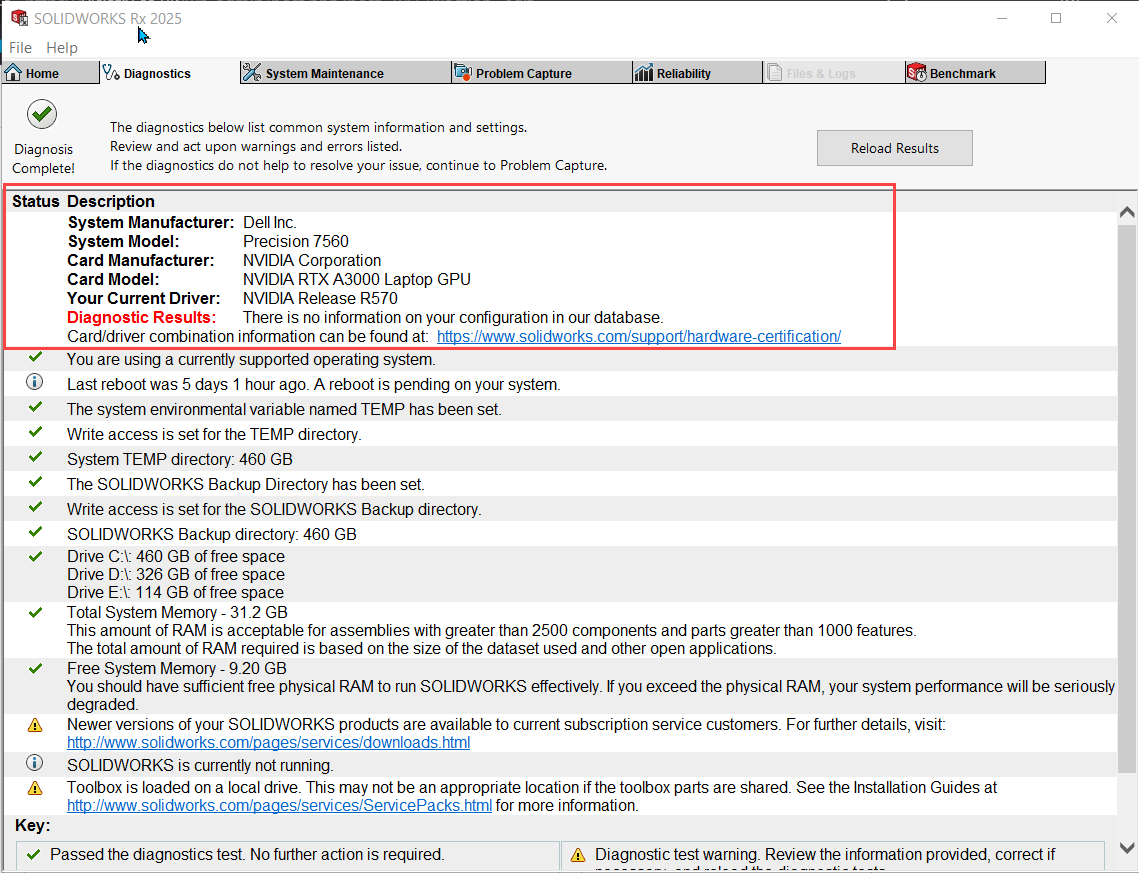
SOLIDWORKS undertakes its own component and driver testing and provides a list of certified hardware and drivers dependent on your SOLIDWORKS version.
Not using a certified driver has been known to lead to graphical glitches within the software.
You can check your driver version by launching SOLIDWORKS RX from the start menu and going to the Diagnostics Tab. The Diagnostics results will show general system information and advisories for example if the driver is out of date.
SOLIDWORKS Enhanced Graphics Performance
If you work with large assemblies, SOLIDWORKS can now leverage your graphics card to a greater degree.
With Enhanced Graphics Performance, more of the graphical calculations are completed by the graphics card, meaning view manipulations are now much quicker.
However, this relies on having a SOLIDWORKS approved graphics card and driver combination.
Graphics Cards with SOLIDWORKS Visualize
If you’re using SOLIDWORKS Visualize for render creation you may also want to consider leveraging the Hybrid Rendering modes where available. This allows the CPU and GPU to work together for improved performance in Visualize.
For SOLIDWORKS Visualize 2022-24, both GPU manufacturers support Hybrid rendering on their supported graphics hardware (Nvidia cards with iRAY & CUDA 11 support and AMD cards with PRORender), You can then take advantage of the Visualize Denoiser, which can give up to 10X faster performance under optimal conditions.
💾 Recommended Storage for SOLIDWORKS
There have been some monumental changes in the storage industry over the last few years! We’ve seen the emergence of the Solid State Drive (SSD) replacing the traditional/mechanical Hard Disk Drive (HDD) as the preferred storage medium for nearly all modern computers.
The trusty HDD does still have its place for storage of large amounts of data at cheap prices, however for sheer raw speed an SSD would win hands down. There are essentially 2 new SSD types to help bring these blazing speeds to both old and new systems.
The table below provides a basic overview of the types or storage devices.
-
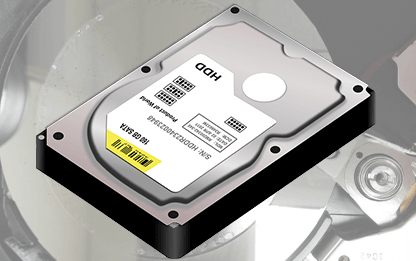
Traditional Hard Disk Drive (HDD)
Connection type: SATA
Approx speed (MB/s): 100-130
Common capacity: 1-16TB
Benefits:
- Cheap cost per GB
- Huge capacities
- Store large amount of data and backups
-
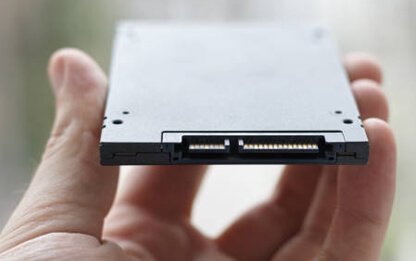
Solid State Drive (SSD)
Connection type: SATA 6GB
Approx speed (MB/s): 500-550
Common capacity: 128GB – 4TB
Benefits:
- Increased speed boost vs HDD
- Same connectors as HDD
- Good option if upgrading old system
-
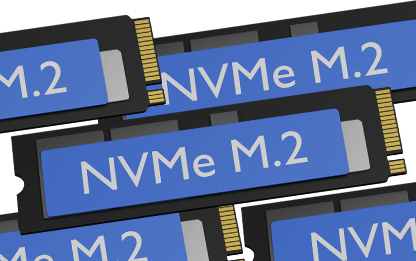
NVMe M.2 SSD
Connection type: NVME M.2 Gen
Approx speed (MB/s): 3500-5000/7000/10000
Common capacity: 256GB-4TB
Benefits:
- Newest storage technology
- Blazingly fast speeds
- Potential for huge performance with supported Gen5 hardware
Final Storage Recommendations
For maximum performance we recommend that you opt for a Solid State Drive (SSD) or M.2 drive to run your SOLIDWORKS installation, this will also usually be the same drive as your Windows install. This ensures models, assemblies, etc. load and save as quickly as possible.
When it comes to choosing the size of your Storage device for SOLIDWORKS, we recommend starting with at least 256GB SSD/NVMe and working your way up to the biggest size you can afford. Remember you can always add additional drives or upgrade existing ones quite easily, especially if you have a desktop workstation.
🖥️ Operating System (OS) for SOLIDWORKS
The OS of choice for SOLIDWORKS is MICROSOFT Windows. SOLIDWORKS officially supports Microsoft Windows 11 as of SOLIDWORKS 2022 SP2.0.
All recent versions of SOLIDWORKS also still have official support for Microsoft Windows 10 however note that SOLIDWORKS 2025 is the last version to support Windows 10 as Microsoft announced end of life for this product as of 14th October 2025.
It is also notable that SOLIDWORKS does not run natively on Mac OS, as a result there is no official support for systems running SOLIDWORKS on an apple device. There are unofficial workarounds, but we wouldn’t recommend this route as they can be very problematic.
Current OS requirements can be found here. solidworks.com/support/system-requirements
👩💻 Recommended PC Specs for SOLIDWORKS
Below we’ve detailed some common hardware specifications for varying tiers of usage.
As technology advances at an ever-quicker pace and new hardware hits the shelves these details may change, so if you need help choosing the right machine for your requirements, our experts are on-hand to assist you.
| Recommended Specs for SOLIDWORKS | |||
|---|---|---|---|
| Good | Better | Best | |
| Usage | Low usage, Creating small parts and assemblies with <200 |
Medium usage
Creating large Parts and assemblies with 200-500 parts |
High Usage
Creating Very Large parts and assemblies with 1000+ parts Use of Simulation |
| Processor | Current Gen above 3.3Ghz Intel Core Ultra 7 e.g – Core Ultra 7 245 Intel Core i7 14th Gen e.g – 14700k AMD Ryzen Zen 5 Eg – R7 9600x |
Current Gen above 3.3Ghz Intel Core Ultra 7 e.g – Core Ultra 7 265 Intel Core i9 14th Gen e.g – 14900k AMD Ryzen Zen 5 Eg – R7 9900x |
Current Gen above 3.3Ghz Intel Core Ultra 9 e.g – 285K Intel Xeon e.g – W9-3475x AMD Threadripper eg – 7955WX |
| System Memory | 16GB (2x8GB) Minimum Dual Channel |
32GB (2x16GB) Minimum Dual Channel |
64GB (2x32GB) Minimum Dual Channel |
| Graphics Card | Nvidia RTX 1000/2000 ADA AMD Radeon PRO W7500/W7600 Minimum 6GB GDDR6 vRAM |
Nvidia RTX 3000/4000 ADA AMD Radeon PRO W7800 Minimum 8GB GDDR6 vRAM |
Nvidia RTX 5000/6000 ADA AMD Radeon PRO W7900 Minimum 20GB GDDR6 vRAM |
| Display | Minimum Full HD Display | ||
| Storage | 512GB NVMe SSD or more | 1TB NVMe SSD or more | 2TB NVMe SSD or more |
| OS | Microsoft Windows 11 Pro (64bit) | ||
| Additional Software | Microsoft Office 2016 or newer | ||
💻Recommended Laptop Workstations for SOLIDWORKS
-
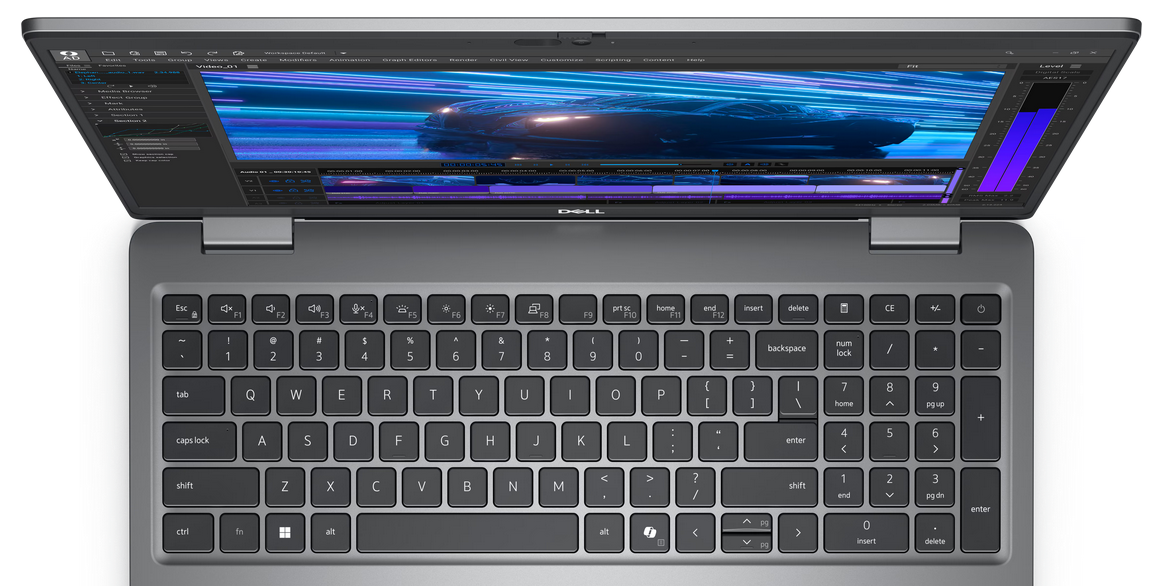 Enquire
Good
The Dell Pro Max 16 Plus Workstation shouldn’t break the bank and will perform well for general drawing and SOLIDWORKS 3D CAD use. We wouldn’t recommend this spec if you’re looking to work on more than 500 components, however.
- Intel® Core™ 7, 265HK
- 16 GB RAM
- NVIDIA® RTX™ 2000 Blackwell GPU
- 512GB NVMe SSD
- Windows 11 Pro 64bit
-
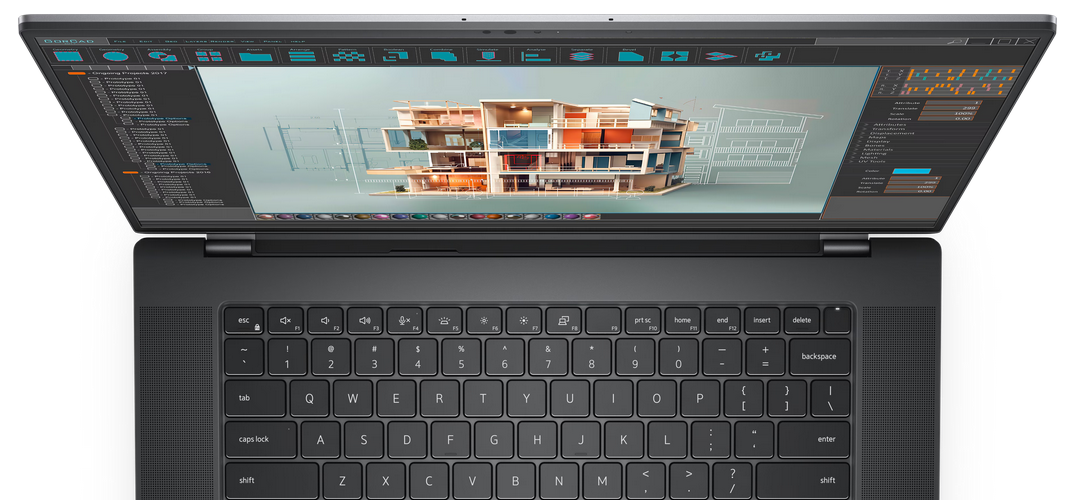 Enquire
Better
This higher spec Dell Pro Max 16 Plus Workstation will perform well with medium-sized datasets with no more than 2000 components. Perfect for general SOLIDWORKS use and some light rendering.
- Intel® Core™ 7, 265HK
- 32 GB RAM
- NVIDIA® RTX™ 3000 Blackwell GPU
- 1TB NVMe SSD
- Windows 11 Pro 64bit
-
Enquire
Best
If you’re looking for maximum performance this beefed up Dell Pro Max 16 Plus Workstation will do it all: Rendering, large SOLIDWORKS assemblies and complicated simulations will all be handled with ease.
- Intel® Core™ 7, 285HK
- 64 GB RAM
- NVIDIA® RTX™ 5000 Blackwell GPU
- 2TB NVMe SSD
- Windows 11 Pro 64bit
🖥️ Recommended Desktop Workstations for SOLIDWORKS
The New Dell Pro Max Tower T2 Desktops replace the older DELL Precision desktop workstations.
They are versatile enough that we can recommend the same model for all tiers just altering the specification to suit the customers needs.
-
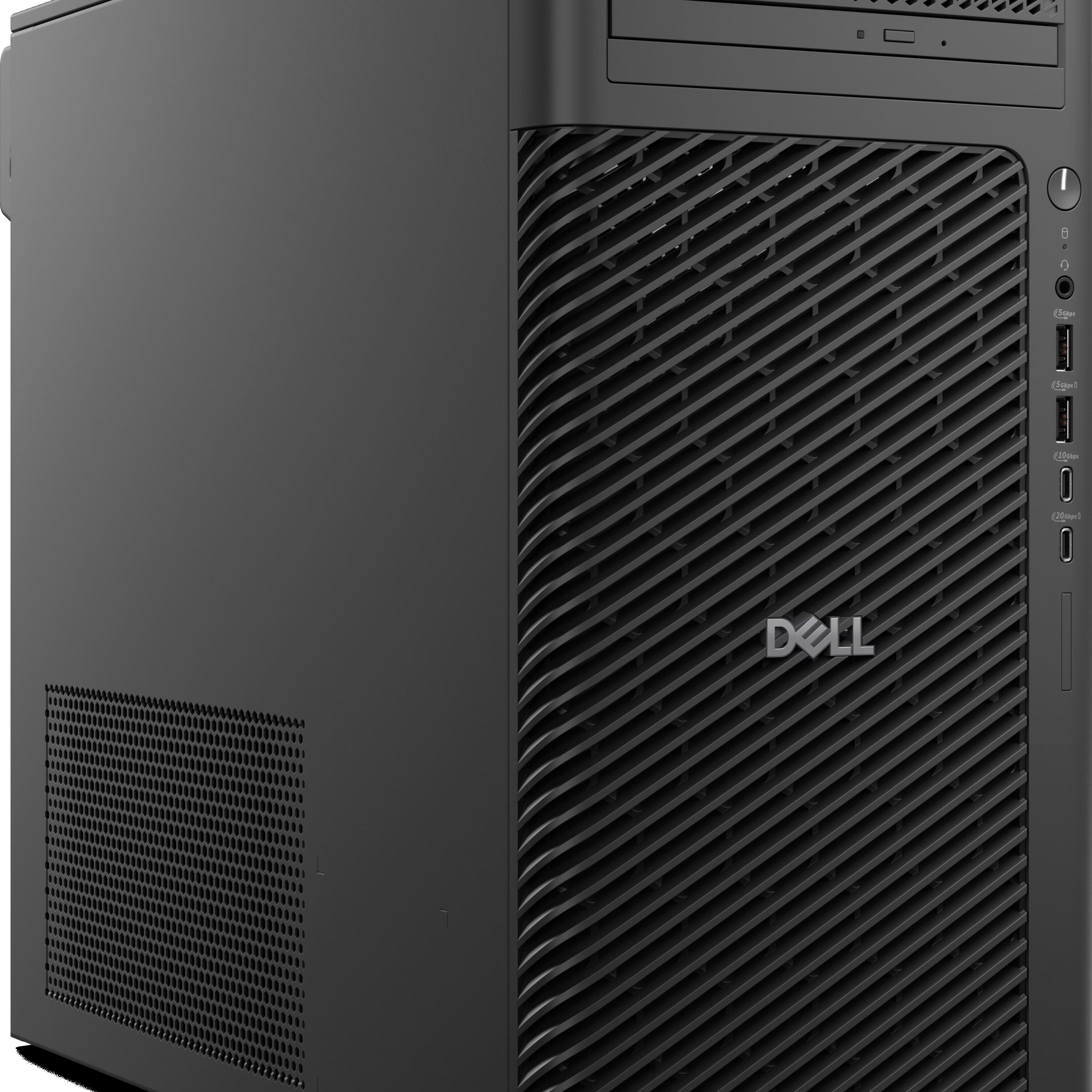 Enquire
Good
The New Dell Pro Max Tower T2 Desktop shouldn’t break the bank and will perform well for general drawing and SOLIDWORKS 3D CAD use. We wouldn’t recommend this spec if you’re looking to work on more than 500 components, however.
- Intel® Core™ Ultra 7 265K (20 cores, up to 5.5 GHz, 125 W)
- 16GB: 2 x 8 GB, DDR5, 5600 MT/s, non-ECC
- NVIDIA® RTX™ 2000 ADA, 16 GB GDDR6
- 512GB SSD TLC with DRAM M.2 2280 PCIe Gen4
- Windows 11 Pro 64bit
-
Enquire
Better
This higher spec New Dell Pro Max Tower T2 Desktop will perform well with medium-sized datasets with no more than 2000 components. Perfect for general SOLIDWORKS use and some light rendering.
- Intel® Core™ Ultra 7 265K (20 cores, up to 5.5 GHz, 125 W)
- 32GB: 2 x 16 GB, DDR5, 5600 MT/s, non-ECC
- NVIDIA® RTX™ 4000 Ada Generation, 20GB GDDR6, 4DP
- 1TB SSD TLC with DRAM M.2 2280 PCIe Gen4
- Windows 11 Pro 64bit
-
Enquire
Best
If you’re looking for maximum performance, this top spec New Dell Pro Max Tower T2 Desktop will do it all: Rendering, large SOLIDWORKS assemblies and complicated simulations will all be handled with ease.
- Intel® Core™ Ultra 9 285K (24 cores, up to 5.7 GHz, 125 W)
- 64GB: 2 x 32 GB, DDR5, 5600 MT/s, non-ECC or 128GB, 4 x 32GB for simulation use)
- NVIDIA® RTX™ 5000 ADA, 32 GB GDDR6, 4 DP
- 2TB M.2, PCIe NVMe SSD
- Windows 11 Pro, 64bit

