How to: Change the SOLIDWORKS Z Up Axis Orientation
24 October 2025
If you’re a Machining or CAM user you may frequently find that models exported from SOLIDWORKS have an “Up” axis orientation that differs from most other packages. In this guide we will discover how to change to the Z Up axis from the default.
What is the default Z Up Axis?
By default, the “Y” direction view in SOLIDWORKS is set as “up”. For most native users this will be familiar and easy to work with. However, for those users who are accustomed to working in a machining field it can be quite frustrating.
Why can this cause issues?
Bringing SOLIDWORKS models into other CAM software can involve some extra time and work to position the geometry. Generally, the default “Up” direction in these software packages needs to be set as the “Z” direction to help speed up the import process.
Is there a workaround?
Most users would likely create a new file template changing the orientation of the standard views inside the file using the “Update Standard Views” button.
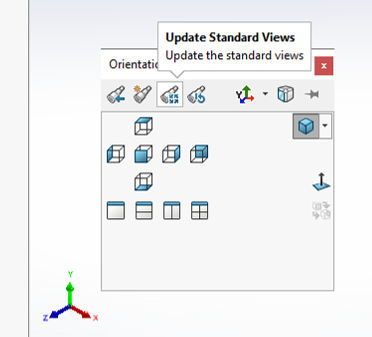 |
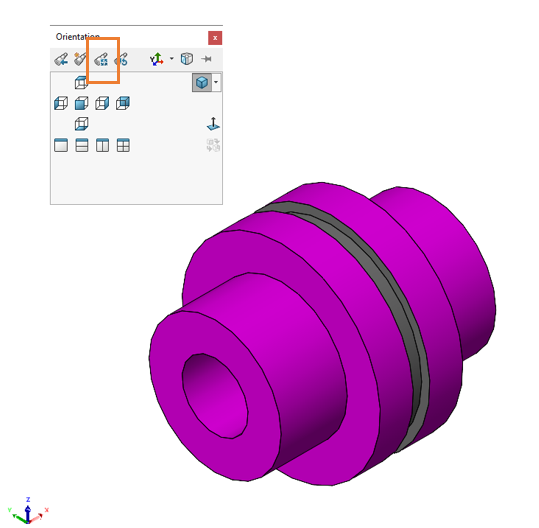
This method usually leaves “Z” in the correct direction, but it can be hard to orientate “X” and “Y” correctly. Users will also need to rename the default planes to correspond with their new orientation which isn’t ideal.
Is there another way to change the Z up axis?
As of SOLIDWORKS 2020, users can now specify the “Y-axis” or the “Z-axis” as the default up orientation for views. The option will automatically change the view orientation for standard orthogonal, named and child views correctly.
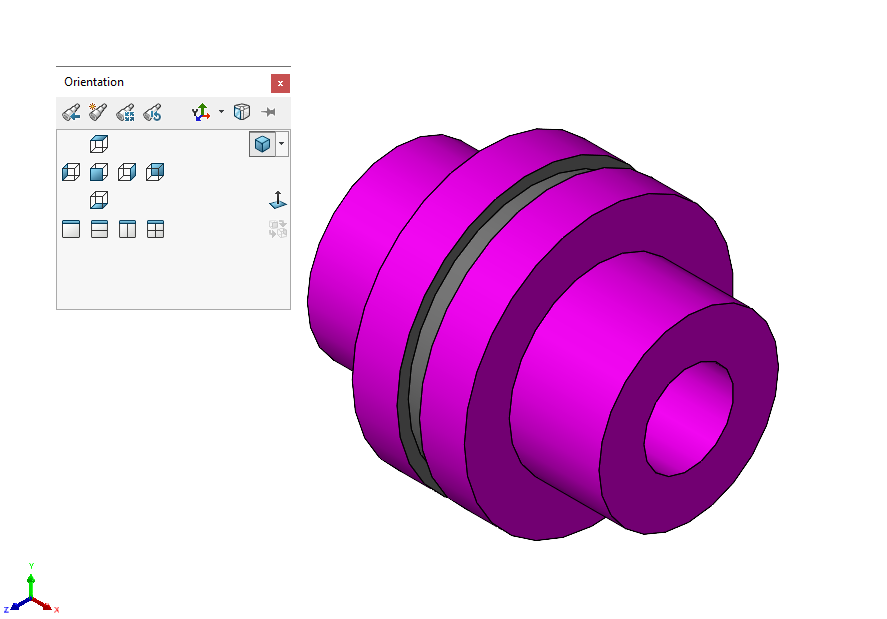
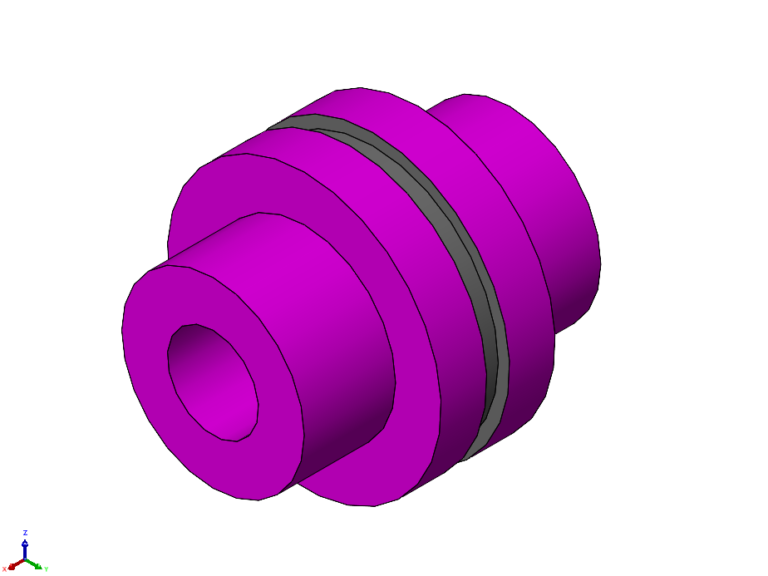
To specify Z as the up axis for the view orientation:
- Open your SOLIDWORKS model
- Click the “View Orientation” toolbar from the heads-up toolbar or press the space bar on your keyboard
- In the “Orientation” dialog box click the Up-Axis button and choose the desired orientation
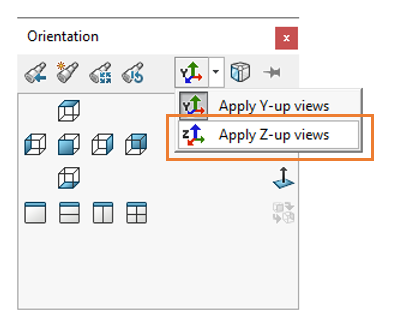 |
What does the future hold?
Newly introduced in SOLIDWORKS 2025 we now have the option to choose your “Up” axis as part of the new document templates. When starting a new document, keep an eye out for the Y-up / Z-up options when choosing a 2025 Template.
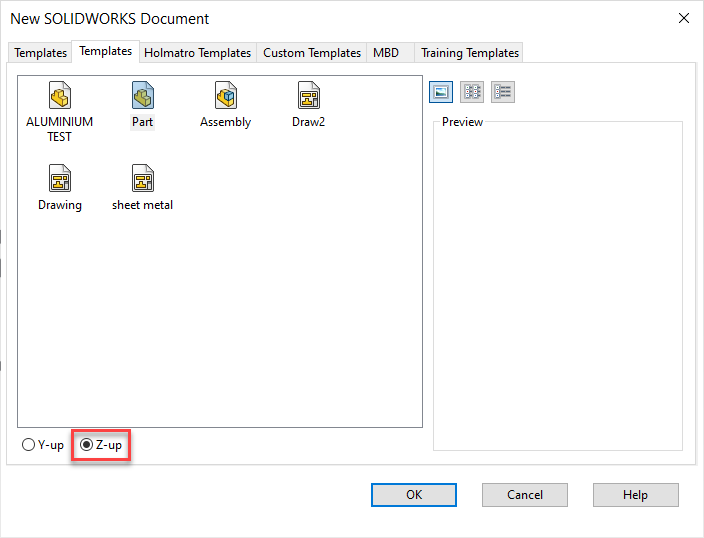
We hope you found our SOLIDWORKS Z Up Axis Orientation tutorial useful. Before you go, why not check out our other SOLIDWORKS Tutorials?
 |
About the author: This guide was written by SOLIDWORKS Applications Engineer, Graeme Billingsley. Graeme has been with the Visiativ Technical Support Team since 2022. |
|||
|
|
||||