How to: Use SOLIDWORKS Connected with No Internet Connection
18 September 2025
Help! I use SOLIDWORKS Connected and I have no internet connection. Does this mean I can’t use SOLIDWORKS and continue my work?
No it doesn’t! Since 2025X FD03, SOLIDWORKS Connected has a variety of offline options available to users. Now, the experience is more comparable to traditional SOLIDWORKS Desktop licences with fewer interruptions to your workflow if offline.
What is SOLIDWORKS Connected?
SOLIDWORKS Connected is the same great SOLIDWORKS package with some differences in licencing. The packages have the same core functionalities as Desktop SOLIDWORKS, just licenced through the 3DEXPERIENCE platform. It allows users to take advantage of lower IT costs and simplified administration through subscription based, named user licencing.
Desktop SOLIDWORKS serial numbers use machine-based activation to run on a PC. There is little more frustrating than having multiple machines and forgetting to de-activate your SOLIDWORKS serial number from your machine in the office when you want to work at home. As SOLIDWORKS Connected licences are tied to email addresses, this frustration is removed. Users simply log in to the installation they wish to use, without the need for de-activation or re-activation. Previously, the only downfall of this licencing type was that it required an internet connection to maintain the licence from the 3DEXPERIENCE server.
Traditionally users of SOLIDWORKS Connected may have faced some issues when trying to use it without internet connection. But no more! We can simply work offline whatever the situation.
SOLIDWORKS Connected Offline Modes
SOLIDWORKS Connected can be used when not connected to the internet, but users may not be aware of all of the work offline options available to them. So what are they?
Note: Virtual or parallel machines don’t support offline mode.
Temporary Offline Mode
Introduced in 3DEXPERIENCE R2025x FD03, temporary offline mode allows SOLIDWORKS Connected to continue functioning when an unexpected loss of internet connection occurs during use. If the session is started and connection is lost mid-use, the app enters temporary offline mode automatically. Users can continue to work on local files during these brief outages with no interruptions.
While in temporary offline mode, the app checks for an internet connection in the background. Then, once connection is restored, a prompt appears requesting an app restart to reconnect to the 3DEXPERIENCE platform fully.
Offline Licencing
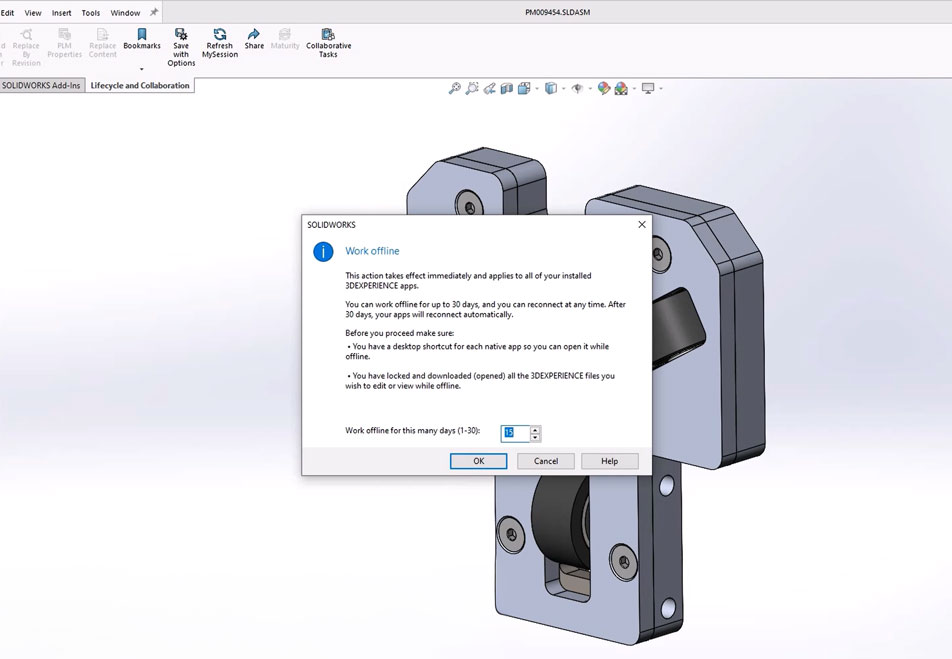
Users can choose to work offline for a limited period of time without connecting to the 3DEXPERIENCE platform with the Work Offline command, up to a maximum of 30 days at a time. When offline, all assigned licences from the 3DEXPERIENCE platform are cached locally on the computer. Users can create new content and work locally on any content while offline. For users that use 3DEXPERIENCE data management, new and updated content can be saved back to the 3DEXPERIENCE vault when back online.
Users can choose to return the licence at any time. If the licence isn’t returned manually, the application will try to reconnect automatically.
To enable offline mode:
1. In the top bar, right-hand side, click the ‘My Profile’ icon and click ‘Work Offline’.
2. A dialog box will show. It includes information about offline mode. It prompts you to confirm that you want to go offline and to choose how many days (up to a maximum of 30).
3. Click ‘OK’. A notification about working offline appears. In the top bar, the ‘Work Offline’ icon appears instead of the collaborative space. The status bar also indicates that you’re working offline.
4. To return back to online mode, in the top bar, right-hand side, click ‘Work Offline’.
5. A message prompt will show. Choose yes to reconnecting to the 3DEXPERIENCE Platform.
Start SOLIDWORKS Connected in Temporary Offline Mode
In the event of an outage or network problem, you may have the option to open SOLIDWORKS Connected in Offline mode, without enabling it previously. This only applies if your application has successfully connected to the 3DEXPERIENCE Platform in the last 30 days.
If SOLIDWORKS Connected is started without an internet connection, it will prompt to enter offline mode manually.
Watch the video:
For more information in getting setup with your SOLIDWORKS Connected licence, view our setup guide.
Need help?
Visiativ customers with a support contract can contact our support team for assistance.
 |
About the author: This guide was written by 3DEXPERIENCE Product Manager, Lucy Bryan. Lucy is an Elite SOLIDWORKS Applications Engineer and has been with the Visiativ Technical Support Team since 2019. |
|||
|
|
||||