SOLIDWORKS: 'License Will Expire in 30 Days' Warning

27 March 2026
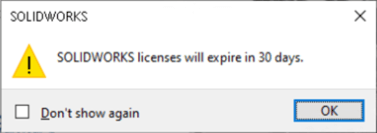
Seeing the ‘SOLIDWORKS licenses will expire in 30 days’ message and not sure what to do next? This guide explains why the warning appears and walks you through how to quickly reactivate your licence to avoid any disruption.

Annual Reactivation of SOLIDWORKS Licenses: What You Need to Know

Starting with SOLIDWORKS 2022, all licence types, Standalone and SolidNetwork (SNL), require annual reactivation. About a year after your last activation, SOLIDWORKS will display a warning when you launch the software: ‘SOLIDWORKS licenses will expire in 30 days’.


Expiry-warning


This can be confusing, especially if the timing doesn’t match your subscription period. Fortunately, reactivating your licence is quick and easy.

Reactivating SolidNetwork (SNL) Licenses

If you’re using a SolidNetwork License (SNL):

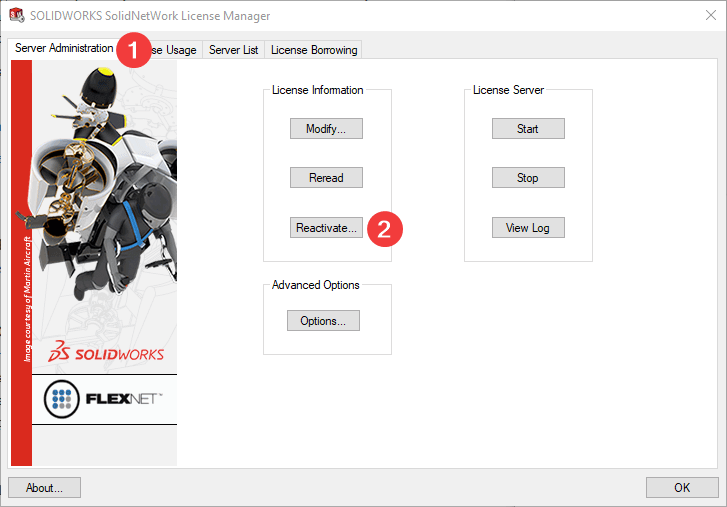
  1. On the server, open the SolidNetwork License Manager Server 20XX.

  2. Go to the Server Administration tab.

  3. Click “Reactivate”.


Click reactivate on the server administration tab


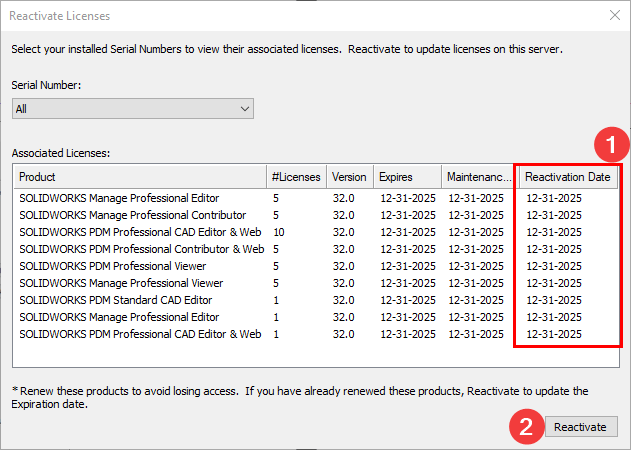
The manager will display a list of active licences and their required Reactivation Dates.

Reactivate licenses window showing the updated reactivation date


If the dates match the warning, Click “Reactivate” again to complete the process.

The warning will now only appear 30 days before the next Reactivation Date.

Reactivating a Standalone SOLIDWORKS Licence

When the warning appears:

  1. Click “OK” to continue launching SOLIDWORKS.

  2. Click the question mark icon in the upper-right corner of the interface.

    Question mark icon
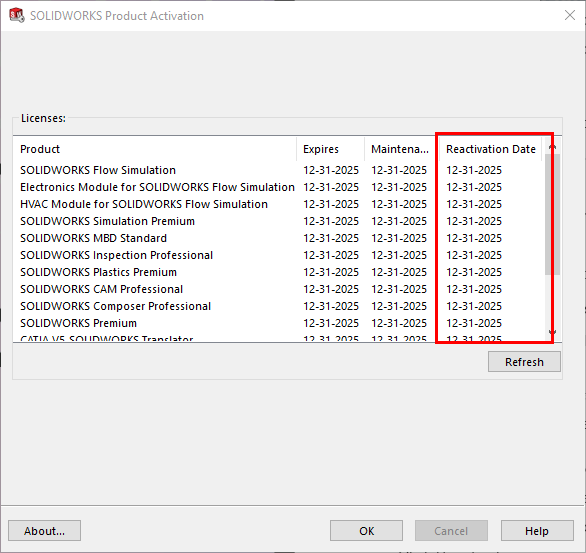
  3. Navigate to: Help>Licenses>Show

This opens a window displaying all currently activated licences and their Reactivation Dates.

Product activation windows listing available licenses with expiry and reactivation date

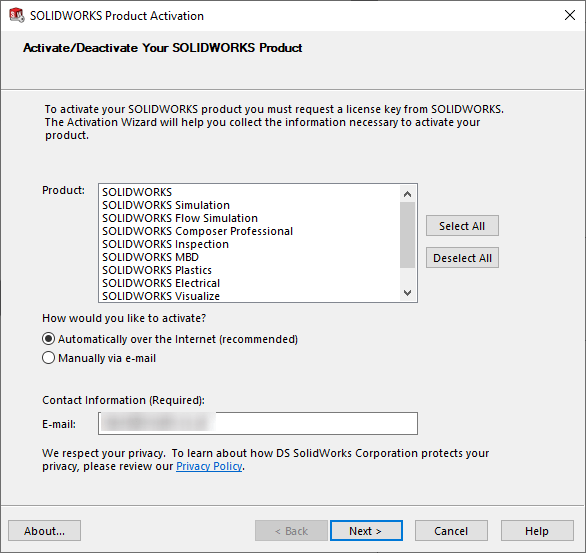
If the date shown matches the warning, click the question mark icon again and proceed to: Help>Licenses>Activate.

  1. In the activation window, choose the licences to reactivate, enter your email address, and click “Next”.

Select the licenses to reactivate

You’ll then see a list of active licences with updated Reactivation Dates. Once complete, you won’t see the ‘SOLIDWORKS licenses will expire in 30 days’ warning again for at least 11 months.

Final Thoughts

While the annual reactivation requirement may initially seem inconvenient, it ensures that your licensing stays valid and up-to-date. By following the quick steps above, you can keep SOLIDWORKS running smoothly without interruption.

Click here for a more in depth guide on The Solid Network License Manager.

We hope you’ve found this useful. For more SOLIDWORKS tutorials, head over to our news and resources pages.


About the author:

This guide was written by SOLIDWORKS Applications Engineer, David Durston.

David has been with the Visiativ Technical Support Team since 2010.

LinkedIn Logo

View David Durston’s LinkedIn Profile here.


Related Articles

View More Articles

Share this Article