
How to: Add SOLIDWORKS Licences to SOLIDNETWORK License Manager (SNL)
10 February 2025
The SOLIDNETWORK License Manager is a server application used to distribute and manage a pool of SOLIDWORKS licenses to client machines from your network. This allows companies greater flexibility when distributing licenses across multiple users.
If you are already using the SOLIDNETWORK License manager and purchase additional SNL seats of SOLIDWORKS products, you will need to modify your SOLIDNETWORK License manager server tool on your server to add the additional licenses.
Before you do this, establish if you have been provided with a brand-new serial number or whether the licenses have been added to the existing license number.
For example, let’s say you have 9 seats of SOLIDWORKS Premium, and you purchase another seat of SOLIDWORKS premium to bring the total up to 10, the likelihood is that the additional license will be added to your existing serial number.
Whereas if you purchase a different product (SOLIDWORKS Composer, SOLIDWORKS Flow Simulation, SOLIDWORKS Plastics, etc) you may be provided with a new serial number.
If your licenses have been added to your existing Serial Number
To add your additional licenses, follow these steps.
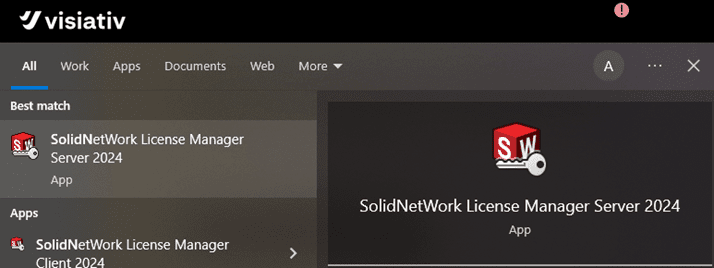
1: On the server computer hosting the SNL, launch the SOLIDNETWORK License Manager tool. You can find the tool by typing in your windows search bar.
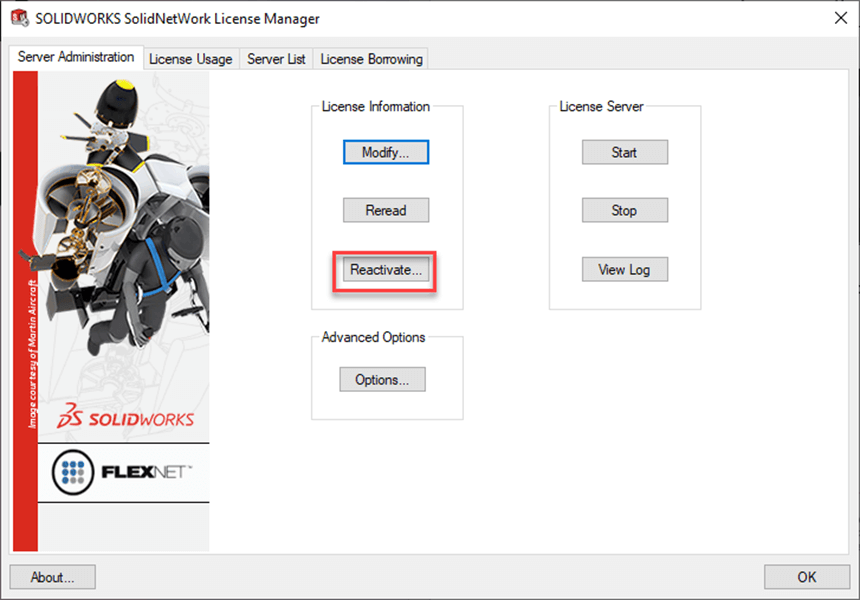
2: On the server Administration tab click Reactivate
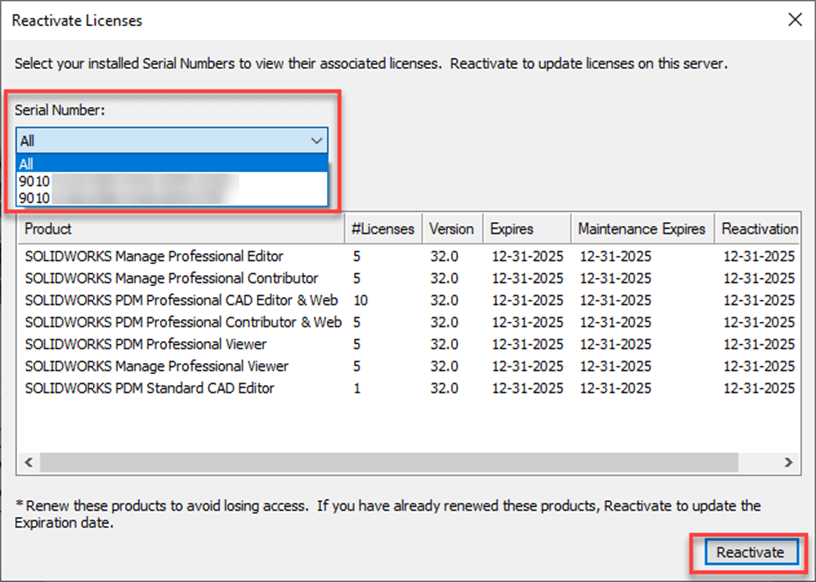
3: Select the serial number you wish to reactivate (or select all) and click Reactivate.
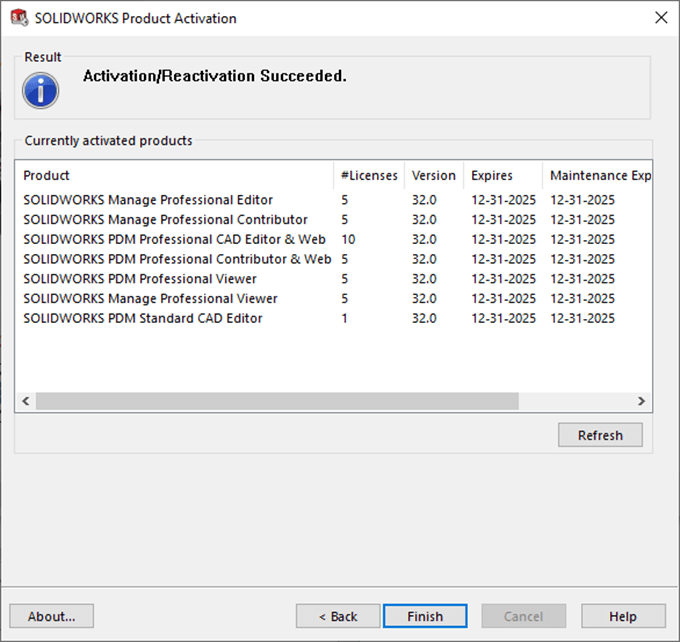
4: Follow the screen prompts to complete reactivation. After this you will see a summary screen of your licenses and any new licenses should show.
If you have been provided with a new Serial Number
To add new network licenses to your SOLIDNETWORK license manager server has been Simplified in SOLIDWORKS 2023 onwards.
To add new serial numbers to the SOLIDNETWORK License Manager 2023 onwards
1: On the server computer hosting the SNL, launch the SOLIDNETWORK License Manager tool.
2: On the Server Administration tab click Modify
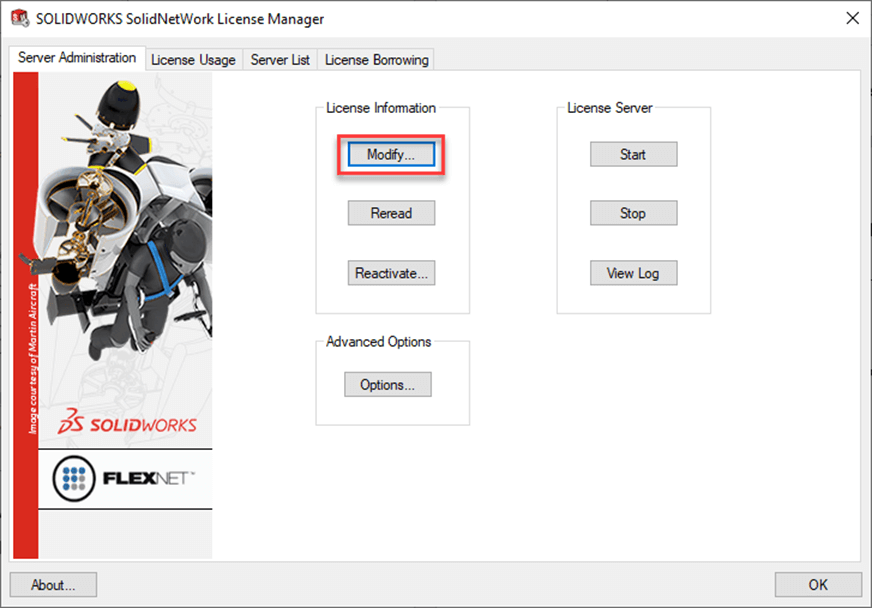
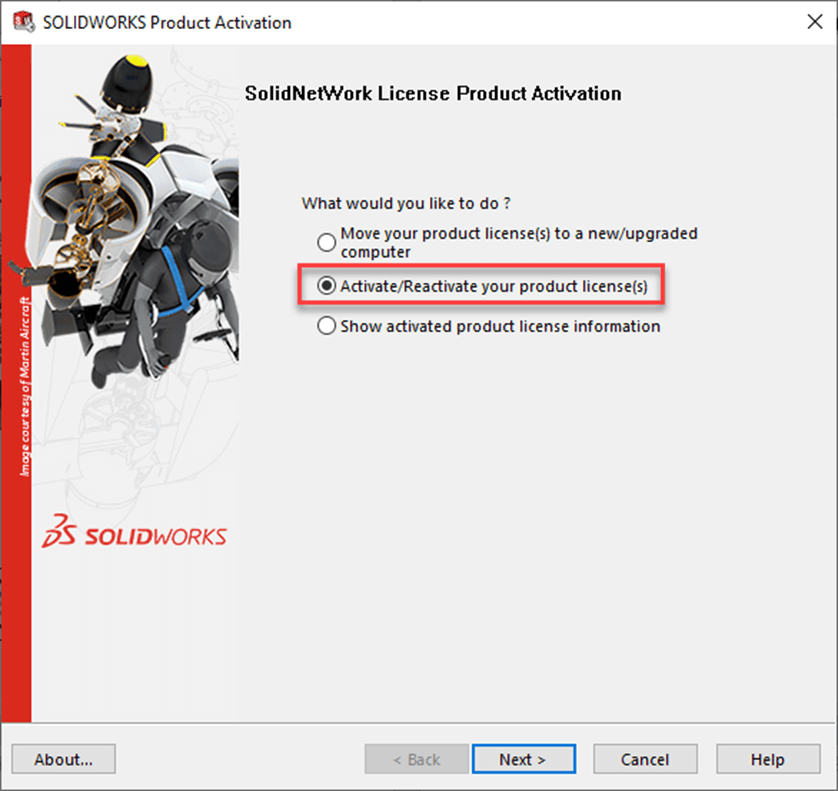
3: Select Activate/Reactivate your product license(s)
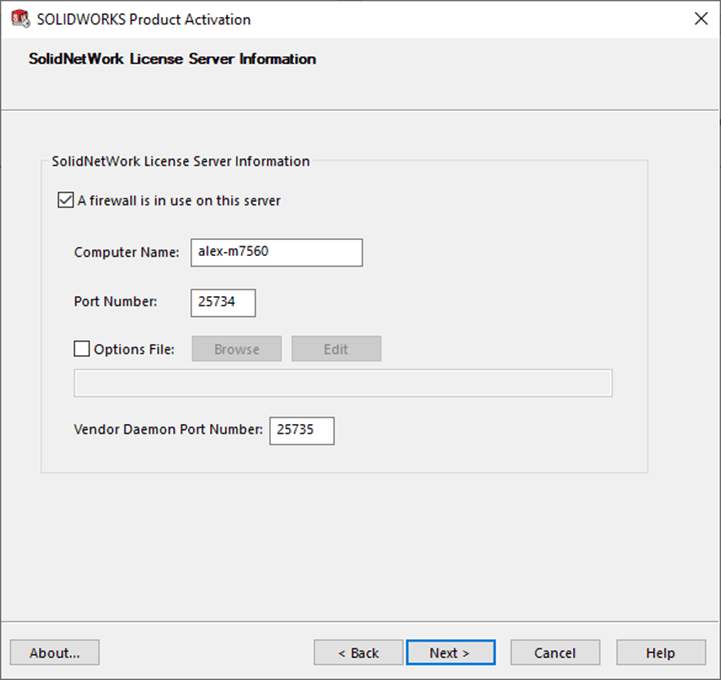
4: Accept the current settings on the SOLIDNETWORK License server dialogue and click Next
5: On the Activate/Deactivate tab click Add
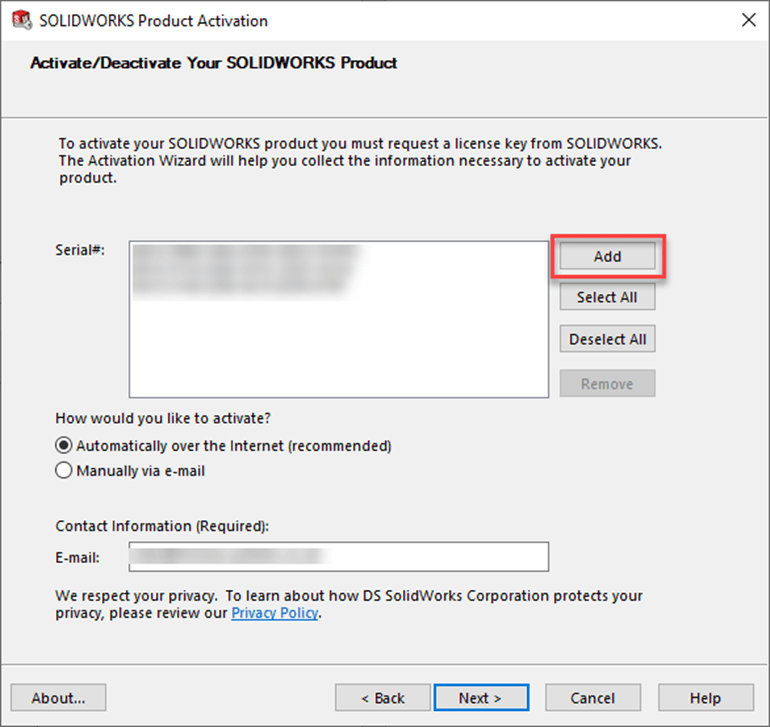
6: Type or paste your new serial number into the dialogue box and press OK
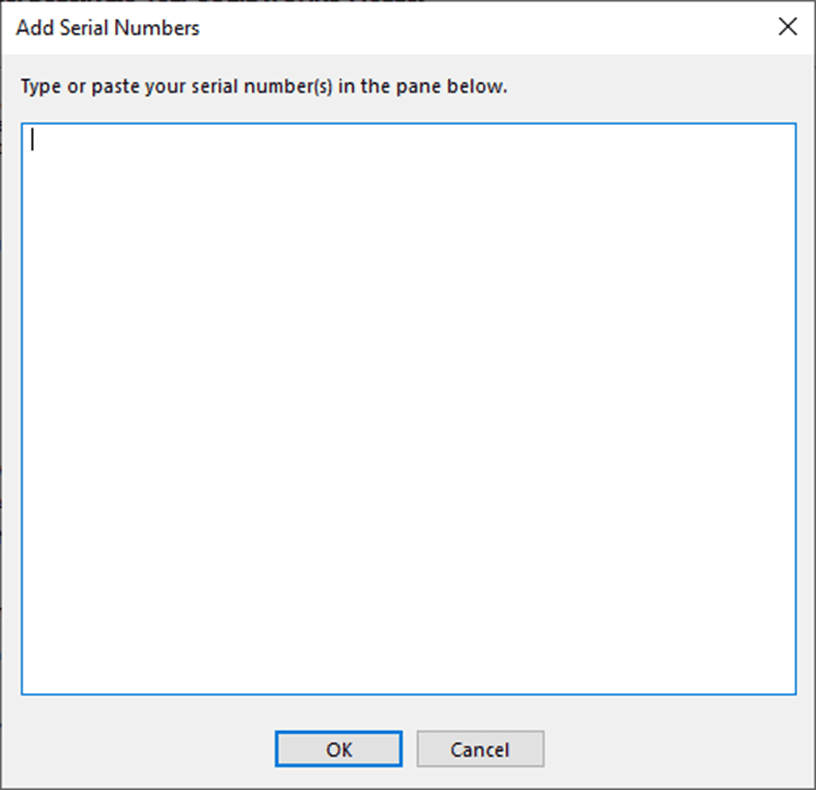
7: The Activate/Deactivate Window shows your new serial number . Choose Select All to highlight your Serial Numbers, then click Next.
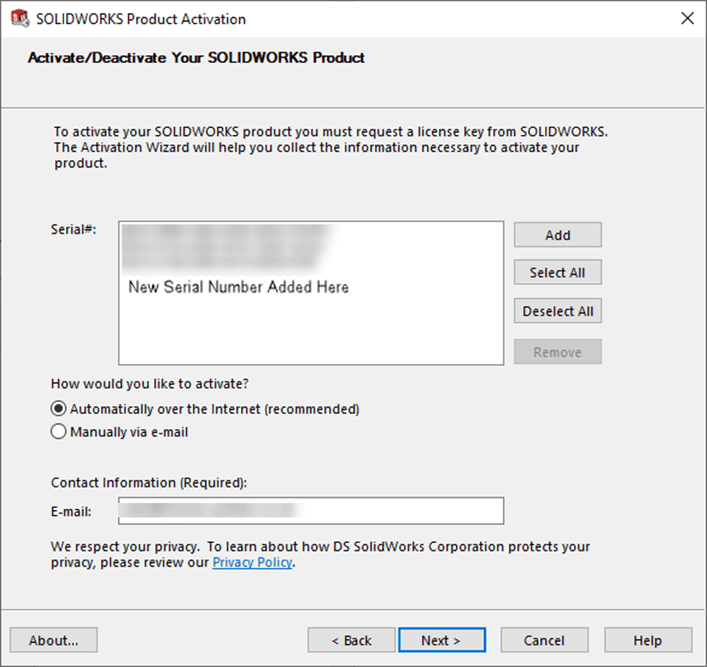
8: The SNL will reactivate and you will see any new licenses added to the SOLIDWORKS Product Activation dialogue. That’s the process complete!
To add new serial numbers to the SOLIDNETWORK License Manager Pre 2023
1: On the server hosting the SNL go to Add or Remove Programs and choose to modify the SOLIDNETWORK license manager
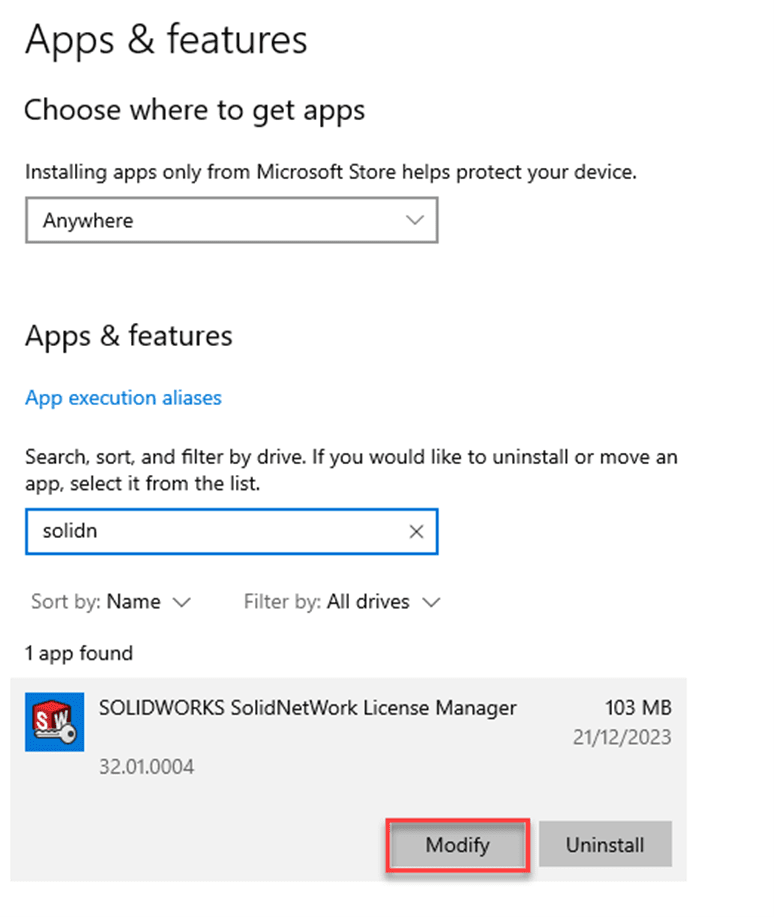
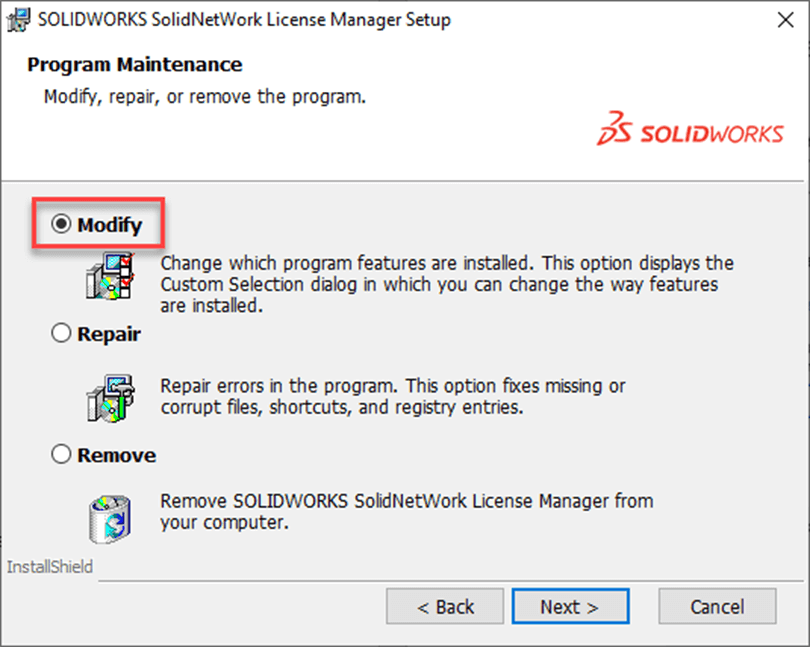
2: The SOLIDNETWORK License manager dialogue box appears click Next and from the program maintenance dialogue select modify, then click next.
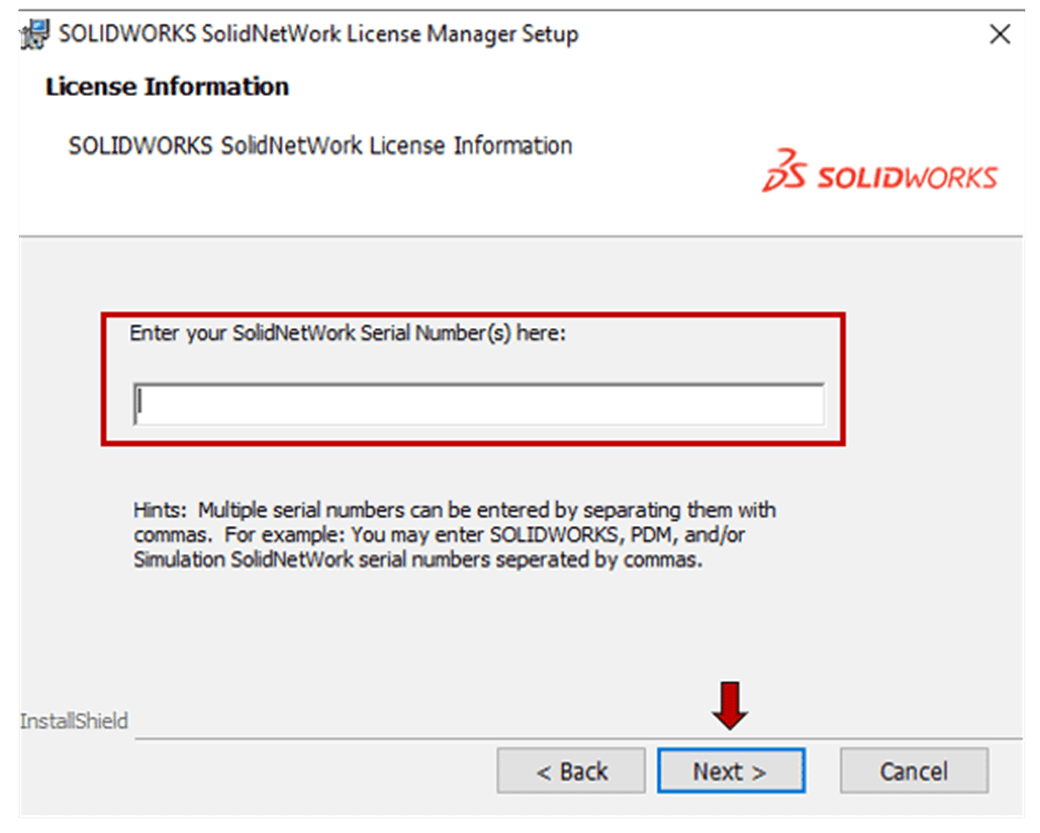
3: Enter your SOLIDWORKS serial number. Separate multiple serial numbers by a comma. Click Next.
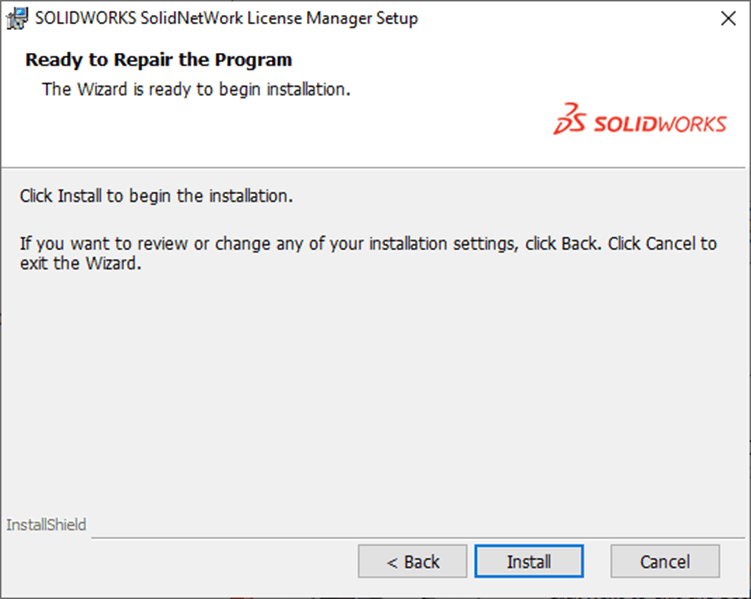
4: Click the install button
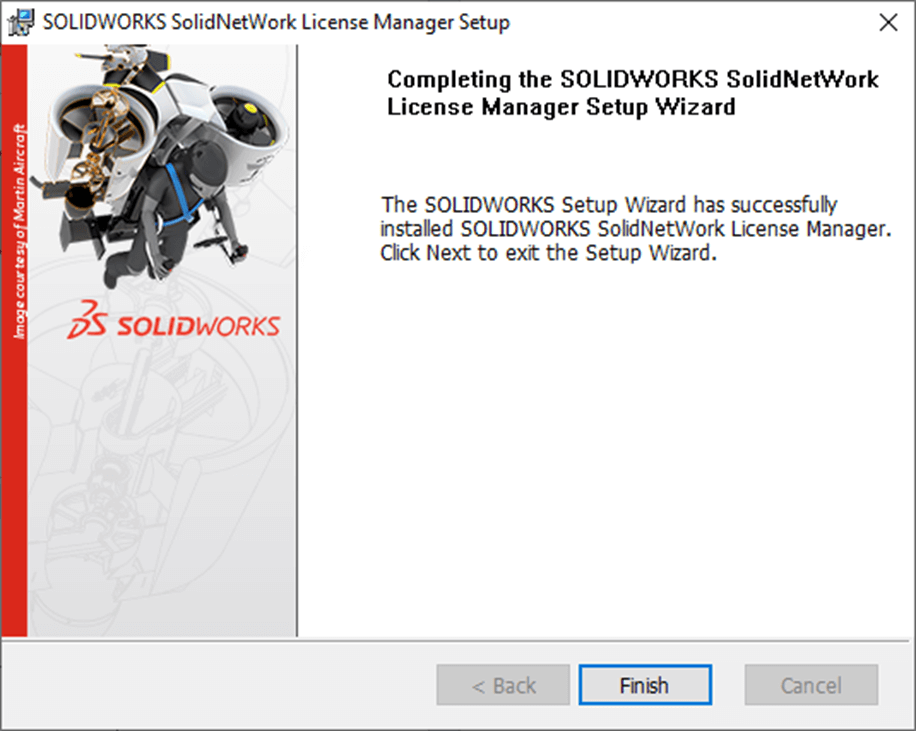
5: Click Finish to complete the installation
Find out how to move the SOLIDNETWORK License Manager to a new server in our helpful user guide.
Click here for information on administering your SOLIDNETWORK License manager (extrernal link opens in new tab).
If you’re a Visiativ customer and require assistance, make sure to get in touch with our technical support team, who’ll be happy to guide you through the process.