
How to: Manually Update the SOLIDWORKS Toolbox
26 March 2026
You may have recently upgraded SOLIDWORKS and are now seeing an error message when trying to access the Toolbox. This may be because the toolbox hasn’t been included in the upgrade. If this is the case, follow these steps for manually updating the SOLIDWORKS Toolbox.
If your Toolbox is at the incorrect version you’ll see the following error message when you try to access the Hole Wizard or Toolbox:
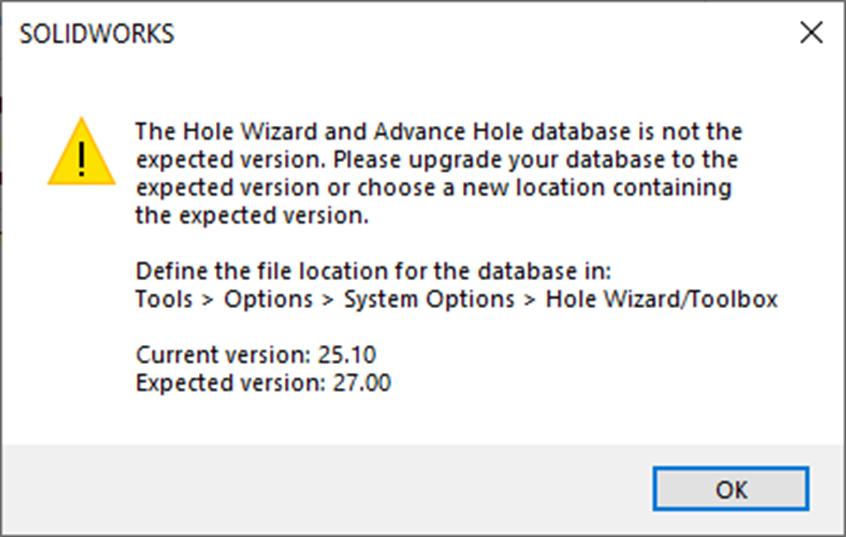 |
“The Hole Wizard and Advanced Hole database isn’t the expected version. Please upgrade your database to the expected version or choose a new location containing the expected version.”
The reason you’ll have received this message is because the Toolbox you’re using wasn’t upgraded with your SOLIDWORKS install and is at an earlier version.
Not a problem, updating the Toolbox manually is easy just follow these steps:
1: Make a copy of your existing Toolbox
It’s always good practice to make a backup just in case things go wrong. You can find the location of your Toolbox in SOLIDWORKS: Go to options->System Options->Hole Wizard/Toolbox
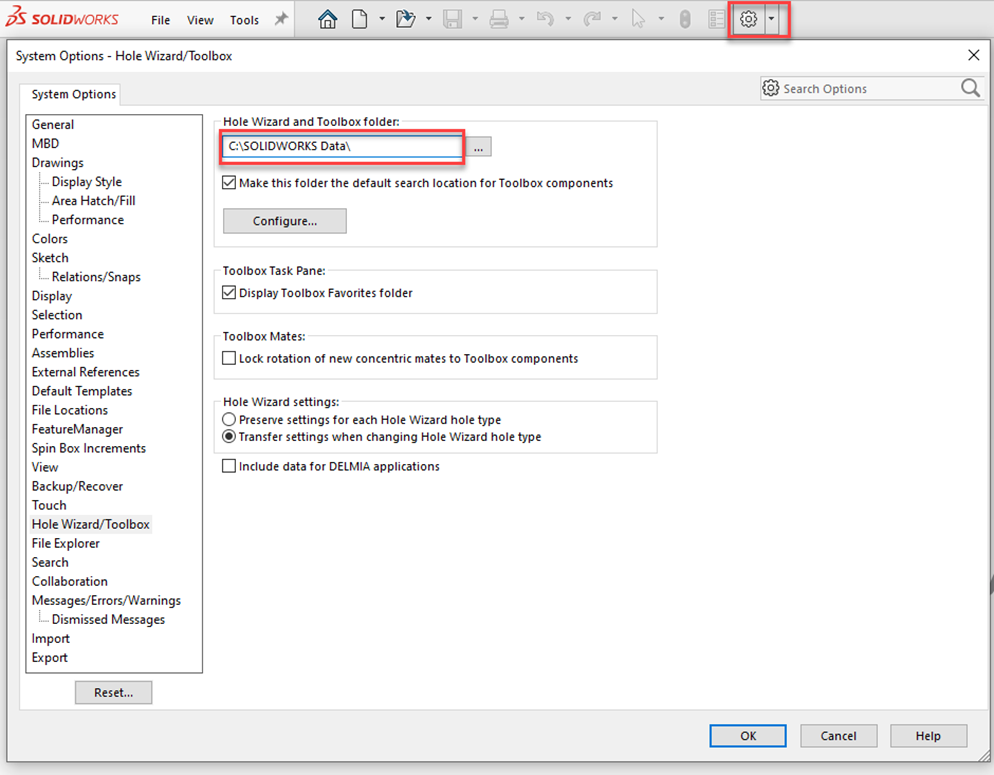
All you need to do now is browse to that folder and make a copy of the SOLIDWORKS Data folder and all its content.
2: Locate the UpdateBrowserDatabase.exe
Browse your SOLIDWORKS installation directory for the UpdateBrowserDatabase.exe. By default this will be:
C:\Program Files\SOLIDWORKS Corp\SOLIDWORKS\SOLIDWORKS\Toolbox\data utilities
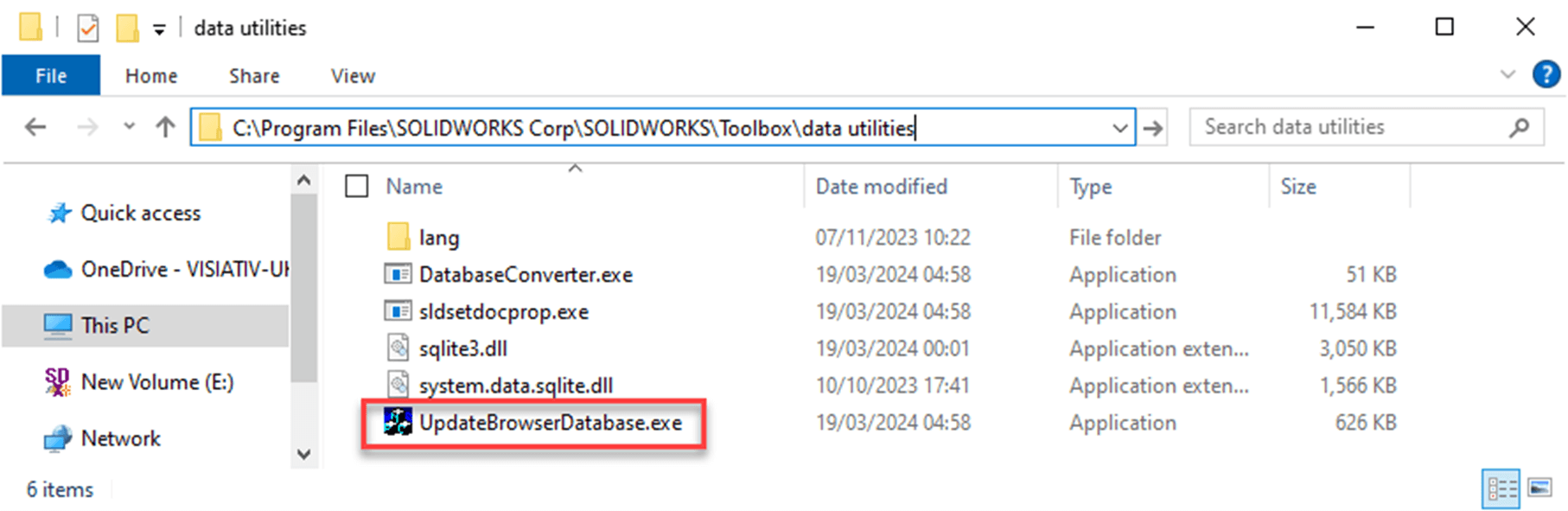
3: Run the UpdateBrowserDatabase.exe as Administrator
You can do this by right clicking the file and selecting Run as Administrator from the menu.
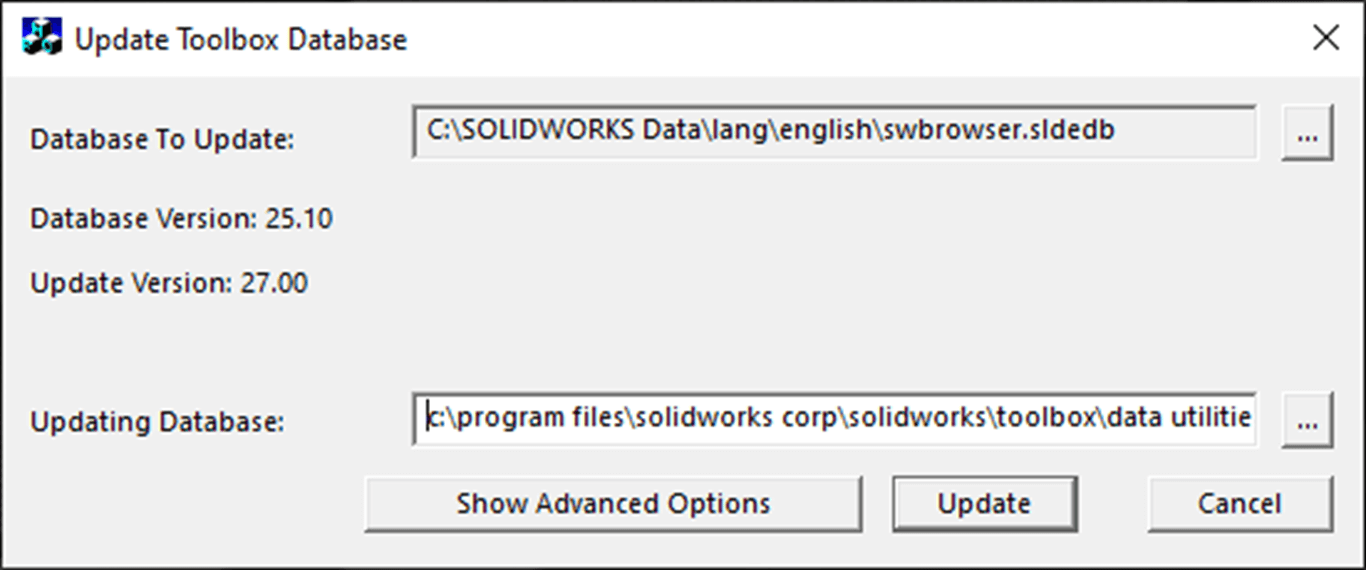
The Update Toolbox Database tool will open.
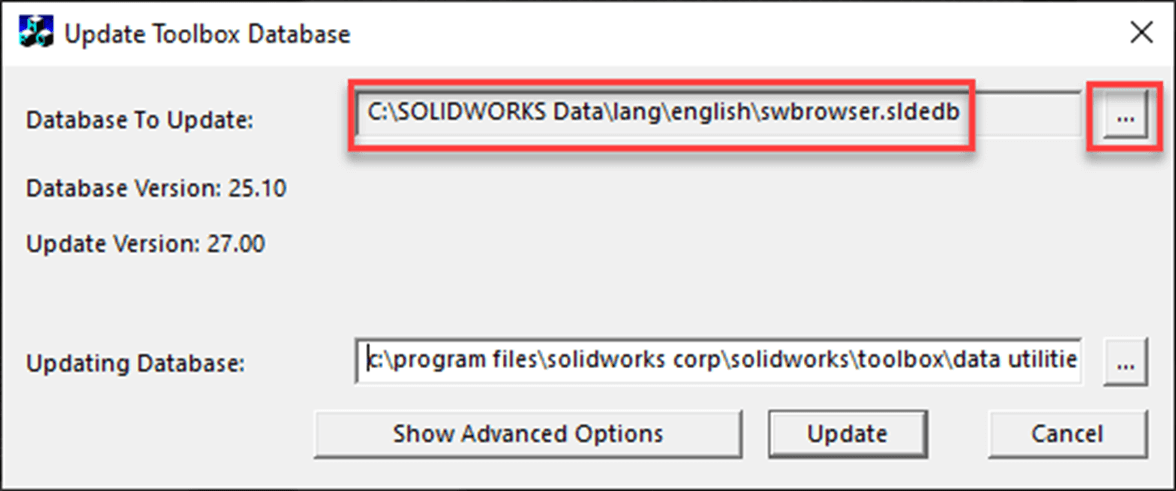
4: Define the Database to update
Click the browse button and browse to swbrowser.sldedb file.
This will be located in: <Current Toolbox folder>\Lang\english\
5: Ensure version information is correct
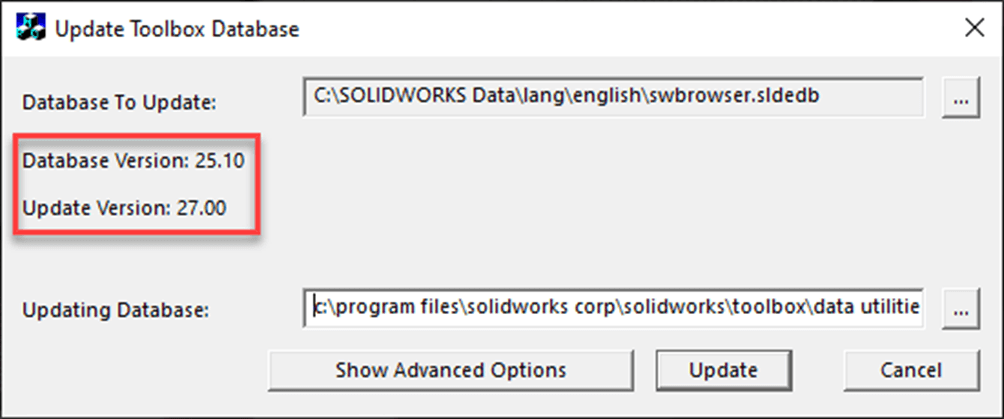
You should find that current database version is displayed and the update database version is displayed. The update version should be a higher number than the Database Version.
6: Click Update
The Hole Wizard/Toolbox will now be at the correct version ready for use with SOLIDWORKS. Told you it was easy!
We hope you found that useful. Before you go, why not take a look at our other SOLIDWORKS tutorials?

|
About the author: This tutorial was written by Elite SOLIDWORKS Applications Engineer and Technical Support Manager, Alex Aprigliano. Alex has been with the Visiativ Technical Support Team since 2007. |
|||
|
|
View Alex Aprigliano’s LinkedIn Profile here.
|
|||