
How To Install SWOOD
16 January 2026
SWOOD is a powerful design and manufacturing solution integrated within SOLIDWORKS, tailored specifically for woodworking professionals to streamline the creation, visualisation and production of custom furniture and cabinetry.
Whether you are installing SWOOD for the first time or upgrading to a newer version, the installation process is the same. This guide will take you through each step, from transferring licences and uninstalling old versions to installing the add-ins and setting up your SWOOD data directory, making it easy to get started quickly and efficiently.
Note to existing SWOOD users: Before you get started with installing SWOOD, make sure to uninstall the previous annual version by starting the process at step one.
Note to new SWOOD users: Start at step three.
Step 1: Licence transfers
In the case of switching from an earlier version of SWOOD, it’s necessary to transfer the old licences.
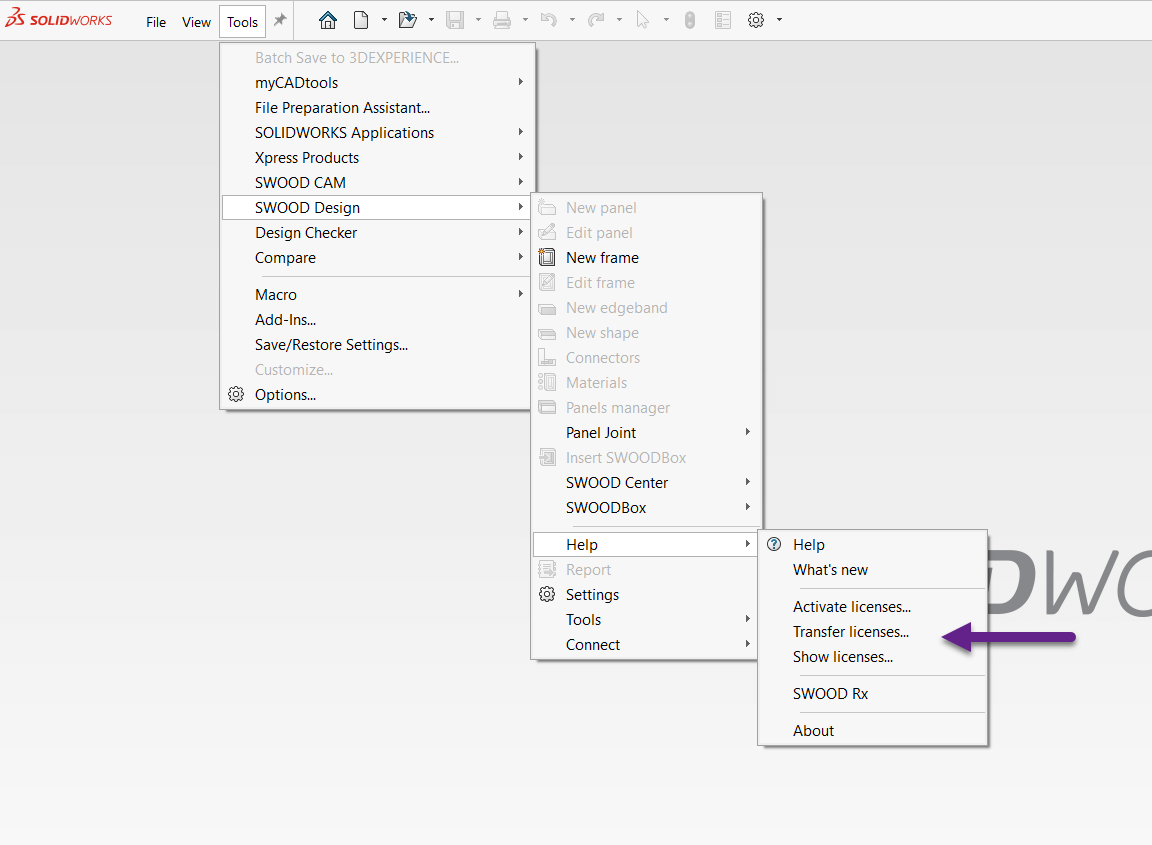
For each add-in you have installed (SWOOD Design and SWOOD CAM) navigate to: Tools > SWOOD CAM > Help > Transfer Licenses or Tools > SWOOD Design > Help > Transfer Licenses.
Step 2: Uninstall
To remove the SWOOD add-ins, navigate to the Windows Control Panel > Programs and Features > SWOOD (Year and service pack) and uninstall.
Step 3: Installing the Add-Ins
You must install the SWOOD add-ins locally with full Administrator privileges. Users must have all read-write permission to the installation location and all subfolders.
Run the installation setup as administrator, then read and accept the licence agreement. Next, fill in the company name and choose the add-in products to install.
You can then activate your add-ins using your serial number and email address.
 |
Step 4: First Use & Selecting the <User Directory> (SWOODData)
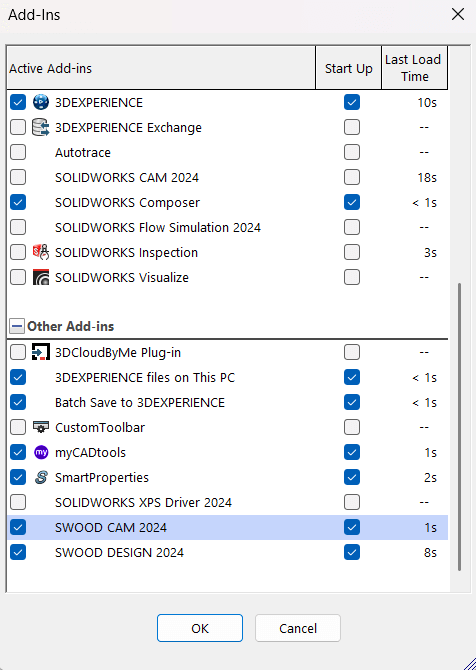
Once the installation is complete you can turn on the add-ons as you would any SOLIDWORKS add-on from the dropdown menu shown below:
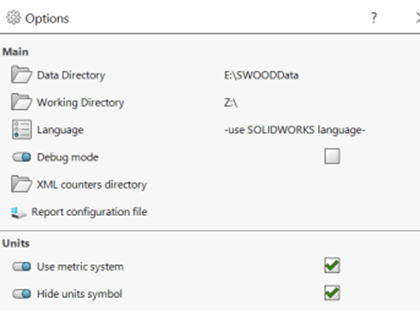 |
The data directory (SWOODData) contains your libraries. It contains your design data (SWOOD Design library, SWOODBox, Connections, Materials, etc.) and machining data (SWOODCAM libraries, Tools, Aggregates, Machining Entities).
You can browse and select the folder containing the library of your SWOOD products. These will be in the SWOODData folder by default.
We hope you found that useful! You can find out more about SWOOD and how it can help you, here.