How to: Use 3DEXPERIENCE Revision Sequences
19 August 2025
In today’s fast-paced product development environment, managing design changes is critical. Cloud Services for SOLIDWORKS on the 3DEXPERIENCE platform offers built-in revision control tools that help manage your product’s evolution effectively.
What is Cloud Services for SOLIDWORKS?
As SOLIDWORKS users, we want to work with the latest versions of our SOLIDWORKS data, collaborating with others in our team, from anywhere. Editing SOLIDWORKS files in a controlled environment, without tripping over each other and without demanding hardware requirements. Now, SOLIDWORKS users have access to Cloud Services for SOLIDWORKS. Which includes secure, cloud-based storage and management tools for your SOLIDWORKS files. Accessed directly from within SOLIDWORKS, Cloud Services for SOLIDWORKS integrates seamlessly to store data in a managed revision-controlled workflow.
This guide breaks down the available revision control methods so you can choose the best option for your team and processes.
SOLIDWORKS File Revisions in 3DEXPERIENCE
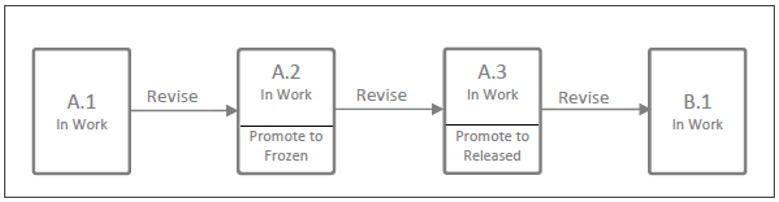
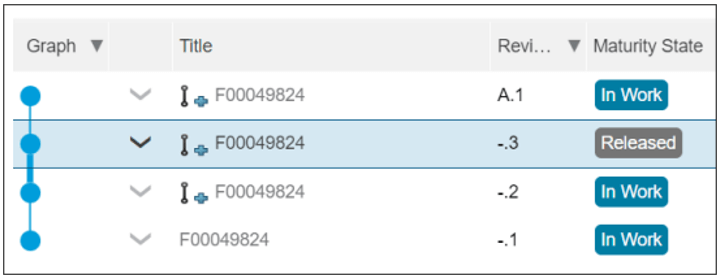
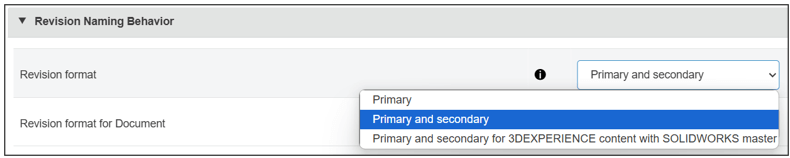
Out of the box, the 3DEXPERIENCE platform offers a primary revision scheme only for SOLIDWORKS files in the format A, B, C, etc. If customised, it can include secondary revisions – A.1, A.2, B.1, B.2, etc.
Here, primary revisions represent major design changes – typically denoted by letters (e.g., A, B, C) – and align with key lifecycle milestones such as Released or Frozen. The secondary revisions (e.g., A.1, A.2) track internal iterations and are used during the In Work phase.
- When a file is revised in the In Work state, only the secondary revision updates.
- Major revisions are triggered only when transitioning to Frozen or Released.
To configure it, navigate to: Collaborative Spaces Configuration Centre > Lifecycle and Collaboration > Revision Naming Behavior > Revision Format
Extended Revision Scheme
In some cases, a more complex revision scheme is required. Here, an Extended Revision Sequence is adopted to customise it as required. Extended Revision Sequences allow you to define custom revision schemes using a .json file. These are ideal when you need revision logic that goes beyond standard naming.
Users will need to create a .json file that reflects their requirements. Some examples are shown below:
Example 1
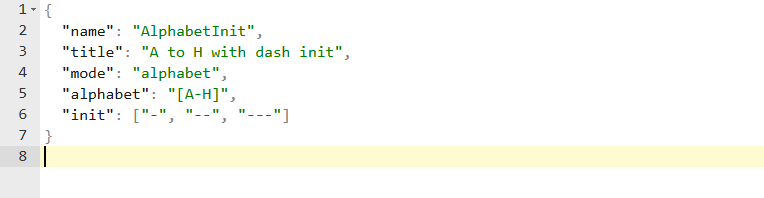
This sequence would result in: -, –, —, A, B, C, …, H, AA, AB, AC, …, BH, CA, etc.
Example 2
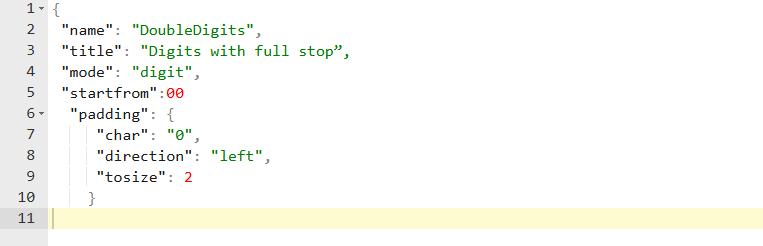
This sequence would result in: 01.1, 01.2, 01.3, 02.1, 02.2, etc.
Users are able to download predefined examples – such as syntax, parameter name and description – and customise them from the 3DEXPERIENCE User Assistance.
How to apply it:
- Open the Collaborative Spaces Configuration Center app
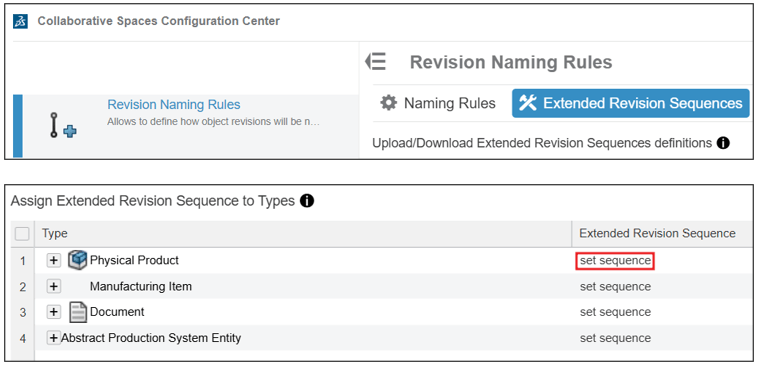
- Go to Revision Naming Rules > Extended Revision Sequences
- Click Browse to upload your .json file
- Click Upload
- Enable the new revision scheme for Physical Products
Tip: Create your .json file using Notepad as a .txt file, then rename it to .json.
Phased Revision Scheme
The release of 3DEXPERIENCE 2025x FD02 brought Phased Revisions. This scheme allows different revision sequences based on lifecycle phases, managed through Change Actions. For example, a part can use numeric revisions during development and alphabetic revisions during production.
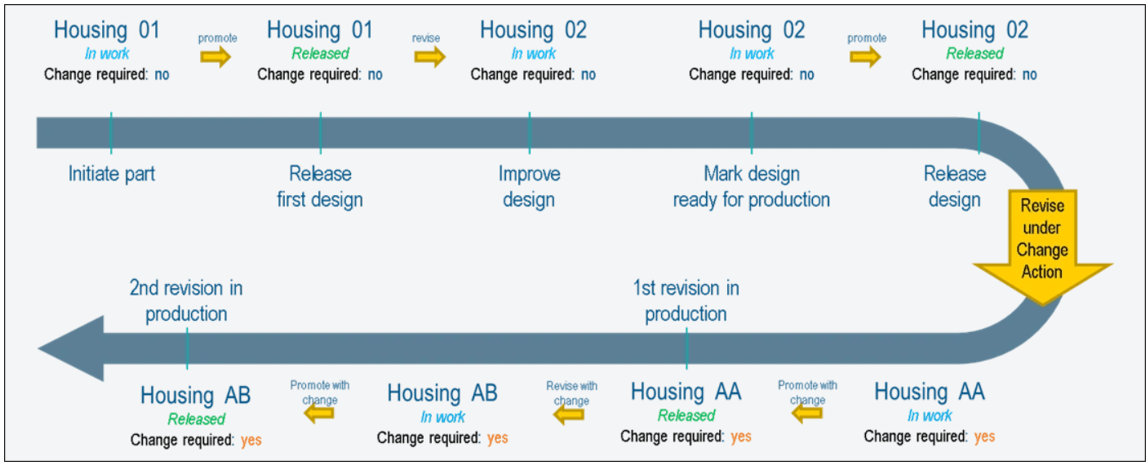
This approach visually distinguishes between development and production stages, using the revision code as an indicator of the current lifecycle phase.
How to set it up:
1. Go to: Platform Management Dashboard > Content > Collaborative Spaces Configuration Center > Revision Naming Rules
2. Create two Extended Revision Sequences (e.g., one numeric, one alphabetic) using a .json. For example:
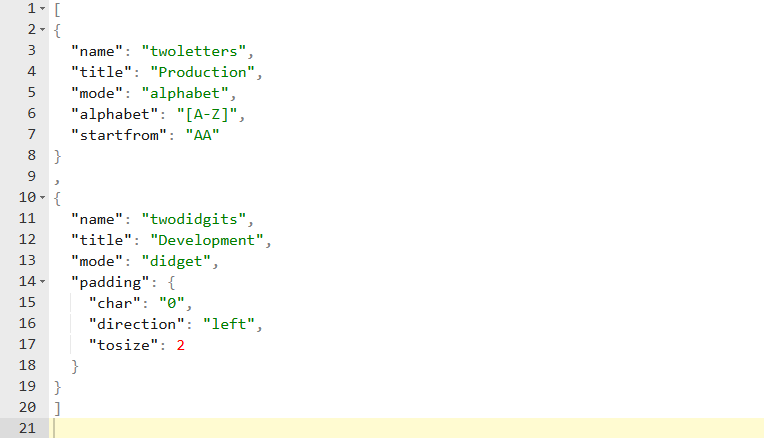
3. Upload the .json file
4. Assign a default sequence for Physical Products
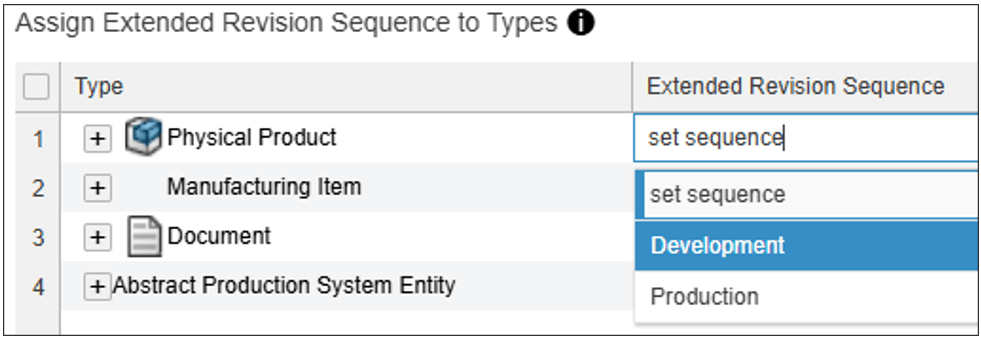
5. Set the Revision Naming Logic as Change Based
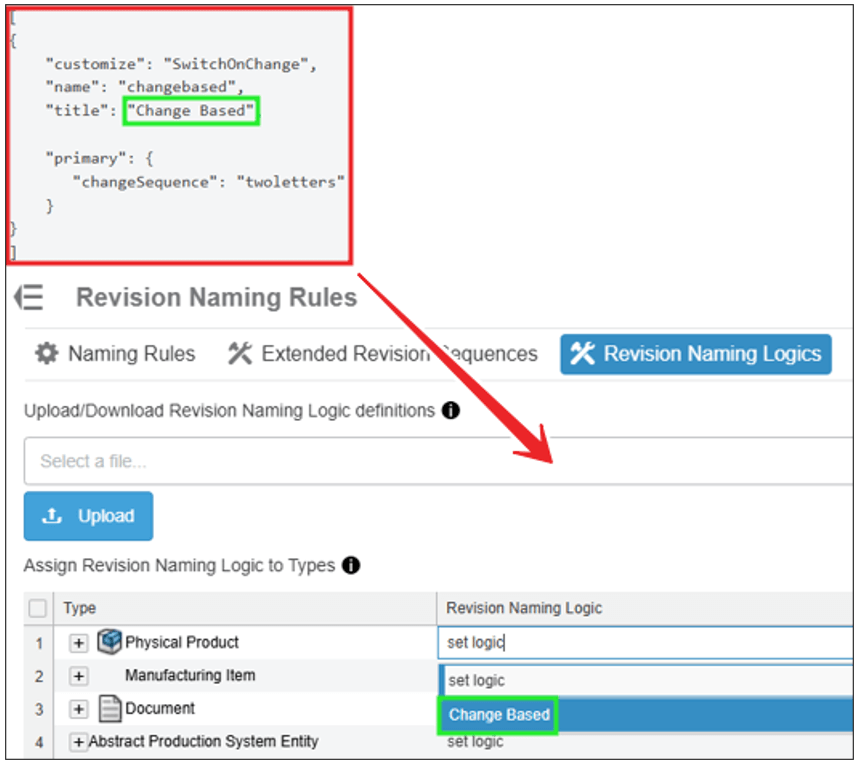
6. Ensure the following settings are applied in Lifecycle and Collaboration:
- Revision format: Primary
- Classical minor revisions: Disabled
For more information on understanding how to customise your 3DEXPERIENCE revision scheme, please get in touch with the Visiativ Technical Support Team* or call 01223 200699.
*Supported customers only.
 |
About the author: This guide was written by SOLIDWORKS Applications Engineer, Mat Jones. Matt is a 3DEXPERIENCE specialist and has been with the Visiativ Technical Support Team since 2023. |
|||
|
|
||||