How to: Update SOLIDWORKS Data for 3DEXPERIENCE Compatibility
12 June 2025
When using SOLIDWORKS and 3DEXPERIENCE Cloud Data Management, some considerations need to be made in terms of their compatibility with 3DEXPERIENCE. SOLIDWORKS now has 3DEXPERIENCE Integration options within the system options. These allow users to control a SOLIDWORKS file’s configuration structure which is important. Above all, it dictates how the structure is mapped into 3DEXPERIENCE from within SOLIDWORKS.
Users of SOLIDWORKS are familiar with how their files are typically structured – a part or assembly can have multiple configurations within them. These configurations allow us to create multiple variations of the design within the same document – for different parameters, dimensions or components. The key here is the phrase ‘within the same document’. We’re used to seeing a single file in Windows Explorer, despite it containing multiple configurations. For instance, files saved in SOLIDWORKS PDM are shown this way as the vault views are based in Windows Explorer.
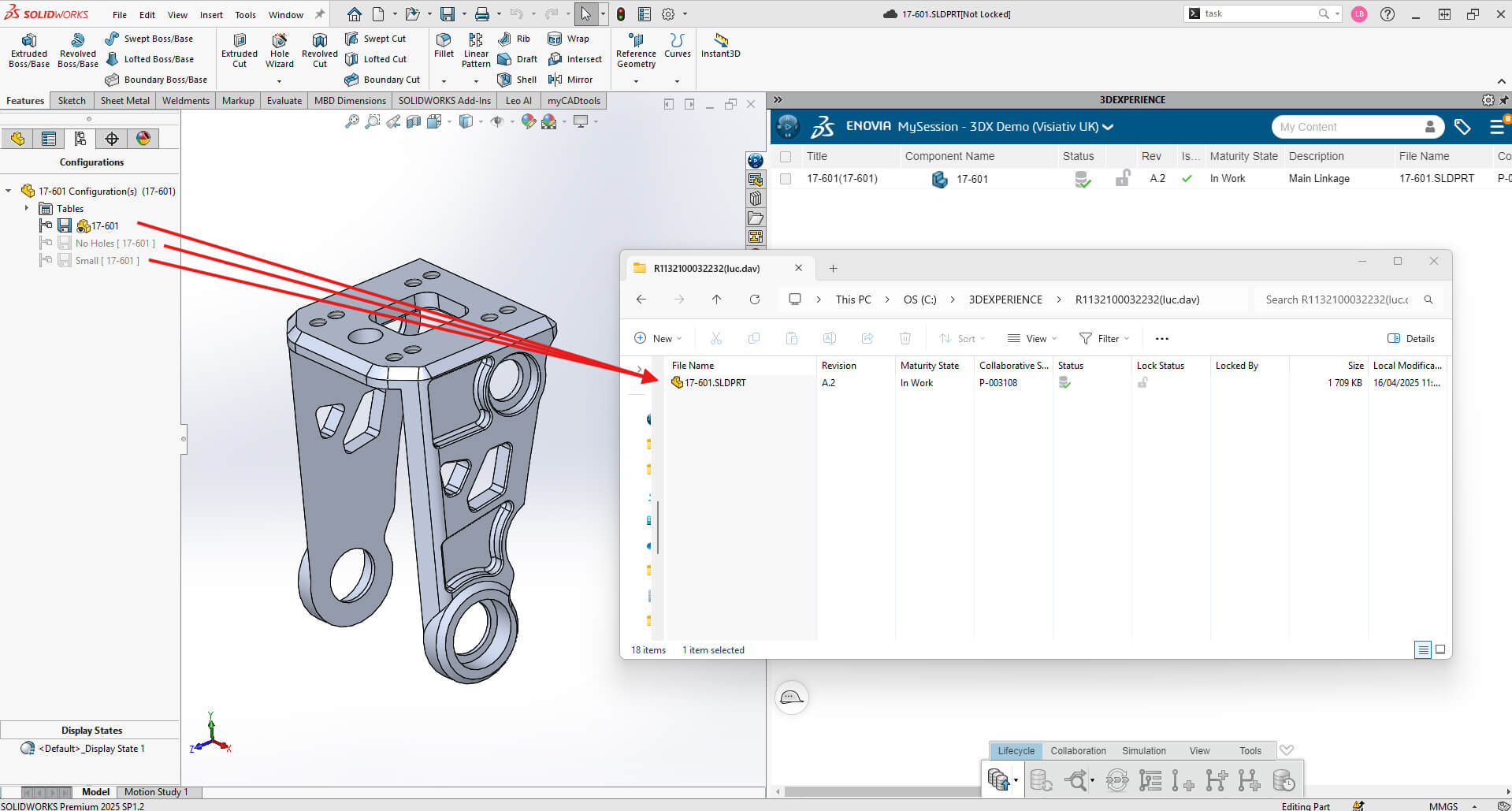
Then along came 3DEXPERIENCE. When we started saving SOLIDWORKS files into 3DEXPERIENCE, they were not appearing as expected. Here, when searching we saw multiple versions of the same file. But why? The image above shows a SOLIDWORKS file with a traditional structure; a .sldprt with 3 configurations. In Windows Explorer, this shows as one file.
Below, in the ‘Relations app’ view on the right, we can see the file has been saved as 4 files within 3DEXPERIENCE. One CAD Family (the top-level structure object) and three Physical Products beneath it. Each Physical Product represents one of the configurations of the SOLIDWORKS file. Notice the configuration names in brackets with the top-level SOLIDWORKS file name.

What’s the difference between CAD Family and Physical Product files?
Physical Products are perhaps the most relevant objects within the 3DEXPERIENCE platform. A Physical Product is the object that shows the CAD geometry when using 3DEXPERIENCE tools. These objects are what you search for, interact with, and open in 3DEXPERIENCE platform apps. A CAD Family object is really only the top-level container that links the configurations (Physical Products) together. So above all, we’re only concerned with using the Physical Products. And for many, having multiple files that represent what, to them, is the same SOLIDWORKS file can be confusing.
3DEXPERIENCE Integration
Now we have the ability to change the default process that 3DEXPERIENCE uses when saving SOLIDWORKS structures to the cloud vault. This makes data easier to search for and understand. By updating SOLIDWORKS files for compatibility with 3DEXPERIENCE, we’re able to have only one Physical Product saved within 3DEXPERIENCE. This option removes the CAD Family files and the multiple Physical Products that represent each configuration. This behaviour is closer to what SOLIDWORKS users are familiar with.
The following changes happen within the files when the model has been updated for 3DEXPERIENCE Compatibility:
- Custom properties and configurations align with 3DEXPERIENCE. The ‘Configuration Properties’ and ‘Properties Summary’ tabs in ‘Properties’ manage custom properties and configuration-specific properties.
- The Configuration Manager displays changes. Configurations appear as Physical Products or Representations. In other words, it now better represents the display in 3DEXPERIENCE.
- For SOLIDWORKS models with multiple display states, the active state is assigned to the Physical Product.
- 3D Interconnect references for assemblies are dissolved. SOLIDWORKS assembly and part files are created. After that, the 3D Interconnect features link to the neutral file existing within the part files.
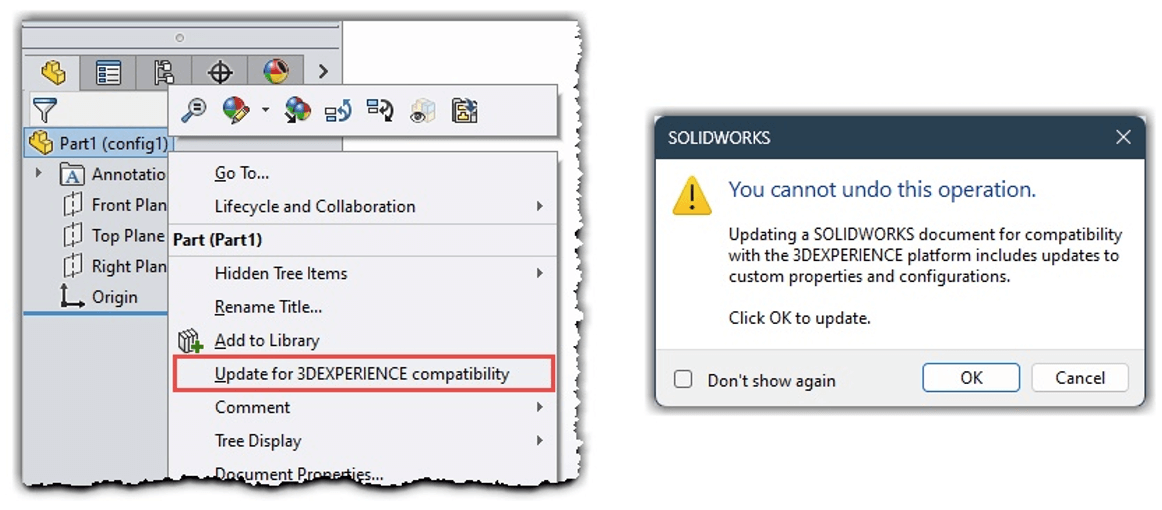
After a file is updated for 3DEXPERIENCE Compatibility, it cannot be reversed.
Automatic Update
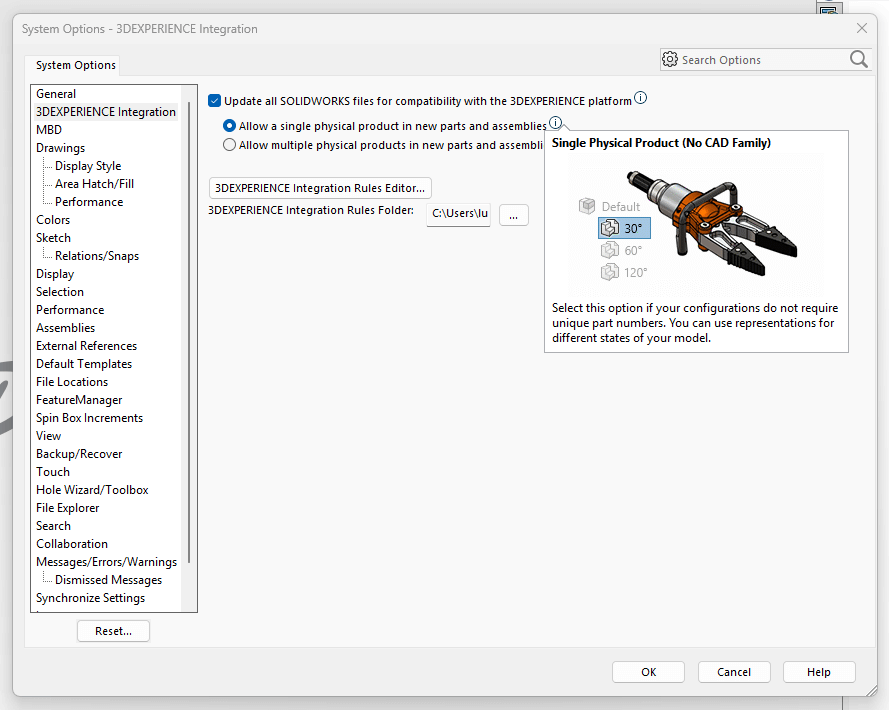
For files to update for 3DEXPERIENCE compatibility automatically, this option within ‘System Options’ must be enabled. New files or locally existing datasets will be updated for compatibility on the first save to 3DEXPERIENCE. Note: this option must be applied within any existing file templates to be applicable.
Manual Update
For existing datasets that have already been saved to 3DEXPERIENCE previously, users need to update manually.
Scenario 1 – Existing file to be updated with a single Physical Product
In this scenario, the part file already exists in 3DEXPERIENCE but it hasn’t yet been updated for 3DEXPERIENCE Compatibility. It has 2 configurations:
- The Default configuration is the active config. It uses the Document Name BOM property.
- The second, non-active configuration is called ‘New’. Similarly, this configuration also uses the Document Name BOM property.
Here, the file is updated for 3DEXPERIENCE Compatibility manually. The active configuration (Default) is saved as a Physical Product. This is true for all files that are updated. The non-active configuration is saved as a representation. This is as a result of the Document Name BOM property. In addition, the configuration-specific properties from the starting file are applied to the Physical Product.
Scenario 2 – Existing file to be updated with multiple Physical Products
In this scenario, the part file already exists in 3DEXPERIENCE but it hasn’t yet been updated for 3DEXPERIENCE Compatibility. It has 2 configurations:
- The Default configuration is the active config. It uses the Document Name BOM property.
- The second, non-active configuration is called ‘New’. This uses the Configuration Name BOM property.
Here, the file is updated for 3DEXPERIENCE Compatibility manually. The active configuration (Default) is saved as a Physical Product. This is true for all files that are updated. The non-active configuration is also saved as a Physical Product. This is due to the Configuration Name BOM property. Therefore, this property is what’s used when a configuration needs to be a Physical Product in 3DEXPERIENCE – it’s the driver to have multiple. In addition, the configuration-specific properties from the starting file are applied to any Physical Product.
Should I update my SOLIDWORKS files for 3DEXPERIENCE Compatibility?
To sum up, the 3DEXPERIENCE Integration options can provide more flexibility over how SOLIDWORKS data is structured in 3DEXPERIENCE. For some, it may result in the data being easier to locate and use. In addition, it may provide a better workflow dependent on part numbering requirements.
 |
About the author: This guide was written by 3DEXPERIENCE Product Manager, Lucy Bryan. Lucy is an Elite SOLIDWORKS Applications Engineer and has been with the Visiativ Technical Support Team since 2019. |
|||
|
|
||||