How to: Save SOLIDWORKS PDM Archive Server & Client Log Files
11 December 2025
The steps below will show you how to save SOLIDWORKS PDM archive server and client log files.
Why are the PDM log files useful?
Your reseller’s technical support team might ask you to save your SOLIDWORKS PDM archive server and client log files and send them a copy to help troubleshoot issues. The PDM client log file shows what’s happening on your local machine, including things like logins, vault connection attempts, and database access. The Archive Server log file tracks events and errors on the archive server, which handles storing and managing the actual files in the SOLIDWORKS PDM system.
How to save PDM Client Log Files
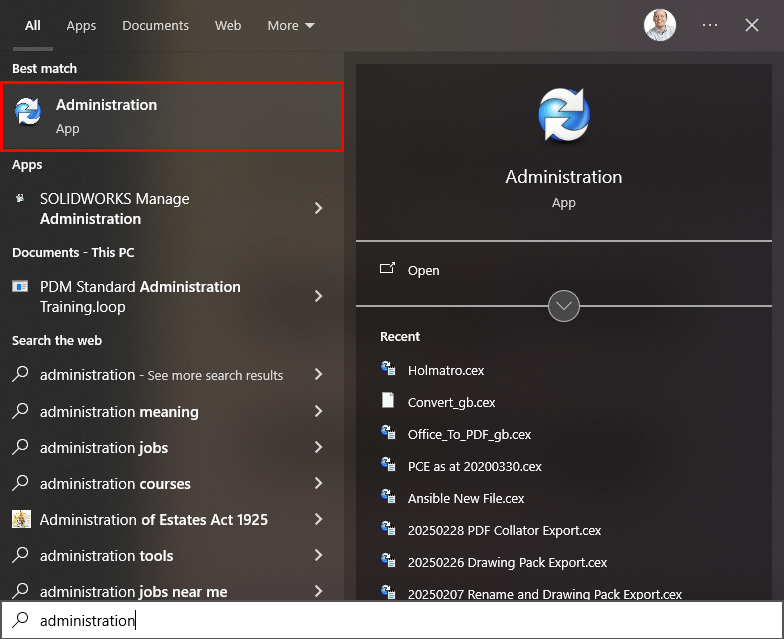
Click the Windows ‘Start’ icon and type ‘Administration’ in the search bar. Select ‘Administration’ from the search results to open the tool.
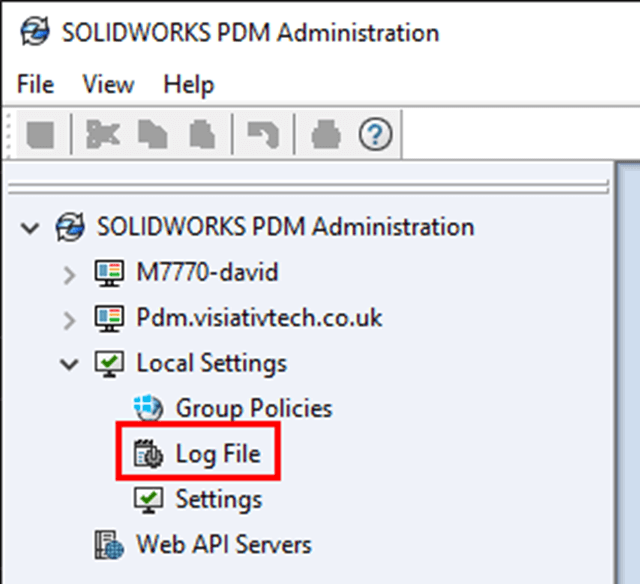
Once the Administration app is open, double click on ‘Log File’ from within the Local Settings section of the feature tree to open the logs.
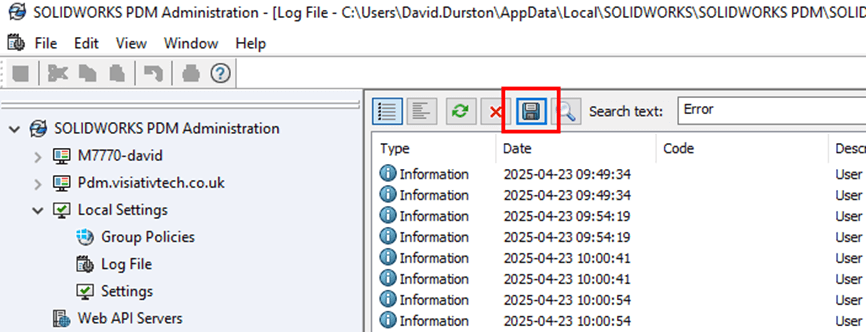
Next you’ll need to select the Save icon at the top of the logs window.
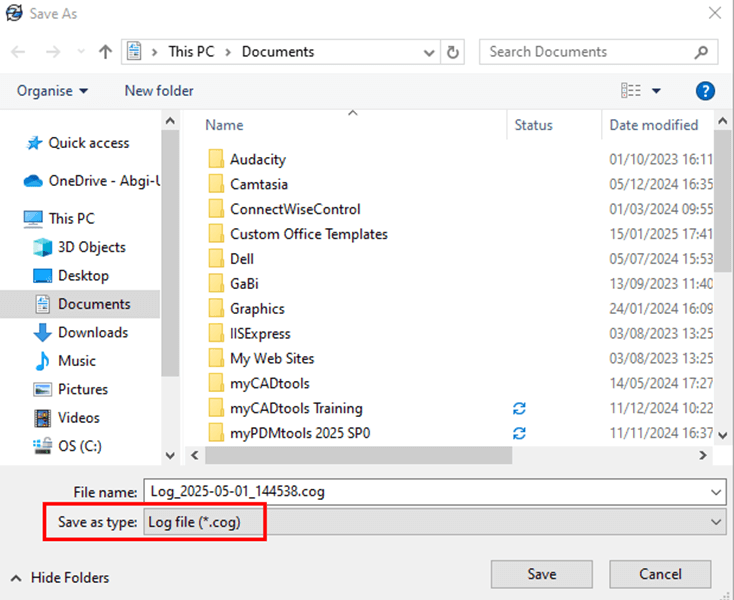
Choose where to save the log file and select the file type as ‘Log File (*.cog)’ before proceeding to select save.
How to save PDM Archive Server Log Files
The process for saving the archive server log files is similar to saving the client log files. Click the Windows ‘Start’ icon and type ‘Administration’ in the search bar. Select ‘Administration’ from the search results to open the tool.
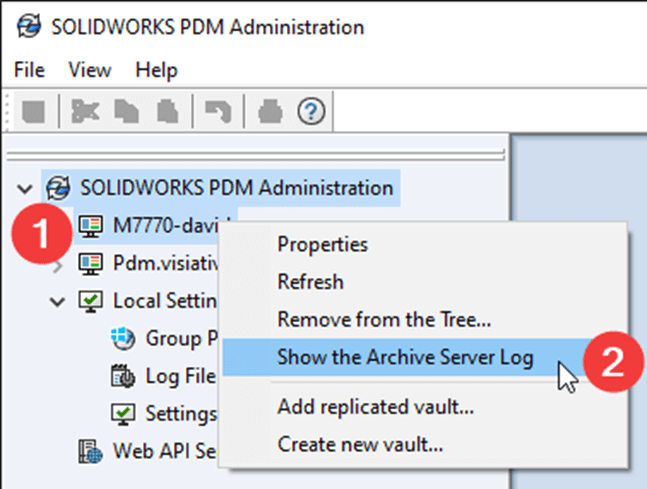
Next you’ll need to right click on your archive server and choose ‘Show the Archive Server Log’.
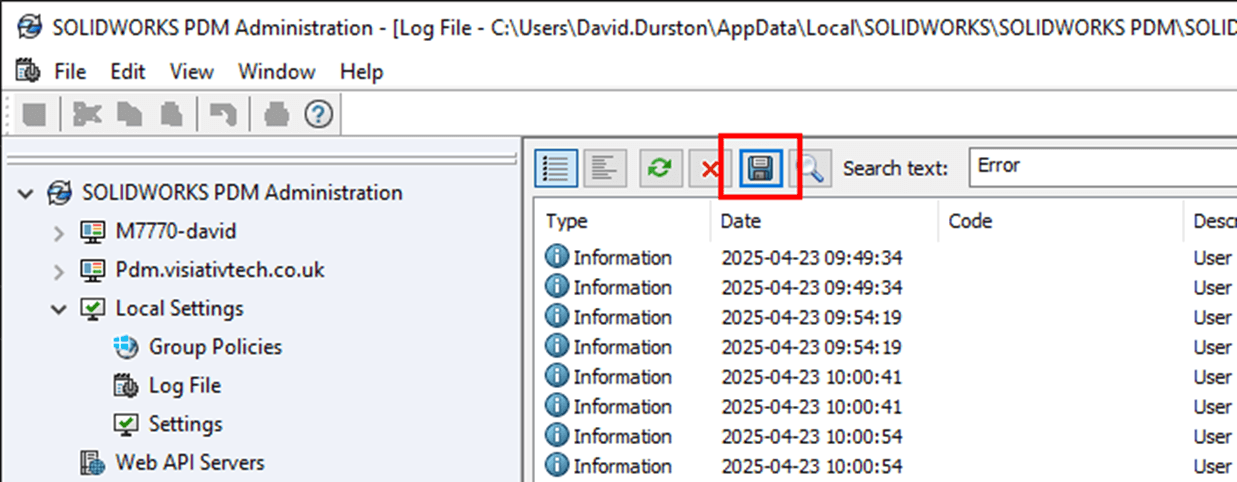
Select the save icon at the top of the logs window.
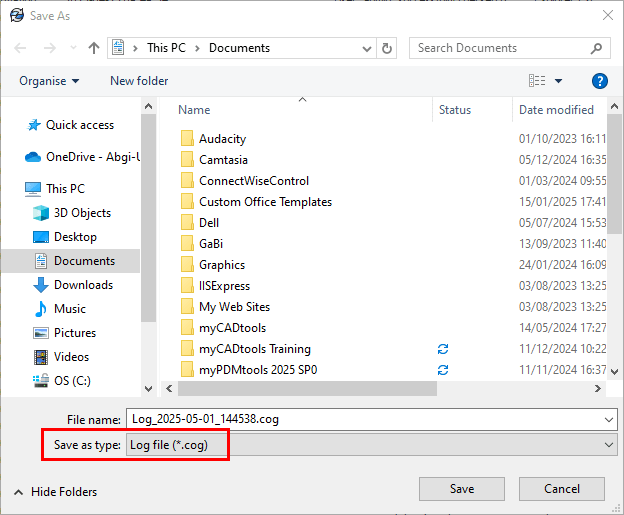
You can now choose where to save the log file. Select the file type as ‘Log File (*.cog)’ before saving.
We hope you’ve found this useful. For more SOLIDWORKS tutorials, head over to our news and resources pages.
Need assistance? Visiativ customers can raise a ticket or contact our technical support team here.
 |
About the author: This guide was written by SOLIDWORKS Applications Engineer, David Durston. David has been with the Visiativ Technical Support Team since 2010. |
|||
|
|
||||