
How to: Change Your SOLIDWORKS Serial Number
24 February 2025
There are several reasons why you might need to change your SOLIDWORKS serial number. A good example of this would be wanting to upgrade from a SOLIDWORKS standard to a SOLIDWORKS Professional or Premium license.
Here’s how it’s done…
Step 1 – Deactivate your current SOLIDWORKS Serial Number.
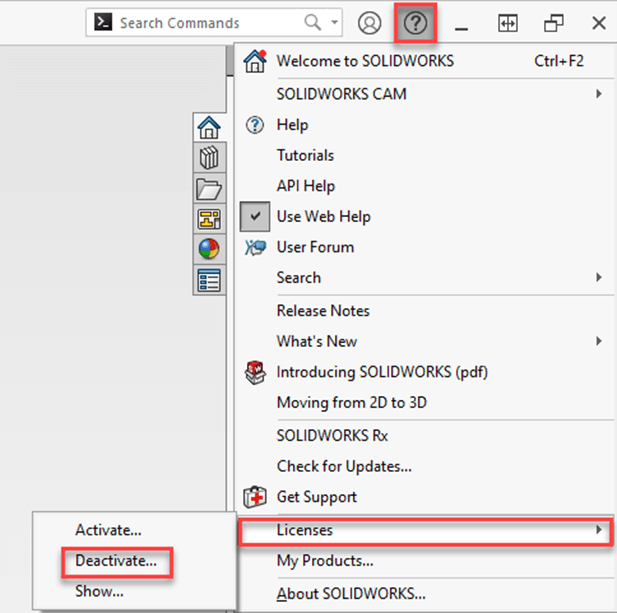
Launch SOLIDWORKS on your current machine and go to Help->Licenses->Deactivate
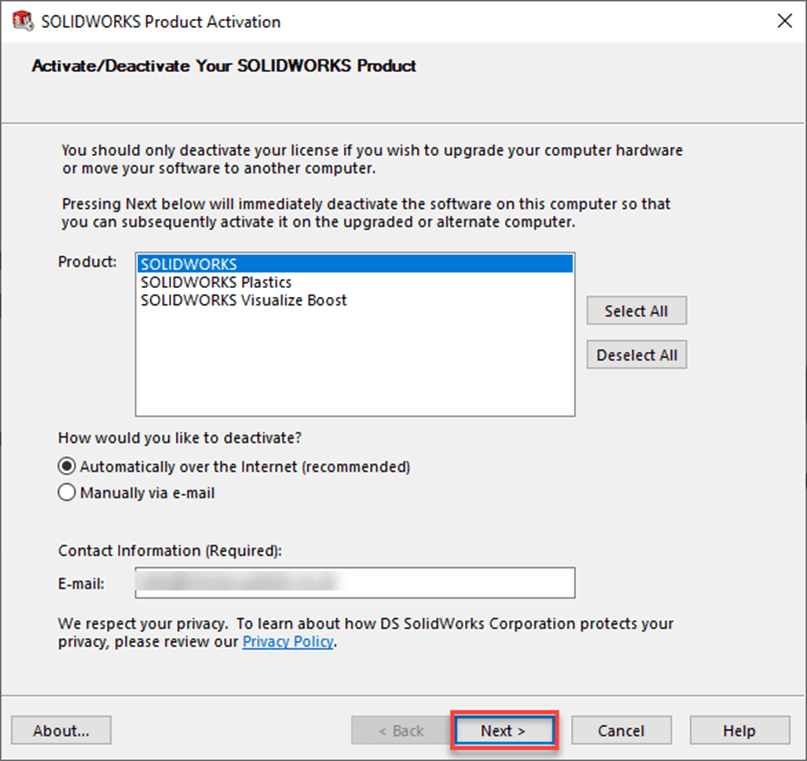
Follow the screen prompts to deactivate your license.
Step 2 – Navigate to installed programs
Go to Apps and Features in windows 10, or Installed apps in Windows 11. Then select SOLIDWORKS-> Modify
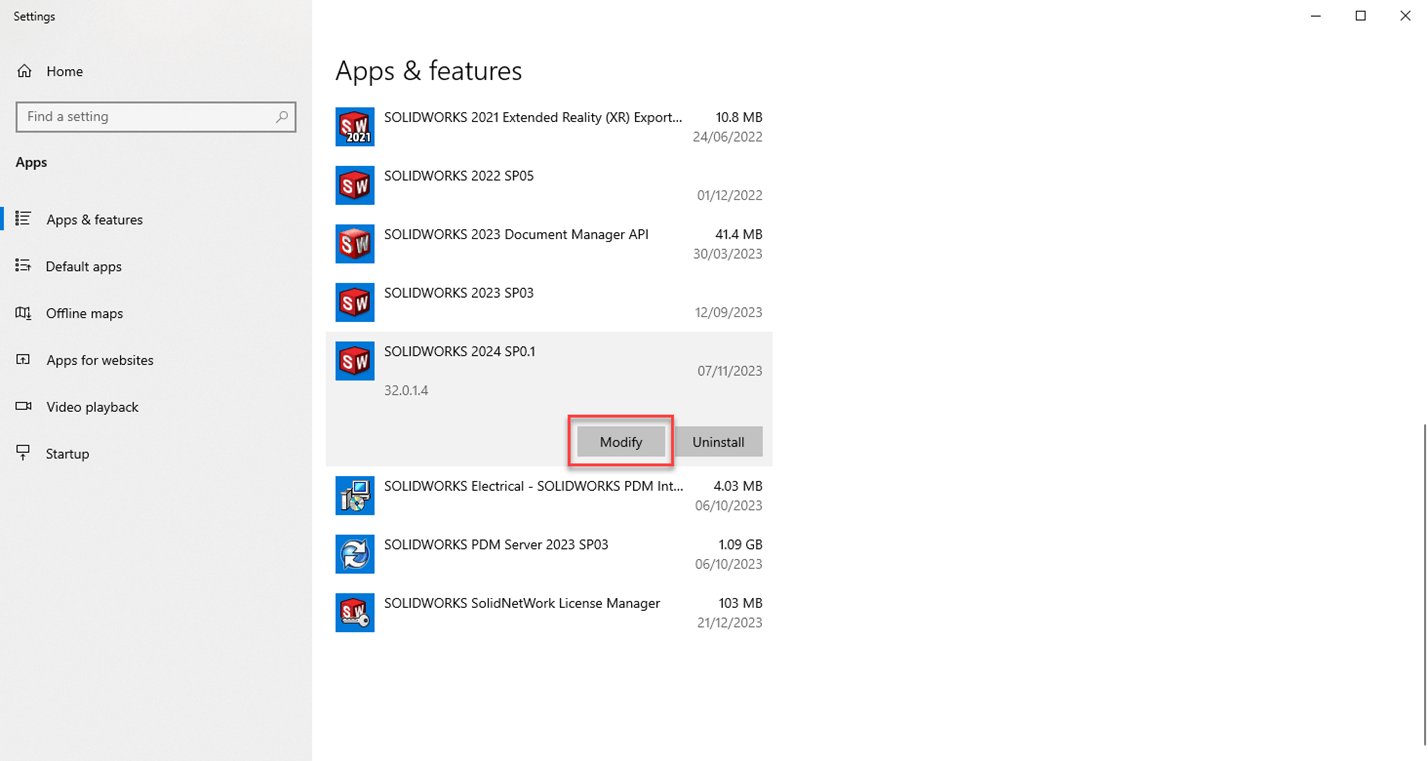
This will launch the SOLIDWORKS Installation Manager
Step 3 – Modify your installation
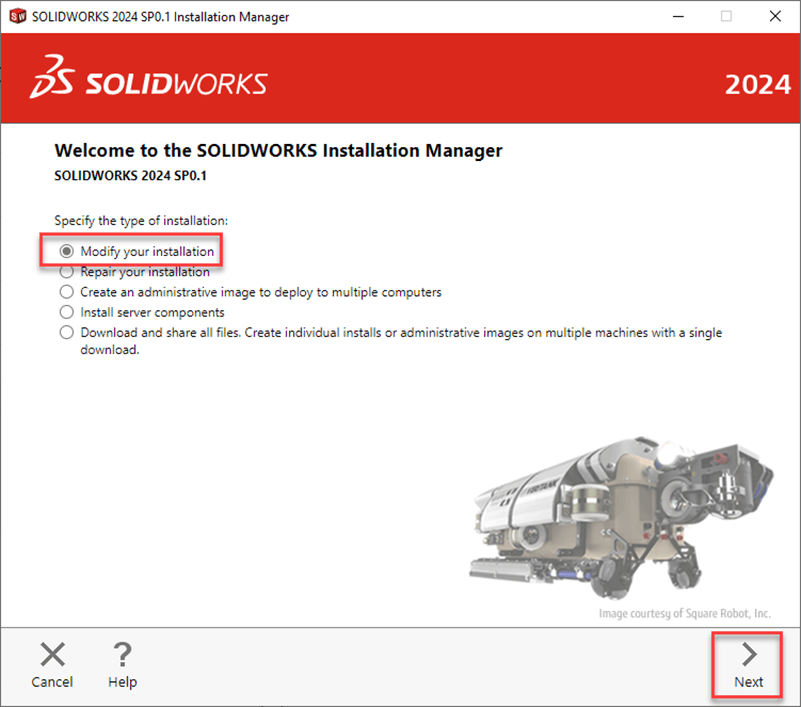
Select Modify your installation. Then click Next
Step 4 – Change your Serial Number.
Modify your SOLIDWORKS serial number to the one you wish to use. Then click Next

Step 5 – Product Selection
On the product selection page you are given the option to check on additional SOLIDWORKS products to install. You must check on these products if you wish to use them and they were not included in your original install. e.g. If you originally installed SOLIDWORKS Standard, none of the Premium products would have been installed with it such as SOLIDWORKS Routing, Toolbox, Scan to 3D – So you will need to check them on here if you wish to use them.
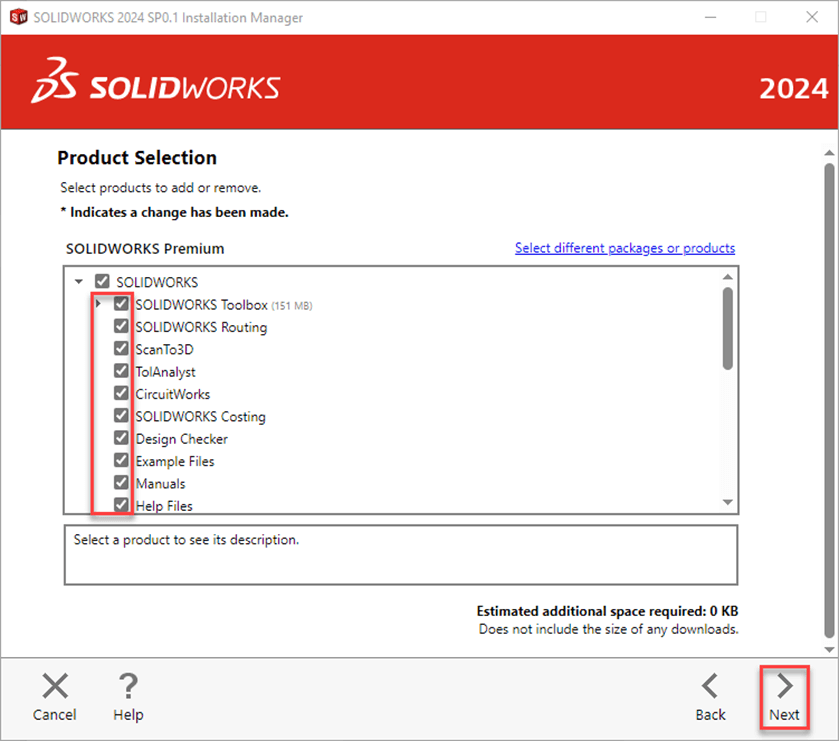
Click Next.
Step 6 – Summary and install
Click Modify Now
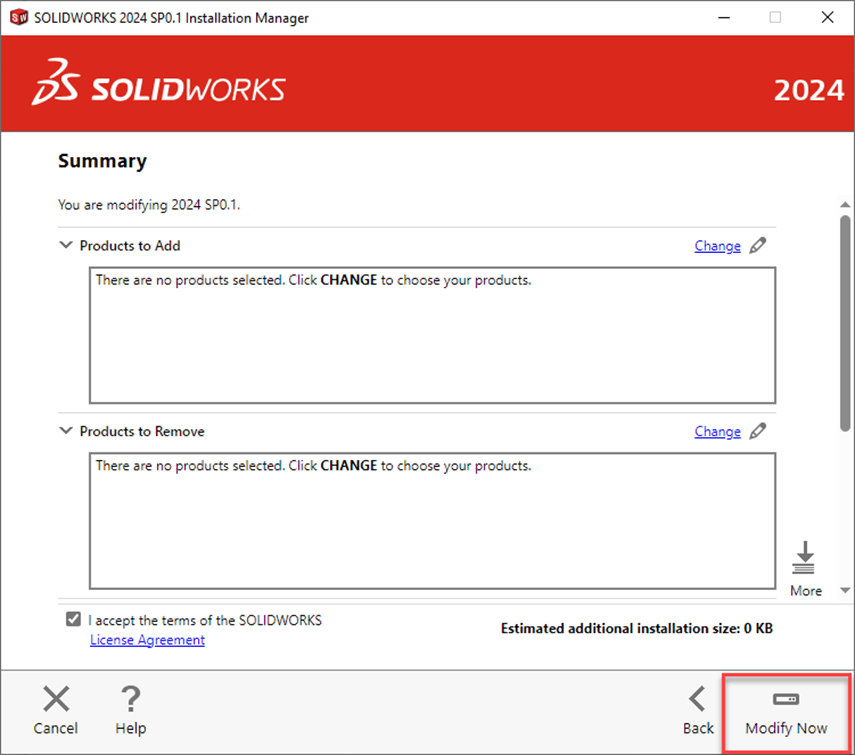
Step 7 – Installation Complete
Once the installation has completed click Finish
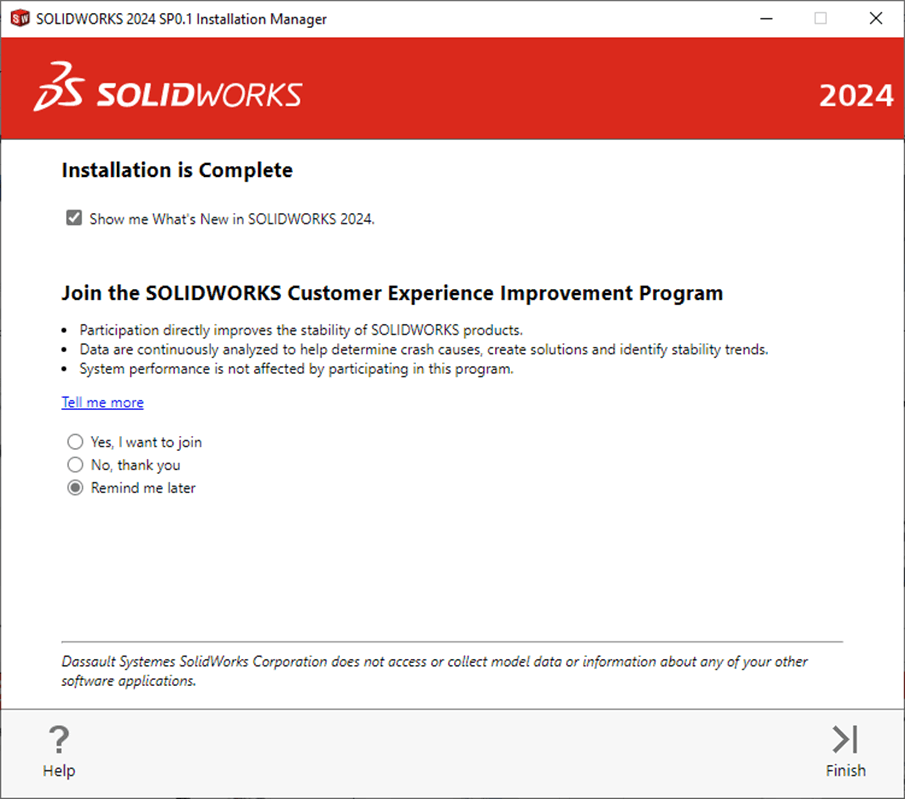
Launch SOLIDWORKS and you will be prompted to activate the serial number against your machine. Follow the prompts and that’s the process complete!
Watch: How to change your SOLIDWORKS Serial number
We hope you found that useful – For more SOLIDWORKS tutorials, visit our news and resources page here.
Need help? Visiativ customers can get assistance from our technical support team. Open a SOLIDWORKS Support ticket here.