
How to: Change Your SOLIDWORKS PDM Password
07 August 2025
Do you need to change your SOLIDWORKS PDM User Password?
Changing your SOLIDWORKS PDM password is a simple process. Just follow these steps:
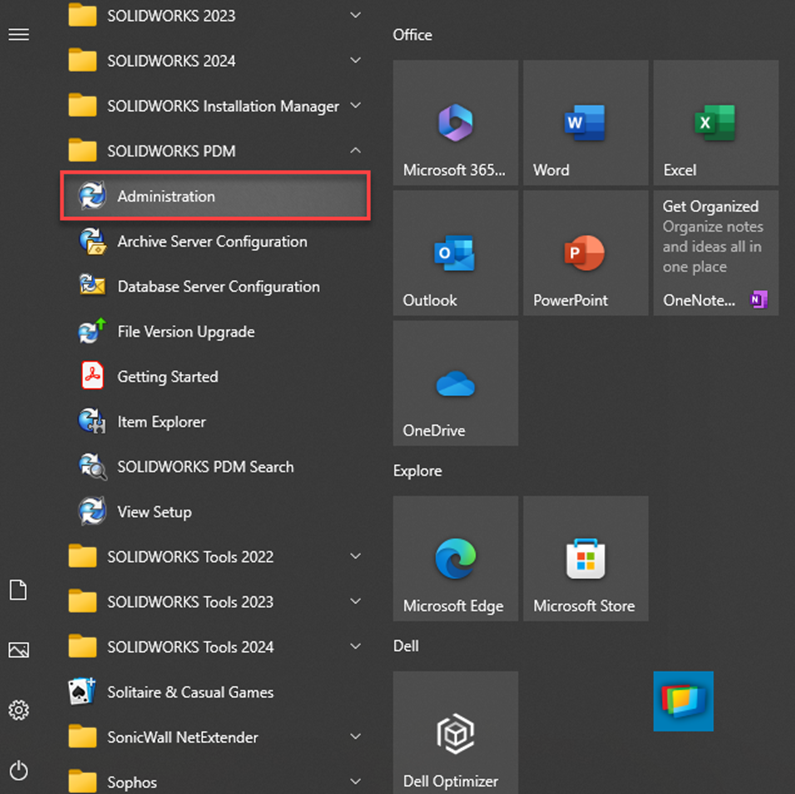
1. Go to your start menu in Windows and launch the PDM Administration tool
 |
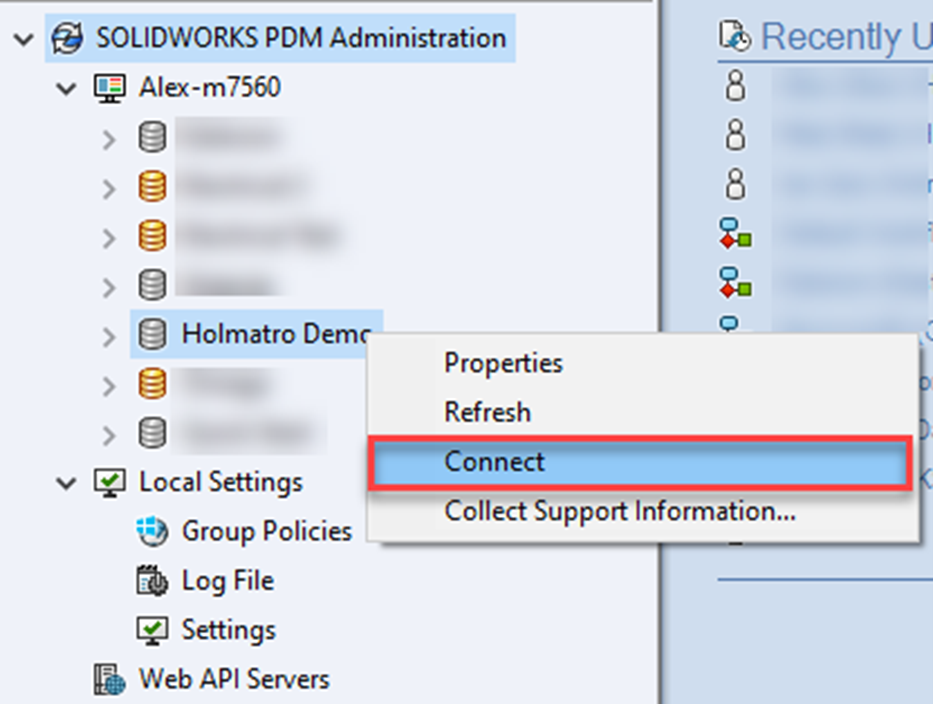
2. Connect to your vault by right-clicking and selecting ‘Connect’, then logging in
 |
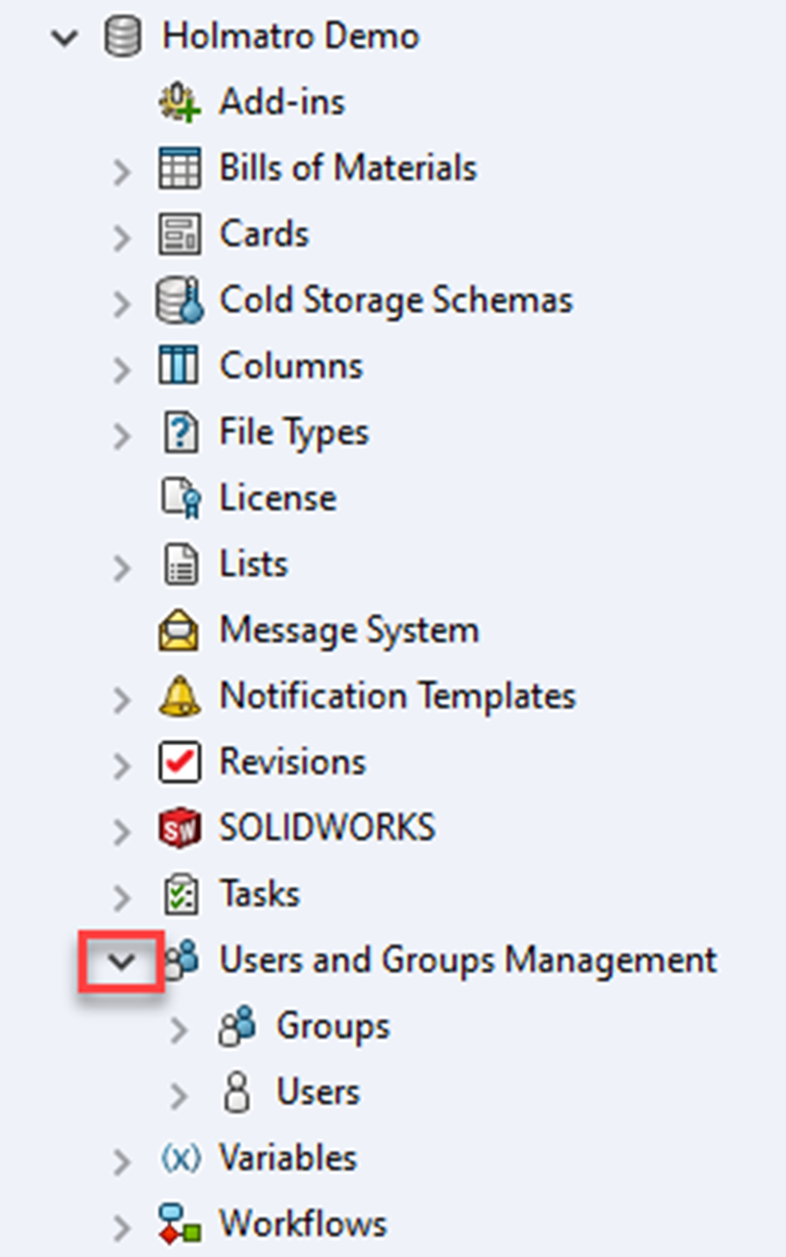
3. Expand the ‘Users & Groups Management’ node
 |
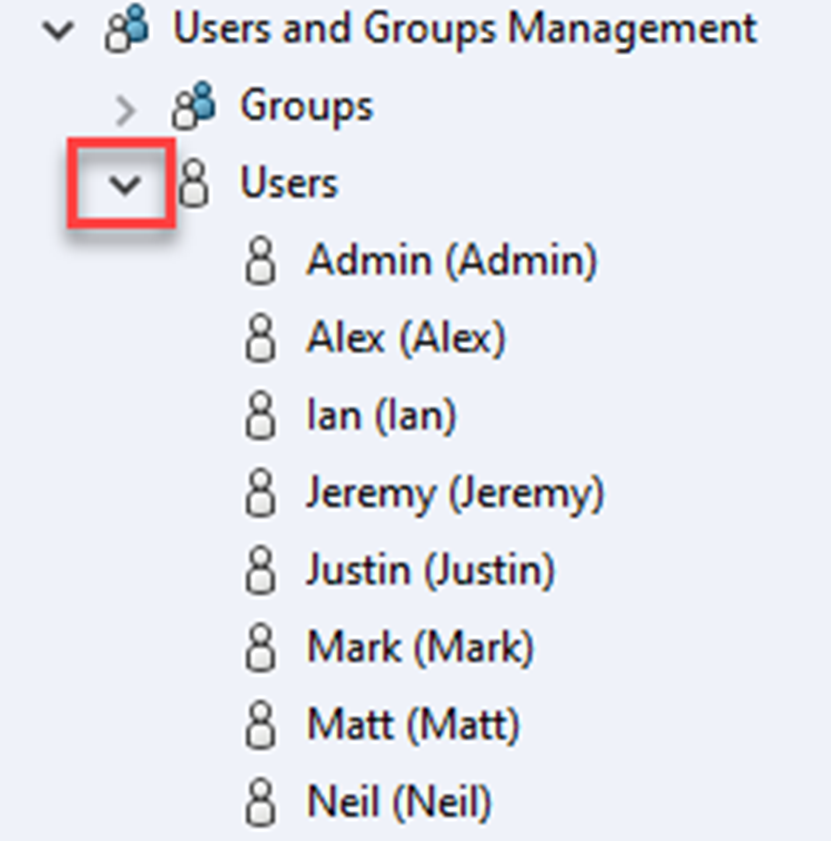
4. Expand the ‘Users’ node
 |
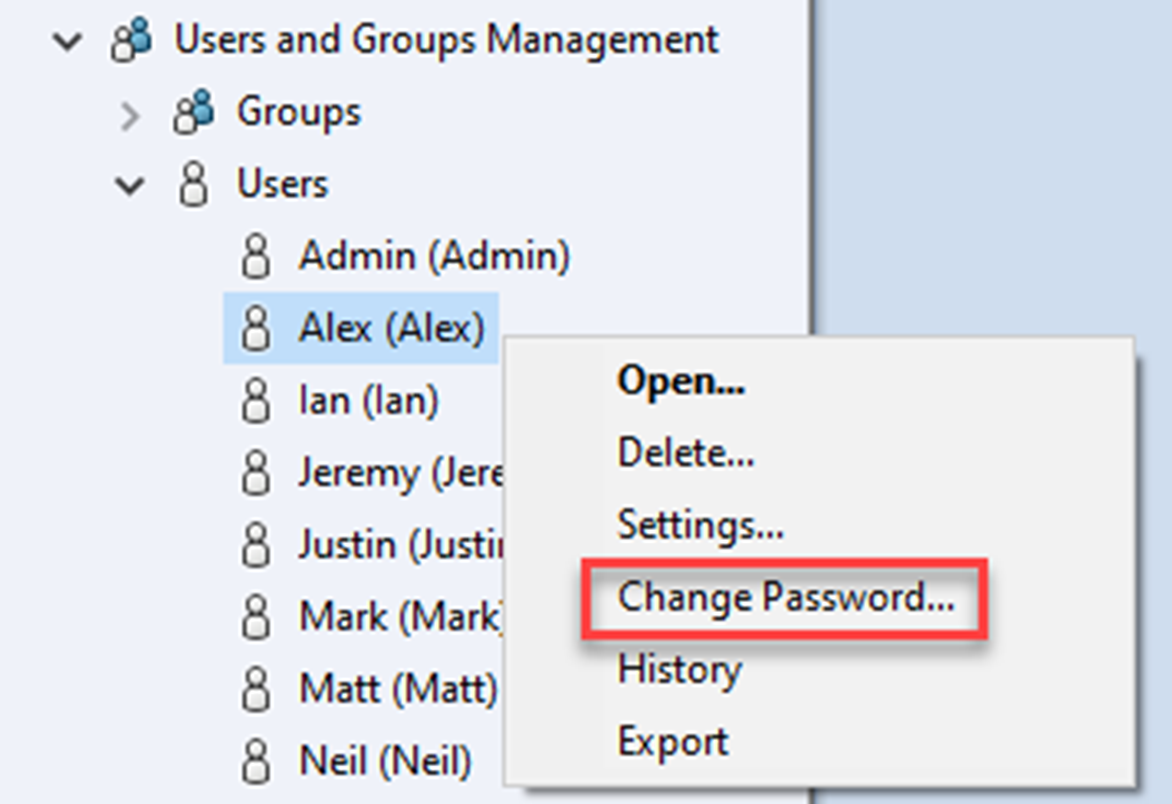
5. Right click on the user you wish to change the password for:
6. Select ‘Change Password’
 |
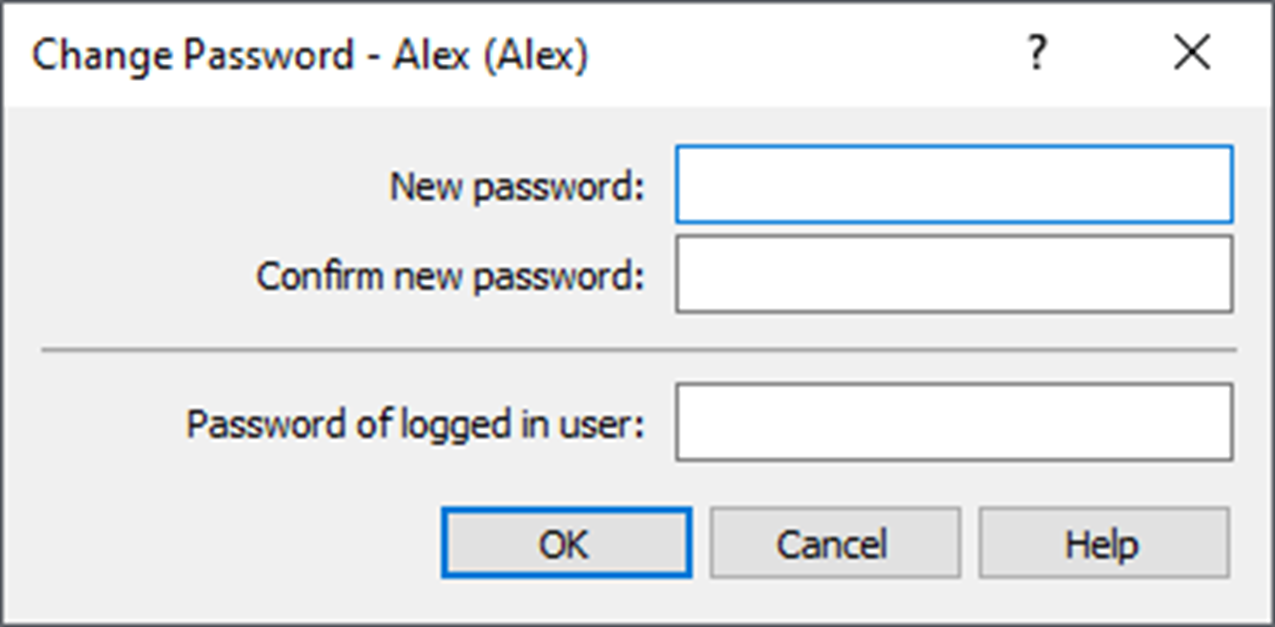
7. Complete the Change Password dialogue boxes
 |
Please note, you will be able to change the password for all users if the permission ‘Can Administrate Users’ has been applied as per the following image.
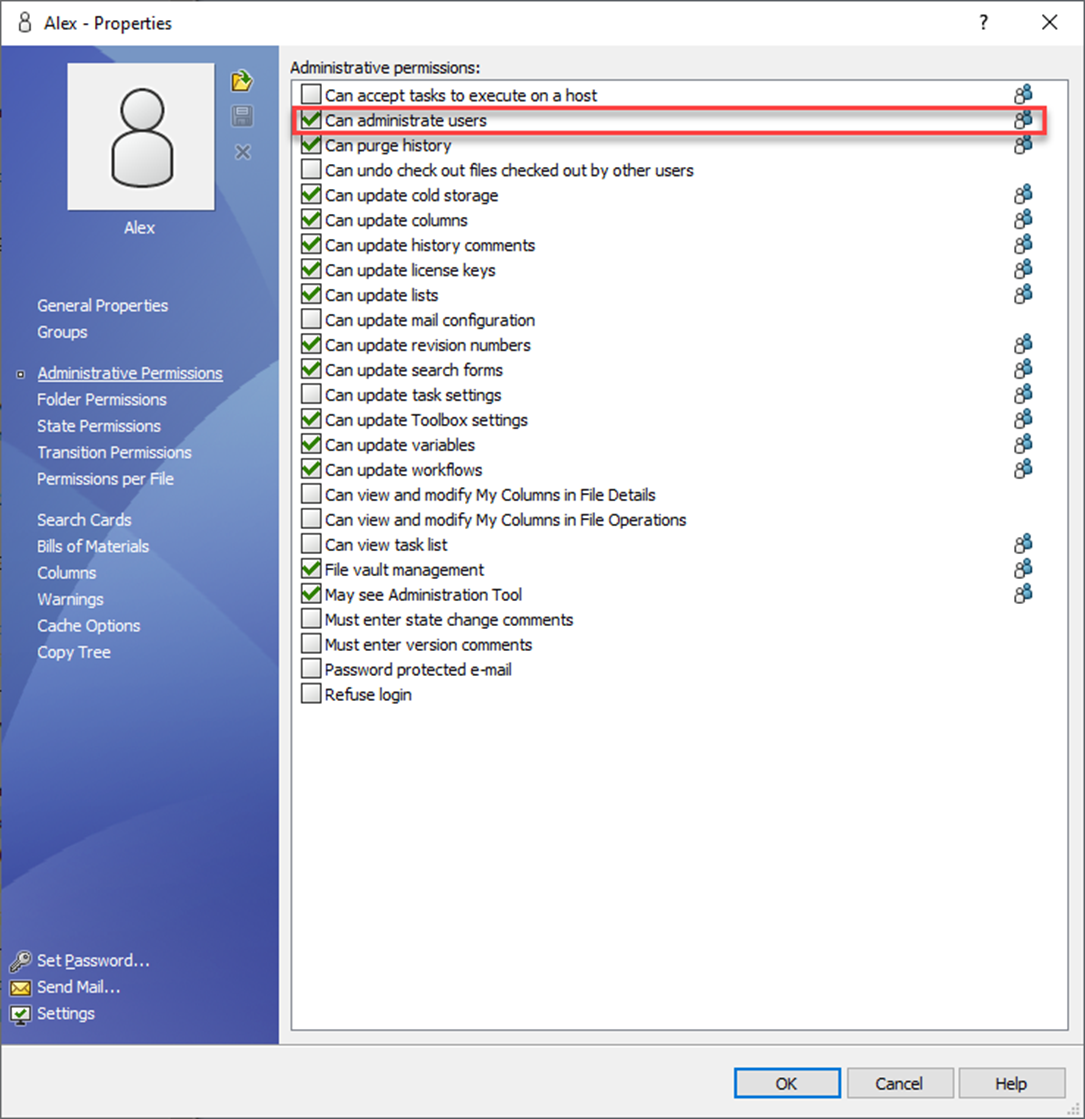
If not, you will only be able to change your own user password.
Additionally, this setting can be applied either at the group level or the user level. However, please note that if you have configured PDM to use Windows credentials for login (PDM Professional only), then you must change the user password using your Windows tools.
Now you know how to change your SOLIDWORKS PDM user password – We hope you found that useful!
FYI, PDM System Admins: We’ve written a guide on how to change your password, too. Take a look here: How to change the PDM System Administrator Password
For more PDM functionality, take a look myPDMtools which plugs straight into your SOLIDWORKS PDM Professional setup, providing you with more control of your design data than ever before…

|
About the author: This tutorial was written by Elite SOLIDWORKS Applications Engineer and Technical Support Manager, Alex Aprigliano. Alex has been with the Visiativ Technical Support Team since 2007. |
|||
|
|
View Alex Aprigliano’s LinkedIn Profile here.
|
|||