How to: Change SOLIDWORKS PDM Cache Options
15 April 2025
There are 2 PDM cache options available in SOLIDWORKS PDM:
- Clear cache during logout
- Refresh cache during login
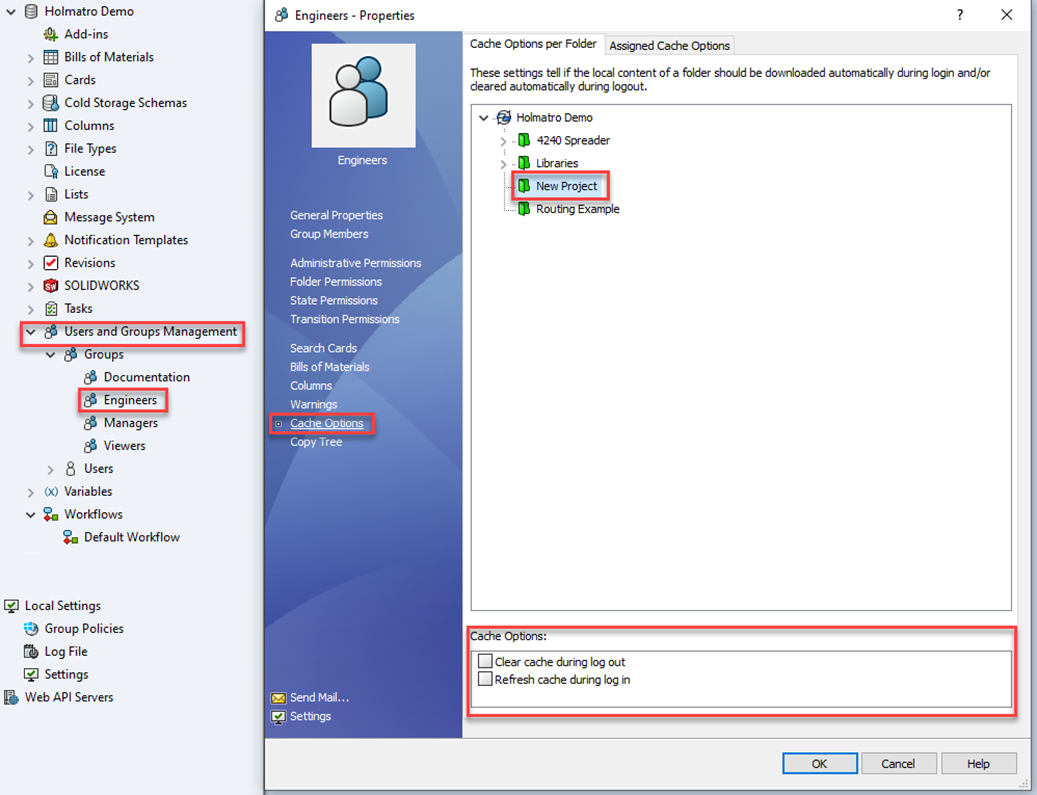
These settings are assigned to folders, and can be applied to a group or user within the vault. You can find the option to enable these settings within the Administration tool.
To do this, access the group or user’s properties by double clicking the node in the tree and selecting cache options within the dialogue box. Within the Cache options the 2 tick boxes appear at the bottom of the dialogue.
What’s the purpose of these settings?
Clear PDM Cache during Logout
Clear cache during logout, will automatically clear any files in the local cache (within the folders the setting has been applied to) when the user logs out. It will not clear files already checked out to that user or files that are not writeable to the user (For example, if a file has been checked on the same machine by another user).
This can be useful to free up space on the user’s hard drive – an admin may wish to apply this setting on a folder once a project has been completed.
Refresh PDM cache during login
This will automatically apply a Get Latest command to the files within the folders (where the setting has been applied) and cache those files locally on the user’s machine.
This setting is useful where you need copies of files that SOLIDWORKS references but are not parts, assemblies, or drawings – this could be templates, weldment profiles, material databases, decals, Excel documents, text files, etc.
You should use this setting sparingly & only on the folders that require it, as every time you login, you are pulling data from the server hosting the vault – So log in could take a long time if there is lots of data to download.
Before you go, have you seen myPDMtools for SOLIDWORKS PDM? Available exclusively for Visiativ customers, myPDMtools plugs straight into your SOLIDWORKS PDM Professional setup, providing you with more control of your design data than ever before!

|
About the author: This tutorial was written by Elite SOLIDWORKS Applications Engineer and Training Manager, Alex Aprigliano. Adam has been with the Visiativ Technical Support Team since 2007. |
|||
|
|
View Alex Aprigliano’s LinkedIn Profile here.
|
|||