How to: Change the SA Password in SOLIDWORKS PDM
04 July 2025
The System Administrator (SA) is the default user that connects to and operates the database, this database underpins the functionality of SOLIDWORKS PDM. Changing the SA password in SOLIDWORKS PDM is a crucial task, especially if it’s been forgotten or compromised.
This guide will walk you through the steps for how to change the SA password and update the necessary configurations in SOLIDWORKS PDM.
Step 1. Log in to the SQL Server:
Log in to the server hosting your SQL Database service as a Local Windows Administrator.
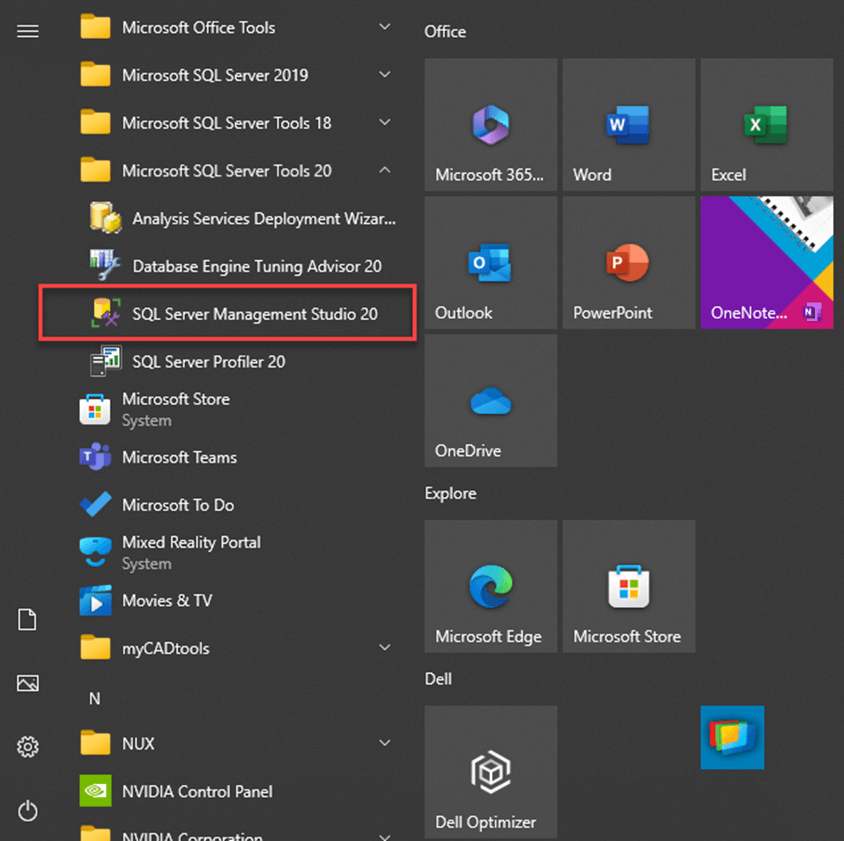
Open SQL Server Management Studio.
Launch SQL Server Management Studio (SSMS) from the start menu.
 |
Connect to the server using Windows Authentication.
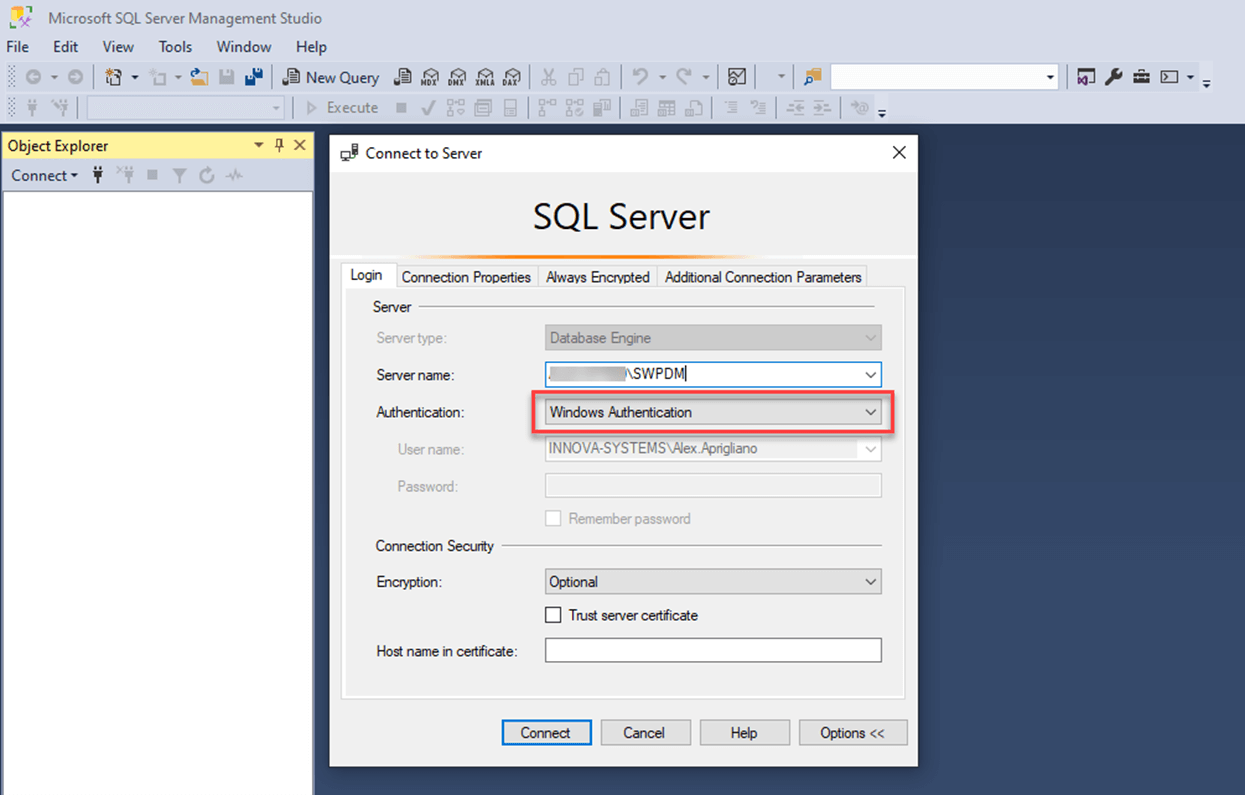
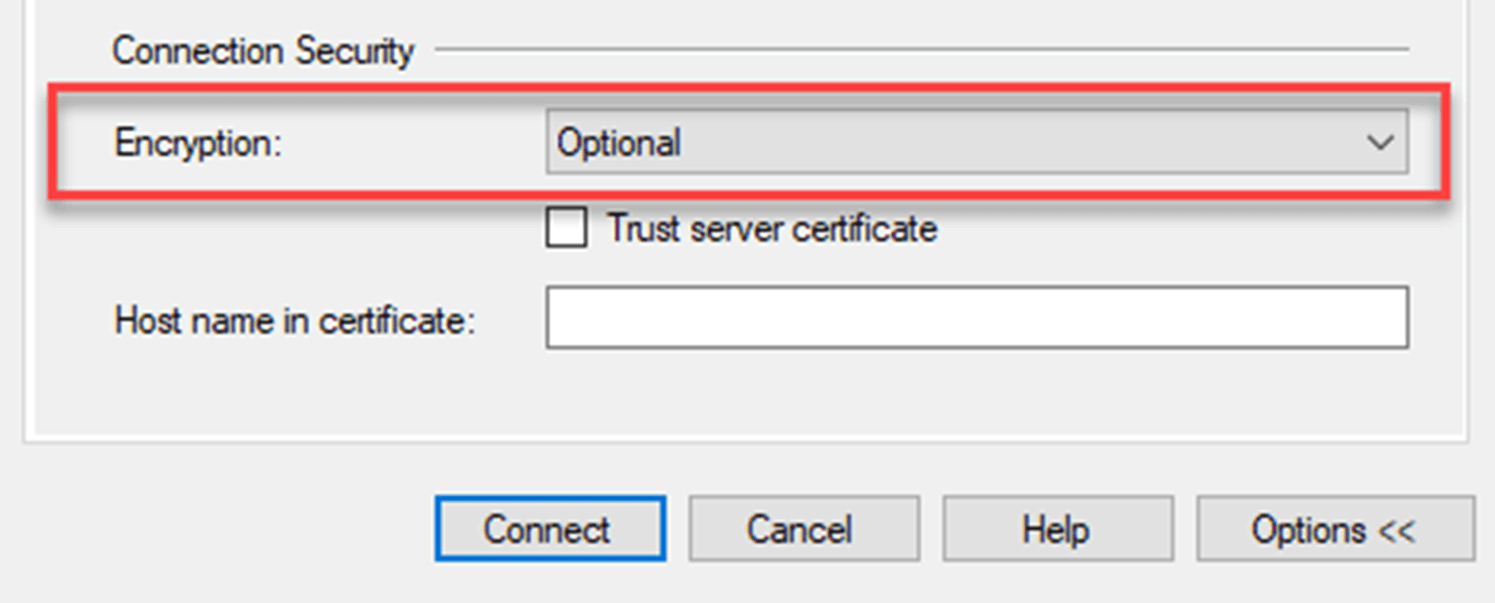
Please note: With versions of SSMS 20 and above, set encryption to ‘Optional’.
 |
Step 2. Change the SA Password:
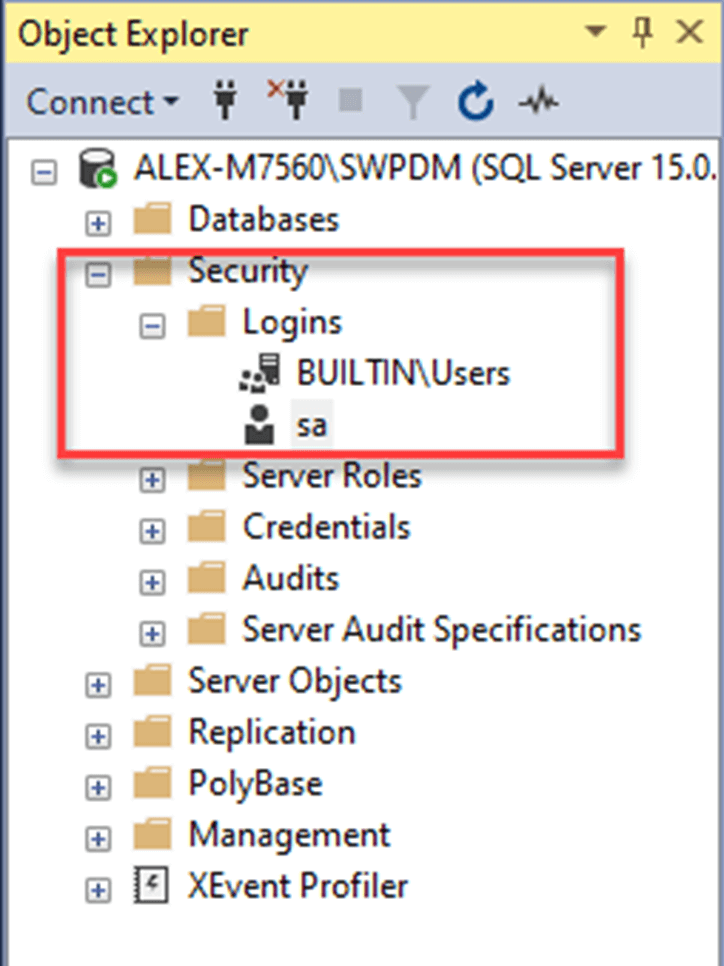
In SSMS, expand the folder Security > Logins.
 |
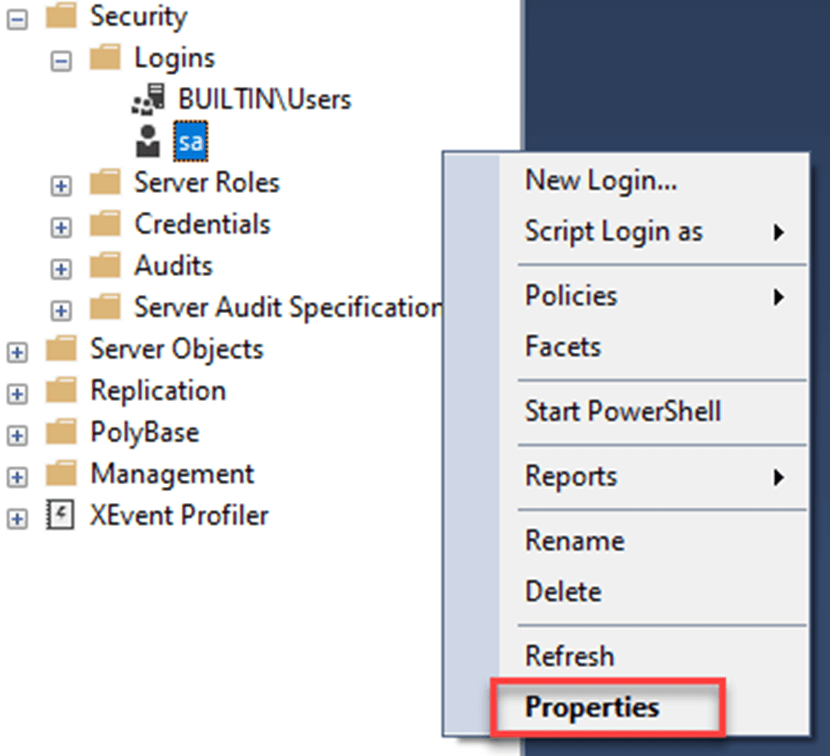
Right-click the ‘sa’ username and select ‘Properties’.
 |
In the Login Properties dialog, select the ‘General’ page.
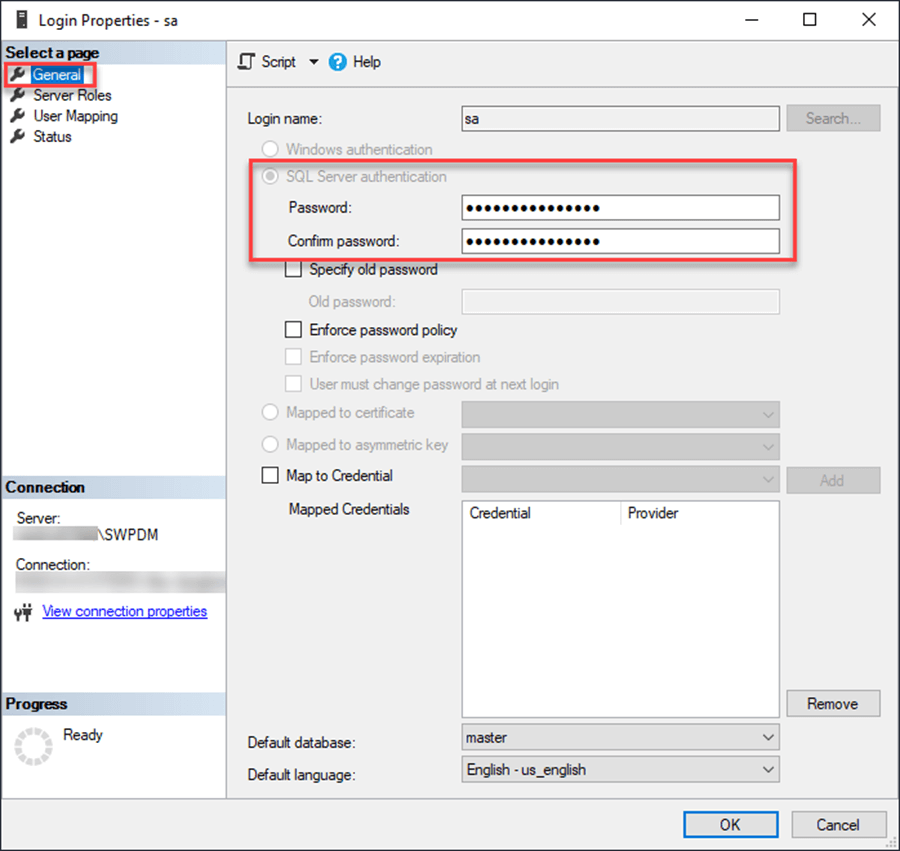
Delete the old password and enter a new one in the ‘Password’ and ‘Confirm Password’ fields.
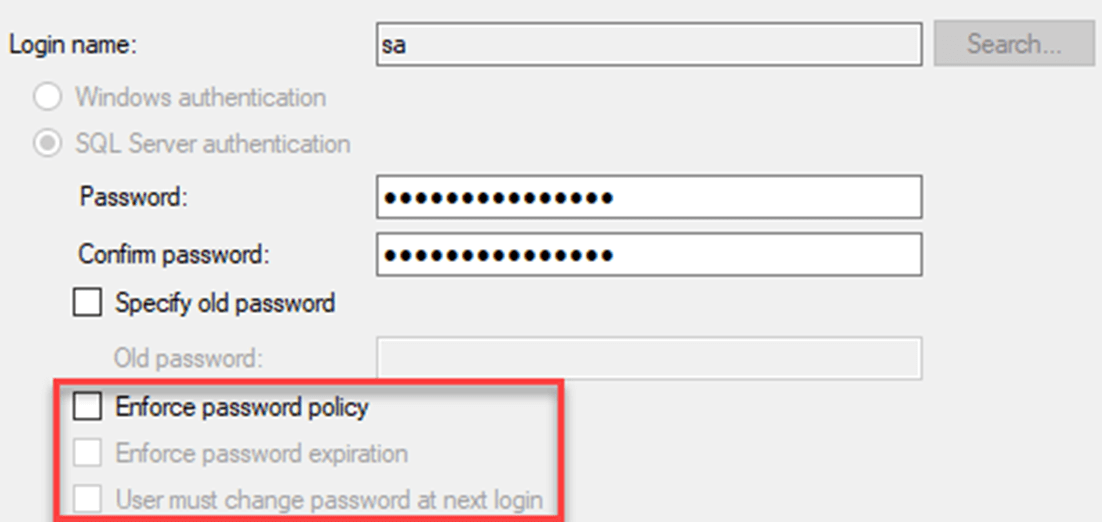
Ensure the check boxes for the following are disabled:
- Enforce password expiration
- User must change password at next login
 |
Click ‘OK’ to save the changes.
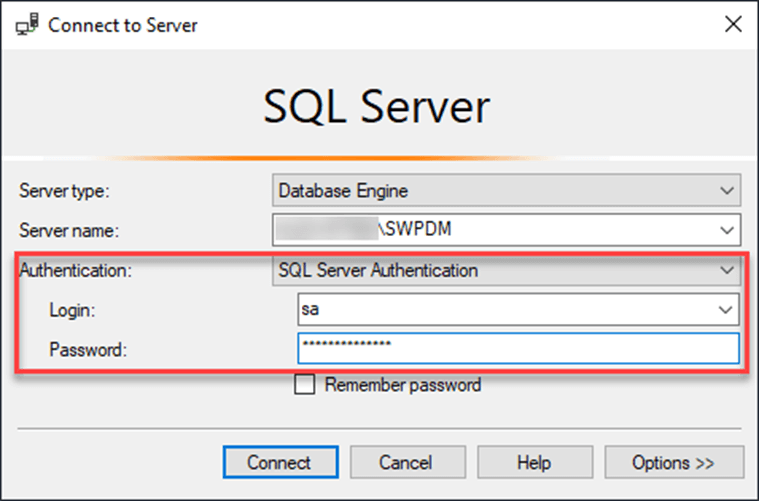
Tip: In order to validate the change of password has worked, try logging in to SQL management studio as the SA user using SQL server authentication.
 |
Step 3. Update PDM Configuration:
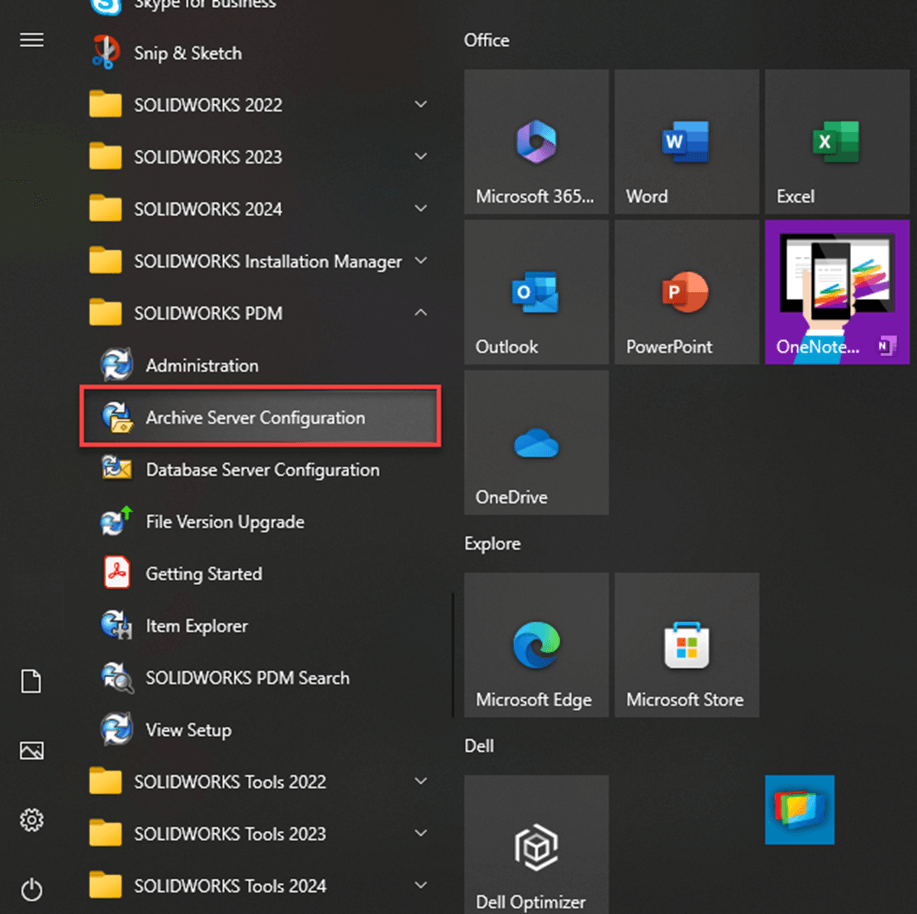
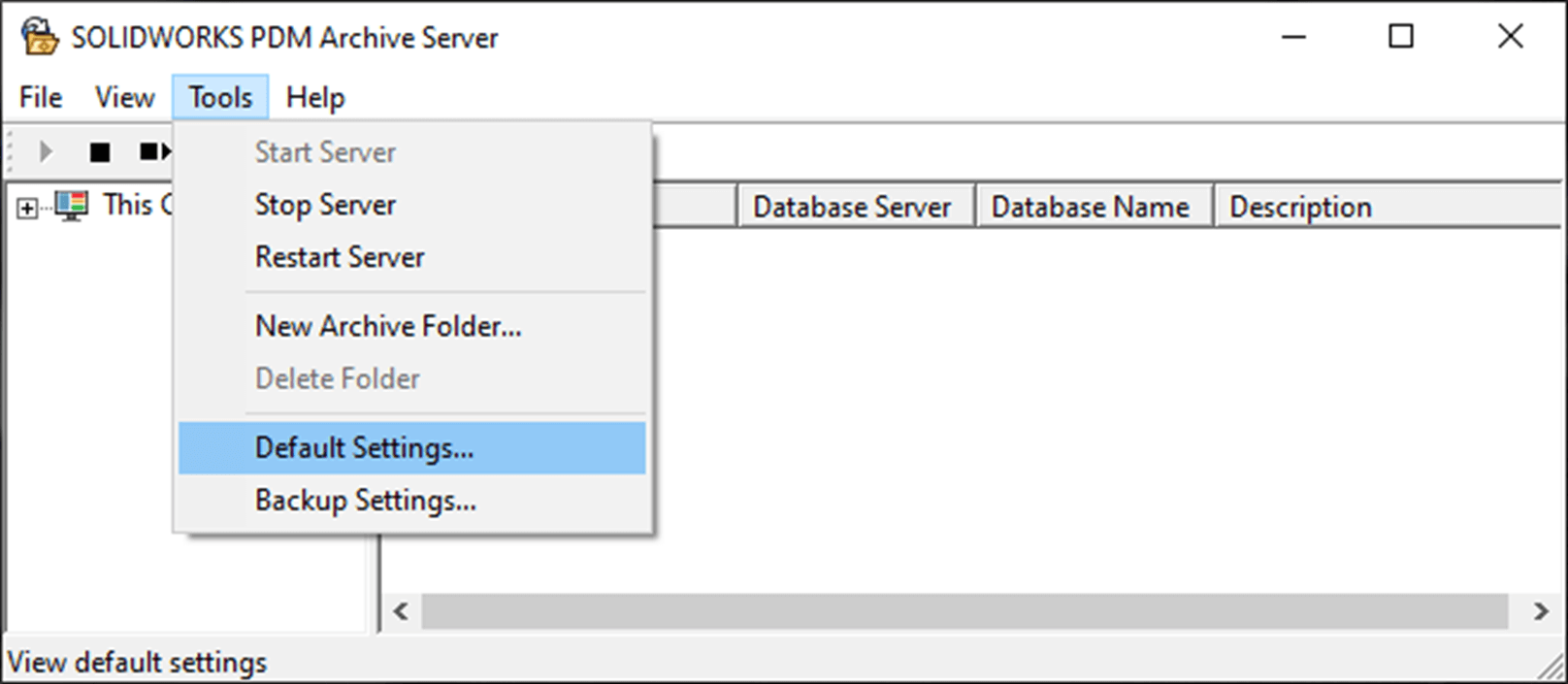
Open the PDM Archive Server Configuration tool.
 |
Navigate to Tools > Default Settings.
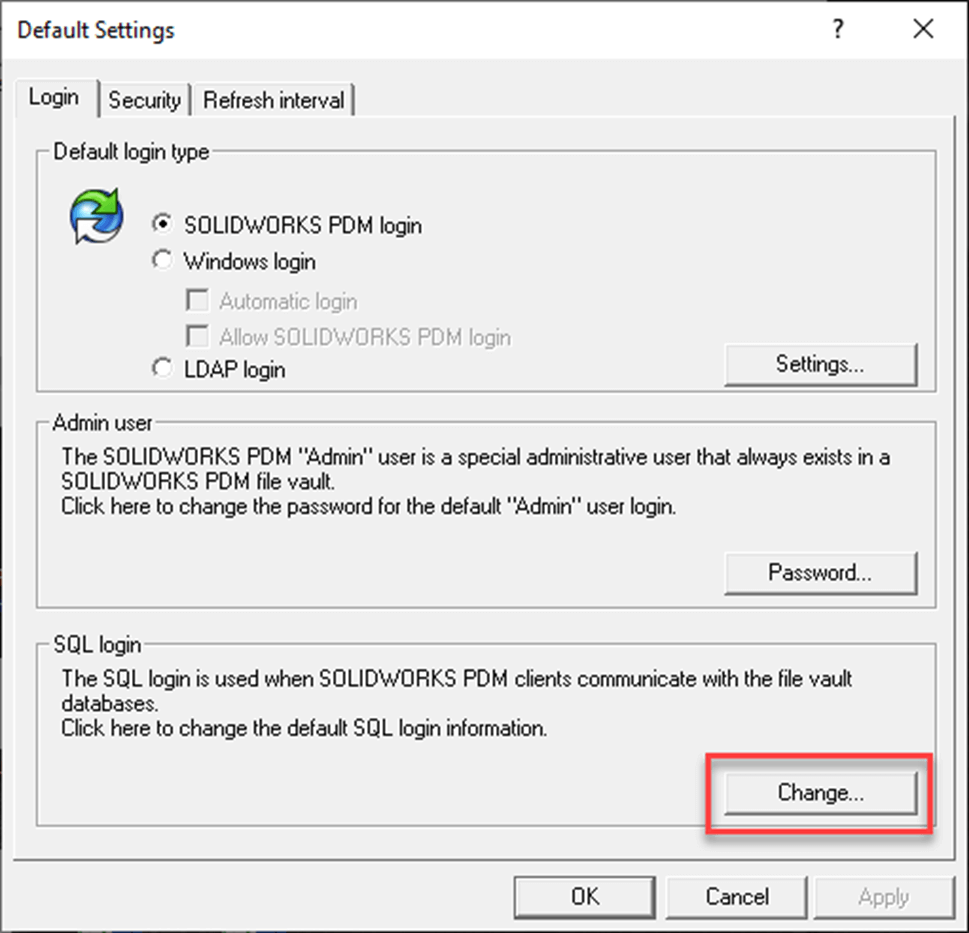
In the SQL login section, click the ‘Change’ button.
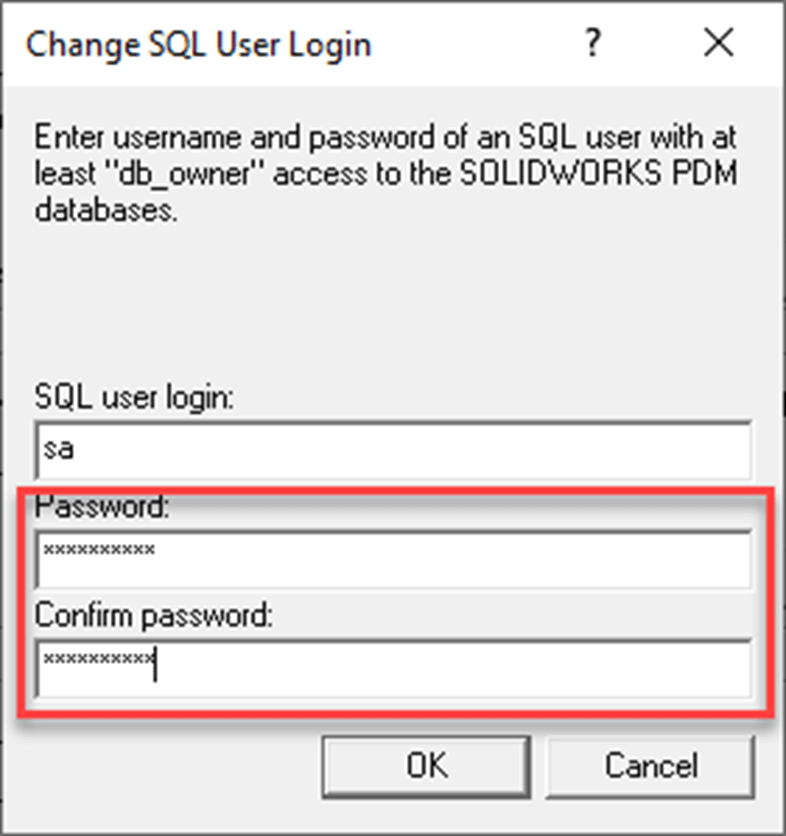
Now enter a secure SA password of your choice.
 |
Step 4. PDM Database Server:
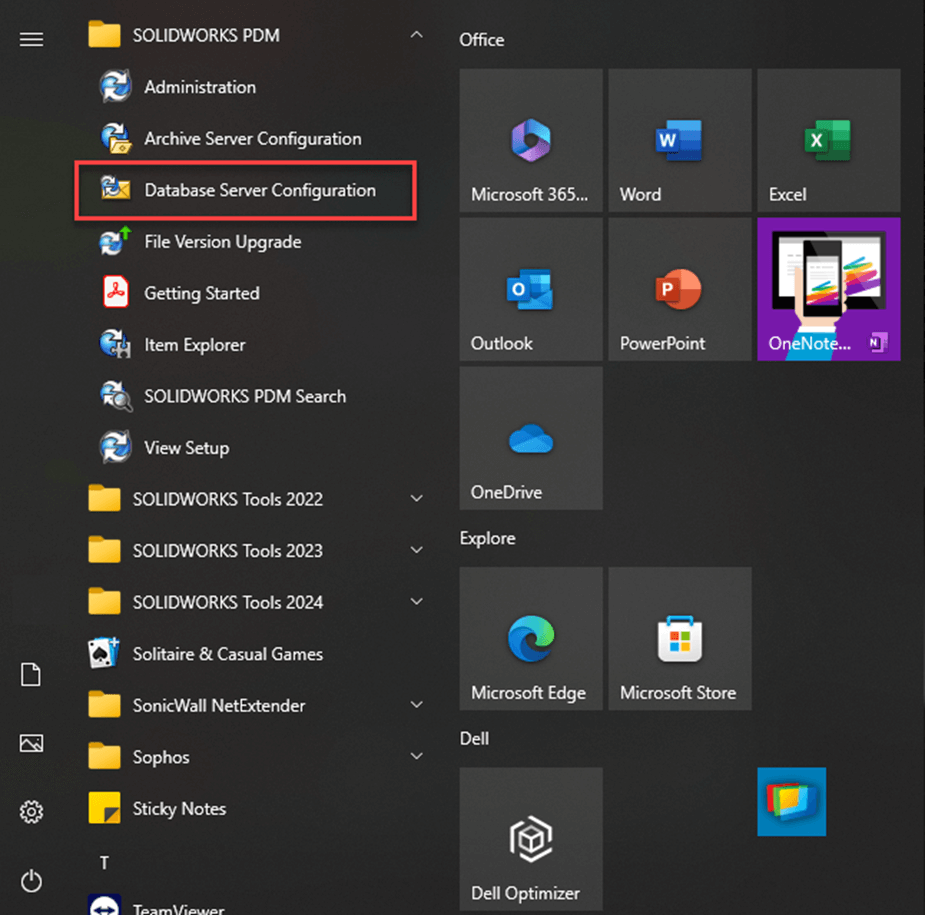
Open the PDM Database Server Configuration tool.
 |
Enter the new SA password in the appropriate fields.
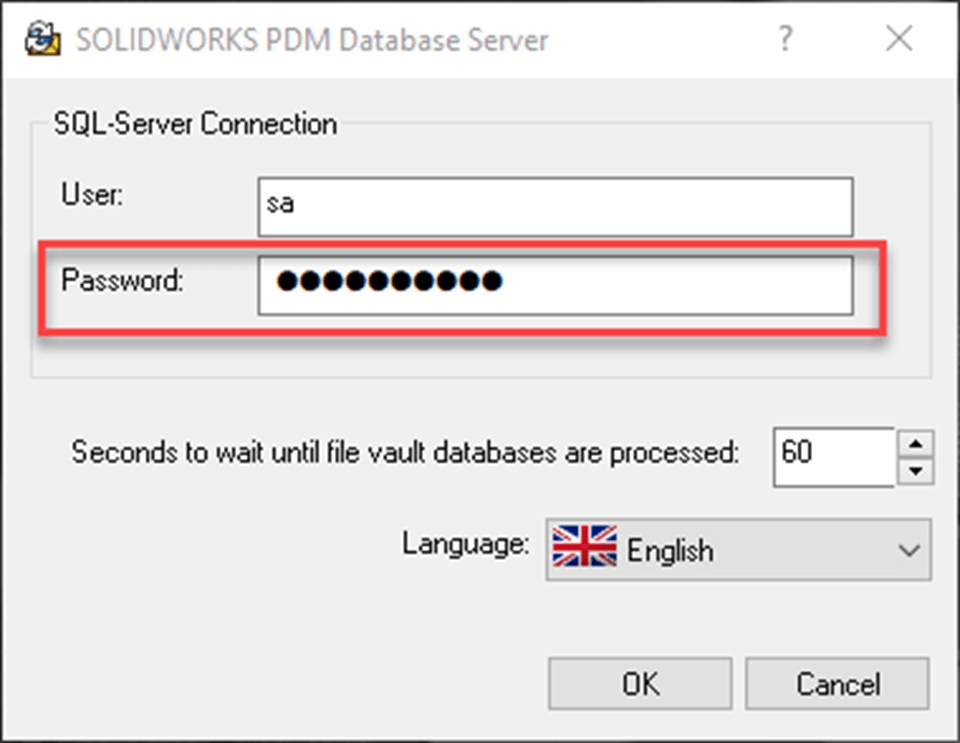 |
Lastly, click OK and you’re done!
We hope you found this guide useful.
For more PDM functionality, take a look at myPDMtools by Visiativ, which plugs straight into your SOLIDWORKS PDM Professional setup, providing you with more control of your design data than ever before.

|
About the author: This tutorial was written by Elite SOLIDWORKS Applications Engineer and Technical Support Manager, Alex Aprigliano. Alex has been with the Visiativ Technical Support Team since 2007. |
|||
|
|
View Alex Aprigliano’s LinkedIn Profile here.
|
|||