Deep Dive: Derived Outputs in 3DEXPERIENCE
18 November 2025
This deep dive focuses on using derived outputs with 3DEXPERIENCE. The 3DEXPERIENCE platform instantly connects people, ideas, data and solutions – collaboration is certainly at it’s core. There’s internal collaboration between departments or CAD systems. And there’s external collaboration between suppliers, manufacturers and customers. Both are common and often an essential part of an organisation’s workflows. Engineers collaborate by converting SOLIDWORKS CAD data into neutral file formats, making the data universally accessible – regardless of the software others are using. When using SOLIDWORKS & 3DEXPERIENCE, users can make use of derived outputs.
What is a Derived Output?
A derived output in 3DEXPERIENCE is a secondary database object that the system generates from 2D or 3D CAD data, to another format, by means of a converter. 3DEXPERIENCE instantly synchronises or updates derived outputs whenever the source CAD data changes. You can configure this to run automatically or manually, based on your preferences.
In summary, derived outputs are files generated directly from our CAD data. For example, a .step file is a derived output of a SOLIDWORKS part file and a .pdf is a derived output of a SOLIDWORKS Drawing file, etc.
How can 3DEXPERIENCE help me create them?
3DEXPERIENCE has a dedicated derived output functionality that will be explained in this deep dive. We can leverage it to either create these files automatically or to configure how and when we create them.
The process of getting 3DEXPERIENCE set up to do this is as follows:
- Setup: We first need to set up the Derived Output Manager and configure it to do what we want, when we want. We also want to set up the naming convention for the Derived Outputs, so we know exactly what we’re looking at when we download them
- Installation: Secondly, you need to install and run the Derived Format Converter app on the machines responsible for generating the outputs
- Creation: Finally, we either create the Derived Outputs or locate and download them from 3DEXPERIENCE for use elsewhere off-platform
1. Setup
Let’s look at how we configure 3DEXPERIENCE to create the Derived Formats we need.
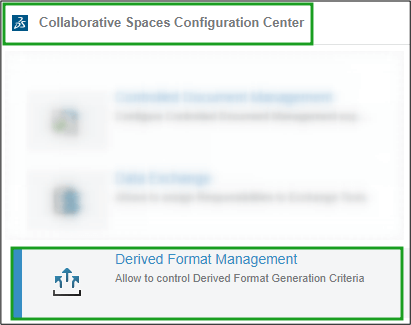
It starts in the “Collaborative Space Configuration Center”. We then navigate to the “Derived Format Management” option.
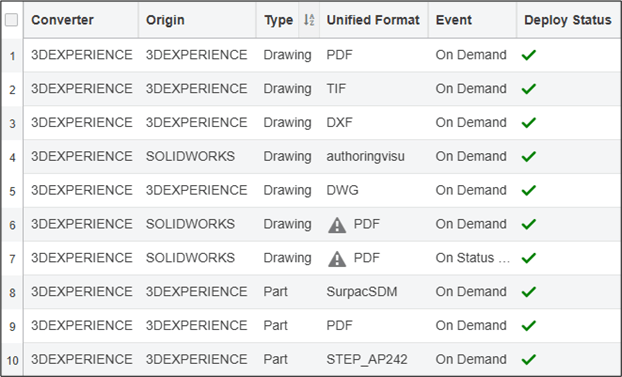
Here, we’ll be greeted with a lot of pre-defined output settings. Let’s leave these alone for now and just add the new ones.
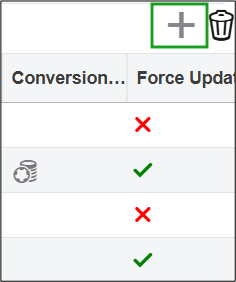
We can do this by clicking on the new icon.
The New Conversion dialogue box can then be used to set up a new rule.
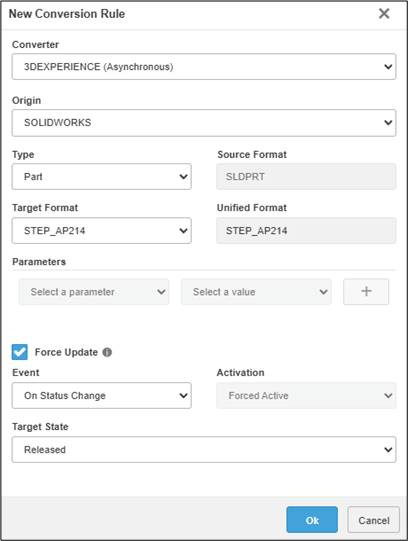
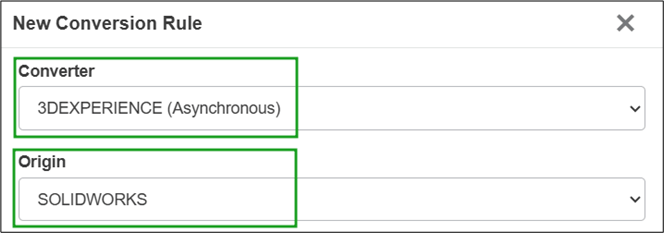
Let’s look at the options in more detail. First we have the “Converter” and “Origin” options. Typically, we always use these settings for creating derived formats of our SOLIDWORKS Data.
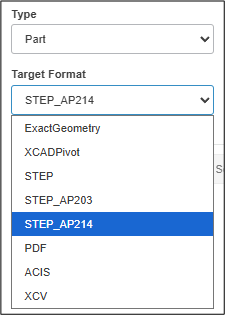
For each type of file, we need to select a format to be created. Parts would typically be made into .step files for example.
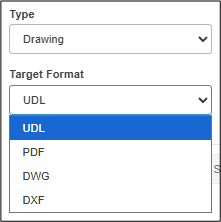
Drawings also have a few output options such as .pdf or .dxf.
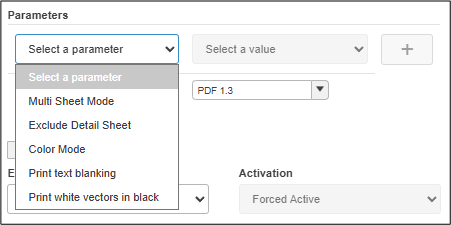
Note: some formats, like .pdf have additional options such as PDF version and Multi Sheet.
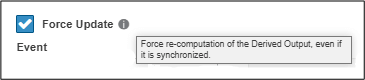
“Force Update” triggers a new derived output whenever the CAD file or metadata in 3DEXPERIENCE changes. This is useful if you have attributes mapped to properties on a drawing border, for example. Use this option if you want the output to update each time you modify the file.
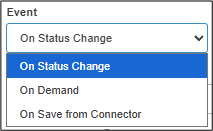
Finally, we can decide when this derived format gets created:
- On Status Change – When a file is released or frozen
- On Demand – User must manually request the Derived Output
- On Save – Every single time the file is saved to the platform
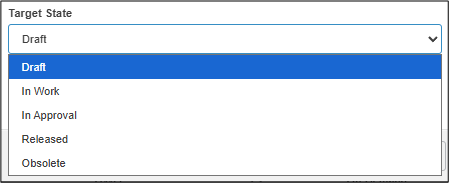
If we decide to choose “On Status Change” we can select the preferred maturity state for the action to complete.
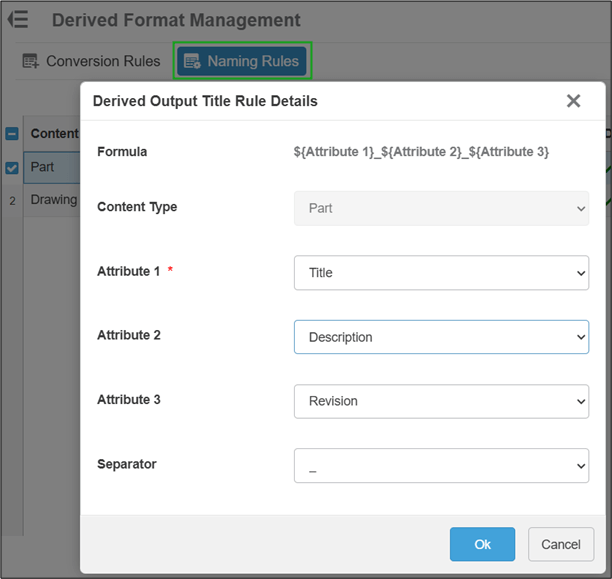
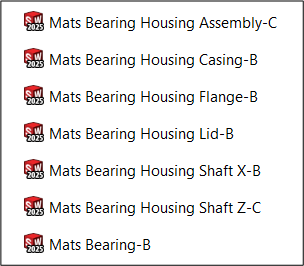
Now that we’ve set up the platform to create our derived formats, we need to decide on a naming convention they will follow. We can do this in the “Naming Rules” section or the DFM App. For example, this configuration creates a name by combining the “Title” and “Revision”, separated by a ‘-’, such as CF12345-B.
2. Installation
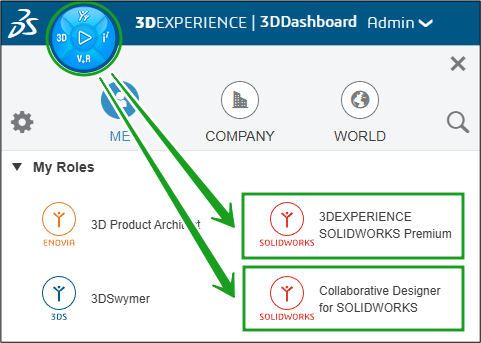
To run the tasks that create the Derived Outputs on a machine, we need to install the Converter. You can find this app in both the 3DEXPERIENCE SOLIDWORKS PREMIUM Role and the Collaborative Designer for SOLIDWORKS Role. Use the small arrow to launch the installation.
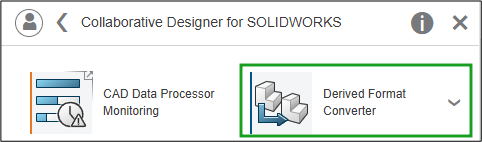
After installation, click the app again to activate and run the DFC service on your machine.
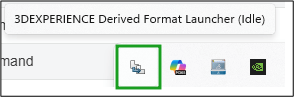
3. Creation
Now that the setup and installation are complete, we can use them to create the derived outputs. Derived Outputs are usually created automatically at release or instantly whenever needed.
You can find the derived outputs in the Derived Outputs tab on the product’s information panel. If created, they appear in the table.
When we have to create them on demand, we can select the create icon:
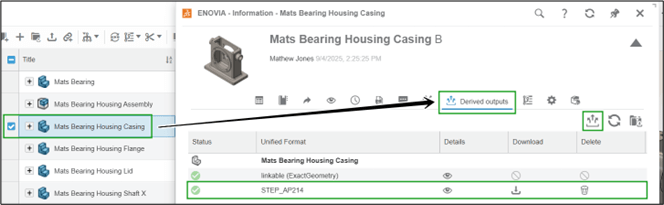
Next, we choose which derived outputs (Derived Outputs) to create. Once selected we simply hit “Generate”.
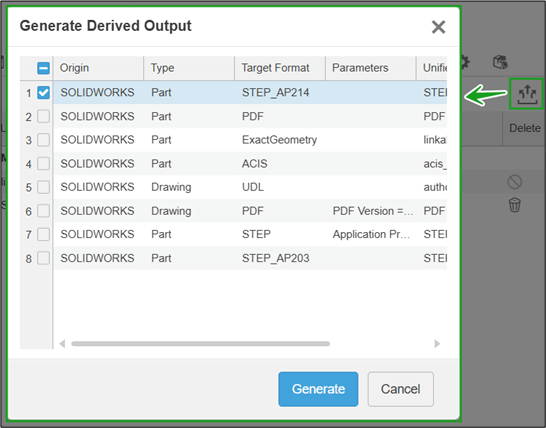
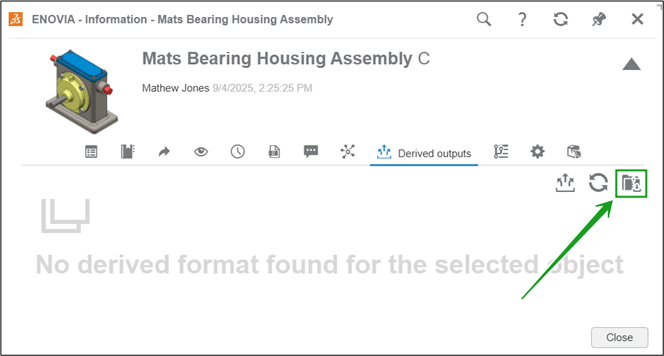
We can also download the Derived Outputs onto our local machine where they become far more useful. To download all files in a project at once, open the assembly’s information panel and click the download all icon.
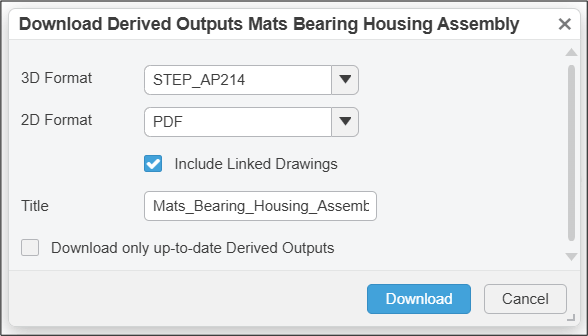
Next, we select the formats we want to create and download from the project. Once selected, we can hit “Download”.
We then get the full list of Derived Outputs on our local machines in a .Zip folder with our naming conventions applied.
And that’s it! Now you can quickly convert and access SOLIDWORKS data saved inside of 3DEXPERIENCE.