How to: Change the Ground Texture in SOLIDWORKS Composer
22 December 2025
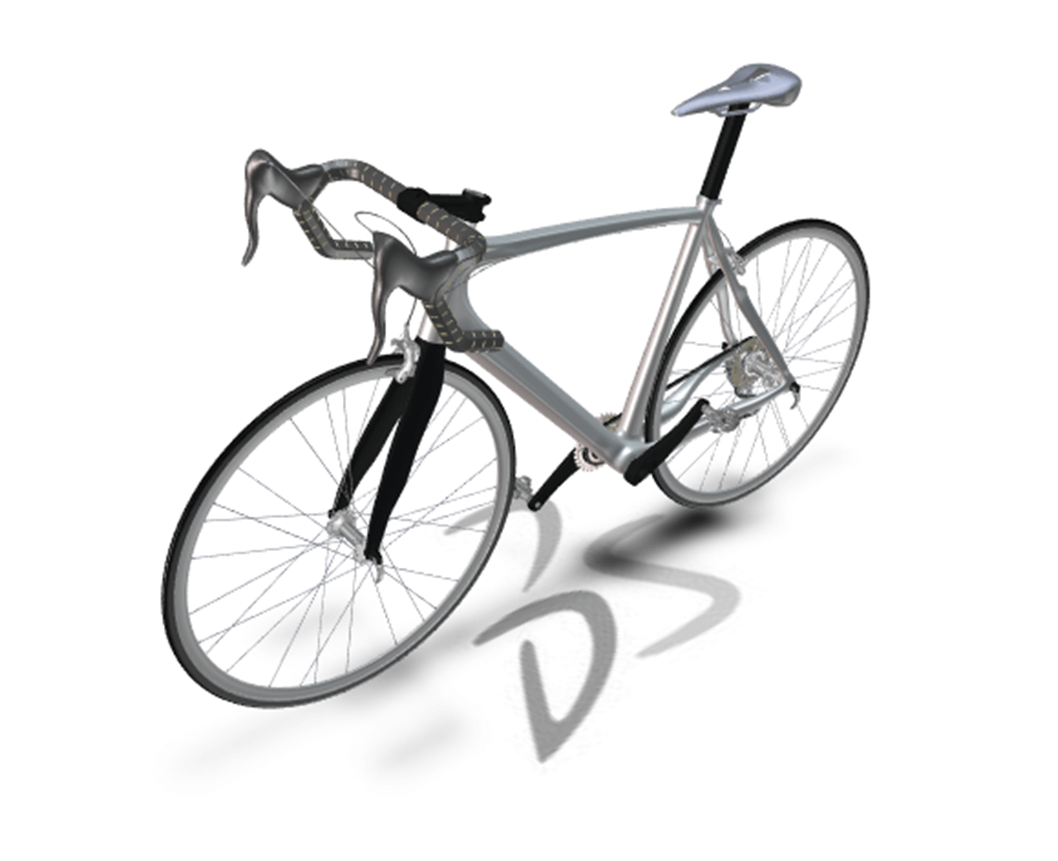
By default, SOLIDWORKS Composer displays a Dassault Systèmes logo on the ground plane, which may not always suit your branding or presentation needs. In this guide, we’ll walk through how to change the ground texture, adjust its appearance and set a default texture for future SOLIDWORKS Composer documents.
Changing the Ground Texture in SOLIDWORKS Composer
You may have noticed the Dassault Systemes logo on the ground when working in SOLIDWORKS Composer. This logo is a ground texture and can be modified if you wish.
Modify the Ground Texture
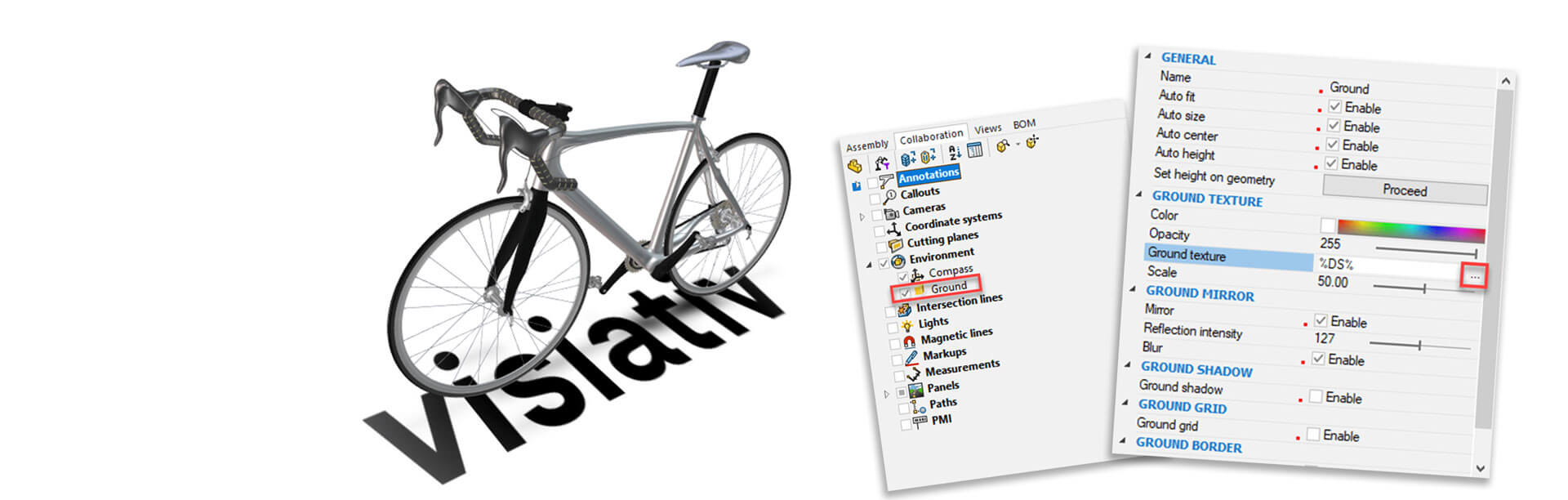
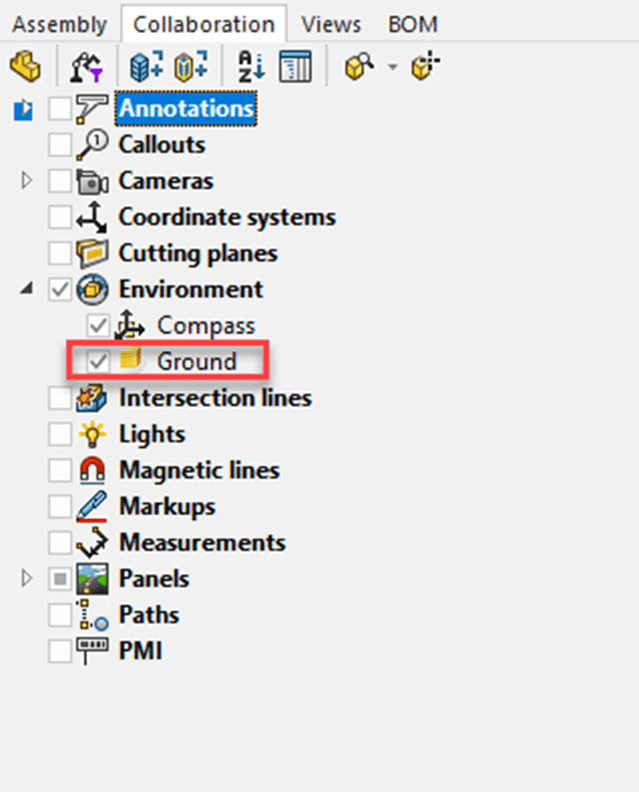
To change it you’ll need to first select “Ground” from the “Collaboration” tree.
 |
Once selected its properties will appear. There are many useful properties available to change here. Including the size and position of the ground.
Also, within the properties there is an option to set ground texture.
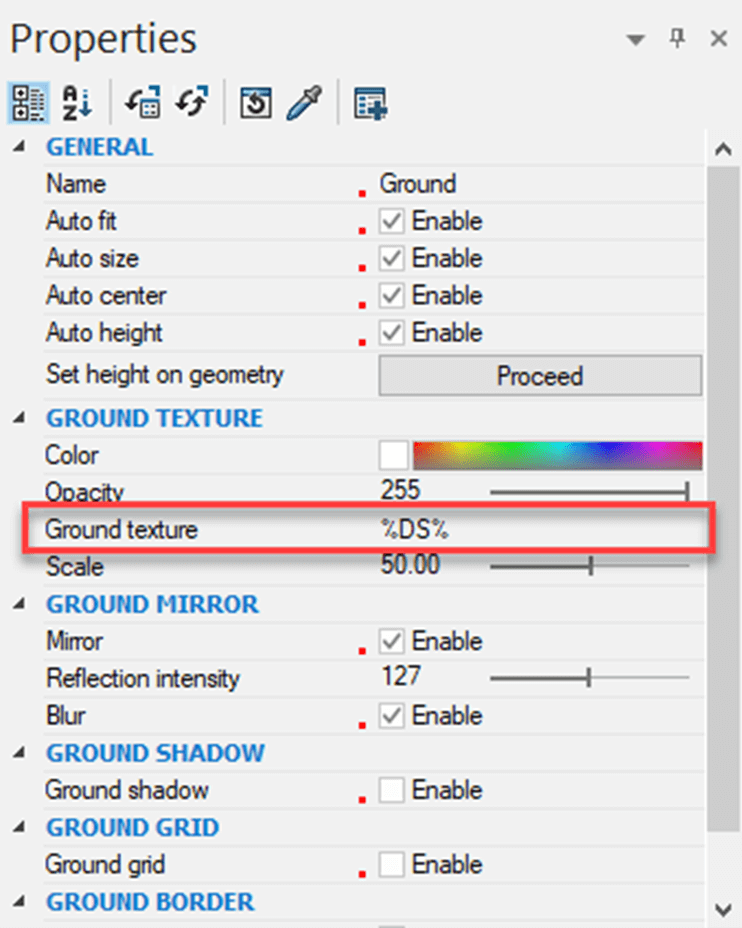 |
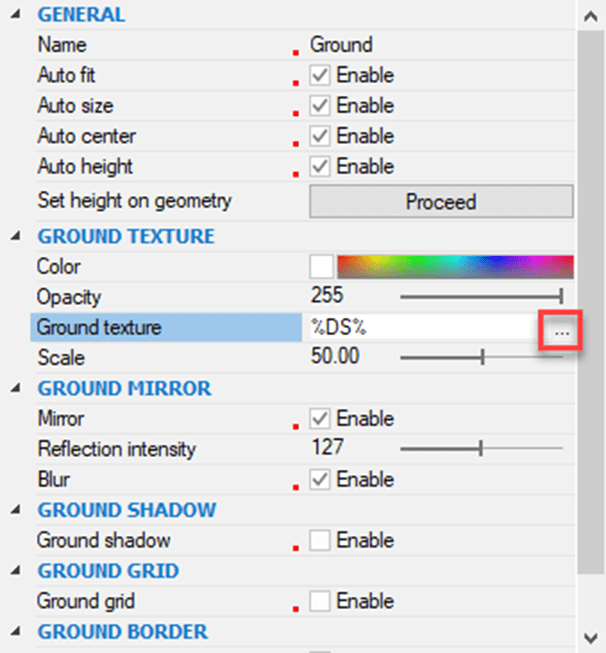
By default, this is using the Dassault Systèmes logo from the installation fileset. To change the image, click on the “…” button and browse to an image file.
 |
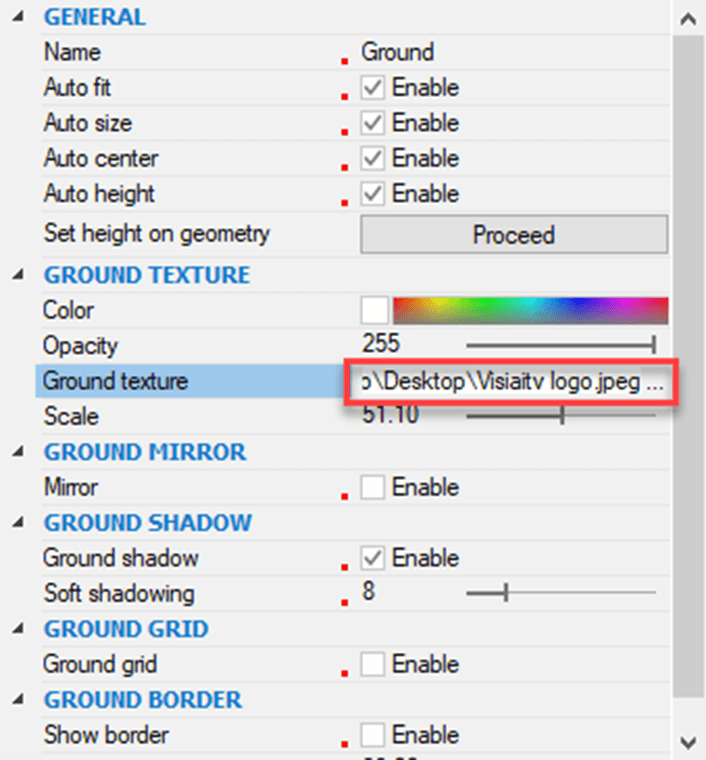 |
- Here I’ve selected Visiativ logo.

Supported image file formats include JPEG, Bitmap, Targa and RGB.
You can scale the image to suit your needs using the scale slider in the properties dialog. Also, the ground texture can be unique to every view in your project if you wish.
Set a Default Ground Texture
It’s also possible set the default ground texture for all future documents through the default document properties:
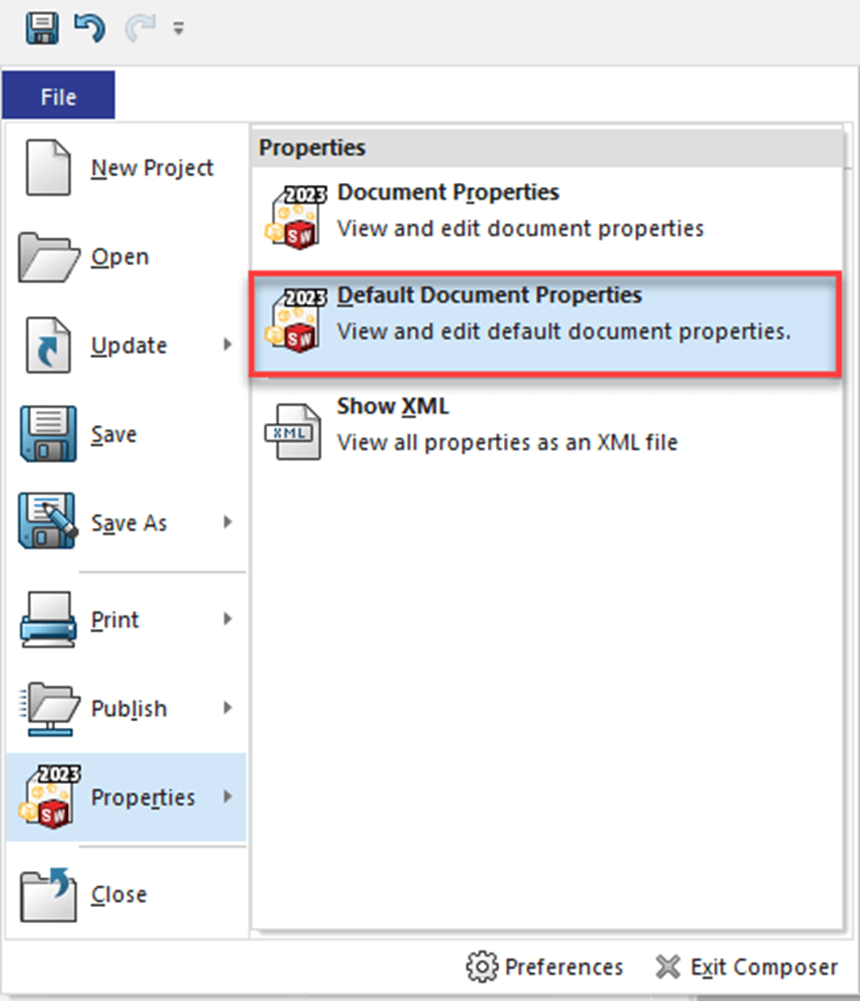 |
Browse to “Viewport” and set the ground texture to the image file of your choosing and any new document created will use that ground texture by default.
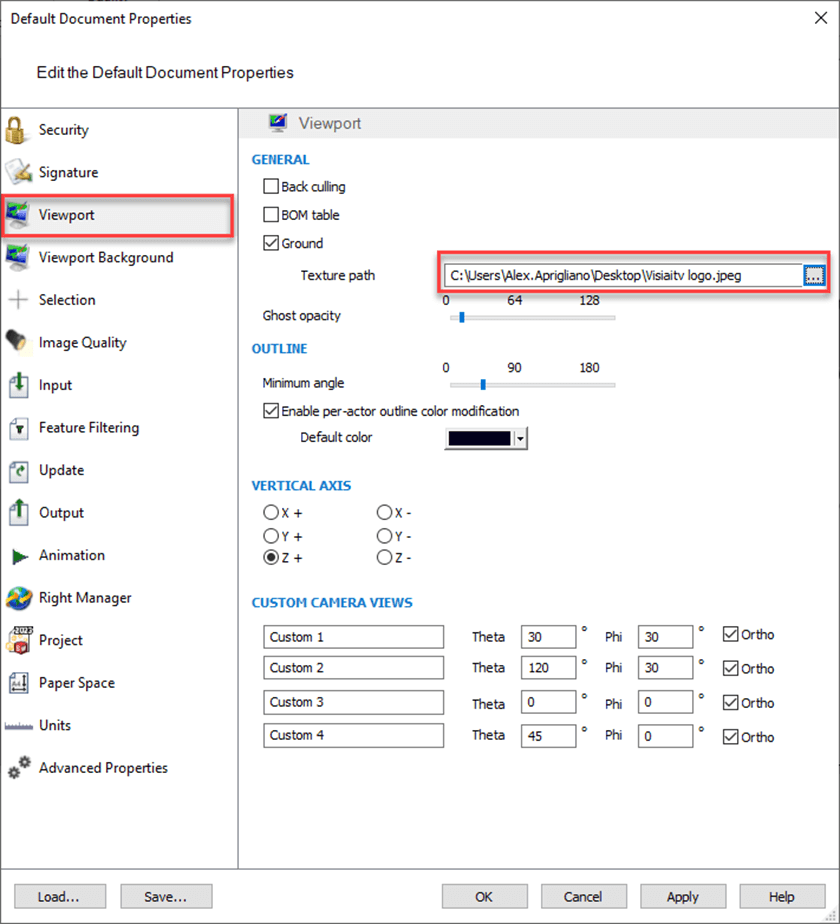
Customising the ground texture is a simple way to improve the visual consistency and professionalism of your Composer outputs. With just a few property changes, you can align your scenes with your branding or presentation requirements and apply those settings across future projects.
We hope you found this guide helpful, if you would like to discover more SOLIDWORKS tips, tricks or guides, visit our News and Resources page.

|
About the author: This tutorial was written by Elite SOLIDWORKS Applications Engineer and Technical Support Manager, Alex Aprigliano. Alex has been with the Visiativ Technical Support Team since 2007. |
|||
|
|
View Alex Aprigliano’s LinkedIn Profile here.
|
|||