How to Archive and Unarchive SOLIDWORKS Electrical Projects
21 January 2026
SOLIDWORKS Electrical is a suite of tools that helps engineers design, document and manage electrical schematics and wiring in sync with 3D CAD models, improving accuracy and collaboration across electrical and mechanical design. In this guide, we’ll walk through how to archive and unarchive SOLIDWORKS Electrical projects, so you can confidently store, transfer and restore your electrical designs when needed.
So, why would you need to archive a SOLIDWORKS Electrical project? Here are a few reasons why:
- You would like to take a backup of your project because it’s very important.
- You may have a customer that you have completed a project for, and they wish to have a copy of it.
- You may have asked your SOLIDWORKS value-added reseller for assistance with something and they’ve requested to see your project. You can send us a copy of that project, so we may look at a specific issue you may be having and can assist you better.
What is a SOLIDWORKS Electrical Project Archive?
This is a file that contains the whole project and all the information needed for, or is associated with, the project in one file. This includes the Bill of Materials (BOM), electrical schematics, symbols, parts and the configuration used. It should be absolutely everything you’d need to reproduce that project on another machine. An archive of an electrical project is similar in principle to a Pack and Go for SOLIDWORKS 3D models.
How to Archive a SOLIDWORKS Electrical Project
First, you need SOLIDWORKS Electrical open. If you haven’t already got the “Electrical Project Management” window open, you need to navigate to the Home tab and click Electrical Project. Now find the electrical project that you wish to archive.
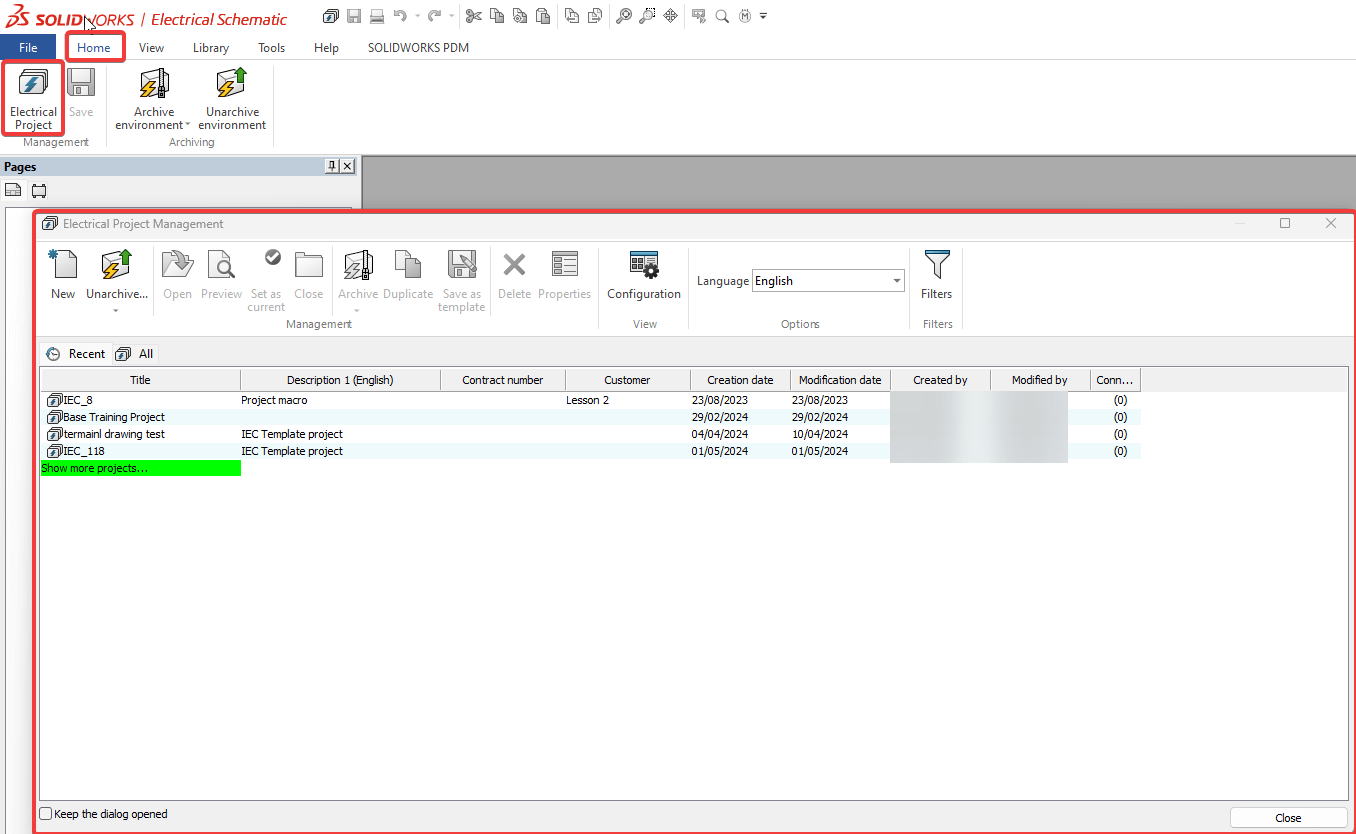
Next, select the project you want to archive so it’s highlighted, then click the Archive button (use the top half, not the dropdown).
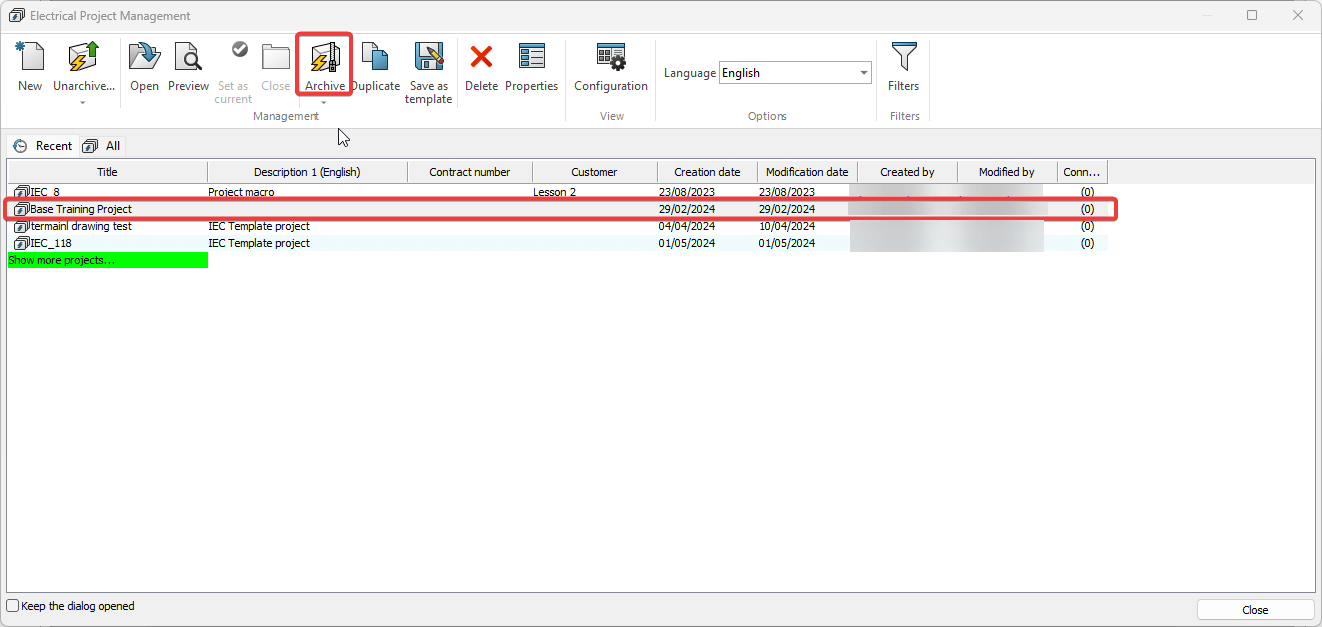
After you click the Archive button, the Windows Explorer “Save As” window appears. Navigate to where you would like to save the project. Change the file name if you wish. Then click the Save button.
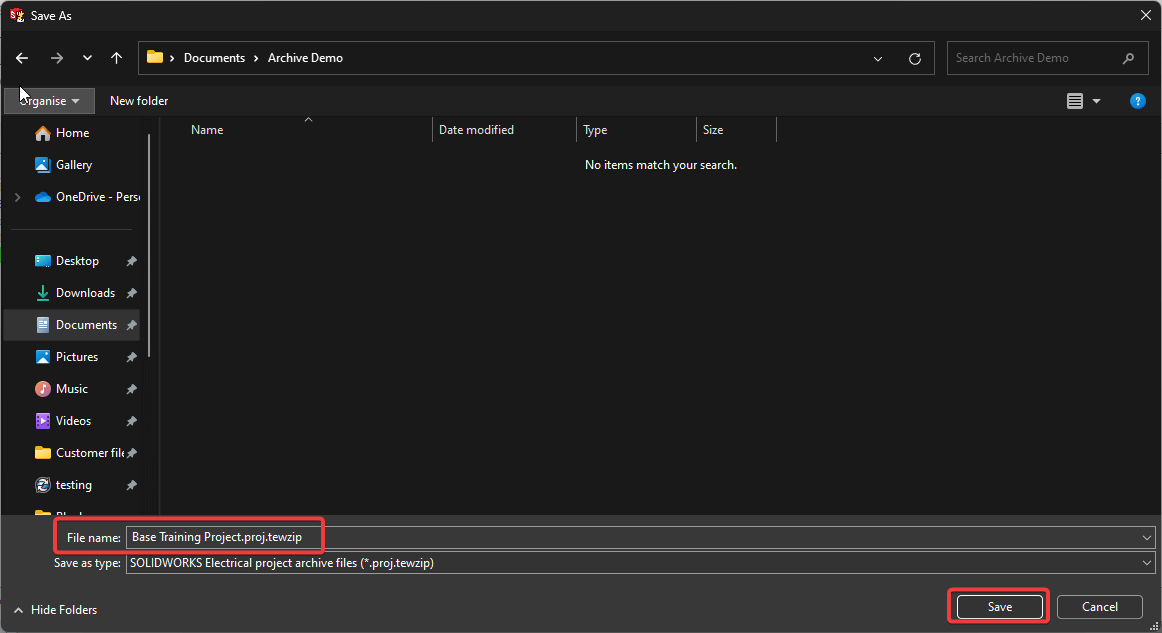
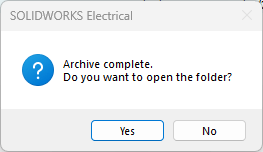
SOLIDWORKS Electrical will now archive that project to the chosen location. Once it’s completed the archive a message will be shown to confirm the archive process has been completed. You’ll be given the option to open the folder. Click Yes to open the folder location, or No to take no further action.
 |
You’ve now archived the electrical project successfully. This means that you now have a file you can share with others or save as a backup for later use.
How to Unarchive an Electrical Project
We’ll now go through the steps on how to unarchive a previously archived electrical project. This may have come from a colleague or a customer, or perhaps ourselves – demoing something, or fixing / creating something for you.
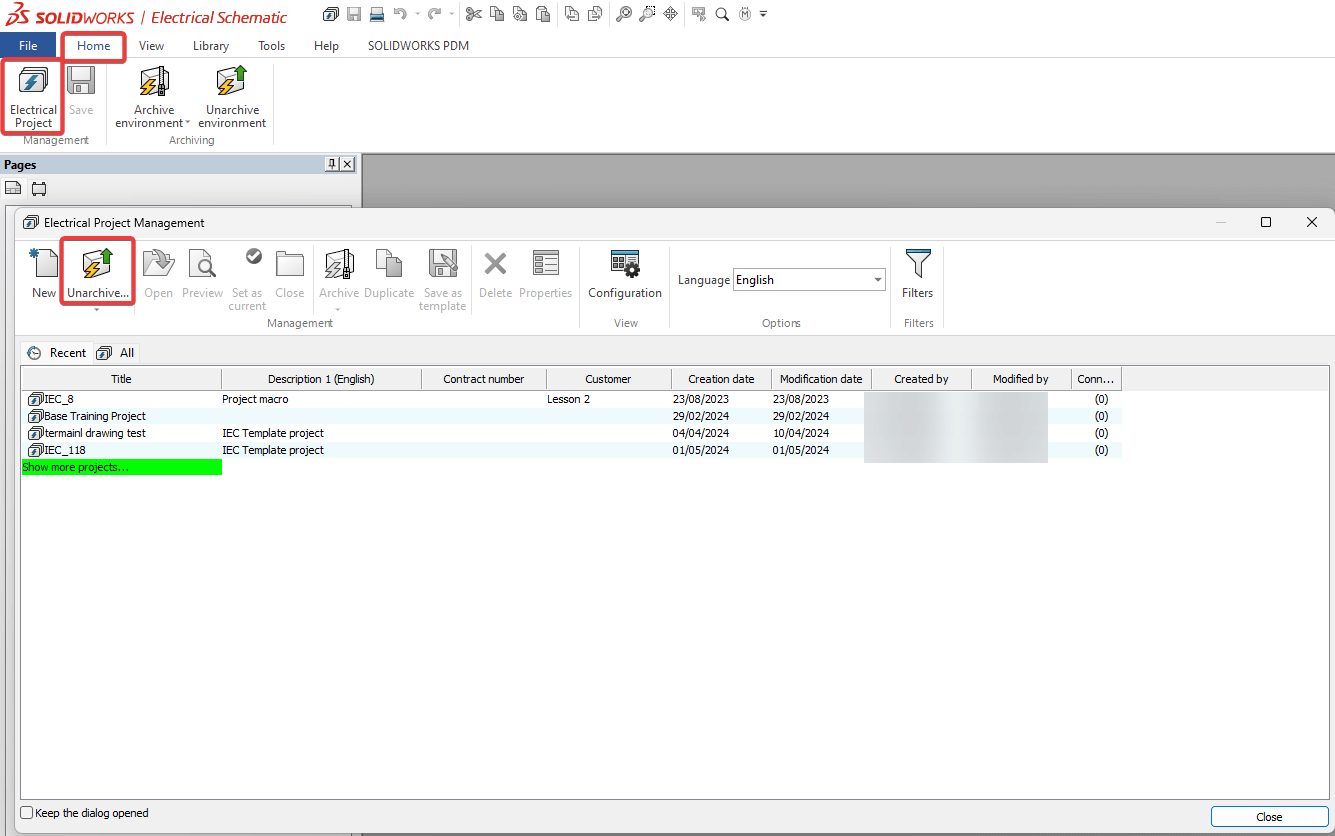
The first step is to start SOLIDWORKS Electrical then navigate to the “Electrical Project Management” window. To do this go to the Home tab click on Electrical Project and the window will open. Now click the Unarchive button.
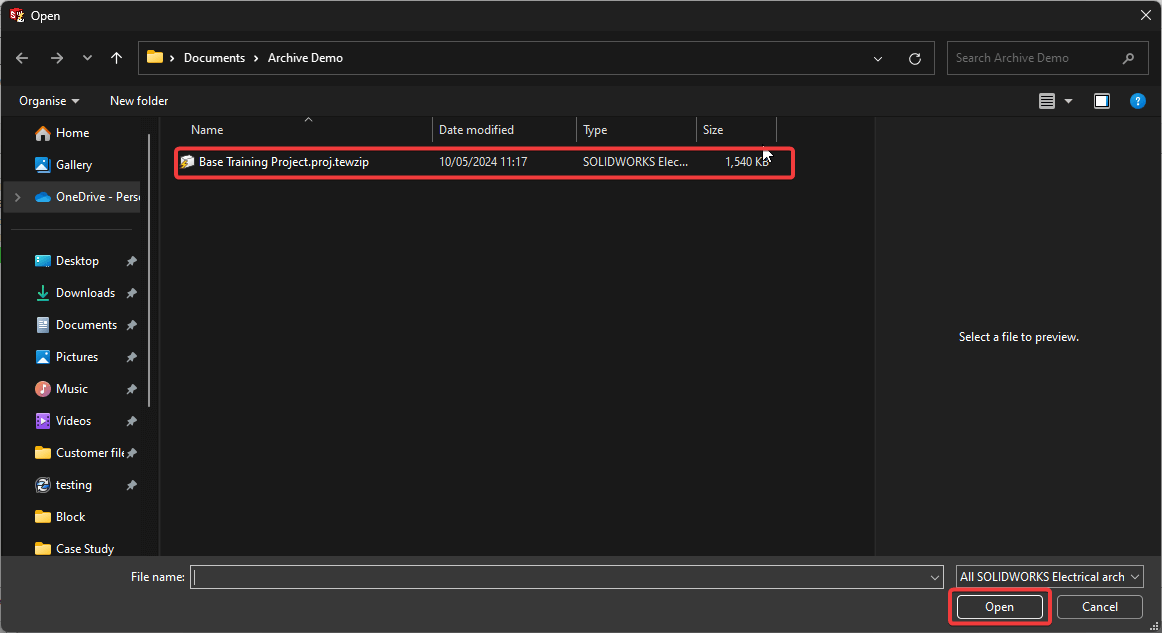
The Windows Explorer “Open” window will now appear. Navigate to the file that you wish to unarchive. Select that file and press the Open button as shown below.
After you click the Open button, the “Electrical Project Properties” window appears. Amend the properties, if applicable. Then click the OK button to proceed.
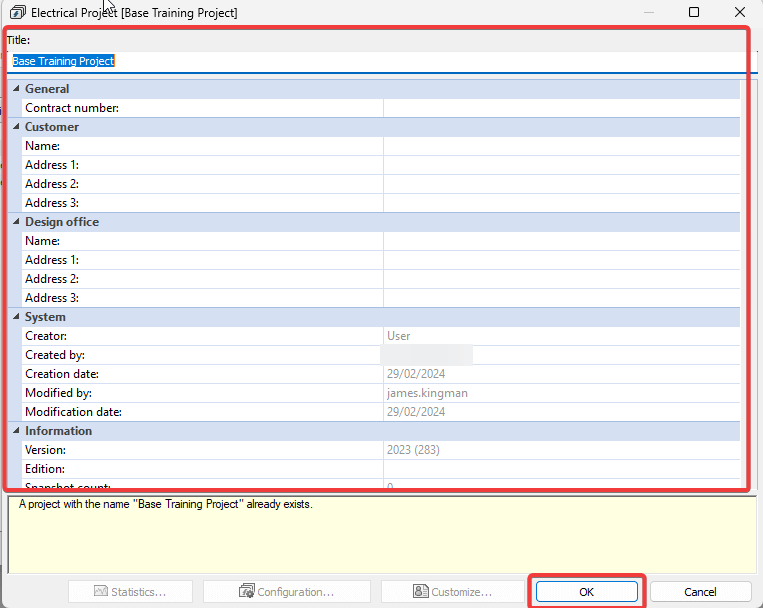
SOLIDWORKS Electrical will then proceed to unarchive the project. This may take a few minutes depending on the size of the project. The system prompts you to update data in your libraries. If you wish to add the data from this project to your libraries or update the existing data, then click Update data. If not, then click Do not update.
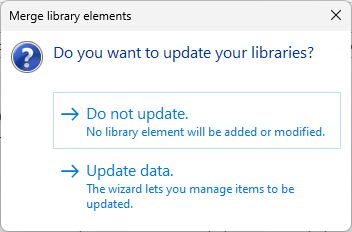 |
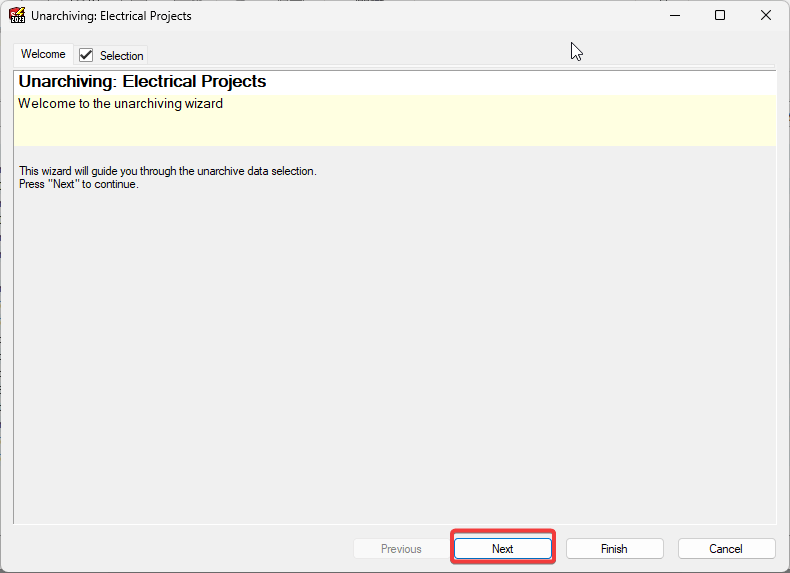
Should you choose to update the data, the “Unarchiving: Electrical Projects” wizard appears. Press the Next button to proceed to the “Selection” tab.
In the “Selection” tab you can select which items you wish to update. Tick items to make them available for update; leave them unticked to ignore them.
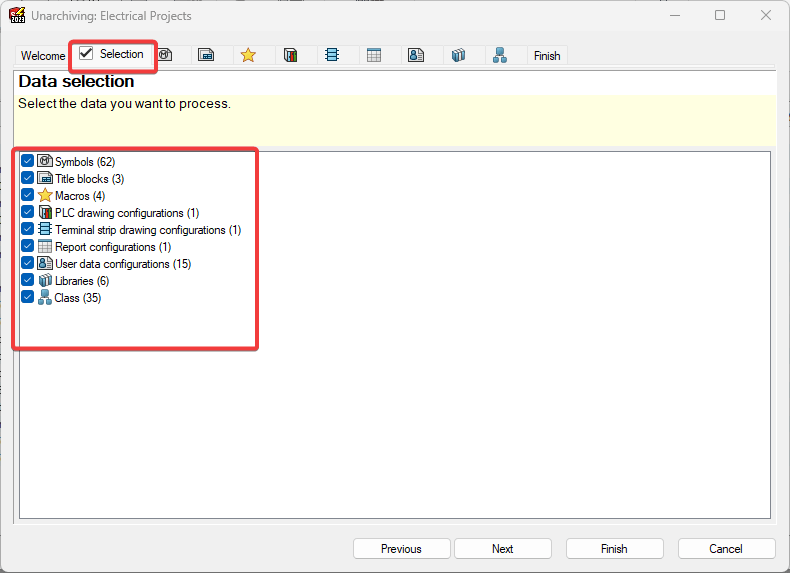
In the subsequent tabs, you choose what happens to specific items – whether they’re replaced, updated or left unchanged in your environment libraries.
After you make your selections, click Finish. If you’re not already on the “Finish” tab, it will then take you to the “Finish” tab. This is where you can click on Finish to confirm your selections. SOLIDWORKS Electrical will then update the libraries accordingly. A window opens and displays a report confirming what has been processed. Click on Close to leave the wizard.
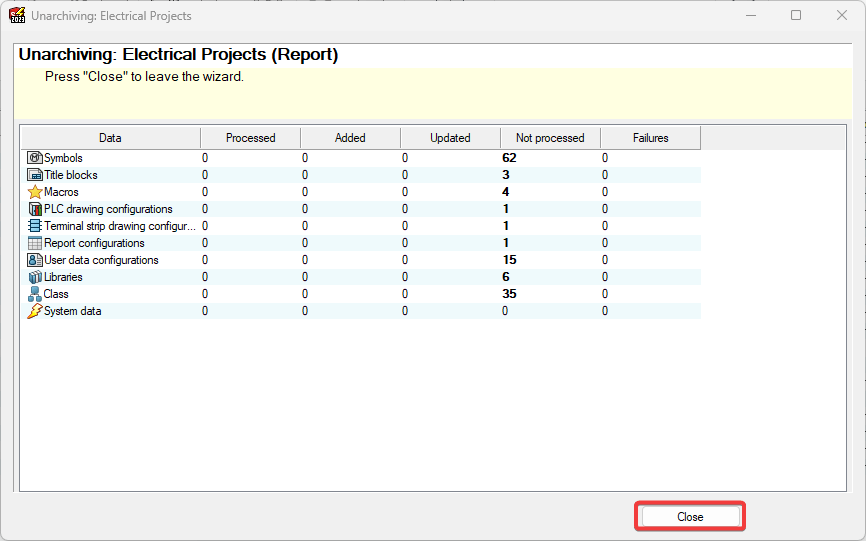
After clicking Close you’ll receive a message asking “Do you want to open this project?” Clicking Yes will open the unarchived project. If you click No, SOLIDWORKS Electrical will take no further actions.

You can now find your project alongside all your other projects in the SOLIDWORKS Electrical project management window.
From reading this guide you should now know how to archive and unarchive SOLIDWORKS Electrical projects. If you have any further questions about SOLIDWORKS Electrical, please don’t hesitate to get in touch.
You can find out more about SOLIDWORKS Electrical here.
 |
About the author: This guide was written by SOLIDWORKS Applications Engineer and Electrical expert, James Kingman. James has been with the Visiativ Technical Support Team since 2024. |
|||
|
|
||||